Connect Hyperleap to Claude Desktop in 5 Minutes (MCP Setup Tutorial)
Step-by-step guide to connecting Hyperleap AI to Claude Desktop using MCP. Query your chatbot leads, conversations, and pipeline in plain English.

TL;DR: Edit one JSON config file, paste in your Hyperleap API key, and restart Claude Desktop. In under five minutes you will have a working Claude Desktop MCP connection that lets you ask questions like "What happened with my hottest lead this week?" and get a real answer pulled live from your Hyperleap chatbot data — no dashboards, no exports, no SQL.
Connect Hyperleap to Claude Desktop Using MCP: Step-by-Step Tutorial
Your Hyperleap AI chatbots are having hundreds of conversations with leads every week. The data is all there — conversations, activities, pipeline stages, notes — but getting a clear answer out of it usually means logging into the dashboard, filtering by date, clicking through individual contacts, and mentally stitching together a picture.
The Model Context Protocol (MCP) changes that. MCP is an open standard that lets AI assistants like Claude Desktop connect directly to external data sources through a standardized interface. Hyperleap ships a native MCP server — meaning Claude can query your chatbot data in real time, in plain English, without you touching a single filter.
This tutorial walks you through the Hyperleap Claude Desktop MCP setup from start to finish. If you follow each step in order, you will be querying your lead pipeline from Claude Desktop in about five minutes.
What You Will Have at the End
A working Claude Desktop MCP integration that connects to your Hyperleap account. Ask Claude natural-language questions about your leads, conversations, pipeline, and chatbot activity — and get answers drawn directly from your live data.
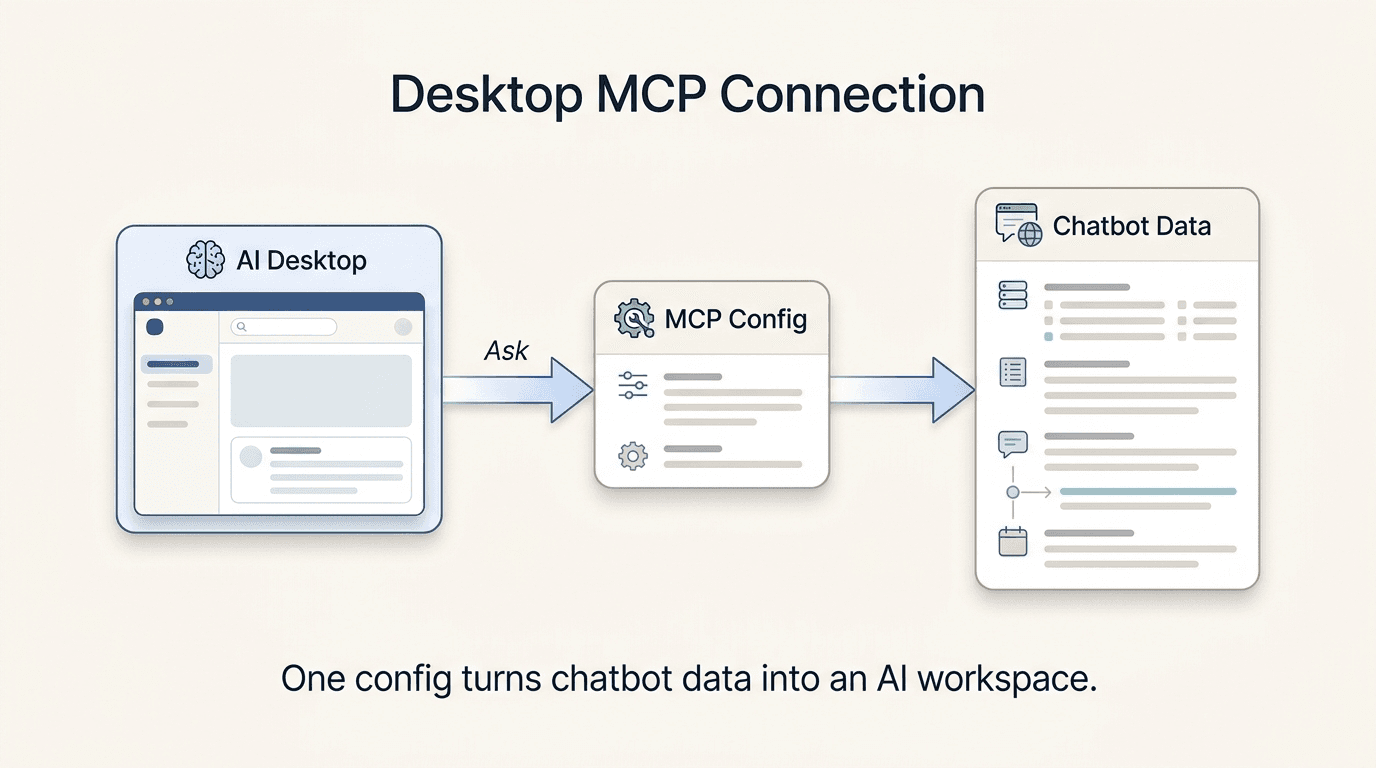
What You Will Build
By the end of this guide, Claude Desktop will have access to nine read-only tools connected to your Hyperleap account. You will be able to type questions like:
- "What happened with my hottest lead this week?"
- "Show me all conversations from leads who came through the WhatsApp chatbot."
- "Which pipeline stage has the most leads stuck right now?"
Claude will call the appropriate Hyperleap tools, pull the data, and give you a synthesized answer — in the same conversation window where you already work.
This is not a report export. It is a live, conversational interface to your CRM data. The integration is read-only, so Claude can query and summarize your data but cannot modify, delete, or write anything back to Hyperleap.
Prerequisites
Before you start, confirm you have the following:
- A Hyperleap account on any paid plan. The MCP server is available on Plus, Pro, and Max plans. If you are on a free trial, check whether your trial includes API access under Settings → Developer. Learn more about Hyperleap's MCP integration.
- Claude Desktop installed. Download the latest version from claude.ai/download. The MCP tools panel is available in Claude Desktop for both macOS and Windows — the web version of Claude does not support MCP.
- Your Hyperleap API key. You will generate this in the next step. API keys live in your Hyperleap workspace under Settings → Developer → API Keys.
- Node.js installed (version 18 or later). The MCP server runs via
npx, which ships with Node.js. Verify by runningnode --versionin your terminal. If you do not have Node.js, download it from nodejs.org.
Step-by-Step Setup
Step 1: Generate Your Hyperleap API Key
Log in to your Hyperleap workspace and navigate to Settings → My MCP Keys. Click Create New Key, give it a descriptive name like claude-desktop-mcp, and copy the key to your clipboard. You will not be able to see it again after closing this dialog.
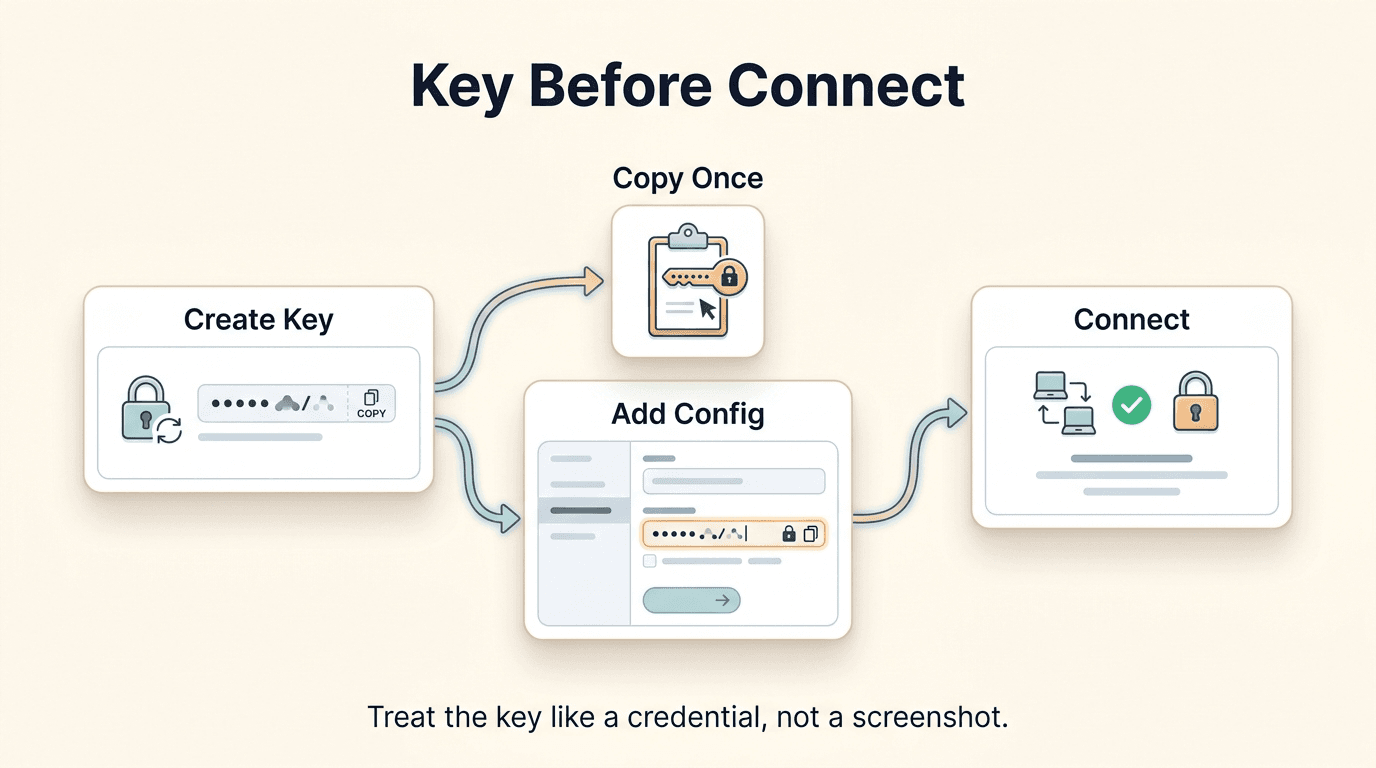
You should now see your new API key listed with the name you gave it and a "Last used: Never" status.
Step 2: Open the Claude Desktop Config File
Claude Desktop reads its MCP server configuration from a JSON file on your local machine. Open this file in any text editor — VS Code, Notepad, TextEdit, or even a terminal editor works fine.
On macOS, the file is at:
~/Library/Application Support/Claude/claude_desktop_config.json
Open it with:
open -e ~/Library/Application\ Support/Claude/claude_desktop_config.json
Or in VS Code:
code ~/Library/Application\ Support/Claude/claude_desktop_config.json
On Windows, the file is at:
%APPDATA%\Claude\claude_desktop_config.json
Open File Explorer, paste %APPDATA%\Claude\ into the address bar, and double-click claude_desktop_config.json.
If the file does not exist yet, create it as an empty file at that path. If it already exists and has content (for example, other MCP servers you have already configured), that is fine — you will add to it, not replace it.
You should now have the config file open in your text editor.
Step 3: Add the Hyperleap MCP Server Entry
This is the core step. You need to add a hyperleap entry inside the mcpServers object. Paste the following configuration into your config file:
{
  "mcpServers": {
    "hyperleap": {
      "command": "npx",
      "args": ["-y", "@hyperleap/mcp-server"],
      "env": {
        "HYPERLEAP_API_KEY": "your-api-key-here"
      }
    }
  }
}
Replace your-api-key-here with the API key you copied in Step 1.
If you already have other MCP servers configured, do not replace the entire file. Instead, add the "hyperleap" block inside your existing mcpServers object alongside the others:
{
  "mcpServers": {
    "some-other-server": {
      "command": "...",
      "args": ["..."]
    },
    "hyperleap": {
      "command": "npx",
      "args": ["-y", "@hyperleap/mcp-server"],
      "env": {
        "HYPERLEAP_API_KEY": "your-api-key-here"
      }
    }
  }
}
Save the file after pasting.
Keep Your API Key Private
Your API key grants read access to your Hyperleap workspace data. Do not commit this config file to a public git repository, and do not share it with anyone who should not have access to your lead and conversation data.
You should now have a saved config file with a valid JSON structure and your API key in place.
Step 4: Restart Claude Desktop
Fully quit Claude Desktop — do not just close the window. On macOS, right-click the Claude icon in the Dock and choose Quit. On Windows, right-click the system tray icon and select Exit.
Then relaunch Claude Desktop from your Applications folder or Start Menu.
Claude Desktop reads the config file on startup. The first launch after adding a new MCP server may take a few extra seconds while npx downloads and caches the @hyperleap/mcp-server package.
You should now see Claude Desktop open normally.
Step 5: Verify the Hyperleap Tools Are Loaded
Once Claude Desktop has restarted, open a new conversation. Look for the MCP tools panel — on macOS it appears as a small plug icon or hammer icon in the bottom toolbar of the chat input area. Click it to expand the tools list.
You should see Hyperleap listed as a connected server with its nine tools available:
list_leadsget_lead_detailsget_lead_conversationsget_conversationget_lead_activitiesget_lead_notesget_pipeline_stagesget_crm_dashboardextract_lead_insights
You should now see all nine Hyperleap tools listed and active. If they do not appear, jump to the Troubleshooting section below.
For a full description of what each tool does and what parameters it accepts, see the Hyperleap MCP tools reference.
Step 6: Run Your First Query
Type a plain-English question into Claude. A good first query to confirm the connection is live:
Show me a summary of my current CRM dashboard — how many leads do I have and what's the pipeline breakdown?
Claude will call the get_crm_dashboard tool, retrieve the data from your Hyperleap workspace, and return a summary in the chat.
You should now see a response that reflects your actual Hyperleap data — lead counts, pipeline stages, and activity metrics. The setup is complete.
First 5 Prompts to Try
Now that the connection is live, here are five prompts that demonstrate what the integration can do. Each one uses one or more of the nine Hyperleap tools under the hood.
Prompt 1: Get your CRM dashboard overview
Give me a quick overview of my Hyperleap CRM — total leads, how many are active,
and which pipeline stage has the most contacts.
Expected response: Claude calls
get_crm_dashboardand returns a structured summary. "You have 142 leads total. 89 are active. The largest concentration is in the 'Qualified' stage with 34 leads, followed by 'New Inquiry' with 28."
Prompt 2: Surface your hottest recent lead
Who is my most recently active lead and what have they been talking about?
Expected response: Claude calls
list_leadsto find recent activity, thenget_lead_conversationsto pull the conversation thread. "Your most recently active lead is Sarah Chen from Meridian Retail — she started a conversation via your website chatbot 3 hours ago asking about your Pro plan features and pricing. She has not yet responded to the follow-up question about team size."
Prompt 3: Review a specific lead's full history
Pull up everything you know about the lead named James Okafor —
their conversations, activities, and any notes my team has added.
Expected response: Claude calls
get_lead_details,get_lead_conversations,get_lead_activities, andget_lead_notesin sequence. "James Okafor came in through the WhatsApp chatbot on April 28. He asked about integrating with Facebook Messenger. Your team added a note on April 30: 'Sent pricing deck, following up Friday.' No response since."
Prompt 4: Identify leads that need follow-up
Which leads have had a conversation in the last 7 days but haven't moved
pipeline stages? I want to know who might need a follow-up.
Expected response: Claude calls
list_leadswith activity filters andget_pipeline_stagesto cross-reference. "Three leads had chatbot conversations this week but are still in the 'New Inquiry' stage: David Park (4 days ago, Instagram DM), Lena Fischer (2 days ago, website), and Omar Al-Rashid (6 days ago, WhatsApp). None have notes from your team."
Prompt 5: Extract insights from a conversation
Look at the conversation with lead ID [paste an ID from your dashboard]
and tell me what the lead's main concern was and what questions went unanswered.
Expected response: Claude calls
get_conversationandextract_lead_insights. "The lead's primary concern was response time — they asked twice whether the chatbot could escalate to a human agent. The question about your refund policy was not answered before the conversation ended. Suggested follow-up angle: reassure them on human handoff and share the refund terms."
Troubleshooting
Tools do not appear in Claude Desktop after restart
Most likely cause: A JSON syntax error in claude_desktop_config.json.
Open the file and validate the JSON. Every opening brace needs a closing brace, every key needs quotes, and commas between entries must not trail the last item. Paste the file contents into jsonlint.com to catch formatting errors instantly. Once fixed, save and restart Claude Desktop again.
Second possible cause: Node.js is not installed or is below version 18. Run node --version in your terminal. If you get an error or a version below 18, install or update Node.js from nodejs.org.
"Authentication failed" or "Unauthorized" error
Cause: The API key is missing, incorrect, or has been revoked.
Go back to Hyperleap Settings → Developer → API Keys and verify the key you pasted matches exactly — no extra spaces, no missing characters. If you have any doubt, generate a new key, update the config file, and restart Claude Desktop.
Also confirm your Hyperleap account is on a paid plan. API access requires Plus, Pro, or Max.
"No leads returned" when querying leads
Cause: Your workspace may have no leads yet, or the tool is filtering by a date range that returns zero results.
Try a broader query first: "List all leads in my Hyperleap account." If that also returns nothing, log in to your Hyperleap dashboard and confirm there are leads visible there. If leads exist in the dashboard but not in Claude, contact Hyperleap support with your API key name and the exact error text from Claude.
npx command not found
Cause: Node.js is not installed, or the npx binary is not on your system PATH.
Run which npx (macOS/Linux) or where npx (Windows) in your terminal. If nothing returns, install Node.js from nodejs.org — npx ships with it. After installing, restart your terminal and try the query again in Claude Desktop.
Claude says "I don't have access to Hyperleap tools"
Cause: You may be using the Claude web interface instead of Claude Desktop, or the MCP server failed to start silently.
MCP tools only work in Claude Desktop — not in the browser at claude.ai. If you are already in Claude Desktop, open Claude → Settings → Developer (on macOS) and check the MCP server logs for startup errors. The log will show exactly why the server failed to initialize.
What to Read Next
- Hyperleap MCP Tools Reference — A full breakdown of all nine tools: parameters, return shapes, and example queries for each one.
- Connect Hyperleap to Cursor via MCP — The same integration, configured for Cursor IDE — useful if you want to query your Hyperleap data alongside your codebase.
- Run Your Sales Standup with Claude Desktop and MCP — A practical workflow for using Claude + Hyperleap MCP to run a five-minute weekly pipeline review without touching the dashboard.
- Hyperleap MCP Integration Overview — The product page for Hyperleap's MCP server, including supported plans and the full tool list.
- Hyperleap MCP Setup Docs — The official setup documentation, including advanced configuration options.
Frequently Asked Questions
Does this work on Windows as well as macOS?
Yes. The config file path differs — on Windows it is %APPDATA%\Claude\claude_desktop_config.json — but the JSON structure and the npx command are identical across platforms. The nine Hyperleap tools behave the same way on both operating systems.
Is my data sent to Anthropic when I use the MCP integration?
When you ask Claude a question and it calls a Hyperleap MCP tool, the data returned by the tool (your lead details, conversations, etc.) is included in the context that Claude processes to generate its response. Anthropic's standard Claude Desktop data handling policies apply. For sensitive commercial data, review Anthropic's privacy policy and your organization's data sharing policies before using the integration with production data.
Can Claude modify or delete my Hyperleap data through MCP?
No. All nine Hyperleap MCP tools are read-only. Claude can query, retrieve, and summarize your data, but it has no ability to create, update, or delete leads, conversations, notes, or pipeline stages through this integration. There is no write access in the current MCP server.
Which Hyperleap plans include MCP access?
MCP access is available on all paid Hyperleap plans: Plus ($40/mo), Pro ($100/mo), and Max ($200/mo). It is not available during a free trial by default — check Settings → Developer to confirm your access level. See the MCP integration page for up-to-date plan eligibility.
How do I get my Hyperleap API key?
Log in to your Hyperleap workspace, go to Settings → Developer → API Keys, and click Create New Key. Copy the key immediately after generating it — Hyperleap shows it only once for security. Store it in a password manager or secure note before adding it to your config file.
Can I connect multiple Hyperleap workspaces to Claude Desktop?
Not currently in a single config block — the @hyperleap/mcp-server connects to one workspace per API key. If you manage multiple workspaces, you would need to add separate named entries in mcpServers (e.g., "hyperleap-workspace-1", "hyperleap-workspace-2") with different API keys, and restart Claude Desktop to load both. Each will appear as a separate tool group.
What data sources do the Hyperleap MCP tools query?
The nine tools query data captured by your Hyperleap AI chatbots — leads who have interacted with your chatbot on Website, WhatsApp, Instagram DM, or Facebook Messenger. They do not connect to external CRMs, email, or ad platforms. The data is whatever your chatbot has collected and stored in Hyperleap's CRM layer.
What should I do if I see a "rate limit exceeded" error?
Hyperleap's API enforces rate limits to protect service stability. If you hit a rate limit, wait 30–60 seconds before running your next query. If you are running many queries in rapid succession (for example, looping through a long list of leads), add pauses between requests or consolidate your questions so Claude calls fewer tools per conversation turn. If rate limits are a persistent issue for your use case, contact Hyperleap support to discuss higher-tier API access.
Ready to Set Up MCP?
Head to the Hyperleap MCP setup docs for additional configuration options, or visit the MCP integration overview to learn what's available on your plan.
Related Articles

Coach Sales Reps with AI Chatbot Transcripts (via MCP)
Use Claude Desktop to find chatbot conversations matching any coaching theme — objections, discovery, closing — and turn transcript review into a weekly ritual.

Run Sales Standups in Claude Desktop with Hyperleap MCP
Replace your Monday pipeline review with a 15-minute Claude Desktop session. 10 natural-language prompts that pull live data from your Hyperleap chatbot.

What is MCP (Model Context Protocol)? SMB Guide
MCP lets AI tools like Claude and Cursor query your business data directly. Here is what Model Context Protocol means, why it matters, and how to use it.

Qualify Leads in Claude Desktop with Hyperleap MCP
Stop scoring leads from gut feel. Connect Claude Desktop to Hyperleap via MCP and qualify every chatbot-captured lead on real intent signals — prompts, a scoring workflow, and how to prioritize who gets called first.