Wix · Website embed
Wix Chatbot:
Add AI Chat in 5 Minutes
To add a chatbot on Wix: create your Hyperleap AI agent, copy the embed snippet, and paste it into Wix via Settings > Custom Code (or an HTML Embed element) — about 5 minutes, no apps to install, no coding. It answers instantly from your own knowledge base, 24/7, so the questions that interrupt your day — pricing, availability, "do you do X?" — get answered the moment they're asked, and every inquiry becomes a captured lead.
5-minute embed|Widget embed — not a Wix API integration|Works alongside Wix Ascend
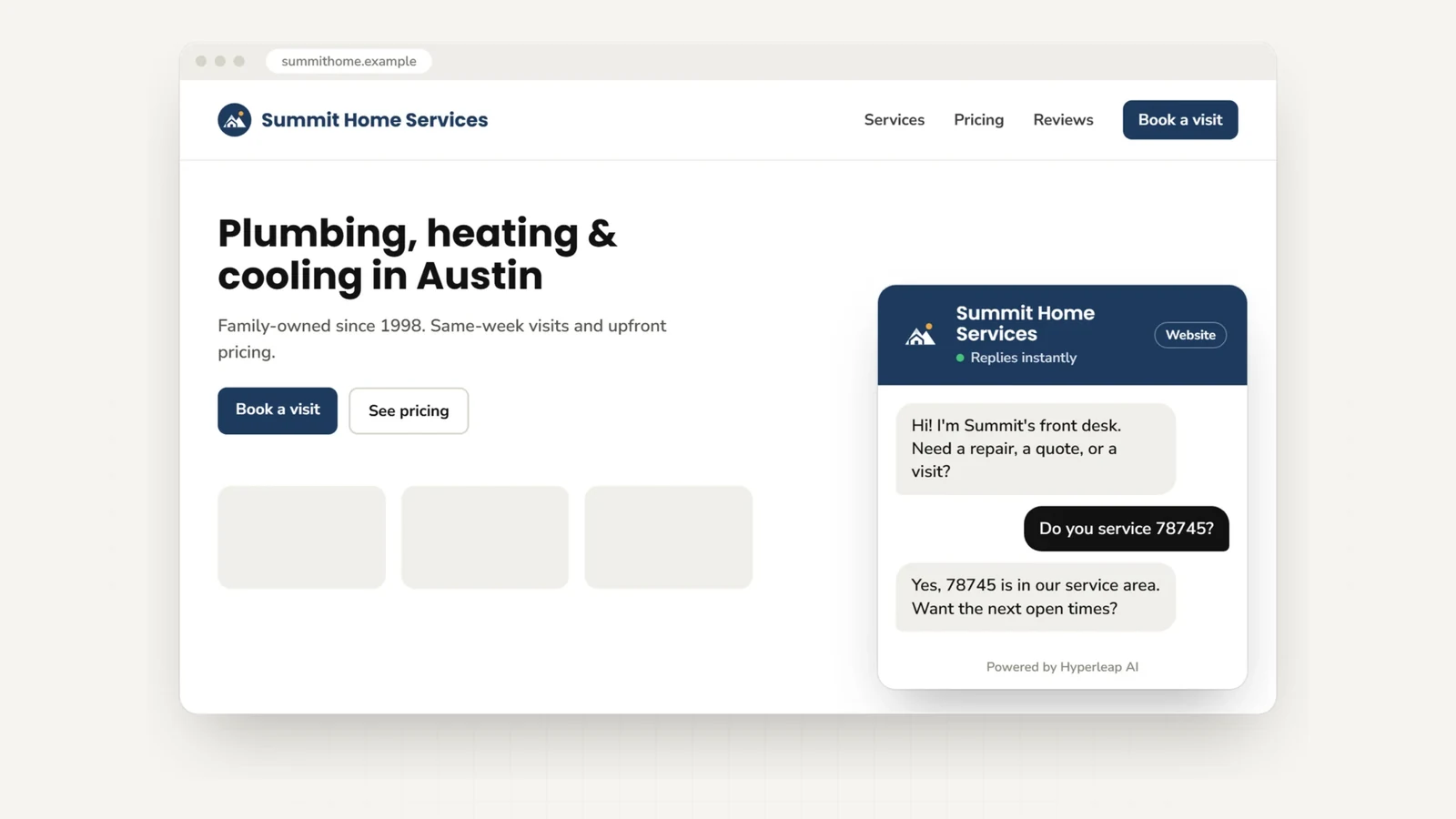
Quick Answer
A Wix chatbot is a chat widget you embed on your Wix website to answer visitor questions automatically, 24/7. To add one: in your Wix Dashboard, go to Settings > Advanced > Custom Code, paste the Hyperleap embed script, set it to load on All Pages in Body – end, and publish. The chatbot answers from your uploaded knowledge base, captures lead details, and works across WhatsApp, Instagram DM, and Facebook Messenger from the same setup. Site-wide deployment via Custom Code requires a Wix premium plan with a connected domain; free Wix plans can use the HTML Embed element on individual pages. Plans start at $40/month with a 7-day free trial.
Why it matters
Why Add a Chatbot to Your Wix Website?
Most Wix sites rely on a contact form or basic live chat. The problem: both require a human to respond. A visitor who submits a form at 9pm gets a reply the next morning — if they haven't already booked with someone else. A chatbot for Wix closes that gap: it answers the moment someone asks, collects their details, and keeps every lead warm until you follow up.
24/7 Automated Answers
Your Wix chatbot answers visitor questions around the clock — hours, pricing, services, availability — so the same questions stop interrupting your day.
Lead Capture on Autopilot
Collect visitor names, emails, and phone numbers during every conversation. Turn anonymous Wix traffic into a list of warm leads waiting in your dashboard.
Document-Grounded Answers
Upload your FAQs, service pages, or policies and the chatbot responds from that content — designed to minimize hallucinations and stay on-brand. No scripting required.
One Setup, Four Channels
The same chatbot that works on your Wix site also runs on WhatsApp Business API, Instagram DM, and Facebook Messenger. Train once, deploy everywhere.
Built Not to Slow Your Site
The widget script loads asynchronously, so your Wix page content renders first and the widget appears after it.
Matches Your Brand
Customize widget colors, welcome message, chat position, and avatar to fit your Wix site design. Looks native, not bolted on.
On every plan
- Answers from your pages, PDFs, and FAQs
- A contact form before the chat, with leads and transcripts emailed to your team
- Replies in 100+ languages
- A widget matched to your branding, on desktop and mobile
On Pro and Max
- Books appointments in the chat with Calendly or Cal.com (on Plus, it shares your booking link)
- Hands the chat to a person, who can take over and hand it back to the AI
- Shares photos, documents, and videos as cards
- Calls your own API to look up an order or submit a request (Actions)
- Removes the Hyperleap badge from the widget
Wix plan note: Adding a chatbot site-wide via Custom Code requires a Wix premium plan with a connected domain. Free Wix sites can still embed the chatbot on individual pages using the HTML Embed element (Method 2 below). This is a Wix platform requirement — not a Hyperleap limitation.
Setup
How to Add a Chatbot to Wix (Step-by-Step)
Method 1: Custom Code — Recommended (Wix Premium Plans)
This method deploys the Wix chatbot across every page of your site in a single step. It uses the Custom Code feature in your Wix dashboard — no visual editor changes needed. Requires a Wix premium plan with a connected domain.
Open Your Wix Dashboard
Go to wix.com, log in, and select your site. Click "Settings" in the left sidebar.
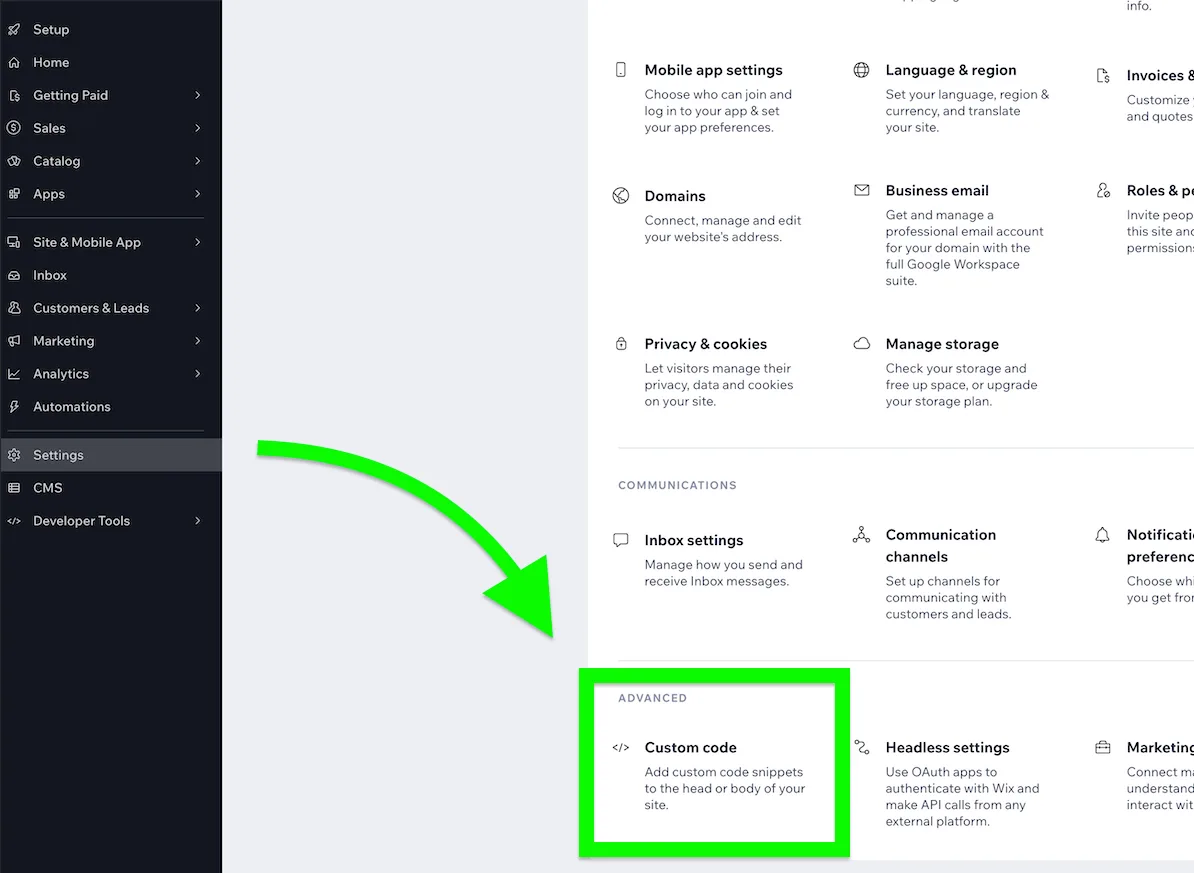
Navigate to Custom Code
Scroll down to the "Advanced" section in Settings and click "Custom Code".
Click Add Custom Code
Click the "+ Add Custom Code" button at the top right of the Custom Code page.
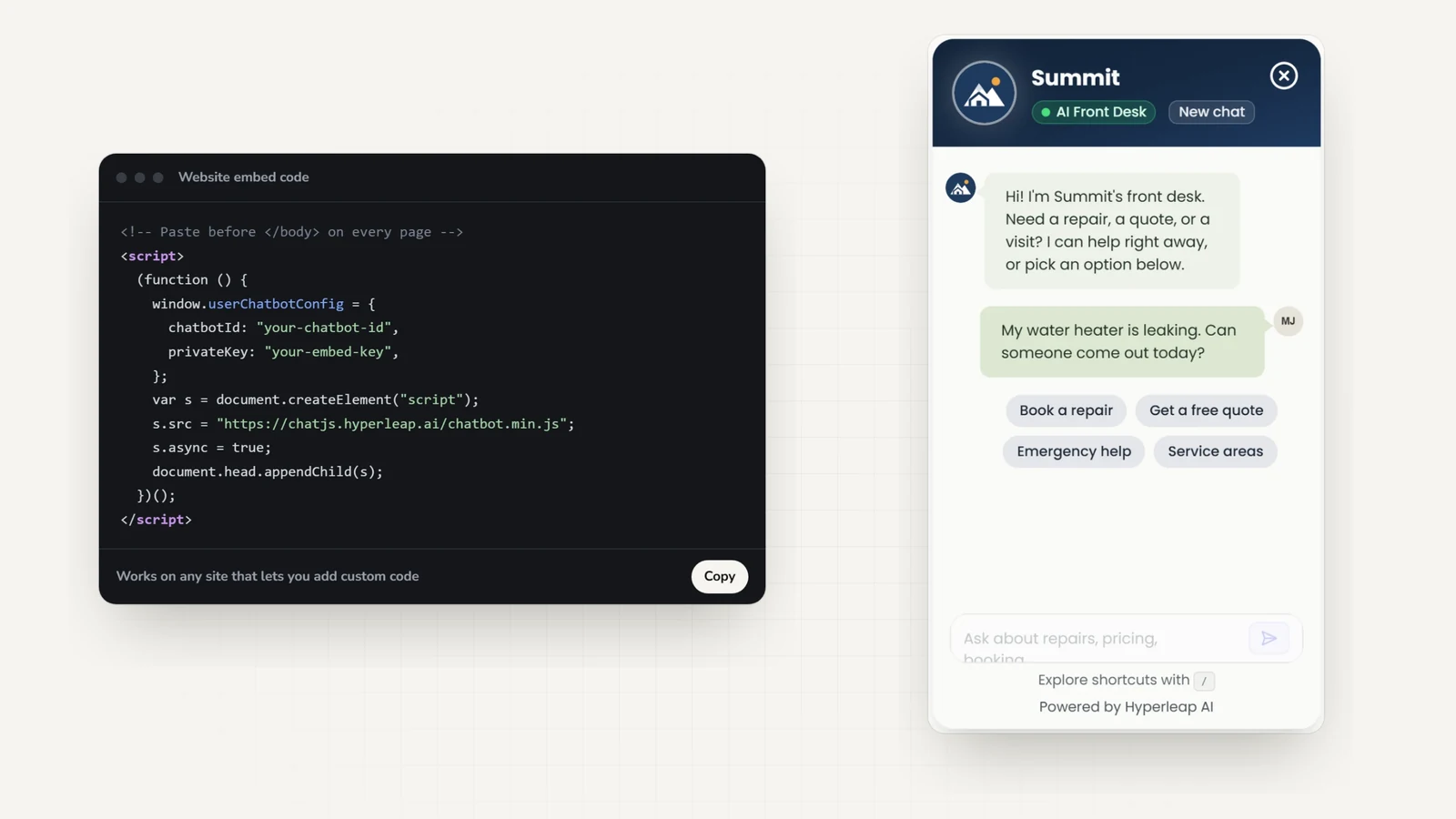
Paste Your Hyperleap Embed Script
In Hyperleap Studio, open your chatbot and click Publish to copy the embed code. Paste it in the code box and name it "Hyperleap Chatbot".
<script>
   (function () {
        window.userChatbotConfig = {
            chatbotId: "YOUR_CHATBOT_ID",
            privateKey: "YOUR_PRIVATE_KEY",
        };
        var chatbotScript = document.createElement("script");
        chatbotScript.src = "https://chatjs.hyperleap.ai/chatbot.min.js";
        chatbotScript.async = true;
        document.head.appendChild(chatbotScript);
    })();
</script>Set Placement to All Pages / Body End
Under "Add Code to Pages", select "All pages". Under "Place Code in", select "Body – end". This loads the script just before </body> on every page.
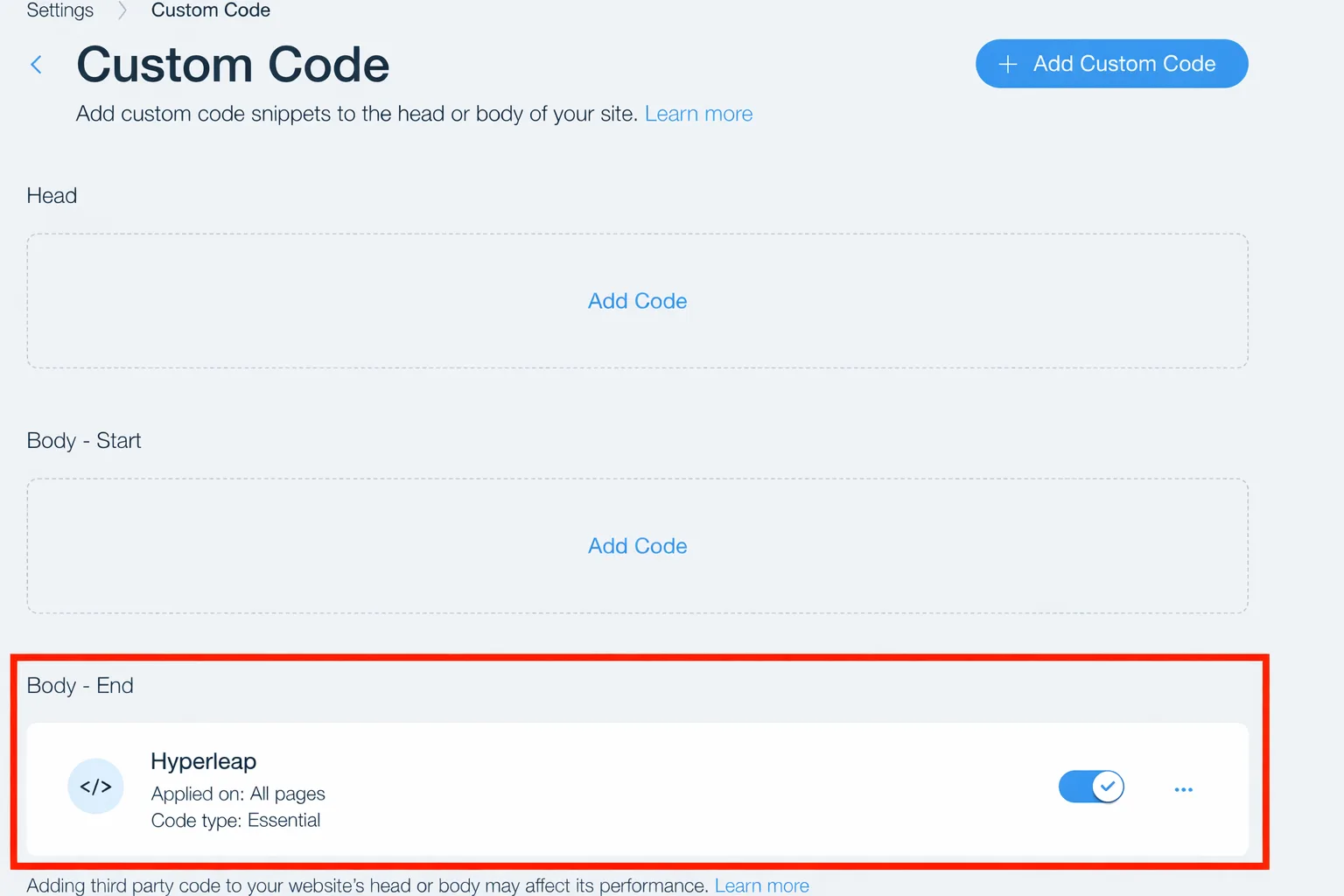
Apply and Publish
Click "Apply" to save the code. Then go to your site editor and click "Publish". Your Wix chatbot goes live immediately across your entire site.
Free plans
Add a Wix Chatbot on Free Plans (HTML Embed)
Method 2: HTML Embed Element — Works on Free Wix Plans
If you are on a free Wix plan, use the HTML Embed element to add the chatbot to individual pages. You will need to repeat this on each page where you want the chatbot to appear.
- 1Open your site in the Wix Editor
- 2Click the "+" (Add) button in the left sidebar
- 3Go to "Embed Code" > "Embed HTML"
- 4A gray placeholder box will appear — drag it to any position on the page
- 5Click "Enter Code" on the element
- 6Select "Code" mode in the popup dialog
- 7Paste your Hyperleap embed code (in Hyperleap Studio, open your chatbot and click Publish)
- 8Click "Update" and then publish your site
Important: The HTML Embed method works on free Wix plans, but the chatbot only appears on pages where you add the element manually. For site-wide deployment (home page, product pages, blog, checkout), use Method 1 (Custom Code on a premium plan).
Developers
Wix Chatbot via Velo (Developer Option)
Method 3: Velo by Wix — Advanced / Programmatic Control
Developers who want to control when and how the chatbot initializes can use Velo (Wix's code platform) to inject the widget programmatically:
- 1In the Wix Editor, click "Dev Mode" in the top menu bar
- 2Click "Turn on Dev Mode"
- 3In the left panel, open "Page Code" or "Site Code"
- 4For site-wide: open masterPage.js
- 5Add the chatbot initialization inside the onReady function (see code below)
- 6Save and publish your site
// masterPage.js (Velo)
$w.onReady(function () {
    window.userChatbotConfig = {
        chatbotId: "YOUR_CHATBOT_ID",
        privateKey: "YOUR_PRIVATE_KEY",
    };
    var chatbotScript = document.createElement("script");
    chatbotScript.src = "https://chatjs.hyperleap.ai/chatbot.min.js";
    chatbotScript.async = true;
    document.head.appendChild(chatbotScript);
});
Outcomes
What a Wix AI Chatbot Actually Does for Your Business
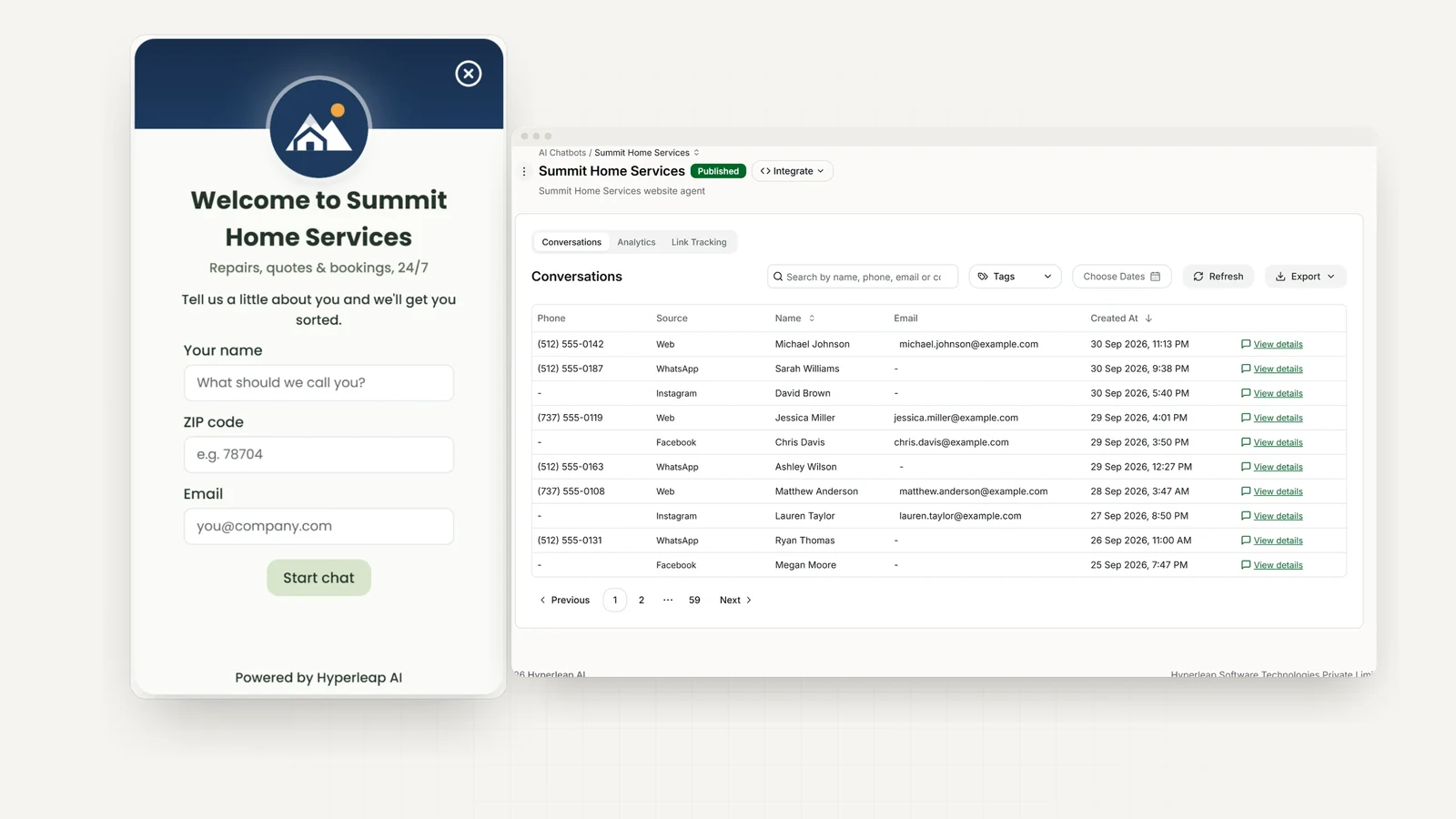
Adding a Wix AI chatbot is not about adding a chat bubble. It is about capturing the leads your contact form misses between 6pm and 9am, and making every visitor feel like someone is available right now.
Answers before the visitor bounces
Most Wix visitors decide in seconds whether to stay or leave. A chatbot that answers "do you offer same-day service?" or "what is included in your pricing?" instantly removes the friction that sends them elsewhere. It responds from your knowledge base — no scripts, no decision trees, just natural answers to real questions.
Captures leads while you sleep
Contact forms collect emails. A Wix chatbot collects names, emails, phone numbers, and the context of what they need — mid-conversation, before they leave the page. Every chat is a warm lead with intent data attached.
Consistent across every channel
The same chatbot you embed on your Wix site works on WhatsApp Business API, Instagram DM, and Facebook Messenger. A customer who discovers you on Instagram and DMs you gets the same quality answer as someone on your website — from the same knowledge base, through the same dashboard.
Scales without headcount
Whether you get 3 chats a day or 300, the chatbot handles them all. No queue, no hold time, no after-hours voicemail. For small businesses on Wix, it is the closest thing to a customer service team that costs $40/month.
Who it fits
Wix Chatbot Use Cases by Business Type
Any Wix site that receives repetitive questions or wants to capture leads automatically is a good fit. Here are the most common use cases:
Service Businesses (Salons, Cleaners, Tutors, Consultants)
Answer pricing questions, book appointments in the chat (Pro and Max, or share your booking link on Plus), and collect contact details from prospective clients.
E-commerce & Online Stores on Wix
Answer product questions, explain shipping and return policies, and guide shoppers toward a purchase decision. Reduce support email volume without reducing service quality.
Restaurants & Food Businesses
Share menus, hours, location, catering options, and event availability instantly — so your team stops answering the same WhatsApp messages twenty times a day.
Professional Services (Law, Accounting, Marketing)
Pre-qualify leads by asking about service type, budget, and timeline before routing them to a team member. Capture every inquiry that comes in outside office hours.
Fitness & Wellness (Gyms, Studios, Trainers)
Answer class schedule and membership questions. Share trial offer details and booking links. Convert page visitors into registered members without a sales call.
Real Estate Agents & Property Managers
Answer listing questions, share availability, and capture buyer or renter contact details for follow-up — including after-hours inquiries that would otherwise wait until morning.
Compare
Hyperleap AI Wix Chatbot vs. Wix Ascend Live Chat
Wix Ascend includes a basic live chat feature, but it requires a human operator online to respond. An AI chatbot automates responses using your knowledge base. Here is how they compare:
| Feature | Wix Ascend Live Chat | Hyperleap AI Wix Chatbot |
|---|---|---|
| AI-powered responses | No — manual replies only | Yes — from your knowledge base |
| 24/7 availability | Only when operator is online | Yes — fully automated |
| Lead capture | Basic contact form | In-conversation capture (name, email, phone) |
| Multichannel | Wix website only | Website, WhatsApp, Instagram DM, Messenger |
| Knowledge base training | N/A | Upload docs, FAQs, URLs, or paste text |
| Conversation history | Limited | Full dashboard with export (webhooks on Pro and Max) |
| Setup time | Built in to Wix | 5 minutes (embed code paste) |
| Custom branding | Limited | Full widget customization |
| Wix plan required | Any Wix plan | Any Wix plan (HTML embed) or premium (Custom Code) |
FAQ
Wix Chatbot: Frequently Asked Questions
How do I add a chatbot to my Wix website?
To add a Wix chatbot, go to your Wix Dashboard > Settings > Advanced > Custom Code, click "Add Custom Code", paste your Hyperleap embed script, set it to load on All Pages in the Body – end position, then click Apply and Publish. The chatbot widget goes live site-wide within seconds of publishing. Note: Custom Code requires a Wix premium plan with a connected domain.
Do I need a Wix premium plan to add a chatbot?
Yes — deploying the chatbot site-wide via Wix Custom Code requires a Wix premium plan with a connected domain. If you are on a free Wix plan, you can still add the chatbot to individual pages using the HTML Embed element (Add > Embed Code > Embed HTML) in the visual editor. That method works on free plans but only covers the pages you add it to manually.
Does a Wix chatbot work on the free Wix plan?
Partially. The HTML Embed method (Add > Embed Code > Embed HTML in the Wix Editor) works on free plans and lets you place the Hyperleap chat widget on individual pages. However, deploying it across your entire site using Custom Code requires a paid Wix plan. For most businesses, upgrading to Wix premium for a connected domain is worth it regardless of the chatbot.
What is the best chatbot for Wix?
Hyperleap AI is a strong choice for a Wix chatbot if you need one that also works across WhatsApp, Instagram DM, and Facebook Messenger. You train it once with your own knowledge base — FAQs, service details, pricing, policies — and it provides document-grounded answers 24/7, captures leads automatically, and embeds on any Wix site in 5 minutes.
Does Wix have a built-in chatbot?
Wix Ascend includes basic live chat, but it requires a human to monitor and respond — it is not an AI chatbot that answers automatically. For AI-powered automated responses from your own knowledge base, you need a third-party solution like Hyperleap AI embedded via Custom Code or HTML Embed.
How long does it take to set up a Wix chatbot?
Setup takes about 5 minutes. Open your chatbot in Hyperleap Studio and click Publish to copy the embed code, then add it to your Wix site via Custom Code (for all pages, premium plan required) or the HTML Embed element (for individual pages, free plan). The chatbot goes live as soon as you publish your site.
Does a Wix chatbot slow down my website?
The Hyperleap chat widget script loads asynchronously, so it does not block your Wix pages from rendering: visitors see your content first, and the widget appears once it has loaded.
Can a Wix chatbot capture leads?
Yes. The Hyperleap AI chatbot captures visitor name, email, and phone number during conversations. All leads are stored in your Hyperleap Studio dashboard where you can review and export them, and your team gets an email summary of each conversation. On Pro and Max, webhooks can also send each lead to your own systems.
How much does a Wix chatbot cost?
Hyperleap AI offers a 7-day free trial on all plans. Paid plans start at $40/month (Plus plan — 3,000 AI responses, 1 chatbot). The Pro plan is $100/month (12,000 responses, 2 chatbots, plus in-chat booking, human handoff, Actions, and the Hyperleap badge removed) and Max is $200/month (30,000 responses, 5 chatbots, everything in Pro). The embed itself is included — no extra fee to add it to your Wix site.
Can I use a Wix chatbot on WhatsApp too?
Yes. The same Hyperleap AI chatbot that works on your Wix website also works on WhatsApp Business API, Instagram DM, and Facebook Messenger. You train it once with your knowledge base and deploy it across all supported channels from one dashboard.
Keep reading
Related Guides
Step-by-Step Wix Setup Guide
Every way to add the chatbot to Wix, with plan requirements, testing, and troubleshooting.
Best Chatbots for Wix
How the main Wix chatbot options compare on answers, channels, and pricing.
Chatbot for Small Business
How small businesses use AI chatbots to capture leads and handle support without adding headcount.
No-Code Chatbot Builder
Build and train an AI chatbot without writing a line of code — then embed it anywhere.
WordPress Chatbot
Add an AI chatbot to a WordPress site with the official Hyperleap plugin or the embed snippet.
Squarespace Chatbot
Embed an AI chatbot on Squarespace using the Code Injection feature.
Add a chatbot to other website platforms
The same Hyperleap AI agent embeds anywhere from one knowledge base. Building on a different platform — or running more than one site? Here are the step-by-step guides.
See all website chatbot integrations.
Answer Every Wix Visitor From Your Own Content
Add an AI chatbot to your Wix website in 5 minutes. It answers the repeat questions, captures every inquiry, and emails your team a summary.
7-day free trial. Plans from $40/month.