Website Platforms
WordPress Chatbot:
answer every visitor question, 24/7
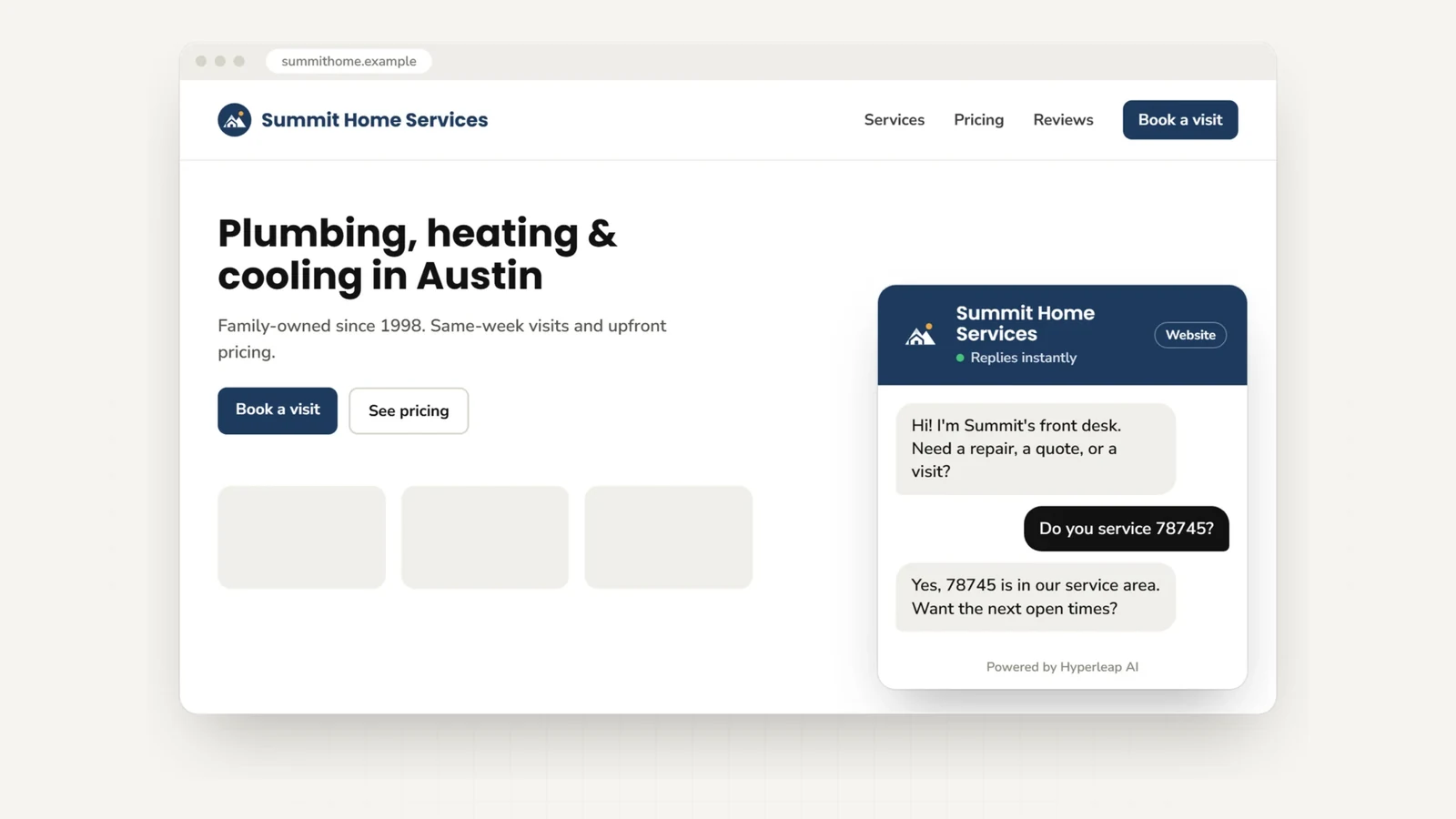
The same questions about pricing, availability, and whether you cover their area reach you all day, while you are trying to work. A WordPress chatbot from Hyperleap AI answers them from your own content, collects each visitor's details, and emails your team a summary. Install the official plugin and it is live in under 5 minutes.
Official WP plugin available Works on any theme Live in 5 minutes 7-day free trial
Quick Answer
A WordPress chatbot is an AI chat widget that automatically answers visitor questions, captures leads, and responds 24/7. With Hyperleap AI, the easiest path is the official WordPress plugin — search "Hyperleap AI Chat" in Plugins > Add New, paste your Chatbot ID and Embed Key, done. Prefer code? A single JavaScript snippet via WPCode or your theme footer works too. The chatbot answers from your uploaded knowledge base (FAQs, service pages, pricing) across your website, WhatsApp, Instagram DM, and Facebook Messenger. Plans start at $40/month with a 7-day free trial.
Why it matters
Why add a chatbot to your WordPress site
Most WordPress sites lose inquiries the same way: a visitor has a question, finds no instant answer, and leaves. A WordPress AI chatbot closes that gap across every hour of the day.
Answers the questions you repeat
Pricing, hours, service area, policies: the questions that interrupt your day get an instant answer from your own content, at any hour, so you can stay on the work in front of you.
Trained on your content, not generic AI
Upload your FAQs, service pages, pricing, and policies. The chatbot answers only from your knowledge base, so responses are accurate and on-brand — not hallucinated guesses.
Same widget, four channels
One Hyperleap account covers your WordPress site, WhatsApp Business, Instagram DM, and Facebook Messenger from a single knowledge base. Manage everything in one place.
Works on any theme in minutes
The official plugin, or one JavaScript snippet that loads asynchronously, works on any WordPress theme — Divi, Elementor, Astra, block themes. No page-builder plugin, no compatibility issues.
Document-grounded answers
Hyperleap uses retrieval-augmented generation (RAG) so the chatbot answers from the documents you provide, designed to minimize hallucinations. It routes questions it cannot answer to your team.
Captures every lead
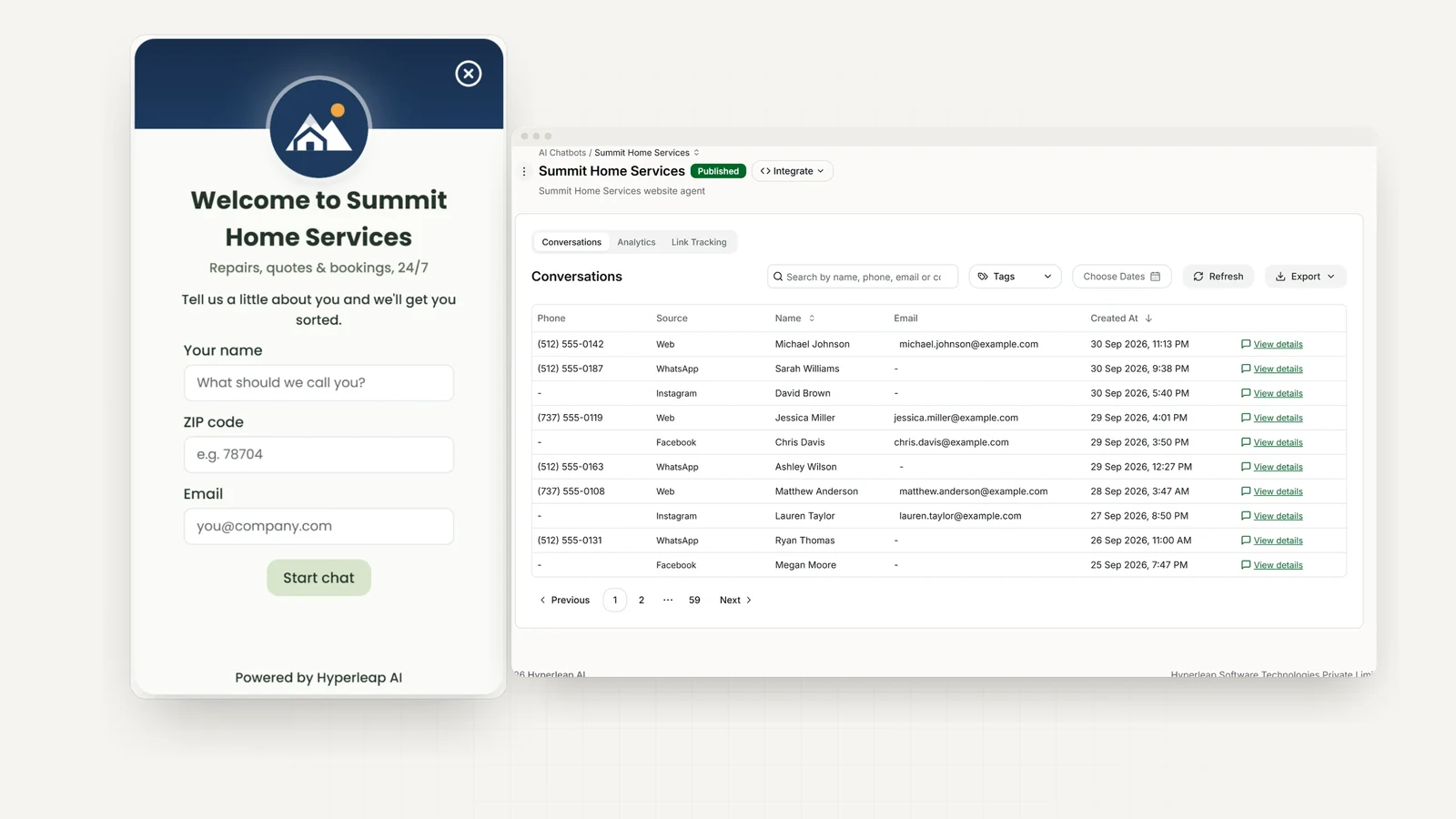
A short form before the chat collects name, email, and phone. Each lead lands in your Hyperleap inbox with the conversation, and your team gets an email summary, so no separate form plugin is needed.
On every plan
- Answers from your pages, PDFs, and FAQs
- A contact form before the chat, with leads and transcripts emailed to your team
- Replies in 100+ languages
- A widget matched to your branding, on desktop and mobile
On Pro and Max
- Books appointments in the chat with Calendly or Cal.com (on Plus, it shares your booking link)
- Hands the chat to a person, who can take over and hand it back to the AI
- Shares photos, documents, and videos as cards
- Calls your own API to look up an order or submit a request (Actions)
- Removes the Hyperleap badge from the widget
Setup
Install the plugin in under 5 minutes
Two ways in: the official plugin from the WordPress plugin directory, with no code, or one embed snippet if you prefer to place it yourself. Most sites should use the plugin.
Recommended: Official WordPress Plugin
Install from the WordPress plugin directory — no theme editing, no code.
Open the plugin installer
In your WordPress dashboard, go to Plugins > Add New. Search for "Hyperleap AI Chat".
Install and activate
Click Install Now on the "Hyperleap AI Chat — AI Chatbot & Lead Generation Widget" plugin, then Activate.
Open the settings page
Go to Settings → Hyperleap AI Chat in your WordPress admin sidebar.
Paste your credentials and save
In Hyperleap Studio, open your chatbot and click Publish: the Website Integration dialog shows your Chatbot ID and Embed Key. Paste both values, toggle Enable to On, and click Save Settings. The chat widget appears on your site immediately.
Prefer code? Paste one snippet
Copy the embed code from your chatbot in Hyperleap Studio and place it before the closing </body> tag, using a snippet plugin such as WPCode, your child theme's footer, or a wp_footer hook. It loads asynchronously, so it does not hold up your page.
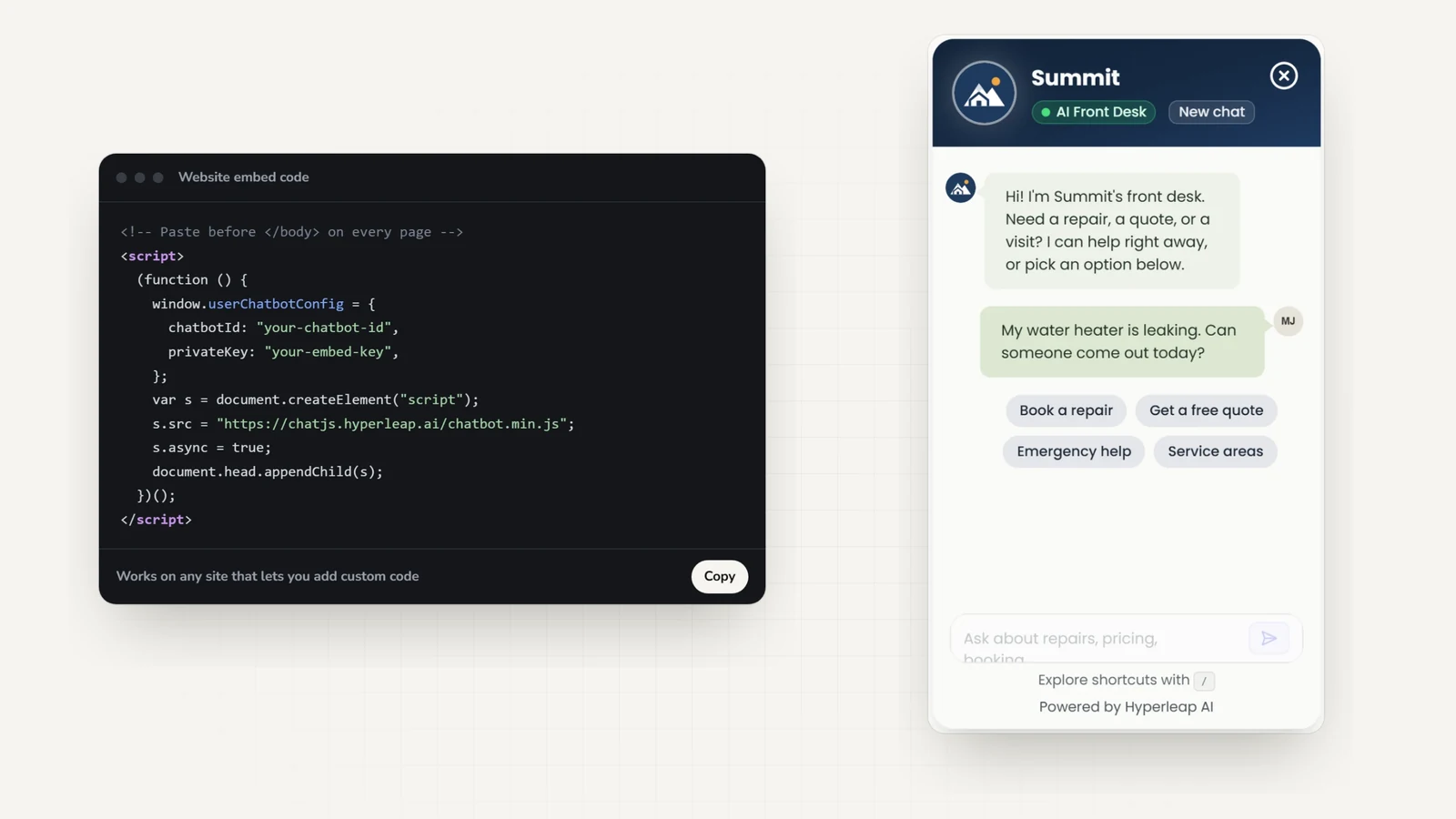
<script>
  (function () {
    window.userChatbotConfig = {
      chatbotId: "YOUR_CHATBOT_ID",
      privateKey: "YOUR_PRIVATE_KEY",
    };
    var s = document.createElement("script");
    s.src = "https://chatjs.hyperleap.ai/chatbot.min.js";
    s.async = true;
    document.head.appendChild(s);
  })();
</script>
Full walkthrough: every way to add the snippet, with WPCode, footer.php, functions.php, and page builders.
| Official plugin | Embed snippet | |
|---|---|---|
| Setup | Install from Plugins > Add New, paste two values | Paste one script with WPCode or your theme |
| Code needed | None | Copy and paste |
| Where it shows | Site-wide | Site-wide, or chosen pages with WPCode rules or conditional tags |
| Best for | Most sites | Sites that target specific pages or avoid extra plugins |
Want the widget to run only on your own sites? List them under domain whitelisting in Hyperleap Studio. How domain whitelisting works
WooCommerce
Adding a chatbot to a WooCommerce store
The plugin and the snippet both work on WooCommerce stores. Upload your product descriptions, shipping policy, return policy, and FAQs, and the chatbot answers product and policy questions from them.
What the chatbot can do on WooCommerce:
- Answer product questions from your uploaded descriptions
- Explain your shipping, return, and payment policies
- Capture visitor contact details as leads
- Route complex order questions to your team
- Answer in 100+ languages for international shoppers
- Look up an order through your own API with Actions (Pro and Max)
Out of the box, the widget answers from the content you upload. It does not connect to the WooCommerce catalog, cart, or order system unless you connect your own API through Actions.
FAQ
WordPress chatbot: frequently asked questions
How do I add a chatbot to WordPress?
There are two main ways to add a chatbot to WordPress. The easiest is the official Hyperleap AI Chat plugin on WordPress.org: install it from Plugins > Add New, paste your Chatbot ID and Embed Key, and save. If you prefer the JavaScript embed, place it with WPCode, add it to your child theme footer before the </body> tag, or register it through a wp_footer hook in functions.php.
Is the WordPress chatbot free?
Hyperleap AI offers a 7-day free trial on all plans (credit card required). Paid plans begin at $40/month (Plus), $100/month (Pro), and $200/month (Max). There is no permanent free plan, but the trial lets you fully set up and test the chatbot on your WordPress site before committing.
Will a chatbot slow down my WordPress site?
The Hyperleap embed script loads asynchronously, so it does not block your page from rendering: visitors see your content first, and the chat widget appears once it has loaded.
Do I need a plugin to add a chatbot to WordPress?
Hyperleap AI offers an official plugin on WordPress.org — search "Hyperleap AI Chat" in Plugins > Add New, paste your Chatbot ID and Embed Key, and the widget is live. No theme editing required. Prefer the code route? A single JavaScript snippet pasted via WPCode or your theme footer works equally well on any theme (Divi, Astra, GeneratePress, Blocksy, Twenty Twenty-Four, and more).
Does the WordPress chatbot work with WooCommerce?
Yes. The chat widget works on any WooCommerce store page. Upload your product descriptions, FAQs, shipping policy, and return policy, and it answers shopper questions from them. On its own it does not read your WooCommerce catalog, cart, or orders. On Pro and Max, Actions let the chatbot call your own API mid-conversation, for example to look up an order's status.
Can the WordPress chatbot book appointments?
On Pro and Max, yes: it offers real open times and books the appointment in the chat with Calendly or Cal.com, and the customer gets the calendar invite by email. In-chat booking needs Calendly Standard or higher. On Plus, the chatbot shares your booking link instead.
Can someone on my team take over a chat?
On Pro and Max, yes. Visitors can ask for a person, your team is alerted in Hyperleap Studio, and any teammate can take over the live conversation and hand it back to the AI when they are done.
Can I add the chatbot to specific WordPress pages only?
Yes, using the JavaScript embed route instead of the plugin. Place the snippet with a code-snippet plugin such as WPCode (free), which has Display Rules that let you target specific pages, post types, categories, or URLs. You can show the chatbot only on your product pages, contact page, or checkout flow — or site-wide. Alternatively, developers can use conditional tags in functions.php (e.g., is_page(), is_woocommerce()) to control where the script loads.
Keep reading
Related guides
Step-by-step setup guide
Every way to add the chatbot to WordPress, page-builder specifics, and troubleshooting.
Best WordPress chatbot plugins
How the main WordPress chatbot plugins compare on answers, channels, and pricing.
No-code chatbot builder
Build and train your AI chatbot without writing code — works on WordPress and every other channel.
Chatbot for small business
How small businesses use AI chatbots to capture leads and answer questions without adding headcount.
Shopify chatbot
Embed the same Hyperleap chat widget on a Shopify storefront.
All website platforms
Webflow, Squarespace, Wix, and more — one embed code across every platform.
Add a chatbot to other website platforms
The same Hyperleap AI agent embeds anywhere from one knowledge base. Building on a different platform — or running more than one site? Here are the step-by-step guides.
See all website chatbot integrations.
Add a WordPress chatbot in the next 5 minutes
Build your AI chatbot, add it to your WordPress site with the official plugin or one snippet, and start answering visitor questions 24/7. Try it free for 7 days.
7-day free trial on all plans. Plus $40/mo · Pro $100/mo · Max $200/mo.