Webflow · Website embed
Webflow Chatbot
Your Webflow site looks sharp. But visitors who arrive at 10 pm with a question leave without answers — and you find out about it when you check your email the next morning.
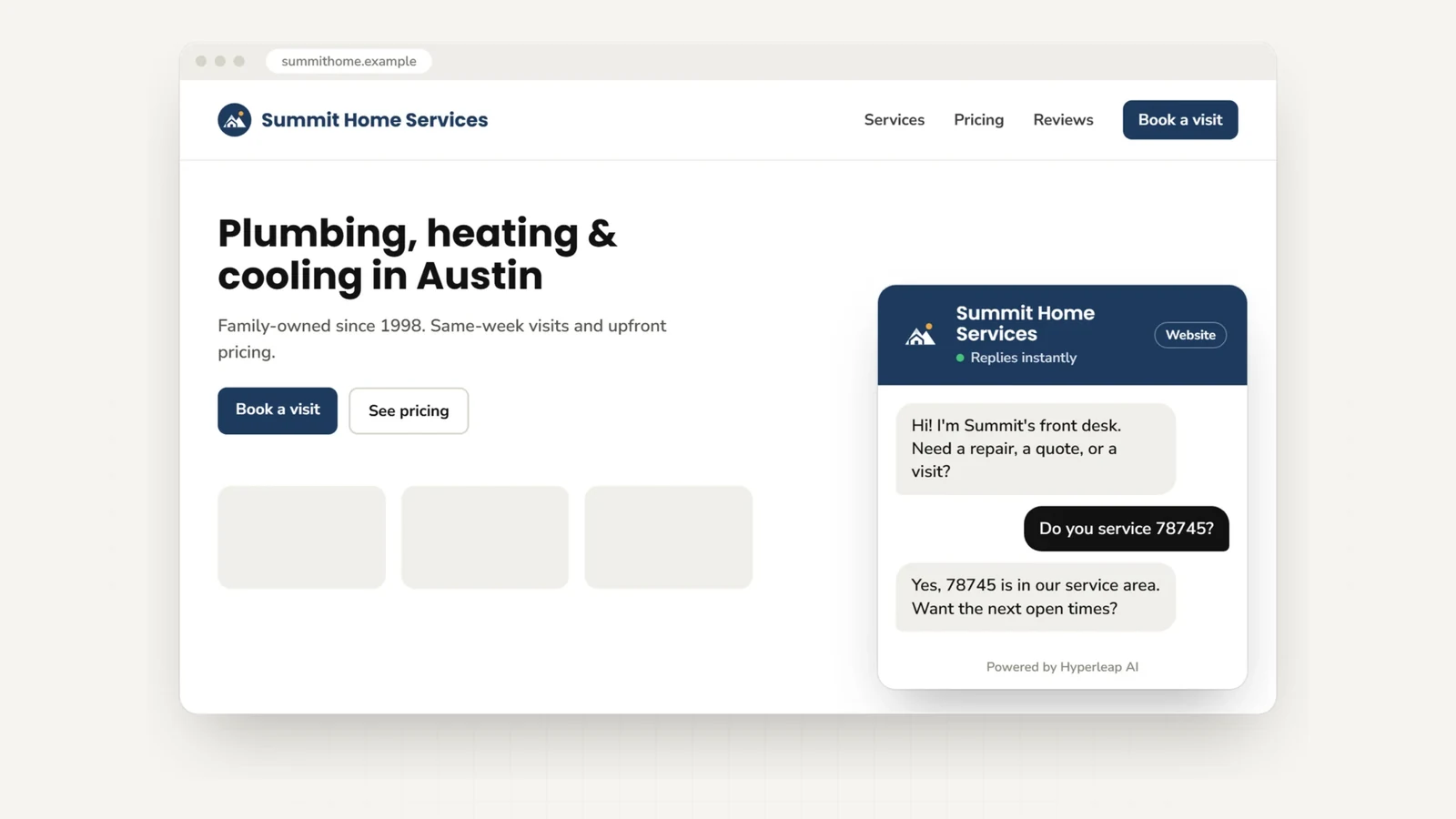
A Webflow chatbot powered by Hyperleap AI answers questions from your own knowledge base, captures leads, and keeps working long after you close your laptop. One script tag. No app marketplace. No Webflow API integration required — just paste your embed code into Webflow Custom Code and publish.
Setup in ~5 minutes No coding beyond copy-paste 7-day free trial Works on paid Webflow plans
Webflow plan note: Adding code via Site Settings > Custom Code requires a paid Webflow Site plan (Basic, CMS, Business, or Enterprise). The free Starter plan does not support custom code in site settings. You may also use the HTML Embed element in the Designer — check your Webflow plan for availability.
Quick Answer
What is a Webflow chatbot?
A Webflow chatbot is an AI-powered chat widget you add to a Webflow site via the platform's Custom Code feature or an HTML Embed element. It answers visitor questions 24/7 from your knowledge base, captures lead details, and routes complex requests to your team — without any Webflow API or app marketplace integration. You train the AI once; it runs on your site automatically.
Today
Why Webflow sites lose visitors without a chatbot
Webflow makes it easy to build a site that converts. But the conversion window is often narrow — and silent gaps cost real business.
Inquiries arrive at all hours
Visitors don't browse on your schedule. Questions that go unanswered at 11 pm often become leads for a competitor by morning.
Contact forms create friction
A form asks visitors to do work. A chatbot meets them where they are, answers immediately, and captures their details without a separate step.
FAQs don't scale across channels
Your Webflow FAQ page only helps people who find it. A chatbot surfaces the same answers inside the conversation, on your site and on WhatsApp.
Setup
How to add a chatbot to Webflow
Two methods — pick based on whether you want the chatbot site-wide or on a specific page.
Method 1Site-wide via Custom Code (recommended)
Adds the chatbot to every page with one setting. Requires a paid Webflow Site plan.
Get your Hyperleap embed code
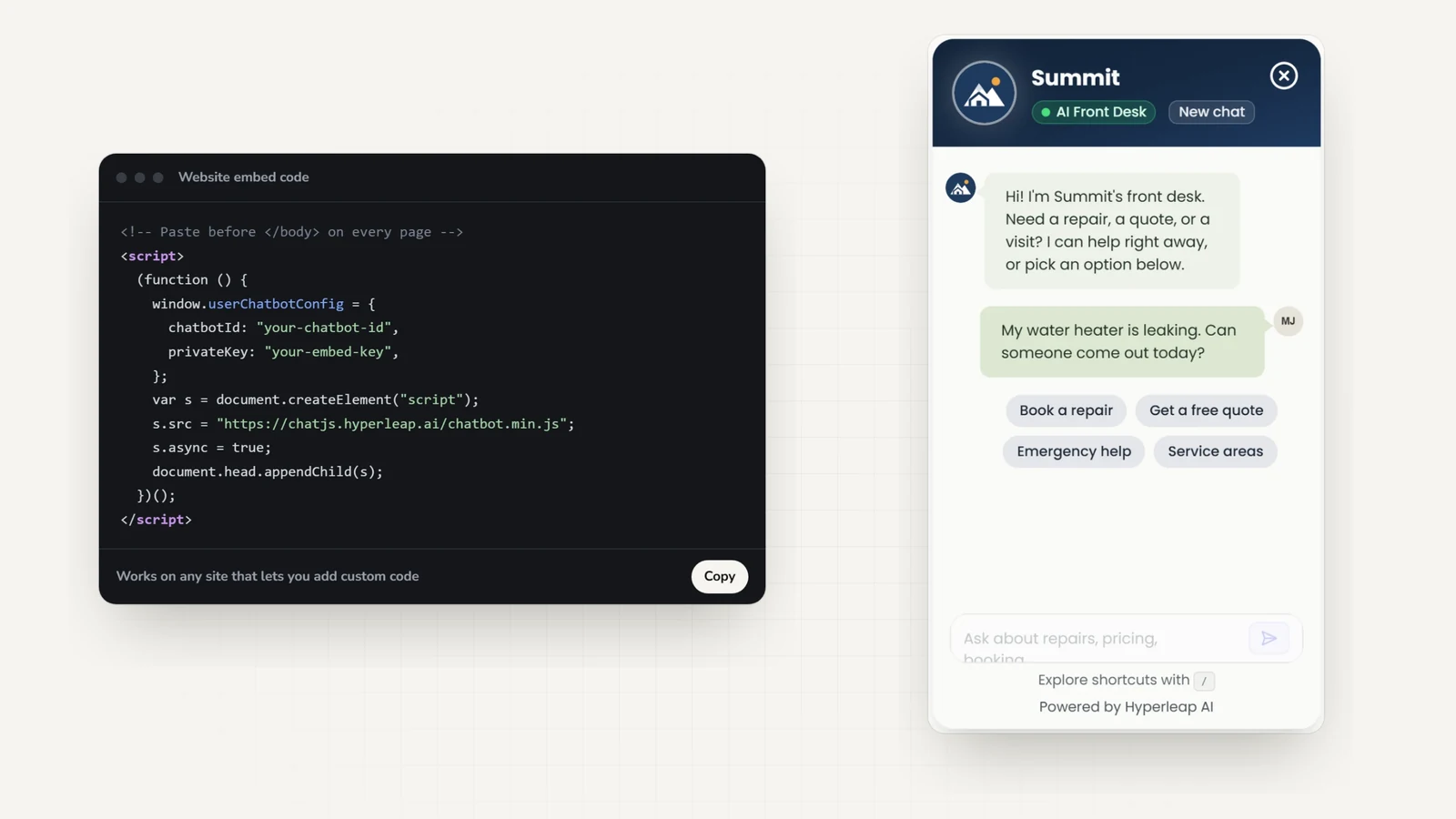
Sign in to your Hyperleap Studio dashboard. Open your chatbot and click Publish. Copy the script snippet shown for your chatbot — it looks like the code below.
<script>
  (function () {
    window.userChatbotConfig = {
      chatbotId: "YOUR_CHATBOT_ID",
      privateKey: "YOUR_PRIVATE_KEY",
    };
    var s = document.createElement("script");
    s.src = "https://chatjs.hyperleap.ai/chatbot.min.js";
    s.async = true;
    document.head.appendChild(s);
  })();
</script>Open your Webflow project
In your Webflow dashboard, click on your site to open it. You should see the project overview.
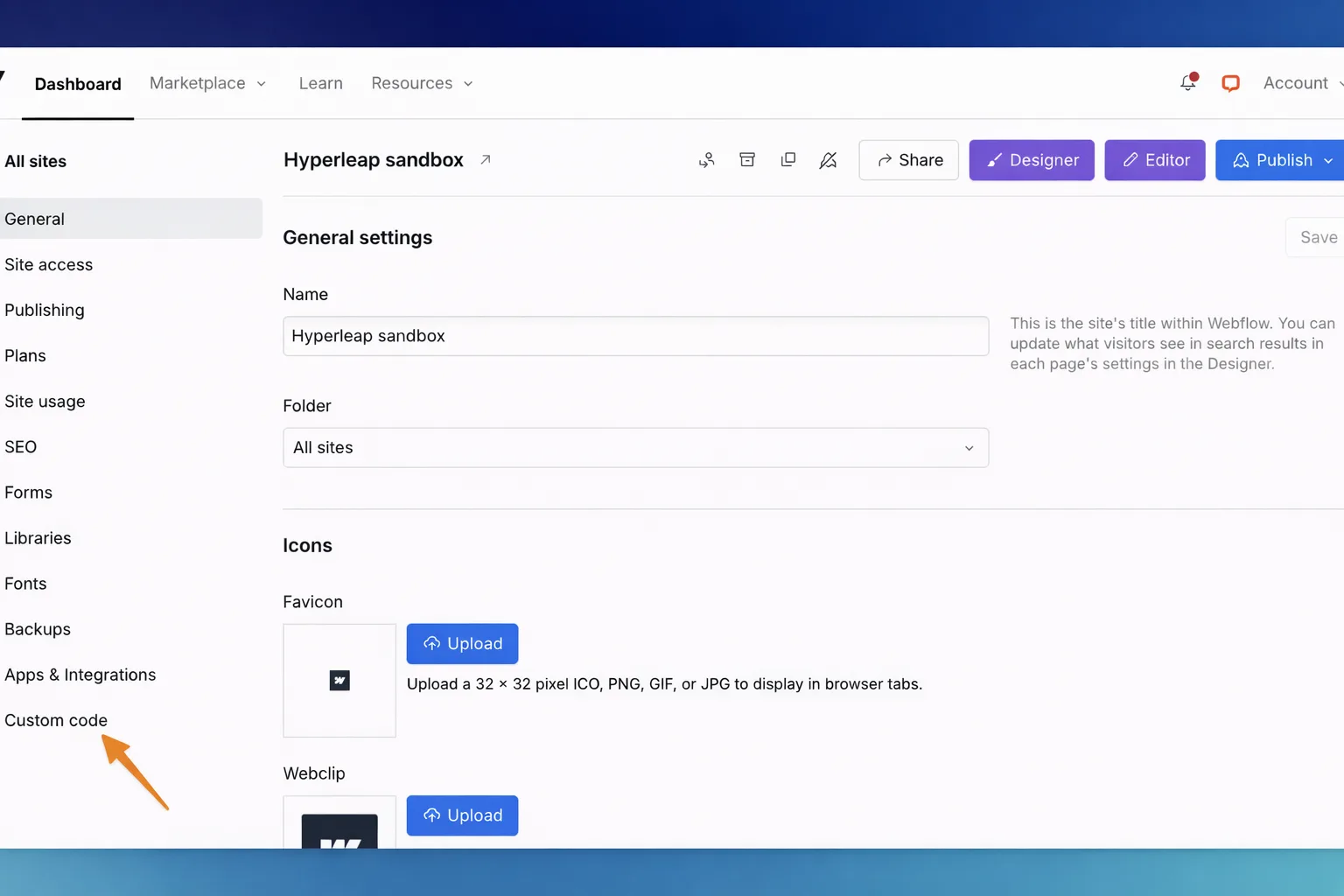
Go to Site Settings > Custom Code
Click the gear icon (Site Settings) in the top-left of the Webflow dashboard. In the left sidebar, select "Custom Code". This tab is only visible on paid Site plans.
Paste into the Footer Code section
Scroll down to "Footer Code" — this section inserts code just before the closing </body> tag on every page. Paste your Hyperleap script here.
Save Changes
Click "Save Changes" at the bottom of the Custom Code section. Webflow will confirm the save.
Publish your site
Go back to your project and click "Publish". The chatbot widget will appear on all published pages immediately after publishing.
Method 2HTML Embed element (page-specific)
Use this if you want the chatbot on one or two specific pages rather than site-wide. Works by placing an HTML Embed element on the Webflow canvas.
- 1Open your site in the Webflow Designer.
- 2Navigate to the page where you want the chatbot.
- 3In the left panel, click the "+" (Add) button to open the Elements panel.
- 4Search for "Embed" or find it under "Components". Drag it to the bottom of your page layout.
- 5Double-click the Embed element to open the code editor.
- 6Paste your Hyperleap embed script and click "Save & Close".
- 7Publish your site. The chatbot appears on that page only.
Tip: To add the chatbot to a specific set of pages (for example, all landing pages but not the blog), place the embed in a shared Symbol or Section component that appears on those pages.
Bonus: Page-level Custom Code via Page Settings
In the Webflow Designer, click the gear icon next to any page in the Pages panel to open Page Settings. Under "Custom Code", paste your Hyperleap script in the "Before </body> tag" field. This scopes the chatbot to that page without affecting the rest of your site — useful for high-priority landing pages.
Page-level Custom Code availability may depend on your Webflow plan.
Outcomes
What the Webflow AI chatbot does for your site
Once embedded, Hyperleap AI handles the conversations you would otherwise miss or route manually.
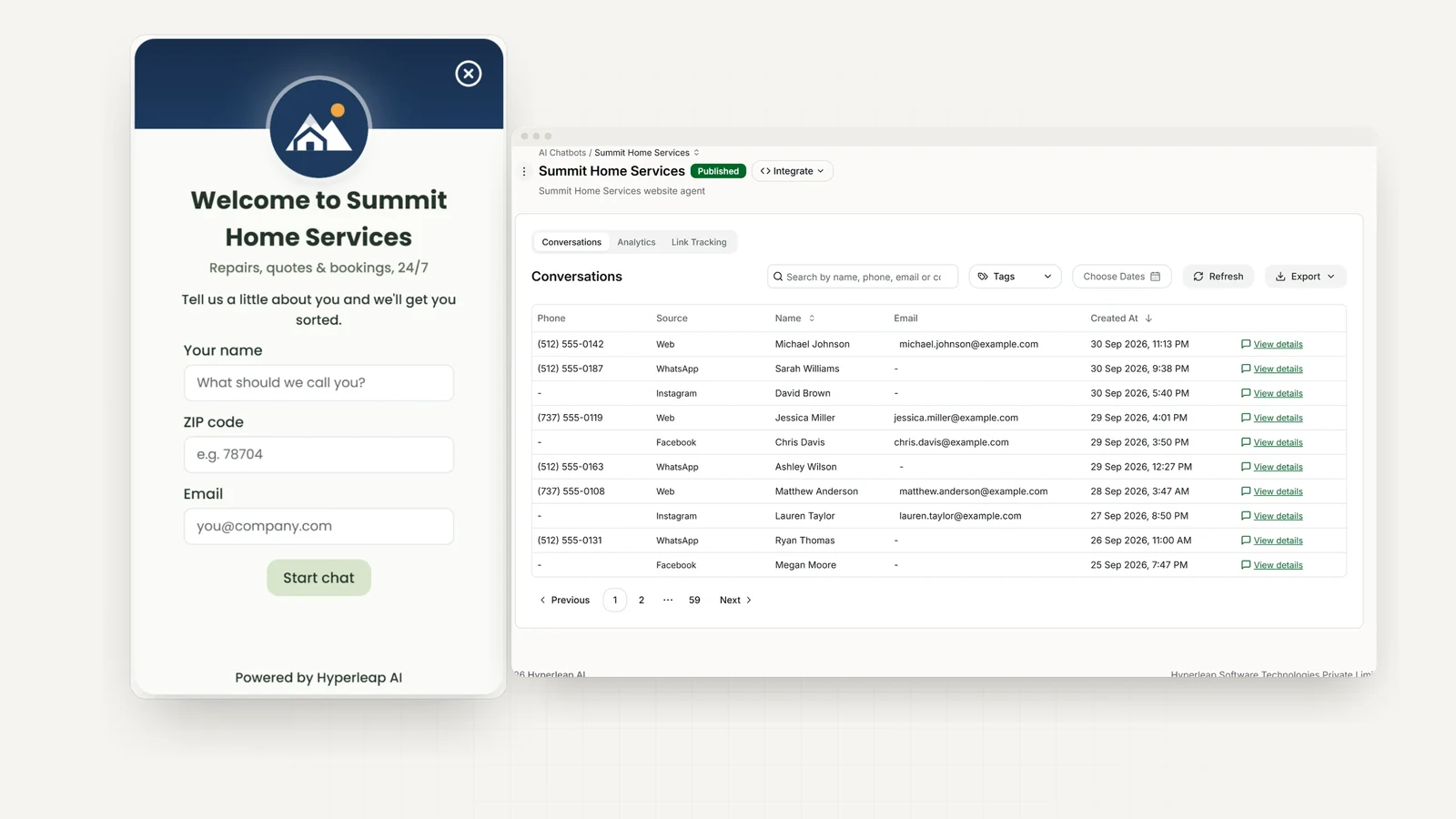
Instant answers from your knowledge base
Upload your FAQs, service pages, pricing docs, or point the AI at your Webflow site URL. It answers questions using document-grounded responses, designed to answer only from what you provide.
Lead capture without a form
The chatbot collects name, email, and phone in natural conversation. Leads land in your Hyperleap dashboard and can be piped out via webhook or REST API.
100+ languages, same knowledge base
Visitors can ask in Spanish, Arabic, French, German, Portuguese, or 100+ other languages. The AI responds in their language from the same trained knowledge base.
Same AI on WhatsApp, Instagram, Facebook
Train once and deploy across all four channels: website widget, WhatsApp Business, Instagram DM, and Facebook Messenger. Your Webflow visitor and your WhatsApp contact get consistent answers.
Conversation history and analytics
Every conversation is logged in your Studio dashboard. See what visitors ask most, where they drop off, and which questions the AI could not answer — so you can improve over time.
Human handoff when it matters
On Pro and Max, configure topics the AI should escalate to your team. Complex questions, pricing negotiations, or anything sensitive get routed to a human with the full conversation context attached.
Pricing
Pricing — start with a 7-day free trial
All plans include the Webflow website widget, WhatsApp, Instagram DM, and Facebook Messenger. Credit card required for trial.
Plus
$40/mo
One chatbot, 3,000 AI responses/month, 4 channels, 10 team members.
Most popular
Pro
$100/mo
2 chatbots, 12,000 AI responses/month, 8 channels, white-label branding, 50 team members.
Max
$200/mo
5 chatbots, 30,000 AI responses/month, 20 channels, 100 team members.
All plans billed in USD. Add-ons (Multi-variant (locations, courses, etc), OTP Verification, Credit Packs, Managed Setup) available separately. See pricing page for full details.
Compare
Hyperleap on Webflow vs. other website platforms
The embed process is the same across all platforms — one script tag. The only difference is where you paste it.
| Platform | Where to add the script | Plan requirement |
|---|---|---|
| Webflow | Site Settings > Custom Code > Footer Code | Paid Site plan (Basic+) |
| WordPress | Official Hyperleap plugin, or the theme footer | Any (self-hosted) |
| Squarespace | Settings > Website Tools > Code Injection | Business or higher |
| Wix | Site > Settings > Custom Code | Premium plan with a connected domain |
| Shopify | Online Store > Themes > Edit Code > theme.liquid | Any paid Shopify plan |
Keep reading
Related resources
Best chatbots for Webflow (2026)
Seven Webflow-compatible chatbots compared on setup, channels, lead capture, and pricing model.
How to add an AI chatbot to Webflow
The step-by-step walkthrough of the Custom Code embed, with testing and troubleshooting.
No-code chatbot builder
Build and train your Webflow chatbot without writing a line of code beyond the embed snippet.
Chatbot lead generation
How to use a chatbot to capture, qualify, and route leads from your Webflow site.
All website platform integrations
Embed guides for WordPress, Squarespace, Wix, Shopify, and custom HTML.
Hyperleap AI chatbot features
Knowledge base training, multi-channel deployment, analytics, and human handoff (Pro and Max) — all in one platform.
FAQ
Frequently asked questions
How do I add a chatbot to Webflow?
Go to your Webflow project, open Site Settings, click the Custom Code tab, and paste your Hyperleap embed script in the "Footer Code" section. Save, then publish your site. The chatbot widget appears on every page. For a single page, use Page Settings > Custom Code or an HTML Embed element in the Designer instead.
Does adding a Webflow chatbot require a paid Webflow plan?
The Custom Code section in Site Settings requires a paid Webflow Site plan (Basic, CMS, Business, or Enterprise). The free Starter plan does not support custom code via Site Settings. You may be able to use the HTML Embed element on some plans — check Webflow's current plan comparison for availability, as it changes. The Hyperleap chatbot itself is a separate subscription starting at $40/month.
Where does the Hyperleap embed code go in Webflow?
The recommended location is Site Settings > Custom Code > Footer Code. This inserts the script just before the closing </body> tag on every published page. For page-specific placement, use the Page Settings custom code field or an HTML Embed element on the canvas.
Is Hyperleap a native Webflow app or an embed?
It's a chat widget you embed via Webflow's Custom Code — not a Webflow App Marketplace app. No marketplace installation required. You paste a single script tag and publish. The AI itself runs on Hyperleap's platform and connects to your site automatically.
Can the chatbot on my Webflow site also handle WhatsApp?
Yes. Hyperleap AI supports four channels from one dashboard: your Webflow website widget, WhatsApp Business, Instagram DM, and Facebook Messenger. Train the AI once on your knowledge base and deploy it across all four. A visitor who finds your site after hours and a customer who messages you on WhatsApp both get the same accurate answers.
How long does it take to set up the Webflow chatbot?
The embed itself takes about 5 minutes: sign up for Hyperleap, copy your embed code from Studio (open your chatbot and click Publish), paste it in Webflow Site Settings > Custom Code > Footer Code, and publish. Training the AI on your FAQs and content adds 10–20 minutes. You can refine and add knowledge any time from your Hyperleap dashboard without touching Webflow again.
Add a chatbot to other website platforms
The same Hyperleap AI agent embeds anywhere from one knowledge base. Building on a different platform — or running more than one site? Here are the step-by-step guides.
See all website chatbot integrations.
Add a chatbot to your Webflow site today
One script. Five minutes. Visitors answered 24/7.
Start for free — no setup fee, cancel any time. Plans from $40/month.