Website Platform
Shopify Chatbot:
answer every pre-purchase question, 24/7
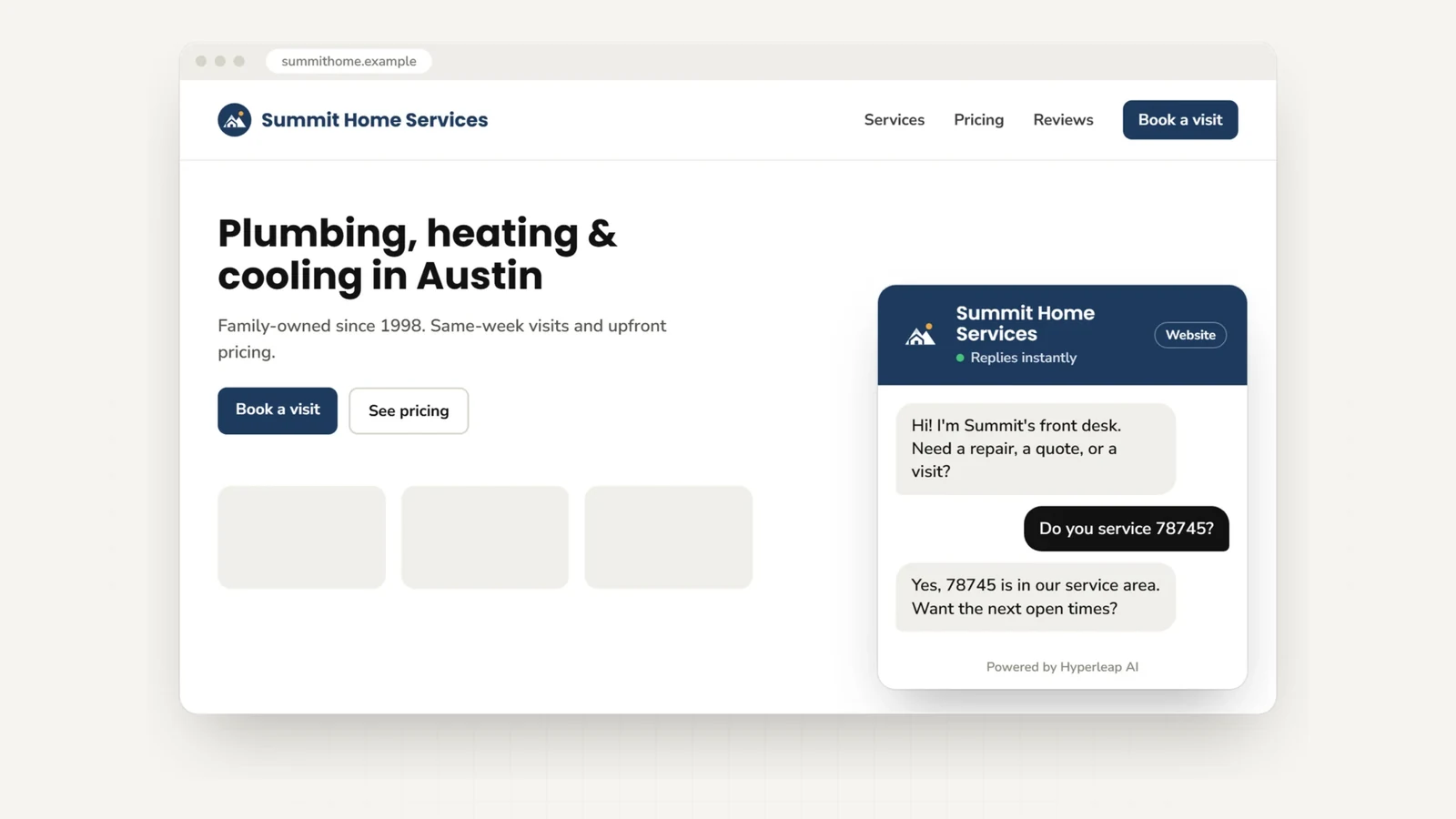
A shopper has a sizing question at 11pm. Your store is silent. They buy from a competitor whose Shopify chatbot answered in seconds. Hyperleap AI embeds a chat widget directly into your Shopify theme — trained on your policies and FAQs, answering 24/7, no Shopify app required.
5-minute setup No Shopify app required Works on any Shopify theme 7-day free trial
Quick Answer
A Shopify chatbot is a chat widget embedded in your Shopify store theme that automatically answers customer questions — shipping timelines, return policy, sizing, product care — 24/7 from your uploaded knowledge base. You add it by pasting one JavaScript snippet before the </body> tag in your theme.liquid file. No Shopify app required. Hyperleap AI provides a Shopify chatbot that answers from your own documents (not live product data), captures leads, and works across your website, WhatsApp, Instagram DM, and Facebook Messenger. Plans start at $40/month with a 7-day free trial.
The problem
The questions that cost you sales at midnight
Shoppers browse when it suits them, often in the evening. A shopper about to buy hesitates on one question — does this run small? how long does shipping take? what is your return window? — and your store says nothing. They hit the back button. That sale is gone.
“It was 11:30pm. I had two hoodies in my cart but could not find whether they ran small. The site had no chat. I ended up buying from a brand I had never heard of because their chatbot answered me immediately and the sizing chart matched what I needed.”
— Illustrative example: the sale you lose when a shopper cannot get a quick answer
A Shopify chatbot trained on your policies eliminates that friction. Your sizing guide, return policy, and shipping FAQ are available the moment a shopper needs them — not after a two-day support ticket turnaround.
Scope
What this Shopify chatbot does — and does not do
It does
- Answers questions from your uploaded FAQs, policies, and guides
- Captures visitor names and contact details as leads
- Works 24/7 — including nights, weekends, and holidays
- Shares your booking or consultation link inside chat
- Hands off to your team when a question falls outside the knowledge base (Pro and Max)
- Answers across website, WhatsApp, Instagram DM, and Facebook Messenger
It does not
- Access your Shopify product catalog or live inventory
- Read cart contents or process payments
- Pull live order status or fulfillment data
- Sync with Shopify APIs or e-commerce workflows
Hyperleap AI is a chat widget embed, not a Shopify e-commerce API integration. Answers come from the knowledge you upload — which is what makes them accurate and on-brand.
Outcomes
Why Shopify stores add a chatbot
The ROI on a Shopify chatbot comes from two places: pre-purchase questions that would otherwise kill a conversion, and after-hours leads that would otherwise go unnoticed until morning.
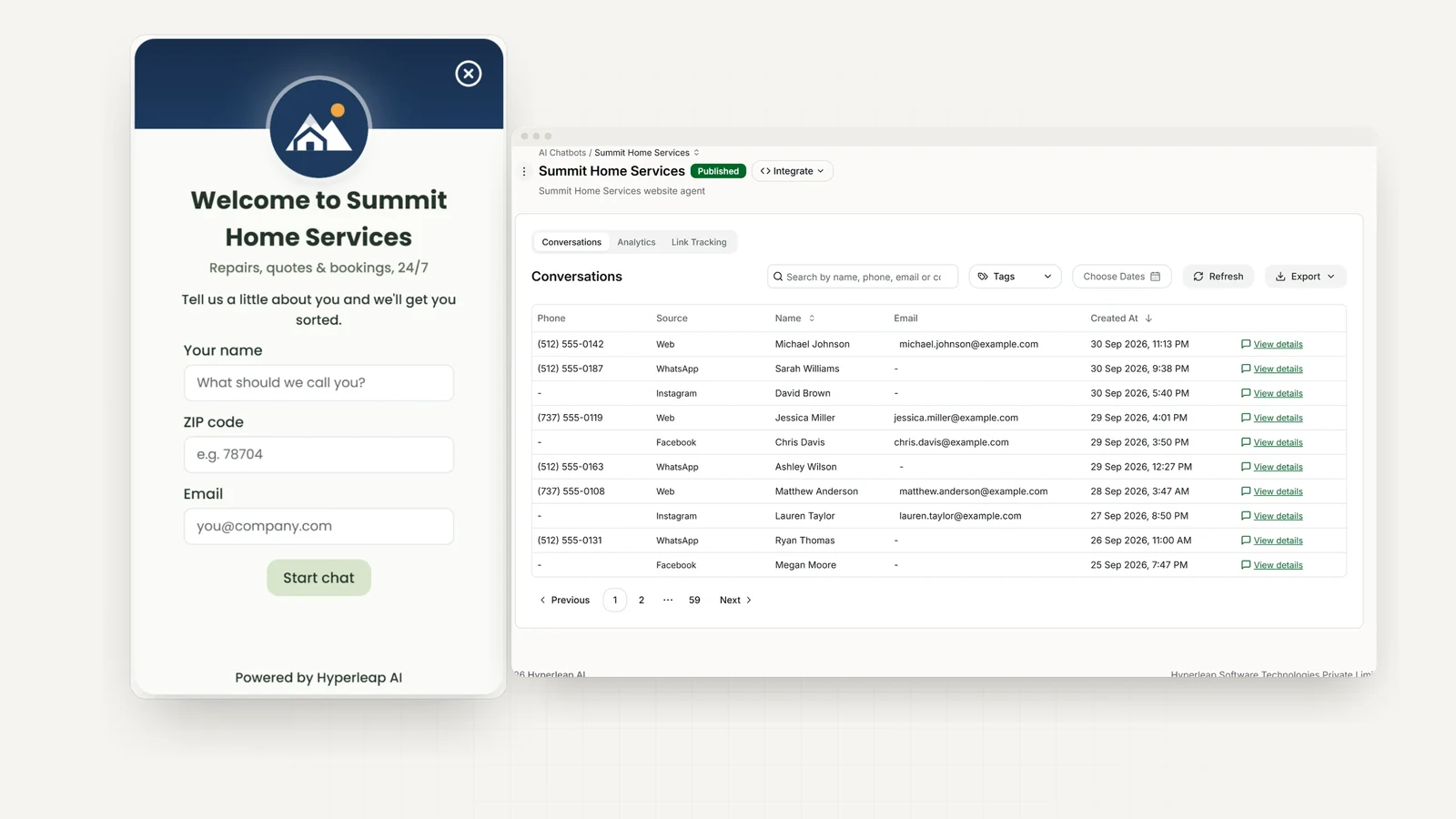
Answers at midnight — not "we'll get back to you"
A shopper with a sizing question at 11pm either gets answered now or goes to a competitor whose bot is live. Your chatbot answers from your knowledge base 24/7, including nights, weekends, and holidays.
Handles the questions your inbox drowns in
Shipping timelines, return windows, product care, sizing charts, discount codes, wholesale minimums — your chatbot handles every question you have documented, automatically, before a ticket is ever opened.
Captures leads before they bounce
When a shopper is not quite ready to buy, the chatbot captures their name and contact details so your team can follow up. No form to find, no email to hunt for — the conversation does the capture.
One setup, four channels
The same knowledge base and AI that answers on your Shopify store also answers on WhatsApp, Instagram DM, and Facebook Messenger — so customers reach you wherever they already are.
Answers from your documents, not hallucinated
Hyperleap AI uses retrieval-augmented generation (RAG) to answer from the policies and FAQs you upload — document-grounded responses designed to minimize hallucinations, not generic AI guesses.
Live in under 5 minutes
One embed code in theme.liquid. No Shopify app installation, no dev work, no integration to maintain. Paste, save, test — it is live.
Want a deeper look at AI chat for online retail? Read our guide to AI chatbots for e-commerce or explore how a chatbot can become your best lead generation tool.
Setup
How to add a chatbot to Shopify
The recommended method edits a single file — theme.liquid — and puts the widget on every page of your store. Total time: under 5 minutes.
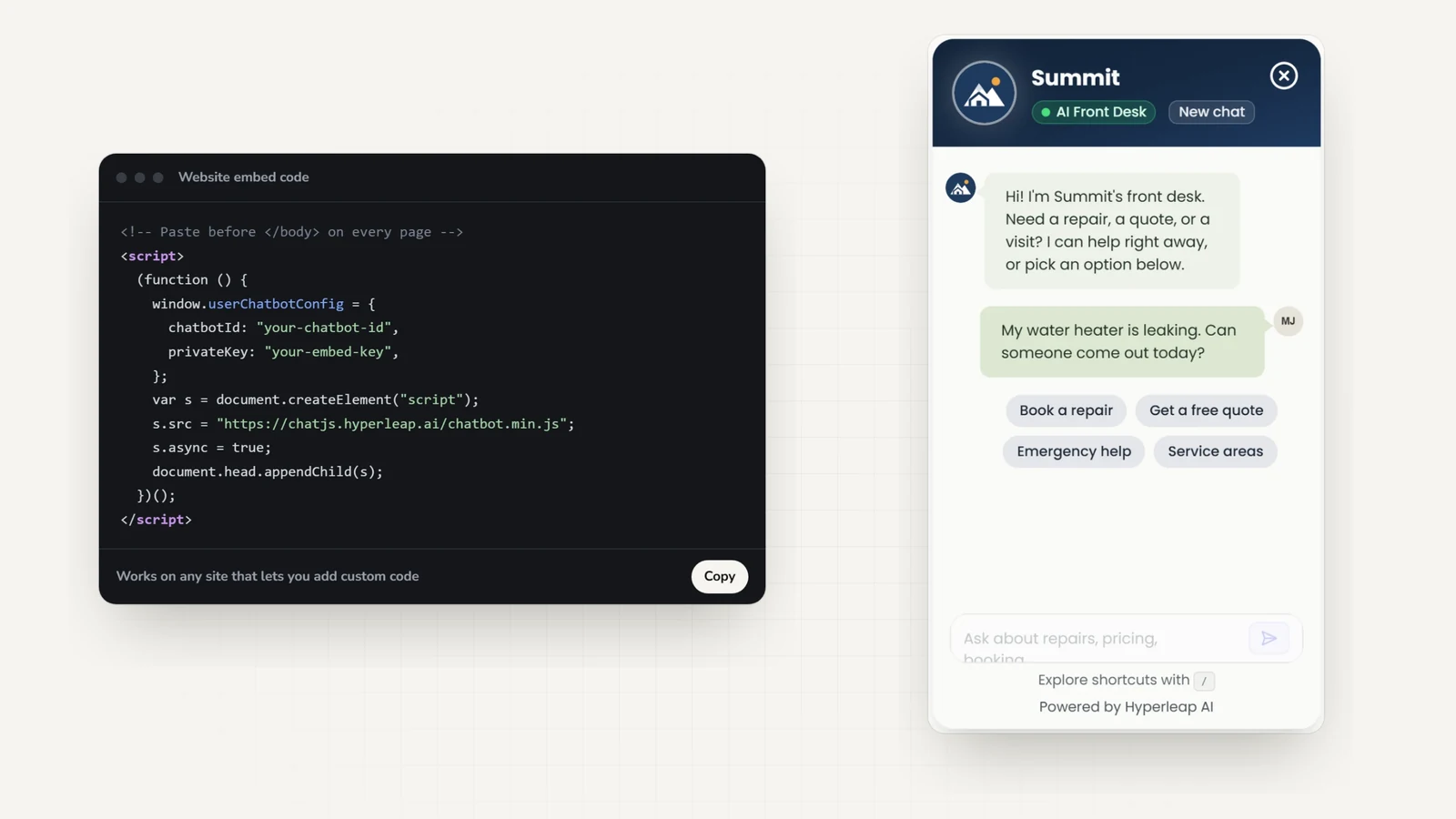
Get Your Embed Code
Log in to Hyperleap AI. Open your AI agent and click Publish to see the Website Integration dialog. Copy your unique embed script.
Your embed code contains your chatbotId and privateKey. Keep these secure — they are specific to your chatbot.
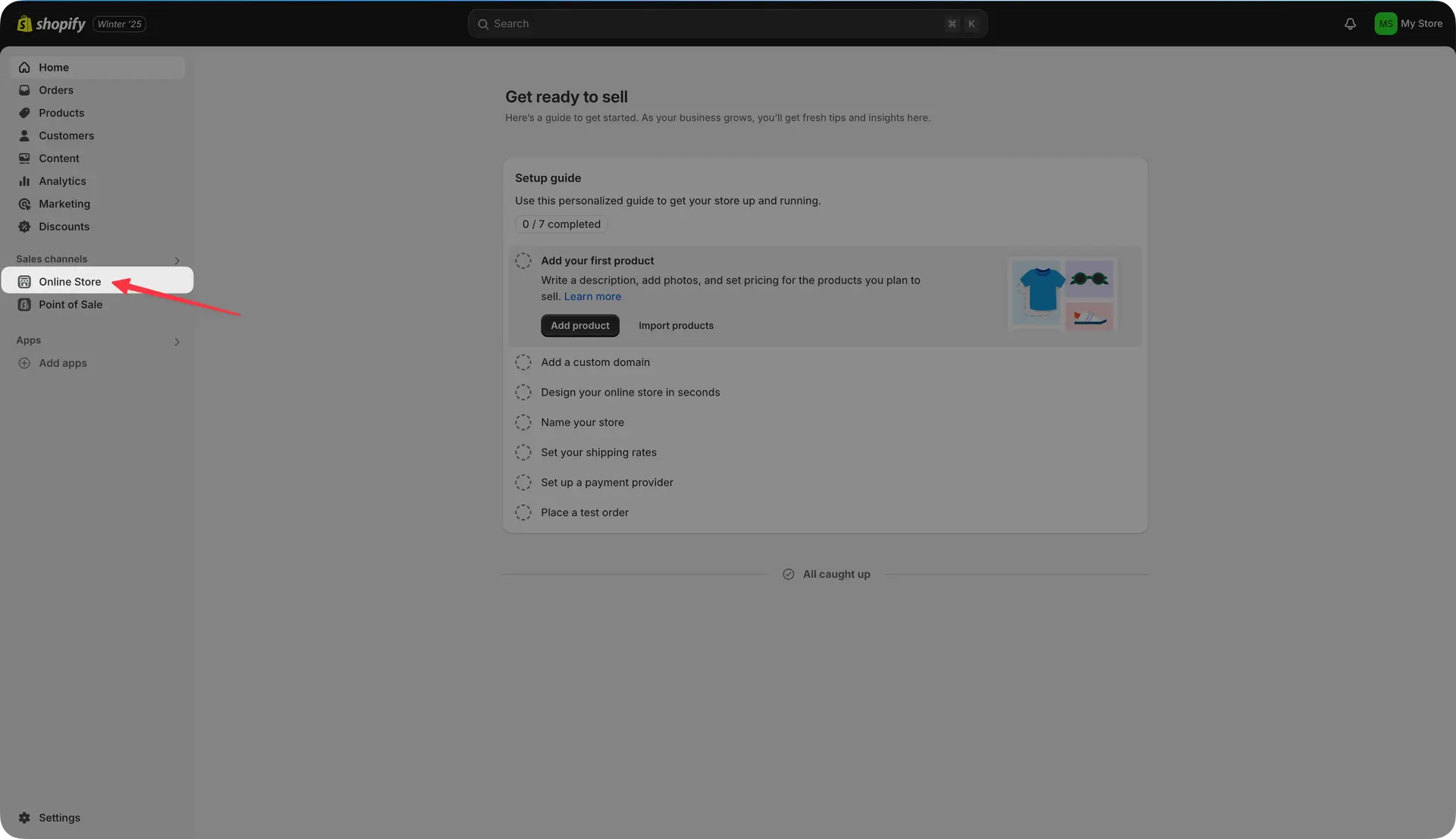
Open Shopify Admin
Log in to your Shopify admin at yourstore.myshopify.com/admin. Go to Online Store > Themes.
Edit Theme Code
Find your current live theme and click the three-dot (…) menu next to it. Select "Edit code" to open the theme file editor.
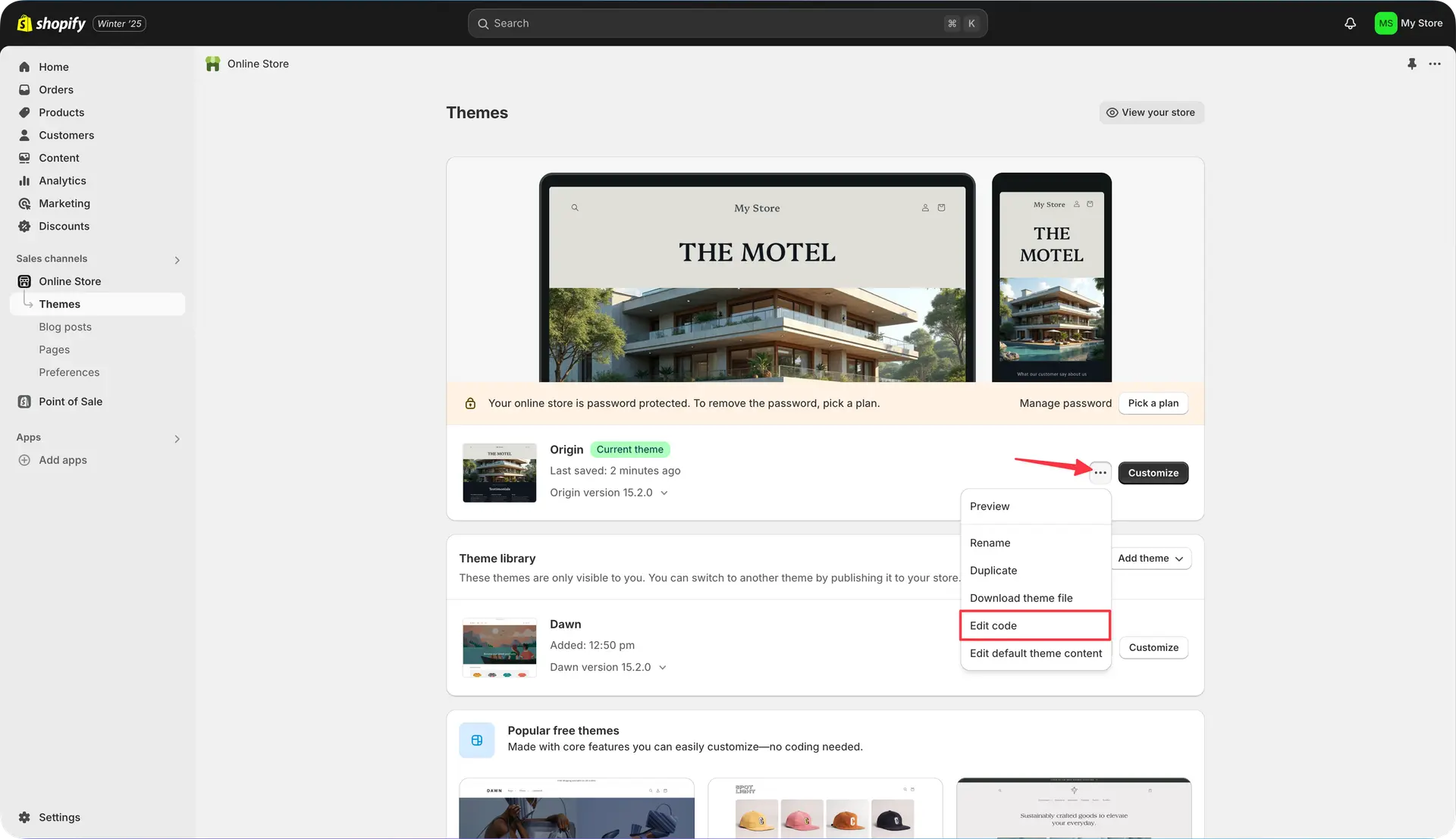
Consider duplicating your theme first as a backup before editing code.
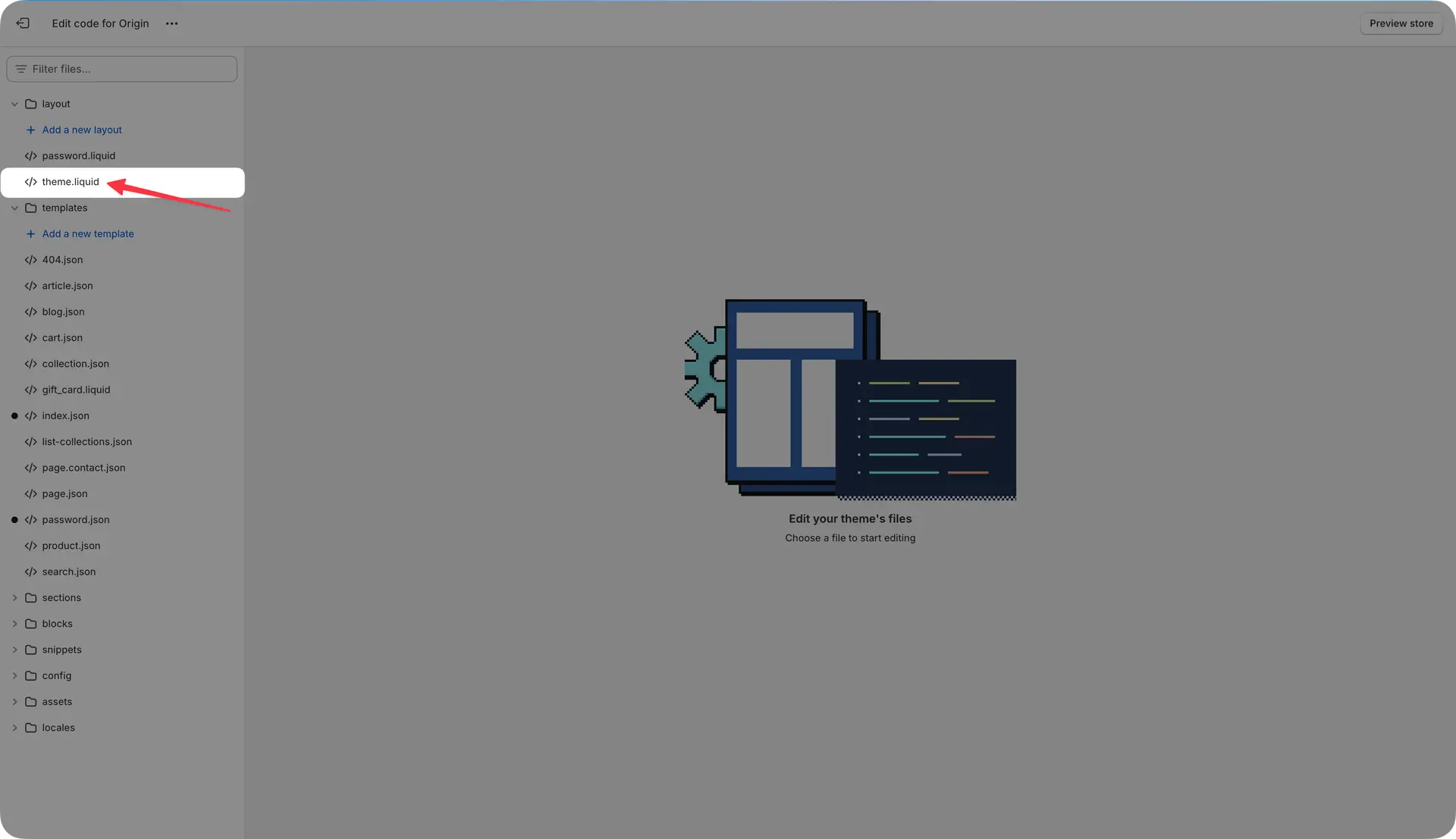
Open theme.liquid
In the Layout folder in the left sidebar, click on "theme.liquid". This single file wraps every page of your store.
Paste the Embed Code
Scroll to the very bottom of theme.liquid and find the closing </body> tag. Paste your Hyperleap embed script directly BEFORE this tag.
<script>
   (function () {
        window.userChatbotConfig = {
            chatbotId: "YOUR_CHATBOT_ID",
            privateKey: "YOUR_PRIVATE_KEY",
        };
        var chatbotScript = document.createElement("script");
        chatbotScript.src = "https://chatjs.hyperleap.ai/chatbot.min.js";
        chatbotScript.async = true;
        document.head.appendChild(chatbotScript);
    })();
</script>
</body>Save and Test
Click "Save" in the top right. Open your storefront in a new tab — the chat widget should appear in the corner. Start a test conversation.
Clear your browser cache if the widget does not appear immediately.
Alternative
Alternative method: Custom Liquid block (no code editing)
If you prefer not to edit theme files directly, Shopify's theme customizer lets you add the widget through a Custom Liquid block — no code editor required.
- 1Go to Online Store > Themes > Customize
- 2Navigate to the page where you want the chatbot to appear
- 3Click "Add section" and select "Custom Liquid"
- 4Paste your Hyperleap embed code wrapped in script tags
- 5Save and publish your changes
The Custom Liquid method only shows the chatbot on the specific pages where you add the block. The theme.liquid method (above) adds it to every page with a single edit — recommended for most stores.
Knowledge
Train your Shopify chatbot on your store's knowledge
The chatbot is only as good as the knowledge you give it. Before you go live, upload the documents that answer your most common pre-purchase questions.
Shipping policy
Timelines by destination, processing days, carrier used, express options.
Return & exchange policy
Window, conditions, how to initiate a return, refund timelines.
Size guides
Measurement charts, how items fit (true to size / runs small / large).
Product care
Wash instructions, material specifics, durability notes.
FAQ document
The questions your inbox receives most — bundled into one uploaded file.
Wholesale & bulk inquiries
Minimum order quantities, wholesale contact process, trade pricing.
The chatbot answers from what you upload. Questions outside your knowledge base are flagged and routed to your team — so shoppers never get a confidently wrong answer.
Troubleshooting
Troubleshooting the Shopify embed
Chat widget not appearing after saving?
Clear your browser cache and reload. Verify the embed code is placed immediately before the </body> tag in theme.liquid — not inside any if/for block. Check that your chatbotId matches what is in your Hyperleap dashboard.
Widget appears on wrong pages only?
If you used the Custom Liquid block method, it only shows on the pages where you added the block. Switch to the theme.liquid method (before </body>) for store-wide coverage.
Changes not saving in Shopify?
Confirm your Shopify staff account has "Themes" edit permission. Only store owners and staff with theme access can edit code.
Widget conflicts with another app or section?
The Hyperleap widget loads asynchronously and does not block page render. If you see a layout conflict, try moving the embed code higher, just before </body>, to ensure it loads after all other page elements.
FAQ
Frequently asked questions about Shopify chatbots
How do I add a chatbot to Shopify?
The fastest method: go to Shopify Admin > Online Store > Themes > Edit Code, open theme.liquid, and paste your Hyperleap embed script just before the closing </body> tag. Save — the chatbot appears on every page of your store immediately. No Shopify app required. The whole process takes under 5 minutes.
What is the best chatbot for Shopify?
The best Shopify chatbot depends on what you need it to do. If your goal is to answer pre-purchase questions (shipping times, return policy, sizing, product details) and capture leads 24/7, Hyperleap AI trains on your own knowledge base — your uploaded FAQs, policies, and guides — so answers are document-grounded and on-brand. It works across your Shopify store website, WhatsApp, Instagram DM, and Facebook Messenger from one setup. Starts at $40/month with a 7-day free trial.
What questions can a Shopify chatbot answer?
A Shopify chatbot trained on your knowledge base can answer any question you have documented: shipping timelines, return and exchange policy, size guides, product care instructions, store hours, discount codes, wholesale inquiries, and general FAQs. It answers from your uploaded content — not from Shopify product data or live inventory. For questions outside your knowledge base, it routes shoppers to your support team.
Can a Shopify chatbot see my product catalog or inventory?
No. Hyperleap AI is a chat widget embed — it does not connect to the Shopify e-commerce API and has no access to your product catalog, live inventory, cart data, or order history. It answers questions from the knowledge you upload: your written FAQs, size charts, shipping policy, and return policy documents. This is intentional: it keeps the chatbot's answers accurate and grounded in your own content rather than pulling live data that changes constantly.
Do I need a Shopify app to add a chatbot?
No. You embed Hyperleap AI by pasting a single JavaScript snippet into your theme.liquid file — no Shopify App Store installation required. This works on all Shopify plans including Basic. An alternative method using Shopify's Custom Liquid block is also available for adding the widget to specific pages only.
How much does a Shopify chatbot cost?
Hyperleap AI starts at $40/month (Plus plan: 3,000 AI responses, 1 chatbot, 4 channels), $100/month (Pro: 12,000 responses, 2 chatbots, white-label), and $200/month (Max: 30,000 responses, 5 chatbots). All plans include a 7-day free trial. A 7-day free trial means you can embed the Shopify chatbot, train it on your policies, and validate it before paying anything.
Keep reading
Keep exploring
AI Chatbot for E-commerce
How AI chat converts more browsers into buyers across any online store.
Chatbot Lead Generation
Turn website visitors into leads — how the chatbot captures and qualifies.
WordPress Chatbot
Embed the same widget on a WordPress or WooCommerce site.
Webflow Chatbot
Add AI chat to a Webflow site with one embed snippet.
Add a chatbot to other website platforms
The same Hyperleap AI agent embeds anywhere from one knowledge base. Building on a different platform — or running more than one site? Here are the step-by-step guides.
See all website chatbot integrations.
Your Shopify chatbot — live in 5 minutes
Start for free, train the AI on your policies and FAQs, paste the embed code into theme.liquid. Your store answers 24/7 before your next support ticket arrives.
7-day free trial on all plans. No Shopify app required. Cancel anytime.