Website Platform
Chatbot for Squarespace
Embed AI chat on any Squarespace site in 5 minutes
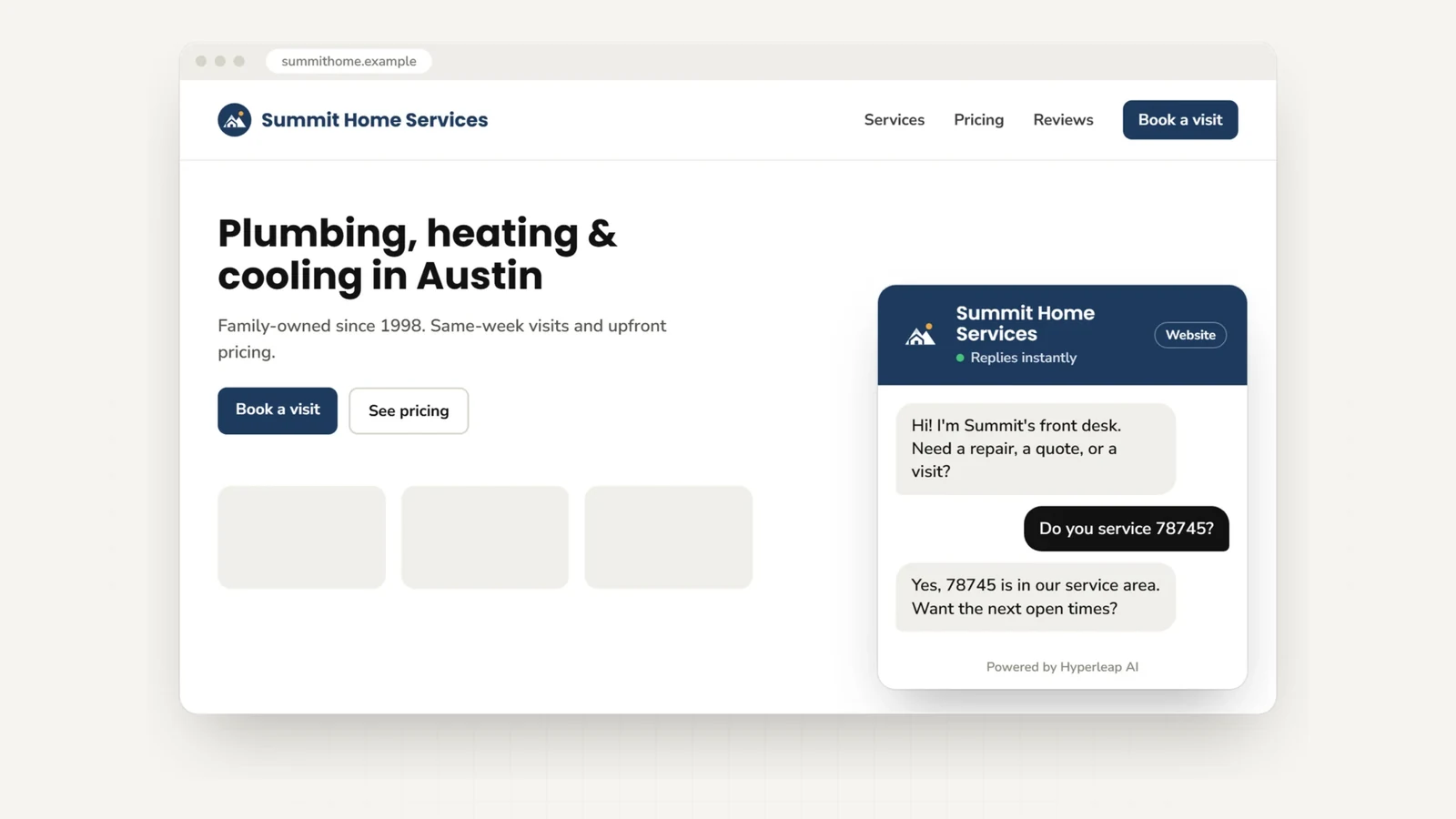
A chatbot for Squarespace is an AI-powered chat widget you embed on your Squarespace website to answer visitor questions instantly, capture lead information automatically, and route complex inquiries to your team — all without any coding skills. To add one: copy your Hyperleap embed script, paste it into Settings > Website Tools > Code Injection > Footer, and save — about 5 minutes, and it is live on every page. It works on Squarespace plans that include code injection (Core, Plus, and Advanced).
Why owners add one: the same handful of questions — pricing, hours, how to book — land on you all day, and the ones that arrive while you are working (or asleep) go unanswered until you get to them. A chatbot answers those the moment they are asked, so you get your day back.
5-minute setup•No developer needed•Core plan or higher
Today
What Happens to Your Squarespace Site Without a Chatbot
Most Squarespace sites are beautifully designed, but they cannot answer a question. Here is what that costs:
Inquiries fall into the void
Visitors who cannot get an immediate answer leave and rarely come back. Every unanswered "what does this cost?" is a lead you did not capture.
You answer the same questions on repeat
"What are your hours?" "Do you ship internationally?" "How do I book?" Every reply you write manually is time you did not spend on work that grows your business.
Your competitors have a chatbot
A visitor comparing two Squarespace sites will get an instant answer on one and silence on the other. That instant answer wins the booking — even if your product is better.
Adding a chatbot for Squarespace via code injection takes 5 minutes and runs 24/7 from that point forward — at no extra effort from you.
Outcomes
What a Squarespace Chatbot Actually Does for Your Business
Not a flashy live-chat box that pings a human — an AI that handles real conversations on its own, from your knowledge base, on your schedule (which is: always on).
Answers the questions you keep repeating
Your Squarespace chatbot reads from the knowledge base you give it — your FAQs, pricing page, service descriptions — and answers visitors the moment they ask, document-grounded and on-brand. Not tomorrow. Now.
Turns browsers into named leads
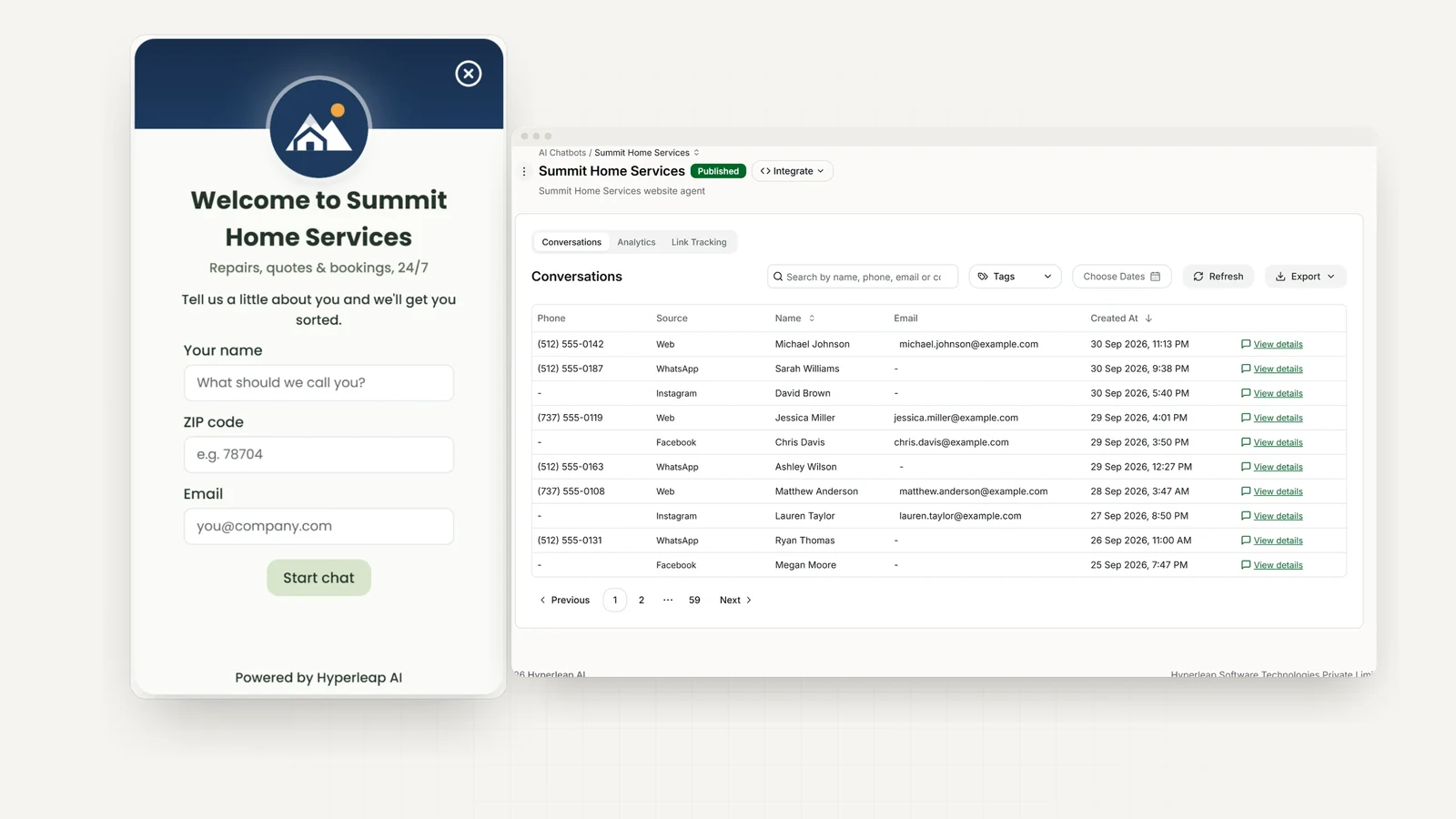
The chatbot asks for name, email, and phone during natural conversation. Every lead lands in your Hyperleap Studio dashboard — ready to follow up or export. No more anonymous traffic.
Answers only from your content — not the open internet
Hyperleap AI uses your uploaded documents, FAQs, and site content to generate document-grounded responses. Visitors get accurate, specific answers — not generic AI guesses.
One setup, four channels
The same chatbot you embed on Squarespace also works on WhatsApp, Instagram DM, and Facebook Messenger. One knowledge base, one dashboard, four places your customers already are.
Built not to slow your site
The embed script loads asynchronously — so your Squarespace page content renders first and the widget appears after it.
Looks like it belongs on your site
Match the widget color, welcome message, position, and bot name to your Squarespace design. Visitors see a seamless extension of your brand — not a third-party widget bolted on.
On every plan
- Answers from your pages, PDFs, and FAQs
- A contact form before the chat, with leads and transcripts emailed to your team
- Replies in 100+ languages
- A widget matched to your branding, on desktop and mobile
On Pro and Max
- Books appointments in the chat with Calendly or Cal.com (on Plus, it shares your booking link)
- Hands the chat to a person, who can take over and hand it back to the AI
- Shares photos, documents, and videos as cards
- Calls your own API to look up an order or submit a request (Actions)
- Removes the Hyperleap badge from the widget
Need a chatbot that works beyond just Squarespace? See how Hyperleap AI works for small businesses across every channel — or explore our no-code chatbot builder if you want to build without touching any code at all.
Squarespace Plan Requirement: Code injection is available on the Core, Plus, and Advanced plans, and on some older plans such as Business and Commerce. It is not included on Basic. On Basic you can try a Code Block on individual pages, though scripts in Code Blocks may not run reliably. If you are not sure which plan you are on, check your Squarespace billing page.
Setup
How to Add a Chatbot to Squarespace
Method 1: Site-Wide Code Injection (Recommended, Core plan and above)
This is the recommended approach. It adds the Squarespace chatbot to every page of your site in one step, using Squarespace's built-in Code Injection feature. You are embedding the Hyperleap chat widget via a script tag — not installing a plugin or API integration.
Get your Hyperleap embed code
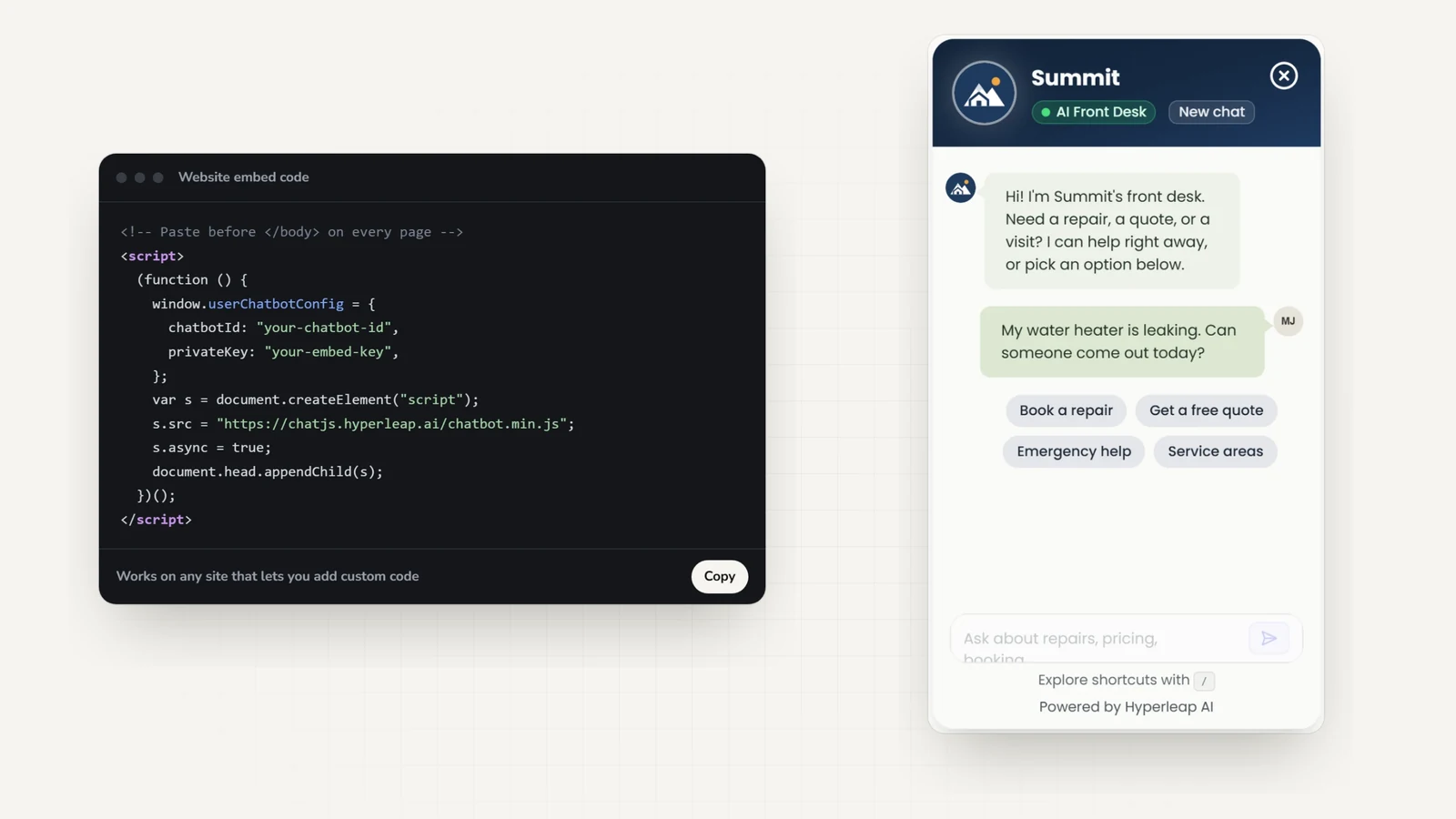
Log in to Hyperleap Studio, open your chatbot, and click Publish. Copy the embed script from the Website Integration dialog — it looks like a short <script> tag with your unique chatbot ID and private key.
Open Squarespace Website Settings
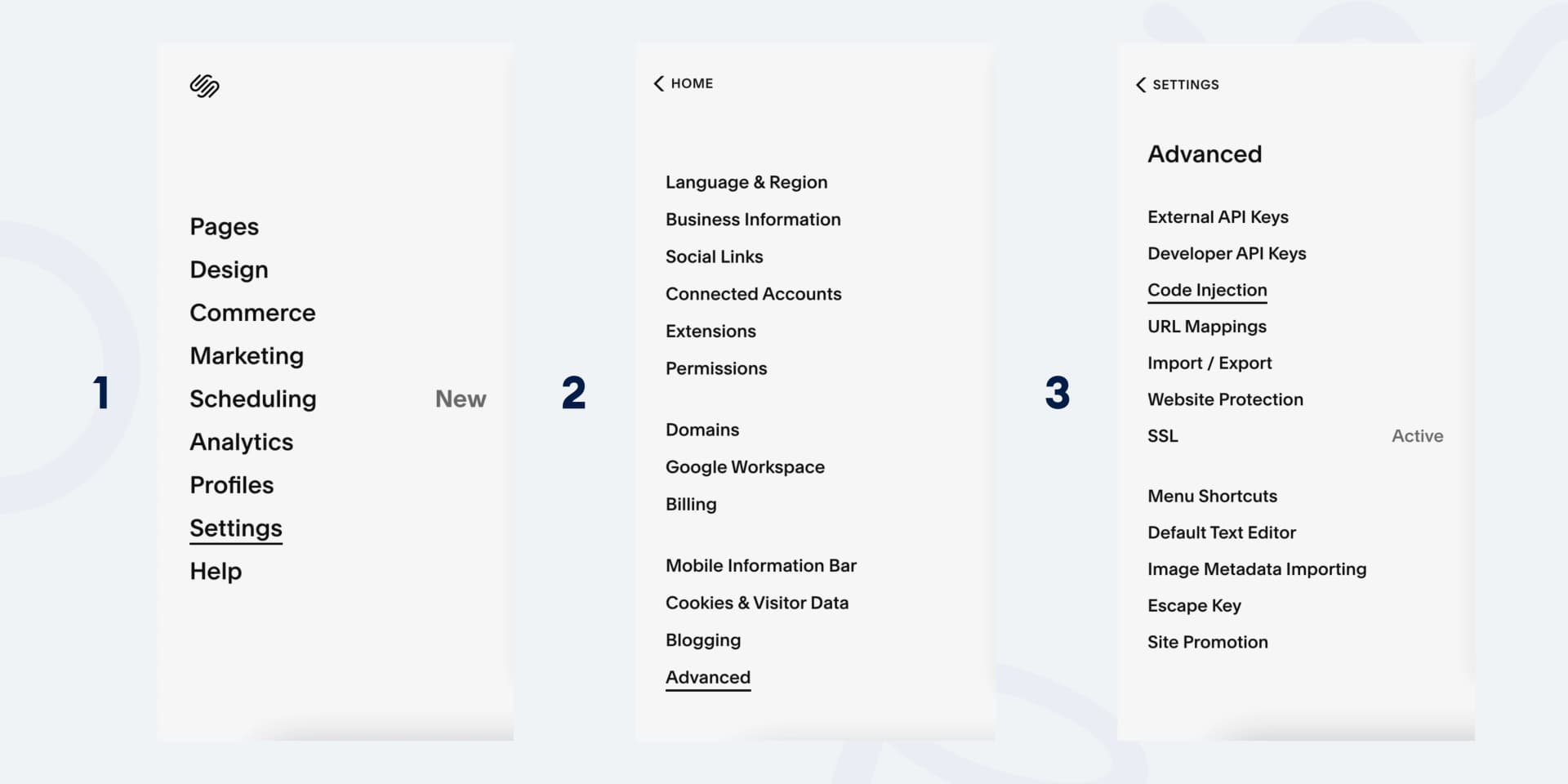
In your Squarespace dashboard, click "Website" in the left sidebar, then click "Website Tools" near the bottom of the menu.
Navigate to Code Injection
Scroll down and click "Code Injection". This opens the panel where you add custom scripts to your entire site.
Paste your embed code in the Footer field
Scroll to the Footer section in Code Injection. Paste your Hyperleap embed script here. The Footer field places the script just before the closing </body> tag — the correct location for chat widgets.
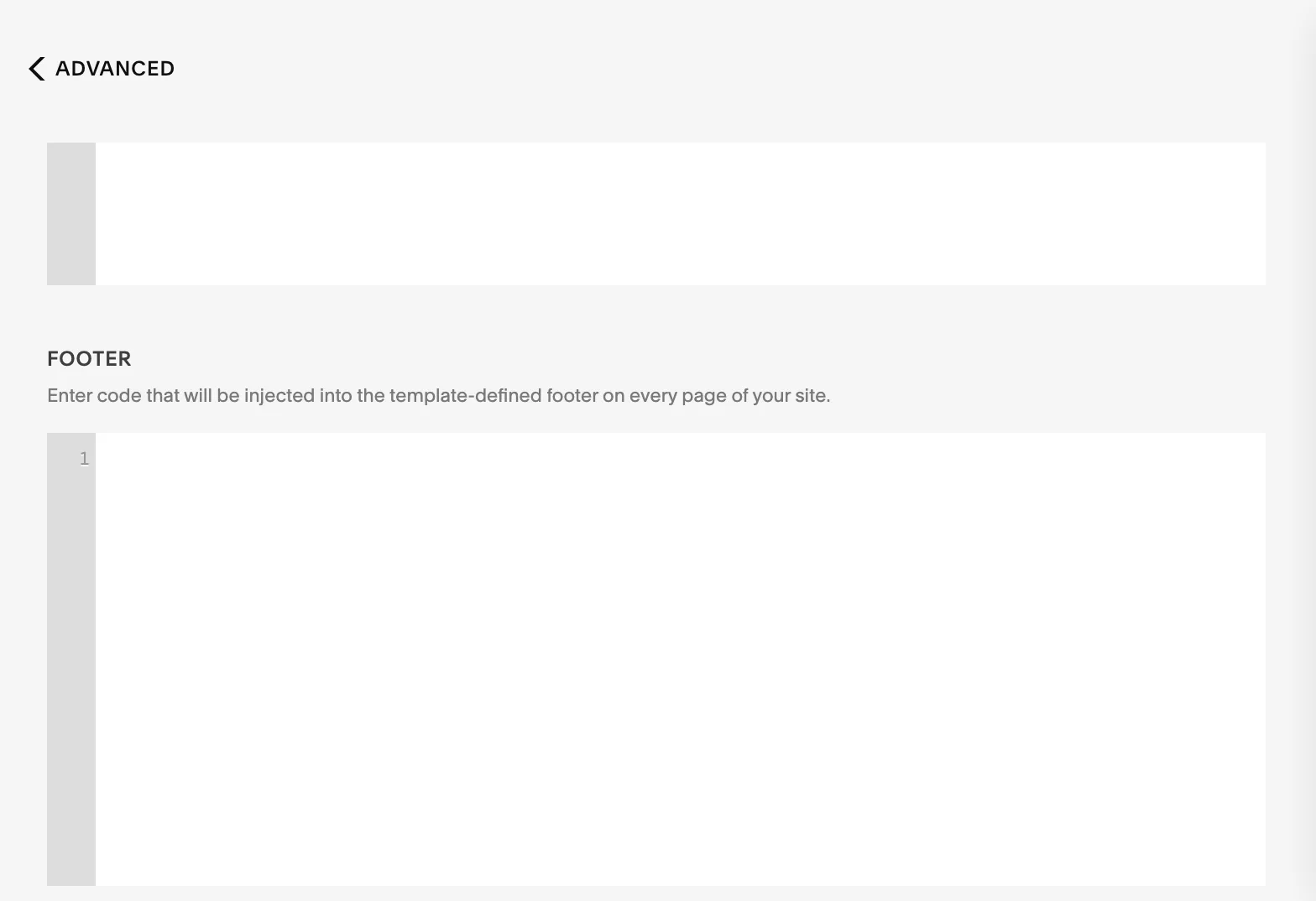
Paste your embed code (it looks like this)
Replace YOUR_CHATBOT_ID and YOUR_PRIVATE_KEY with the values from the Website Integration dialog in Hyperleap Studio.
<script>
   (function () {
        window.userChatbotConfig = {
            chatbotId: "YOUR_CHATBOT_ID",
            privateKey: "YOUR_PRIVATE_KEY",
        };
        var chatbotScript = document.createElement("script");
        chatbotScript.src = "https://chatjs.hyperleap.ai/chatbot.min.js";
        chatbotScript.async = true;
        document.head.appendChild(chatbotScript);
    })();
</script>Click Save
Click "Save" at the top of the page. Your chatbot for Squarespace is now live on every page of your site immediately — no publish step required.
That is the entire setup. No plugin to install, no developer to hire, no Squarespace API credentials needed. You are embedding the Hyperleap chat widget via a script tag — the same way you would add Google Analytics or any other tracking script to your Squarespace site.
Want screenshots of every step, plus testing and styling tips? Read the step-by-step Squarespace guide.
Single page
Add a Chatbot to a Specific Squarespace Page
Method 2: Page-Specific Code Injection (Core plan and above)
Use this if you only want the chatbot on your Contact page, Pricing page, or a specific service landing page:
- 1Go to Pages in your Squarespace dashboard
- 2Hover over the page and click the gear icon (Settings)
- 3Click the "Advanced" tab
- 4Scroll to "Page Header Code Injection"
- 5Paste your Hyperleap embed code
- 6Click "Save" to apply — the chatbot appears on that page only
Tip: If you want the chatbot on your highest-intent pages first (pricing, contact, booking), start with page-specific injection. You can always switch to site-wide Code Injection later to cover all pages.
Code Block
Squarespace Chatbot via Code Block
Method 3: Code Block (scripts may not run reliably on Basic)
For users who want to drop the chatbot into a specific section of a page using Squarespace's visual editor:
- 1Edit the page where you want the chatbot
- 2Click the "+" button to add a block
- 3Select "Code" from the block options
- 4In the code block editor, set the mode to "HTML"
- 5Paste your Hyperleap embed code
- 6Click outside the block to close and save
Note: Code Injection (Methods 1 and 2) is the dependable route. On the Basic plan, scripts in Code Blocks may not run reliably.
Who it fits
Who Uses a Chatbot on Squarespace — and What It Does for Them
Squarespace is the builder of choice for service businesses, creative professionals, and solo founders. These are the use cases where a Squarespace chatbot pays for itself fastest:
Service Businesses (Salons, Spas, Contractors)
Visitors ask about pricing, availability, and how to book. A chatbot answers all three instantly, books the appointment (in the chat with Calendly or Cal.com on Pro and Max, or by sharing your booking link on Plus), and captures their contact details — so even a 9 PM visitor becomes a booked appointment, not a lost inquiry.
Restaurants and Hospitality
Menus, hours, reservations, events — the same four questions, asked hundreds of times a week. A Squarespace chatbot handles all of them automatically, freeing your team for the work that actually requires a human.
E-commerce and Retail
Product questions, shipping policy, return process — a chatbot on your Squarespace store answers from your own documentation, reducing support emails and increasing confidence at the point of purchase.
Professional Services (Law, Accounting, Consulting)
Chatbots pre-qualify visitors by asking about their situation, service needed, and timeline before routing serious inquiries to your calendar link. You spend your time on ready buyers, not cold browsers.
Real Estate and Property
Agents and property managers use Squarespace chatbots to answer questions about listings, availability, and viewings around the clock — so a 10 PM inquiry becomes a morning appointment rather than a competitor win.
Healthcare and Wellness
Clinics, therapists, and wellness practitioners use chatbots to answer common patient questions and share office hours — routing any urgent or clinical question directly to staff rather than attempting to handle it with AI.
Running a small business beyond your Squarespace site? See how Hyperleap AI works for small businesses across every channel.
Compare
Hyperleap AI Chatbot vs. Squarespace Built-In Chat
Squarespace does not include a built-in AI chatbot. Contact forms and any live chat widgets available through Squarespace require a human to respond in real time. Here is the practical difference:
| Capability | Squarespace Forms / Live Chat | Hyperleap AI Chatbot |
|---|---|---|
| AI-powered responses | No | Yes — from your knowledge base |
| Answers after hours | No — requires a human online | Yes — 24/7, no human needed |
| Lead capture | Basic form submission | In-conversation name, email, phone capture |
| Document-grounded answers | N/A | Yes — upload docs, FAQs, URLs |
| Multichannel | Website only | Website, WhatsApp, Instagram DM, Facebook Messenger |
| Setup time | Built in (forms only) | 5 minutes (embed code) |
| Conversation history | Email notifications only | Full dashboard with export (webhooks on Pro and Max) |
| Customization | Form fields only | Colors, name, welcome message, position |
Weighing other options? See how the main Squarespace chatbots compare. Also run a WordPress site? See the WordPress chatbot plugin.
Pricing
How Much Does a Chatbot for Squarespace Cost?
Hyperleap AI plans start at $40/month and include a 7-day free trial. You can embed the chatbot on your Squarespace site within minutes of signing up — set up your chatbot, embed it, and see it working on your site during the trial before you commit to a plan.
- 3,000 AI responses/month
- 1 chatbot
- 4 channels
- 10 team members
- 5 workspaces
- 12,000 AI responses/month
- 2 chatbots
- 8 channels
- In-chat booking, handoff, and Actions
- Hyperleap badge removed
- 30,000 AI responses/month
- 5 chatbots
- 20 channels
- Everything in Pro
- 100 team members
All plans include a 7-day free trial. Credit card required. After the trial, you subscribe or access is restricted — there is no permanent free plan.
FAQ
Chatbot for Squarespace: Frequently Asked Questions
How do I add a chatbot to Squarespace?
You can add a chatbot to Squarespace using Code Injection (Settings > Website Tools > Code Injection). Paste the Hyperleap AI embed script in the Footer section. This method adds the chatbot to every page of your Squarespace site automatically. Code Injection is available on the Squarespace Core, Plus, and Advanced plans (and some older plans), but not on Basic.
Does a chatbot for Squarespace work on all Squarespace plans?
Site-wide Code Injection, the recommended method, is available on the Squarespace Core, Plus, and Advanced plans, and on some older plans such as Business and Commerce. It is not included on the Basic plan. On Basic you can try a Code Block on individual pages, but scripts in Code Blocks may not run reliably, so Core or higher is the dependable route.
Where does the chatbot code go in Squarespace?
Go to Settings > Website Tools > Code Injection. Paste the Hyperleap embed script in the Footer field — this places it just before the closing </body> tag on every page. For a specific page only, go to that page's Settings gear > Advanced tab > Page Header Code Injection and paste it there instead.
How long does it take to set up a chatbot on Squarespace?
Setting up a chatbot on Squarespace takes approximately 5 minutes. Open your chatbot in Hyperleap Studio and click Publish to copy the embed code, then paste it into Squarespace Code Injection and save. The chatbot appears on your site immediately after saving.
Is a chatbot for Squarespace free?
Hyperleap AI offers a 7-day free trial on all plans — no permanent free plan. Paid plans start at $40/month (Plus: 3,000 AI responses, 1 chatbot) up to $200/month (Max: 30,000 responses, 5 chatbots). A credit card is required to start the trial.
Can I add a chatbot to a specific page only on Squarespace?
Yes. Go to Pages in your Squarespace dashboard, hover over the page, click the gear icon, select the Advanced tab, and paste your embed code in Page Header Code Injection. This uses Code Injection, so it needs Core, Plus, Advanced, or an older plan that includes it. This is useful if you only want the chatbot on your Contact or Pricing page.
What is the best chatbot for Squarespace?
The best chatbot for Squarespace is one that embeds via code injection in minutes, answers questions from your own content (not generic AI), captures leads inside the conversation, and works across your other channels (WhatsApp, Instagram DM, Facebook Messenger) from the same dashboard. Hyperleap AI is built for exactly this: small and medium businesses that want AI chat on Squarespace without hiring a developer.
Is there a chat plugin or chat app for Squarespace?
Squarespace has no native AI chat plugin and no app-store install for chatbots. Any chat app for Squarespace — including Hyperleap AI — is added as an embed script through Code Injection. In practice it works exactly like a plugin: paste the script once and the chat widget appears site-wide, with AI answers from your content, lead capture, and full styling control, no developer needed.
Does a chatbot slow down my Squarespace site?
The Hyperleap chatbot script loads asynchronously, so it does not block your Squarespace page from rendering: visitors see your content first, and the chat widget appears once it has loaded.
Can the chatbot on Squarespace capture leads?
Yes. The Hyperleap AI chatbot collects each visitor's name, email, and phone number through a lead form before the conversation begins, so every chat starts with contact details already captured. All leads are stored in your Hyperleap Studio dashboard where you can review and export them, and your team gets an email summary of each conversation. On Pro and Max, webhooks can also send each lead to your own systems.
Add a chatbot to other website platforms
The same Hyperleap AI agent embeds anywhere from one knowledge base. Building on a different platform — or running more than one site? Here are the step-by-step guides.
See all website chatbot integrations.
Add a Chatbot to Your Squarespace Site Today
5-minute setup. 7-day free trial. No developer needed.
Site-wide code injection needs a Squarespace Core plan or higher. Hyperleap plans from $40/month.