How to Add an AI Chatbot to Squarespace (Step by Step)
Step-by-step guide to adding an AI chatbot to Squarespace via Code Injection, plus plan requirements, troubleshooting, and a pre-launch checklist.
TL;DR:
- Adding an AI chatbot to Squarespace means pasting one JavaScript embed snippet into Settings > Website Tools > Code Injection > Footer — a 5-minute task, no developer required.
- Site-wide Code Injection needs a Squarespace Core, Plus, or Advanced plan (or an older plan that includes it, such as Business or Commerce). On the Basic plan, Code Injection isn't available; you can try a Code Block on individual pages, but scripts in Code Blocks may not run reliably.
- The most common failure isn't the embed — it's pasting the snippet into the wrong field (Header vs. Footer), forgetting to publish, or testing in a cached browser tab.
- Before you go live, feed the chatbot's knowledge base your FAQ page, shipping/return policy, service list, and pricing page — the AI can only answer from what you give it.
- This guide covers the full walkthrough, page-specific embeds, a troubleshooting table for the errors people actually hit, and a pre-launch testing checklist.
Squarespace doesn't have a "chatbot app" in its extension marketplace. There's no button that says "Add AI Chat." If you've searched Squarespace's own help docs or extension library looking for one, you've already discovered that — and probably given up, assuming you'd need a developer.
You don't. Every AI chatbot that runs on a Squarespace site — including Hyperleap AI's — gets there the same way: a short embed script pasted into Squarespace's built-in Code Injection panel. It takes about five minutes once you know exactly where to click, what to paste, and which field to avoid. This guide walks through that process end to end: the plan requirements Squarespace doesn't advertise clearly, the step-by-step Code Injection setup, page-specific embeds if you don't want site-wide chat, the errors people actually run into, what to load into the chatbot's knowledge base before launch, and a testing checklist so you don't publish a broken widget.
If you're still deciding whether you need a chatbot on Squarespace at all — what it does, what it costs, and why your site is losing inquiries without one — see our dedicated page on adding a chatbot for Squarespace. This post assumes you've made that call and just want the setup done correctly.
What You Need Before You Start
Adding a chatbot to Squarespace requires either a Core plan or higher for site-wide embedding, or a Code Block on individual pages if you're on the Basic plan. Confirming which situation you're in before you start saves you a confusing ten minutes of clicking around a settings panel that isn't there.
Squarespace gates JavaScript embedding by plan tier, and the tier determines which method you'll use:
| Squarespace plan | Site-wide Code Injection | Per-page Code Block | What this means for your chatbot |
|---|---|---|---|
| Basic | Not available | Available, scripts may not run reliably | Chatbot works only on pages where you manually add a Code Block, if the script runs there |
| Core | Available | Available | Recommended path — add the embed once, it runs on every page |
| Plus | Available | Available | Same as Core, with lower commerce fees |
| Advanced | Available | Available | Same as Core, with lower commerce fees |
| Older plans (Business, Commerce) | Available | Available | Same as Core, if you are still on one of these |
You'll also need:
- A Hyperleap AI account with a chatbot already configured (or created during the trial signup flow) — this is where your embed script lives.
- Admin access to your Squarespace site — Code Injection is a Website Tools setting, restricted to site owners and Administrator-level contributors.
- Five minutes and a browser tab you can refresh — you'll paste one snippet, save, and verify.
Not sure which plan you're on
Open your Squarespace dashboard, click your site, then go to Settings > Billing & Account. Your plan name appears at the top. If you don't see "Code Injection" under Settings > Website Tools at all, you're on Personal and need the page-specific method covered later in this guide.
Why "Adding a Chatbot to Squarespace" Trips People Up
The confusion isn't technical difficulty — it's that Squarespace's own interface uses overlapping terminology, and a wrong click can break your header instead of adding a widget.
Four specific points cause most of the friction:
Code Injection vs. Code Block are not the same feature. Code Injection lives in Website Tools and applies scripts site-wide (or per-page, if you use the page-level version). A Code Block is a content element you drag onto a specific page inside the page editor — closer to adding an image or text block. People search "add code to Squarespace," land on instructions for the wrong one, and paste a chat widget script into a Code Block expecting it to appear on every page. It won't.
Header and Footer fields do different jobs. The Code Injection panel has two boxes: Header and Footer. Pasting a chatbot script into the Header field technically works in most cases, but it loads the script before the rest of your page content, which can slow down the initial paint. The Footer field loads your script just before the closing </body> tag — after your page content — which is the correct placement for a chat widget and won't compete with your page for load priority.
Saving does not mean publishing. Squarespace autosaves Code Injection changes, but if you're using Squarespace's site-wide "unpublish" or draft states on certain pages, or if you're viewing a cached version of your own site, you may not see the widget appear immediately. This causes people to assume the embed failed when it actually worked.
Ad blockers and privacy extensions hide the widget during your own testing. If you test your freshly embedded chatbot in your primary browser with an ad blocker or privacy extension running, the widget may not render — not because the embed is broken, but because your extension is blocking the script. Testing in an incognito window without extensions is the fastest way to rule this out.
How to Add an AI Chatbot to Squarespace (Step by Step)
The fastest way to add a chatbot to Squarespace is site-wide Code Injection: paste one script into the Footer field, save, and it runs on every page. Here's the full sequence.
Method 1: Site-Wide Code Injection (Core plan and above)
Step 1 — Get your embed code.
Log in to Hyperleap Studio. Open your chatbot, click Publish, and copy the script from the Website Integration dialog. It's a short <script> tag containing your unique chatbot ID and a public key — you don't need to edit anything inside it.
Step 2 — Open Website Tools. In your Squarespace dashboard, click Website in the left sidebar, scroll down, and click Website Tools.
Step 3 — Click Code Injection. This opens the panel with two text boxes: Header and Footer.
Step 4 — Paste the script into the Footer box. Click into the Footer field and paste your Hyperleap embed script exactly as copied — don't add extra tags around it, and don't remove anything from inside it.
Step 5 — Save. Squarespace autosaves this panel, but click away from the field or navigate to another settings page to confirm the save registered. You'll see the panel reflect your pasted code the next time you open it.
Step 6 — Open your live site in a new incognito window. Navigate to your actual domain (not the Squarespace editor preview) with no browser extensions active. The chat widget should appear, typically in the bottom-right corner, within a couple of seconds of the page loading.
Step 7 — Send a test message. Ask the chatbot a question you know the answer to — ideally something covered in your knowledge base, like "What are your hours?" or "Do you offer X?" — and confirm it responds correctly and the lead form appears where you expect it.
Step 8 — Check on mobile. Load your site on a phone (or use your browser's device-emulation view) and confirm the widget doesn't overlap your existing mobile navigation, cart icon, or any fixed-position elements your Squarespace template uses.
That's the full site-wide path. Widget colors, greeting message, position, and bot name are all configured inside Hyperleap Studio — not in Squarespace — so once the script is embedded, all further styling changes happen in your Hyperleap dashboard and reflect automatically on your live site without touching Squarespace again.
Method 2: Single-Page Embed (Basic plan, or anyone who wants the chatbot on one page only)
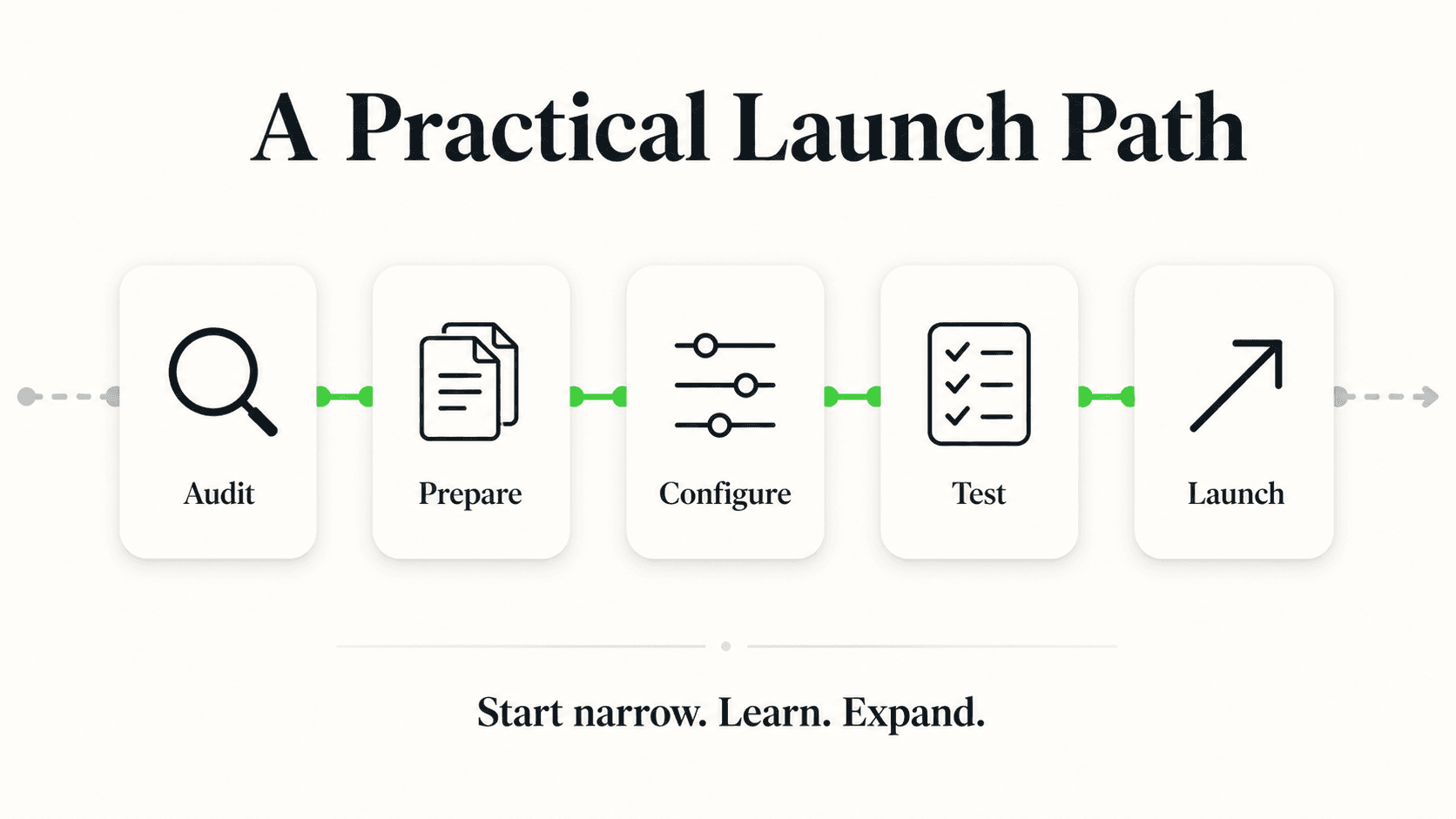
If you're on the Basic plan, or you deliberately want the chatbot on only your Contact or Pricing page instead of site-wide, use a Code Block instead of Code Injection.
Step 1 — Open the page you want the chatbot on, in the Squarespace page editor.
Step 2 — Click the + icon where you want to add content, and choose Code from the block menu (usually under "More").
Step 3 — Paste your Hyperleap embed script into the Code Block.
Step 4 — Save the block, then save and publish the page.
Step 5 — Test in an incognito window, same as Method 1.
The catch on the Basic plan: Squarespace restricts some JavaScript execution inside Code Blocks more aggressively than in the full Code Injection panel, so if the widget doesn't appear, that's the first thing to suspect — see the troubleshooting table below.
Want the chatbot on your Contact page only?
Even on Core plans and above, you can skip site-wide embedding and use the per-page method above if you only want chat on specific pages, like Contact, Pricing, or a landing page for a campaign.
If you manage sites on more than one platform, the underlying method — one script tag, pasted before the closing body tag — is nearly identical everywhere. Our website chatbot embed guide covers the universal method plus the platform-specific steps for Shopify, WordPress, Webflow, Wix, and custom HTML sites if you need those too. We also maintain dedicated walkthroughs for WordPress and Wix if your business runs sites on more than just Squarespace.
Troubleshooting Common Squarespace Chatbot Errors
Most Squarespace chatbot embed failures trace back to one of six causes, and each has a specific fix.
| Symptom | Likely cause | Fix |
|---|---|---|
| Widget doesn't appear at all | Script pasted in a Code Block instead of Code Injection Footer, or you're on the Basic plan without a page-level Code Block | Confirm your plan tier; use Method 1 for Core and above, Method 2 for Basic |
| Widget appears on desktop but not mobile | Template CSS is hiding fixed-position elements below a certain screen width | Check your Squarespace template's mobile styles; most default templates don't conflict, but heavily customized CSS can |
| You see the widget in the editor but not on the published site | You tested the Squarespace preview/editor view, not the live published URL | Open your actual domain, not the backend editor |
| Widget appeared, then vanished after a template change | Switching templates or using "Design > Custom CSS" resets some Website Tools settings less often, but a full template swap can require re-checking Code Injection | Re-open Settings > Website Tools > Code Injection and confirm your script is still present |
| Nothing happens when you click the chat bubble | Ad blocker or privacy extension in your test browser is blocking the script from initializing | Test in an incognito window with no extensions |
| Widget shows but never loads a response | Chatbot's knowledge base is empty or the chatbot isn't published in Hyperleap Studio | Confirm the chatbot is set to "Published" (not Draft) in Hyperleap Studio and has at least one knowledge source uploaded |
One embed script per chatbot
If you paste your embed script into both the Header and Footer fields, or into Code Injection and a Code Block on the same page, you may see the widget render twice. Use the Footer field only, on Method 1, and remove any duplicate pastes.
Skip the trial and error
See exactly how the Hyperleap embed looks and behaves before you add it to your live Squarespace site.
Start Your Free TrialWhat to Feed Your Chatbot's Knowledge Base Before Launch
An AI chatbot on Squarespace can only answer questions from the content you give it — embedding the script is the easy part; preparing what it knows is what determines whether visitors get useful answers or generic non-answers.
Before you publish, upload or connect the following into your chatbot's knowledge base inside Hyperleap Studio:
- Your FAQ page, if you have one — upload it as a document or let the chatbot scrape the live URL.
- Pricing and service pages — the exact copy from your Squarespace site, so the chatbot's answers match what visitors already read.
- Shipping, return, and cancellation policies — these generate a disproportionate share of chat volume on e-commerce and service sites alike.
- Booking or scheduling process details — if you take appointments, write out how visitors book. If you use Calendly or Cal.com, connect it and the chatbot books the slot right inside the widget (on Pro and Max); on Plus, or with any other scheduling tool, it shares your booking link.
- Business hours, location, and contact fallback — so the chatbot can tell visitors exactly when a human will follow up if their question needs one.
- A short "what we don't do" list — services or products you explicitly don't offer, so the chatbot can say so clearly instead of guessing.
Hyperleap AI generates document-grounded responses from whatever you upload — PDFs, Word docs, or scraped URLs — rather than answering from general internet knowledge. That's a deliberate tradeoff: the chatbot won't invent an answer about a return policy you never gave it, but it also won't know anything you haven't uploaded. For a deeper walkthrough of what to include and how to structure it, see our guide on AI chatbot knowledge base best practices.
If lead quality matters more than lead volume for your business — home services, real estate, high-ticket consulting — it's worth reviewing how OTP-verified lead capture works before launch. It's a paid add-on on Pro and Max plans that confirms a visitor's phone number before the lead lands in your dashboard, which cuts down on the fake numbers and typos that come through standard lead forms.
Testing Checklist Before You Publish
Test your Squarespace chatbot in five specific conditions before you consider the setup finished — most launch problems show up in one of these, not in the embed itself.
- Incognito window, no extensions — confirms the widget isn't being blocked by your own browser setup
- Mobile device (real phone, not just emulator) — confirms the widget doesn't overlap your nav bar, cart icon, or footer on your specific template
- Every page you expect chat on — if you used site-wide Code Injection, spot-check at least three different page templates (home, a blog post, a product or service page)
- Full lead capture flow — start a conversation, fill out the lead form fields, and confirm the lead lands in your Hyperleap Studio dashboard
- A question your knowledge base should answer, and one it shouldn't — confirms the chatbot answers correctly from your content and routes to a human (rather than guessing) when it doesn't know
- Page load speed, before and after — the embed script loads asynchronously and shouldn't block your page from rendering; a quick before/after check with your browser's network tab confirms this on your specific site
- Widget branding matches your site — color, position, welcome message, and bot name, all set inside Hyperleap Studio, should look like a natural extension of your Squarespace design rather than a bolted-on third-party box
Once all seven pass, you're done. Any styling changes after this point happen inside Hyperleap Studio, not back in Squarespace's Code Injection panel.
Choosing the Right Chatbot for Your Squarespace Site
Not every chat widget you can embed on Squarespace behaves the same way once it's live, and the difference matters more after launch than during setup.
A live-chat widget connects visitors to a human — useful if you have staff monitoring chat during business hours, but silent the moment everyone logs off. A rule-based bot follows a fixed decision tree ("Press 1 for pricing") and breaks the moment a visitor asks something outside the script. An AI chatbot grounded in your content, like Hyperleap AI, reads from the knowledge base you built above and generates a real answer to a real question, 24 hours a day, without a human on the other end.
For most Squarespace site owners — creative studios, boutiques, consultants, service businesses — the decision that actually matters isn't which embed method to use (they're all nearly identical) but whether the chatbot behind the script can hold a real conversation grounded in your content, capture the lead's contact details before the conversation even starts, and hand off cleanly to your team when it hits the edge of what it knows. If you want the fuller case for why that matters for a small business specifically — not just the Squarespace mechanics — see our guide on chatbots for small business, or explore Hyperleap's no-code chatbot builder if you'd rather see the full configuration experience before committing to the embed.
Once your chatbot is live on Squarespace, the same setup extends to WhatsApp Business, Instagram DM, and Facebook Messenger from the same Hyperleap Studio dashboard — one knowledge base, one set of leads, four places your customers already are. Pricing starts at $40/month on the Plus plan (1 chatbot, 3,000 AI responses/month) with a 7-day free trial on every plan (credit card required); see the pricing page for the full plan breakdown if you're evaluating this alongside the Squarespace-specific overview.
Frequently Asked Questions
Why isn't my Squarespace chatbot showing up on mobile?
Most often this is a template CSS conflict, not a broken embed — some heavily customized Squarespace templates hide or reposition fixed-position elements below a certain screen width. Check your site's Custom CSS under Design for rules affecting fixed or floating elements, and confirm you're viewing your published site (not the editor) on an actual mobile device or a browser's device-emulation mode.
Can I use Google Tag Manager instead of Code Injection to add the chatbot?
Yes, if you already manage Squarespace through Google Tag Manager for other scripts, you can add the Hyperleap embed script as a Custom HTML tag inside GTM set to fire on all pages, instead of pasting it directly into Squarespace's Code Injection panel. The result is functionally identical — both methods place the script before the closing body tag on every page load.
Does adding a chatbot violate Squarespace's terms of service?
No. Squarespace's Code Injection feature is built specifically to let site owners add third-party scripts like chat widgets, analytics tags, and tracking pixels. Adding an AI chatbot through Code Injection is a standard, supported use of the feature — it doesn't require workarounds or violate any Squarespace policy.
What's the difference between Code Injection and a Code Block?
Code Injection (Settings > Website Tools) adds a script to every page of your site at once and is the recommended method for a chatbot you want site-wide. A Code Block is a content element you drag onto one specific page inside the page editor, useful only if you want the chatbot on that single page. Code Injection needs Core, Plus, Advanced, or an older plan that includes it; Code Blocks are available on Basic but scripts in them may not run reliably.
How do I remove a chatbot from my Squarespace site?
Go to Settings > Website Tools > Code Injection, delete the script from the Footer field, and save. If you added it via a page-specific Code Block instead, open that page, delete the Code Block, and save and publish the page. The widget disappears from your live site immediately after the change propagates.
Can I add more than one script to the Code Injection Footer field?
Yes. The Footer field accepts multiple script tags — for example, your Hyperleap chatbot embed alongside an analytics tag. Paste each script one after another in the same field; there's no need for separate fields per script. Just avoid pasting the same chatbot script twice, which causes the widget to render duplicated.
Do I need Plus or Advanced, or is Core enough?
Core is enough. Site-wide Code Injection is available on Core, Plus, and Advanced; the higher tiers mainly lower commerce fees rather than adding code access. If you're still on an older Business or Commerce plan, Code Injection is included there too.
How long does the whole setup actually take?
For most site owners, five to ten minutes: two minutes to copy the embed code from Hyperleap Studio, two minutes to paste it into Squarespace's Code Injection Footer field and save, and a few minutes to test on desktop and mobile in an incognito window. Preparing the chatbot's knowledge base beforehand — uploading your FAQ, pricing, and policy pages — typically takes longer than the embed itself.
Your Squarespace Site Doesn't Have to Go Quiet After Hours
The mechanics here are genuinely simple — one script, one settings panel, five minutes — which means the setup was never really the obstacle. The obstacle was not knowing exactly where to click, and worrying you'd break something in the process. Now you do.
What happens after the embed is where it actually pays off: every visitor who lands on your Squarespace site at 9pm with a question gets an answer instead of a closed tab, and every one of those conversations becomes a captured lead in your dashboard instead of traffic that quietly left. Hyperleap AI runs that conversation from your own content, captures the visitor's contact details before the chat even starts, and, on Pro and Max, hands off to your team the moment a question goes beyond what it knows — on Squarespace, and on WhatsApp, Instagram DM, and Facebook Messenger from the same setup.
Add your chatbot to Squarespace today
Copy one embed script, paste it into Code Injection, and your Squarespace site is answering visitors within minutes.
Start Your Free TrialRelated Articles
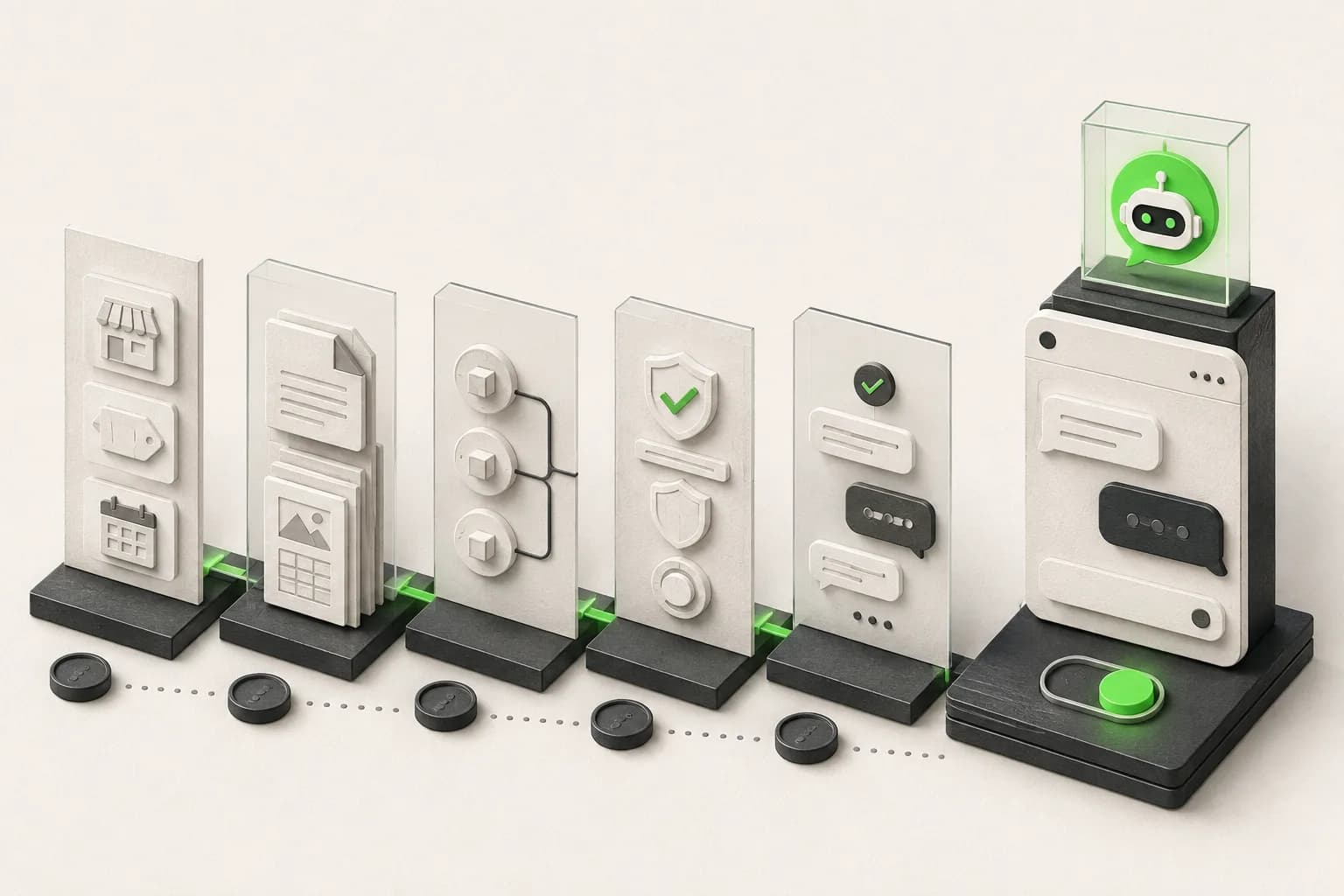
How to Build an AI Chatbot for Your Business
How to build an AI chatbot for your business: decide the jobs it should do, gather knowledge, choose channels, test, and go live in under 5 minutes.
How to Add an AI Chatbot to an HTML Website
Add an AI chatbot to a plain HTML site with one script tag before </body>. Step-by-step setup, testing, styling, and knowledge base tips.

How to Add an AI Chatbot to Shopify (Step by Step)
How to add an AI chatbot to Shopify with a theme.liquid embed — setup steps, Online Store 2.0 notes, and what a Shopify chatbot can and can't access.

How to Add an AI Chatbot to Webflow (Step-by-Step)
Add an AI chatbot to Webflow with one script tag — Custom Code placement, plan requirements, the publish gotcha, and troubleshooting, explained step by step.