Run Sales Standups in Claude Desktop with Hyperleap MCP
Replace your Monday pipeline review with a 15-minute Claude Desktop session. 10 natural-language prompts that pull live data from your Hyperleap chatbot.

TL;DR: Open Claude Desktop, type "Show me this week's leads that look ready to buy," and get a plain-English summary of the leads your Hyperleap chatbot captured, with Claude's read on which ones to call first and why, ready to share with your team. With Hyperleap's MCP server connected, your 9 a.m. pipeline review shrinks from a 30-minute dashboard crawl to a 15-minute conversation. No filters, no exports, no SQL.
The 9 A.M. Problem Every Sales Manager Knows
It is 8:55 on Monday morning. In five minutes, you are running the weekly pipeline review. You need to answer three questions: which leads are hot, which deals stalled, and where are we against the week's target.
Here is what actually happens: you open the Hyperleap dashboard, filter by date, scan the leads list. Then you switch to the conversations tab to check what the bot said to each high-intent prospect. Then you pull up the pipeline view to count how many leads are in each stage. Then you switch back to the leads list because you forgot to check the WhatsApp channel separately. By the time you have a mental picture of the week, it is 9:12 and the standup started without you.
This is not a data problem. You have plenty of data — every lead, conversation, stage change, and chatbot interaction is sitting in Hyperleap. The problem is the interface. Dashboards are built for browsing. Standups need answers.
The Model Context Protocol (MCP) is the bridge. MCP is an open standard that lets Claude Desktop connect directly to external data sources and call tools on your behalf. Hyperleap hosts an MCP server with 9 tools that read your CRM: leads, chatbot conversations, team notes, activity history, pipeline stages, and account totals. When you connect it to Claude Desktop, you stop browsing your CRM and start conversing with it.
A sales standup query that used to take four tab switches and three minutes of filtering now takes one sentence.
This guide shows you exactly what that workflow looks like: the shape of the session, the 10 prompts worth bookmarking, and how to turn it into a daily habit that the whole team benefits from.
If you have not yet connected Claude Desktop to Hyperleap, start with the setup tutorial — it takes under five minutes, and there's nothing to install. Come back here once Hyperleap shows up as a connector in Claude Desktop.
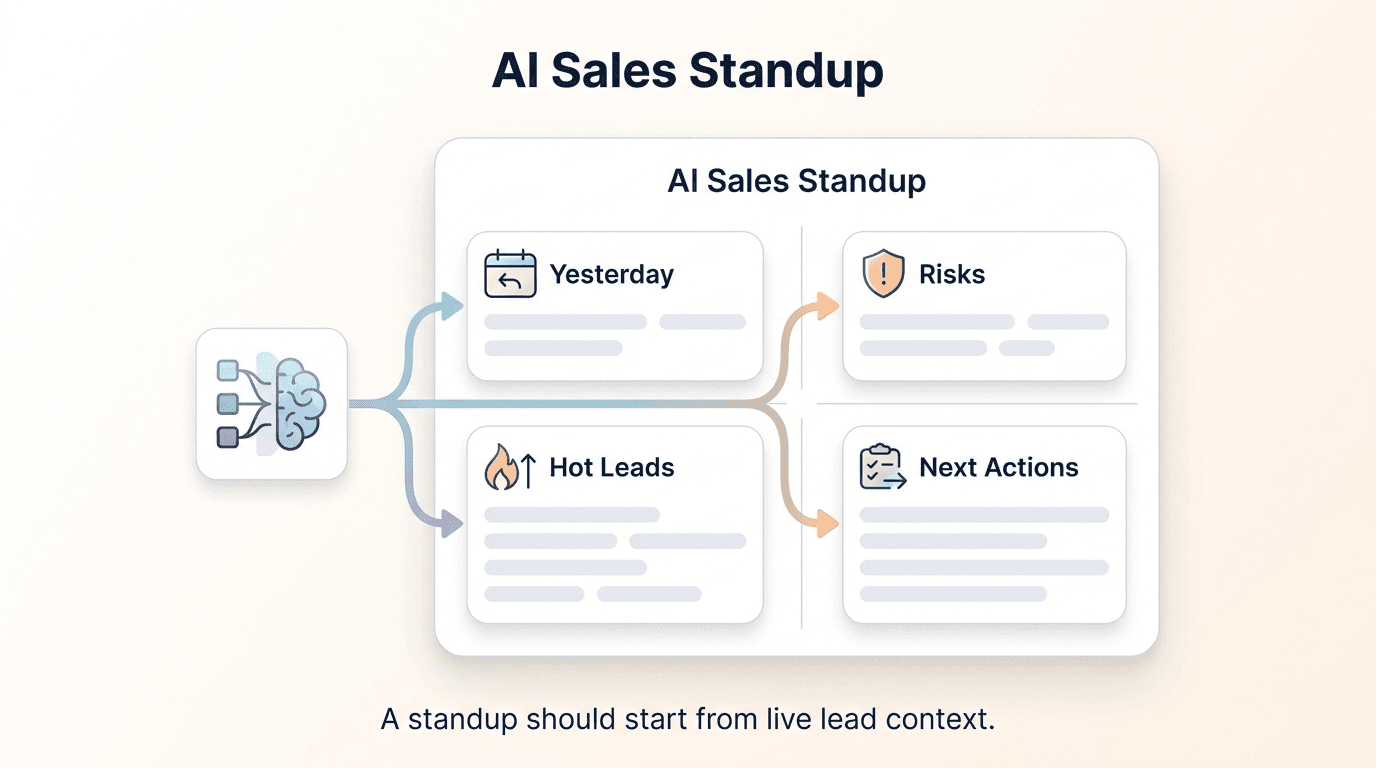
The New Workflow: A 15-Minute Claude Session
Here is the entire standup workflow, from opening Claude Desktop to sharing the digest with your team.
Open one Claude Desktop conversation. Give it a name like "Sales standup — week of May 11" so you can find it later. Everything you ask in this session will have context from previous turns, so Claude can do things like "Now filter that by leads who came through Instagram DM" without you repeating yourself.
Start with the dashboard aggregate. Ask Claude for a CRM summary first. This gives you the top-line numbers (total leads, new leads in the last 7 days, won and lost counts, and your win rate on closed leads) before you drill into specifics. Claude calls get_crm_dashboard, which covers your whole account and takes no date range, and returns a plain-English summary.
Drill into pipeline stages. Ask which stages have the most leads and where things are stuck. Claude calls get_pipeline_stages, returns stage names and counts, and can immediately tell you if one stage has an outsized backlog that signals a bottleneck.
Pull the hot list. Ask for this week's leads that look most ready to buy. list_leads has no date filter, but it returns leads newest first, so Claude reads the first page or two and keeps the ones created this week. It then calls extract_lead_insights on the leads worth a closer look, which pulls out what each lead told your chatbot about budget, timeline, and requirements, and ranks them on that evidence. The ranking is Claude's judgment, built from what the leads actually said.
Spot the stalls. Ask which leads have gone quiet. Every lead from list_leads carries LastActivityAt: the time of the last entry in its activity log, such as a stage change, a tag change, a note, or an edit. Claude flags open leads where that's several days old or empty, and notes the stage each one is sitting in.
Sample 2–3 conversations. For the leads that matter most, ask Claude to pull the transcript. Claude calls get_lead_conversations to list the lead's conversations with your chatbot, then get_conversation for the messages themselves, so you can see exactly what the prospect said, not just a stage label.
Save or share the digest. Copy Claude's responses into a Slack message, email, or shared doc. That is your standup artifact for the day.
The entire session — dashboard summary, pipeline breakdown, hot list, stall check, two or three conversation samples — takes 12–18 minutes for most managers. You spend that time reading and thinking, not clicking filters.
10 Prompts That Replace Dashboards
For each prompt below, the italicized response sketch describes what Claude actually does under the hood and what the answer looks like. All lead names, company names, and figures in the sketches are illustrative.
1. Pipeline Stage Counts
How many leads are in each pipeline stage right now?
Claude calls get_pipeline_stages, which returns your stages in order with a lead count for each, across your whole account. The response looks something like: "New: 34 leads. Contacted: 22. Qualified: 18. Proposal: 7. Won: 41. Lost: 15." If one open stage holds far more leads than the stage after it, Claude flags it as a likely bottleneck.
2. Hot Leads This Week
Show me this week's leads that look most ready to buy, and tell me why.
Claude calls list_leads and keeps the leads created this week. Results come newest first, so that's usually the first page. It runs extract_lead_insights on them, which pulls the facts each lead shared with your chatbot (budget, timeline, requirements, and so on) and saves them to the lead. Claude then ranks the leads on that evidence: lead name, channel, and a one-line reason. Illustrative example: "Acme Corp (Website, Tuesday): needs weekly cleaning for a 4,000 sq ft office, wants to start next month, gave a budget. Call today." For any lead near the top, ask Claude to read the transcript as well, and it will tell you what's holding the lead back, if anything.
3. Stalled Leads
Which open leads has nobody touched in the last 5 days?
Claude calls list_leads and checks each lead's LastActivityAt, the time of its last stage change, tag change, note, or edit. Leads where that's more than 5 days old, or empty, and that aren't in Won or Lost, are your re-engagement queue. Claude lists each one with its stage and the channel it came in on. The activity log records your team's actions, not chatbot messages, so this shows where follow-up has stalled on your side.
4. Leads by Channel
Break down this week's leads by channel — website, WhatsApp, Instagram, Messenger.
Claude pages through list_leads and counts this week's leads by SenderSource, the channel each lead arrived on. (get_crm_dashboard breaks leads down by chatbot, not by channel.) Illustrative: "Website: 41 leads. WhatsApp: 28 leads. Instagram DM: 19 leads. Facebook Messenger: 11 leads." Ask Claude to add each lead's current stage, and it can show you which channel's leads are moving furthest. Useful for budget allocation conversations.
5. Recent Conversations
Pull the latest conversation from each lead in the Proposal stage.
Claude finds the stage's ID with get_pipeline_stages, lists its leads with list_leads, then calls get_lead_conversations and get_conversation for each lead and summarizes the transcripts. The response gives you the gist of each conversation: what the lead asked about, how the chatbot responded, and any commitments made (like a booked call or a document request). This replaces the three-tab-switch sequence of finding a lead, clicking conversations, and reading the transcript manually.
6. What Leads Are Asking For
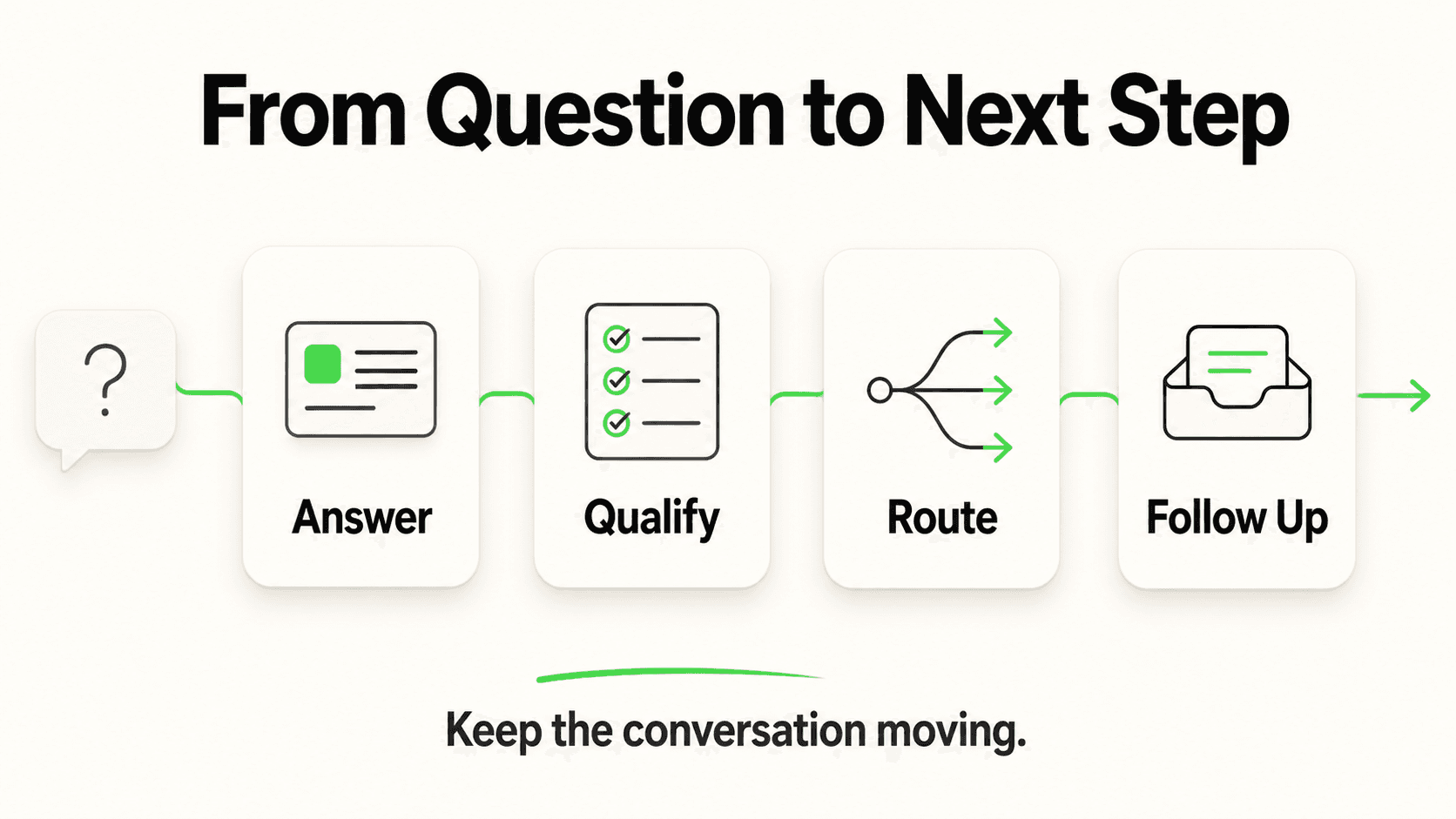
Across this week's leads, which budgets, timelines, and requirements keep coming up?
Claude runs extract_lead_insights across this week's leads and groups the results by category. For leads that already have saved insights, list_leads shows their top three, so Claude doesn't always need to re-run it. Illustrative response: "Timeline: most leads want to start within a month. Budget: those who gave one sit between $500 and $1,500 a month. Requirements: weekend availability came up again and again." This is the kind of roll-up that normally requires a separate analytics tool.
7. Objection Mining
What concerns are prospects raising most this week?
Insights record what a lead said they need, not the doubts they raised, so Claude reads the transcripts for this one: get_lead_conversations and get_conversation for this week's leads, then it clusters the concerns. Illustrative response: "Integration questions (can it connect to our existing tools?) came up in 6 conversations. Pricing hesitation in 5. 'Not the right time' in 4. Needs a manager's sign-off in 3." This output feeds directly into sales coaching. Each transcript is a separate tool call, so with a busy week, start with the newest leads.
8. Conversion: This Week vs. Last
Of the leads that came in this week and last week, how many have reached Qualified or beyond?
get_crm_dashboard reports one account-wide win rate with no date range, so Claude builds this comparison itself. It pages through list_leads, splits the leads by CreatedAt into this week and last week, and counts how many of each are now in Qualified or a later stage. Illustrative: "This week: 23 of 99 new leads are in Qualified or later. Last week: 19 of 87. WhatsApp leads are moving fastest, 9 of 26 this week." This uses each lead's current stage; to see when a lead moved, Claude can check get_lead_activities.
9. Biggest Deals in Flight
Which leads in Proposal mentioned the biggest budgets, and when did someone last touch each one?
Hyperleap leads don't have a deal-value field, so Claude works from what each lead said. It finds the Proposal stage with get_pipeline_stages, lists its leads with list_leads, and calls get_lead_details on each for its saved insights (including any budget the lead mentioned) and your team's notes. If a lead has no insights yet, Claude can run extract_lead_insights first. Illustrative: "Riverside Dental Group: budget around $2,000 a month, last touched 3 days ago, last note says they're waiting on a partner's sign-off. GlobalEdge Solutions: no budget mentioned yet, last touched yesterday. Summit Property Management: budget around $1,200 a month, no notes, nobody has followed up yet."
10. Lead Source Mix
Where are this week's leads coming from: which channels, and which chatbots?
Claude pages through list_leads and splits this week's leads by channel (SenderSource) and by chatbot (ChatbotName). For an all-time view, get_crm_dashboard returns lead counts per chatbot. If your team tags leads by source, such as "referral" or "google-ads," Claude can filter on those tags too. The MCP tools don't return campaign or link-tracking data, so for campaign-level attribution, use Studio. Use this to connect your marketing conversation with your sales conversation.
Turning It Into a Daily Habit
The prompts above are most valuable when you run them consistently, at the same time, with the same structure. Here is the three-step ritual that works for teams using Claude Desktop for sales standups.
Step 1: Run the session before the standup, not during it. Spend 12–15 minutes in Claude Desktop before your team call. Pull the dashboard summary, the hot list, and the stall list. By the time the meeting starts, you are sharing insights, not hunting for them. Your team gets a manager who knows the pipeline, not a manager who is clicking filters on screen share.
Step 2: Capture the key outputs as text. As Claude generates each response, copy the most useful summaries into a running doc or note. A simple structure: "Hot leads this week," "Stalled leads to re-engage," "Top objection this week," "Biggest deals and current status." This becomes your standup script and your paper trail.
Step 3: Compare against last session. Because Claude Desktop saves conversation history, you can open last Monday's session side by side and ask: "How does this week's pipeline compare to last week?" Claude can synthesize the comparison across both sessions if you paste in the key numbers. Over time, this gives you a weekly trend without building a single spreadsheet.
Sharing the Output with Your Team
Once you have run your Claude session and captured the digest, the simplest distribution path is also the best: plain text.
Paste into Slack. Copy the hot leads summary, the stall list, and the week's top insight into a Slack message to your sales channel. Three to five lines per section is enough. This is your standup artifact — it replaces the "can you pull up the dashboard" moment in the meeting.
Email it to stakeholders. If you are reporting up to leadership or a board observer, a brief weekly pipeline email built from your Claude digest takes about three minutes to write. The Claude summaries are already in plain English, so you are mostly formatting, not drafting.
Screenshot the digest. For visual-preference teams, a screenshot of the Claude conversation window showing the hot list and pipeline summary works well in async standups or Notion wikis. Claude's responses are formatted cleanly enough that a screenshot reads well without additional editing.
Save as a recurring artifact. If your team uses a shared doc for weekly pipeline reviews, create a template with the ten prompt categories as section headers. Each week, paste Claude's outputs into the corresponding section. After four weeks you have a searchable history of pipeline state — without a single manual export.
One important note: Slack mentioned here is your distribution channel for the digest, not a Hyperleap chatbot channel. Hyperleap chatbots operate on Website, WhatsApp, Instagram DM, and Facebook Messenger — not Slack. The Slack message is simply where you share the summary your Claude session produced.
What You Cannot Do Yet (Read-Only Honesty)
The Hyperleap MCP tools read your CRM; they don't change it. The one exception is extract_lead_insights, which saves the insights it finds to the lead's profile and logs that it ran. This is worth being direct about, because it affects how you design your workflow.
What you cannot do via Claude Desktop MCP:
- Move a lead to a different pipeline stage
- Edit a lead's details or tags
- Add a note or comment to a lead record
- Send a follow-up message or trigger a chatbot flow
- Mark a deal as won or lost
What this means for your workflow: the standup session in Claude Desktop is a read-and-plan activity. You surface insights, identify which leads need attention, and decide on next actions. The next actions themselves (moving stages, adding notes, editing tags) happen in Hyperleap Studio or through the Hyperleap REST API.
Think of this as a safety feature, not a limitation. Claude can't move a lead to the wrong stage, overwrite a note, or trigger an unintended chatbot flow. Apart from saving insights, it can only look. That makes it safe to run during a live standup, in a shared session, or with a team member looking over your shoulder.
For teams that want to close the loop on updates after a Claude session, the most practical approach is to have the Hyperleap dashboard open in one window and Claude Desktop in another. Claude surfaces what needs attention; you action it in the dashboard.
The full MCP tools reference documents every tool's parameters if you want to understand exactly what each call returns before you build your standup workflow.
Run Your First Standup Today
The biggest shift from dashboard-based pipeline reviews to natural-language ones is not the technology — it is the thinking pattern. Instead of asking "where do I click to find this?", you ask "what do I want to know?" and type it.
That shift takes about one session to internalize. After the first time you type "show me hot leads from this week" and get a ranked, plain-English summary in under ten seconds, the old way of clicking through filters starts to feel obviously wrong.
Connect Hyperleap to Claude Desktop and run your first standup session. The ten prompts in this article are enough to cover a full pipeline review. Start with prompt 2 (hot leads this week), add prompt 3 (stalled leads), and finish with prompt 6 (what leads are asking for). That three-prompt sequence alone gives you more signal than most 30-minute dashboard sessions.
If you want to explore every tool the MCP server exposes and how to chain them together, the full MCP tools reference is the next read. And if you are evaluating which chatbot platform gives you the best MCP integration story, the 2026 comparison covers the field.
Ready to connect? Start with the Hyperleap MCP setup.
Frequently Asked Questions
Does the Hyperleap MCP server work with the free Claude plan?
On the Hyperleap side, MCP is included on every paid plan (Plus, Pro, and Max), and you sign in with a personal MCP key that you create in Hyperleap Studio from your profile menu → My MCP Keys. On the Claude side, Hyperleap connects to Claude Desktop as a custom connector, so check Anthropic's current plan details to confirm your Claude plan includes custom connectors.
How current is the data Claude returns?
Claude calls the Hyperleap MCP server live; there is no cache or pre-pulled snapshot. When you ask "show me leads from this week," Claude calls the list_leads tool at the moment you send the message, and the response reflects your Hyperleap data as it is at that moment.
Can I use these prompts in Cursor or another MCP client instead of Claude Desktop?
Yes. Hyperleap's MCP server implements the open MCP standard, so it works with clients that support remote MCP servers with OAuth sign-in, including Claude on the web and in Claude Code, ChatGPT, Cursor, and Codex. The prompts in this article work the same way in each. Setup differs a little per client: the setup guide in the Help Center covers Claude, and there are separate guides for Cursor and Codex.
Can multiple people on my team run these standups simultaneously?
Yes. Each team member creates their own MCP key and connects their own AI client. A connection acts as the person who signed it in, so each person sees the leads from the chatbots they can access in Studio. The totals in get_crm_dashboard and the stage counts in get_pipeline_stages cover the whole account. There are no conflicts, because the tools don't change your records. The only thing they save is the insights from extract_lead_insights, and running it again on the same lead simply refreshes them.
What happens if Claude hallucinates a lead name or number?
Claude reads lead names, counts, and stages from your CRM through the MCP tools rather than recalling them from memory, so the data it starts from is real. Its summaries and trend interpretations involve reasoning, though, and like any LLM, Claude can misread a response or misframe a pattern. For anything high-stakes, such as a deal you are about to close or a number you are presenting to leadership, verify the specific data point in Hyperleap Studio before acting on it.
How do I coach my sales reps based on what I learn in these sessions?
The objection mining prompt (prompt 7) is the most direct input to rep coaching. It tells you what concerns your chatbot-captured leads are raising, which are the same concerns reps will face on calls. Once you have a weekly objection pattern, you can run targeted roleplay sessions, update your sales playbook, or improve the chatbot's response scripts. For a deeper look at using chatbot transcripts for coaching, see How to Coach Sales Reps Using AI Chatbot Transcripts.
Can I save my standup prompts so I do not have to retype them each week?
Claude Desktop does not have a native prompt library, but you can keep a simple text file with your ten standup prompts and paste them each session. A faster approach: create a Claude Desktop "Project" called "Sales Standups" and pin it. At the start of each session, paste all ten prompts at once and let Claude process them in sequence. The conversation history in that Project becomes your running weekly log.
Where do I go to connect Hyperleap to Claude Desktop if I have not done it yet?
The step-by-step setup guide is at /blog/connect-hyperleap-claude-desktop-mcp. It covers creating your MCP key in Hyperleap Studio, adding Hyperleap as a connector in Claude Desktop, and signing in. There's nothing to install and no config file to edit. The setup takes under five minutes and does not require any coding. Once connected, you can run every prompt in this article immediately.
Related Articles

Qualify Leads in Claude Desktop with Hyperleap MCP
Stop scoring leads on gut feel. Connect Claude Desktop to Hyperleap via MCP and rank chatbot leads on what they actually said: prompts plus a scoring rubric.

Coach Sales Reps with AI Chatbot Transcripts (via MCP)
Use Claude Desktop to find chatbot conversations matching any coaching theme — objections, discovery, closing — and turn transcript review into a weekly ritual.

Connect Hyperleap to Claude Desktop in 5 Minutes (MCP Setup)
Step-by-step guide to connecting Hyperleap AI to Claude Desktop using MCP. Query your chatbot leads, conversations, and pipeline in plain English.

What is MCP (Model Context Protocol)? SMB Guide
MCP lets AI tools like Claude and Cursor query your business data directly. Here is what Model Context Protocol means, why it matters, and how to use it.