Using OpenAI Codex instead? See the Codex guide.
What is the CRM MCP?
MCP (Model Context Protocol) is an open standard that lets AI assistants connect to external data sources. The Hyperleap CRM MCP gives AI assistants like Claude read-only access to your CRM data — leads, pipeline stages, conversations, notes, and AI-extracted insights.
Once connected, you can ask Claude questions about your CRM in natural language:
- "Show me my CRM dashboard"
- "How many new leads did I get this week?"
- "Tell me everything about this lead"
- "What did this lead ask about in their conversations?"
Prerequisites
- Hyperleap account — with CRM data (leads captured through your chatbots)
- Claude Desktop, Claude Web (claude.ai), or Claude Code — any of the Claude clients with MCP connector support
Step 1: Generate an MCP Key
MCP keys authenticate your AI assistant with your Hyperleap CRM. Each key acts as you, so the AI only sees leads you have access to.
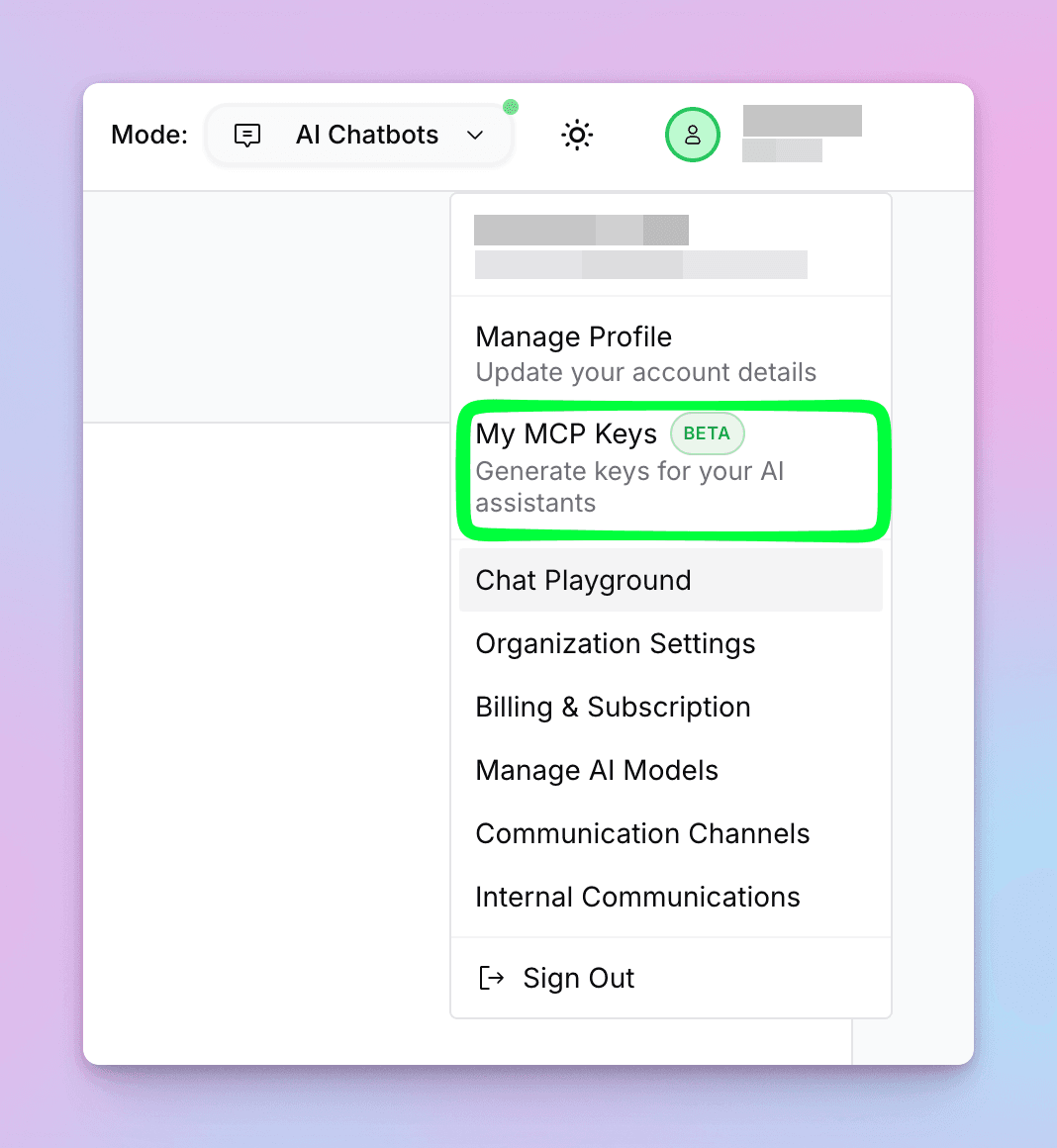
Open "My MCP Keys"
Click your profile avatar in the top-right corner and select "My MCP Keys" from the dropdown menu.
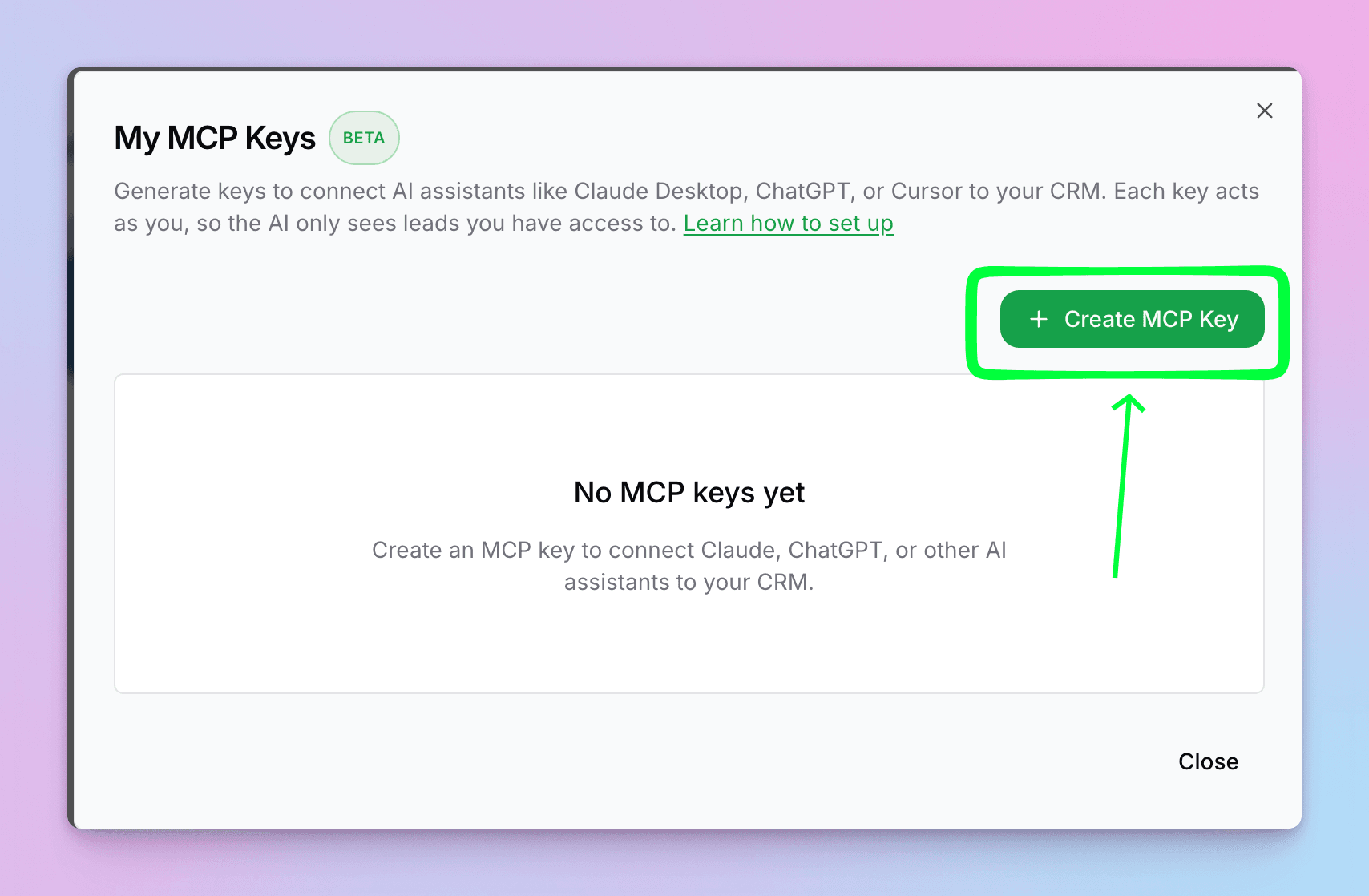
Create a New Key
In the My MCP Keys dialog, click the "+ Create MCP Key" button.
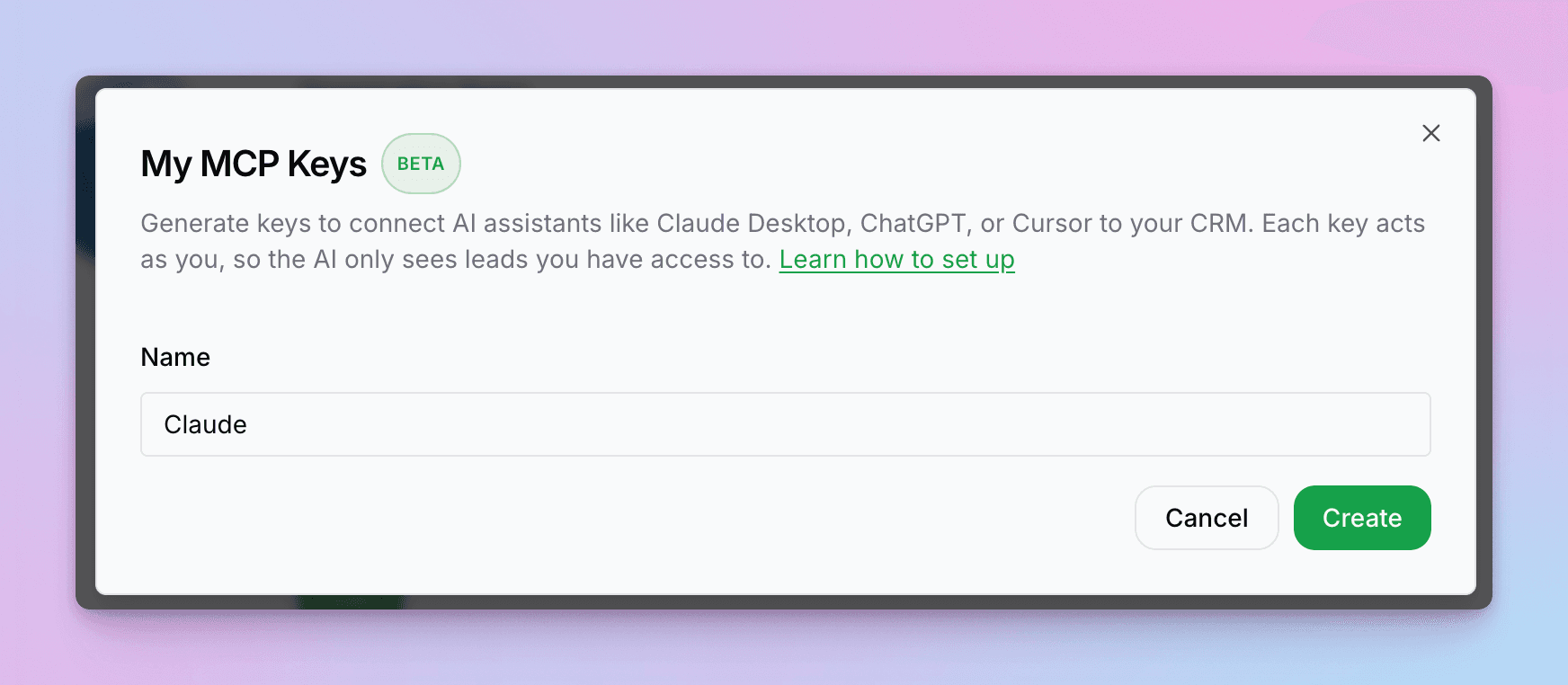
Name Your Key
Enter a descriptive name for the key (e.g., "Claude" or "ChatGPT") and click "Create".
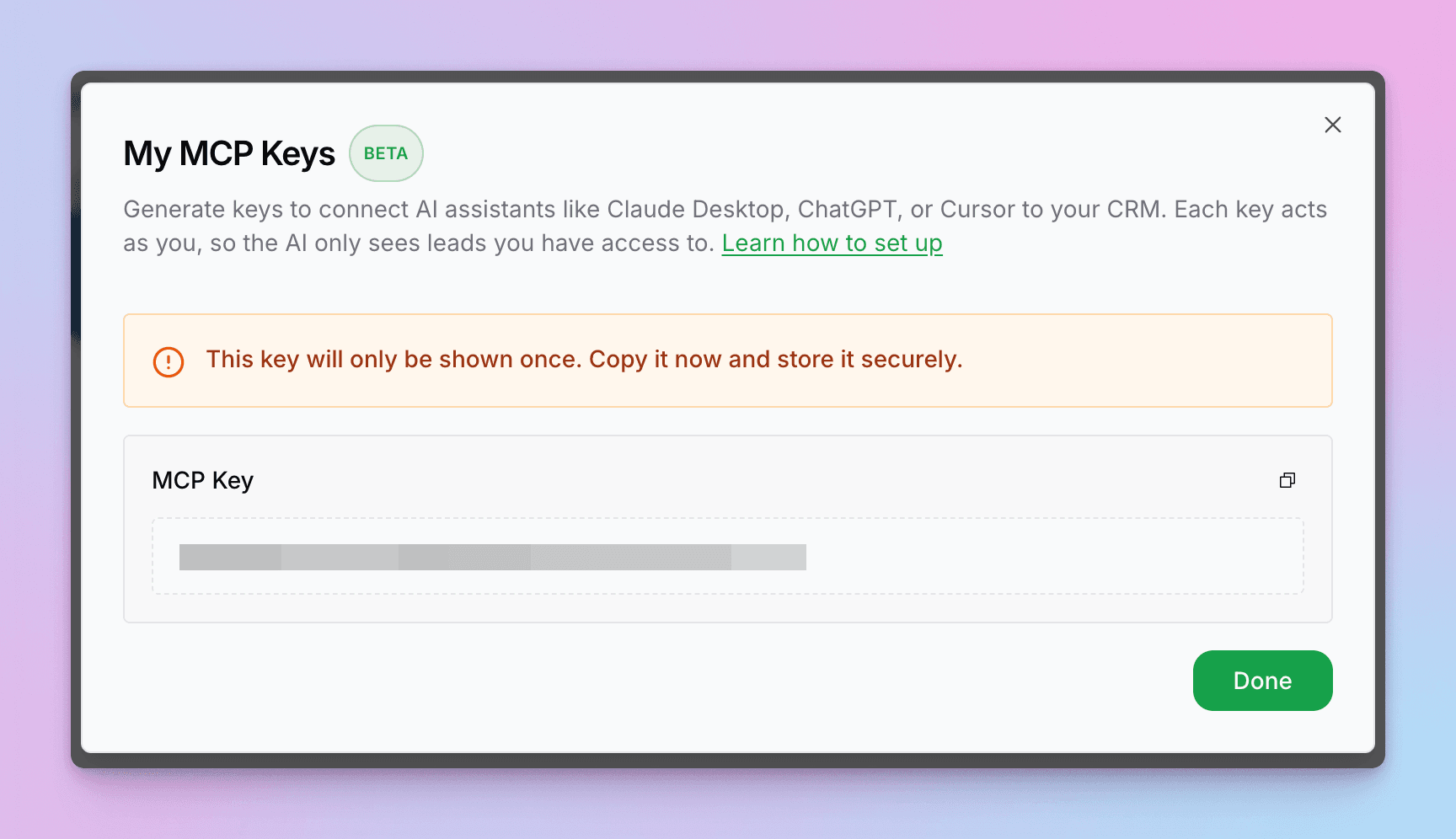
Copy Your Key
Your MCP key is displayed. Click the copy icon to copy it to your clipboard.
Step 2: Add the Connector in Claude Desktop
Now add Hyperleap as a custom connector in Claude Desktop.
Open the Customize Menu
In Claude Desktop, click the sidebar menu and select "Customize".
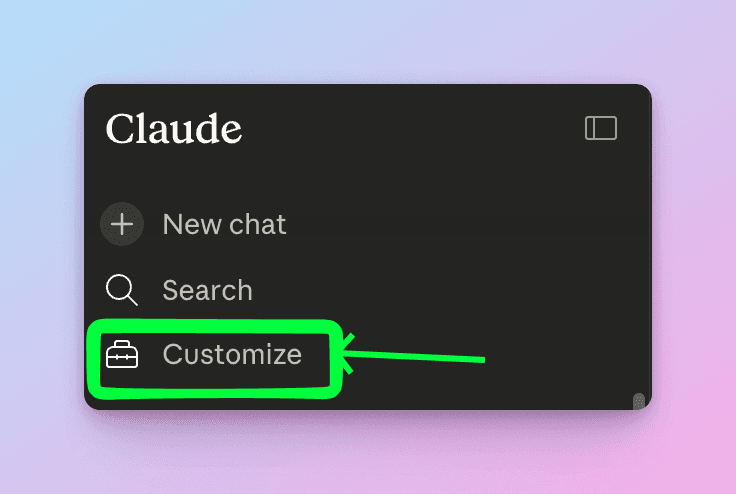
Go to Connectors
Select "Connectors" from the customization options.
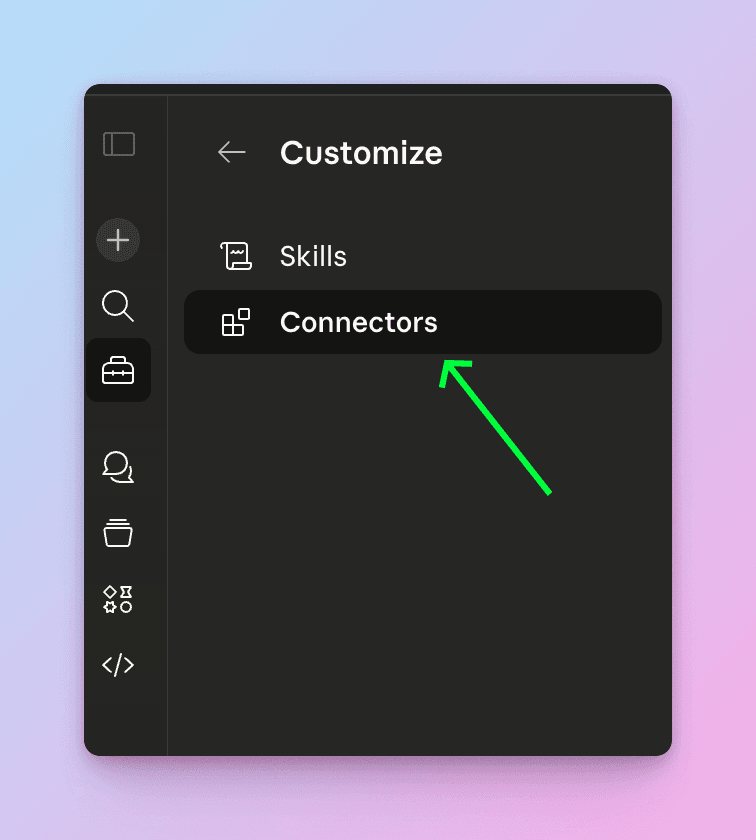
Add a New Connector
Click the "+" button in the top-right corner of the Connectors panel.
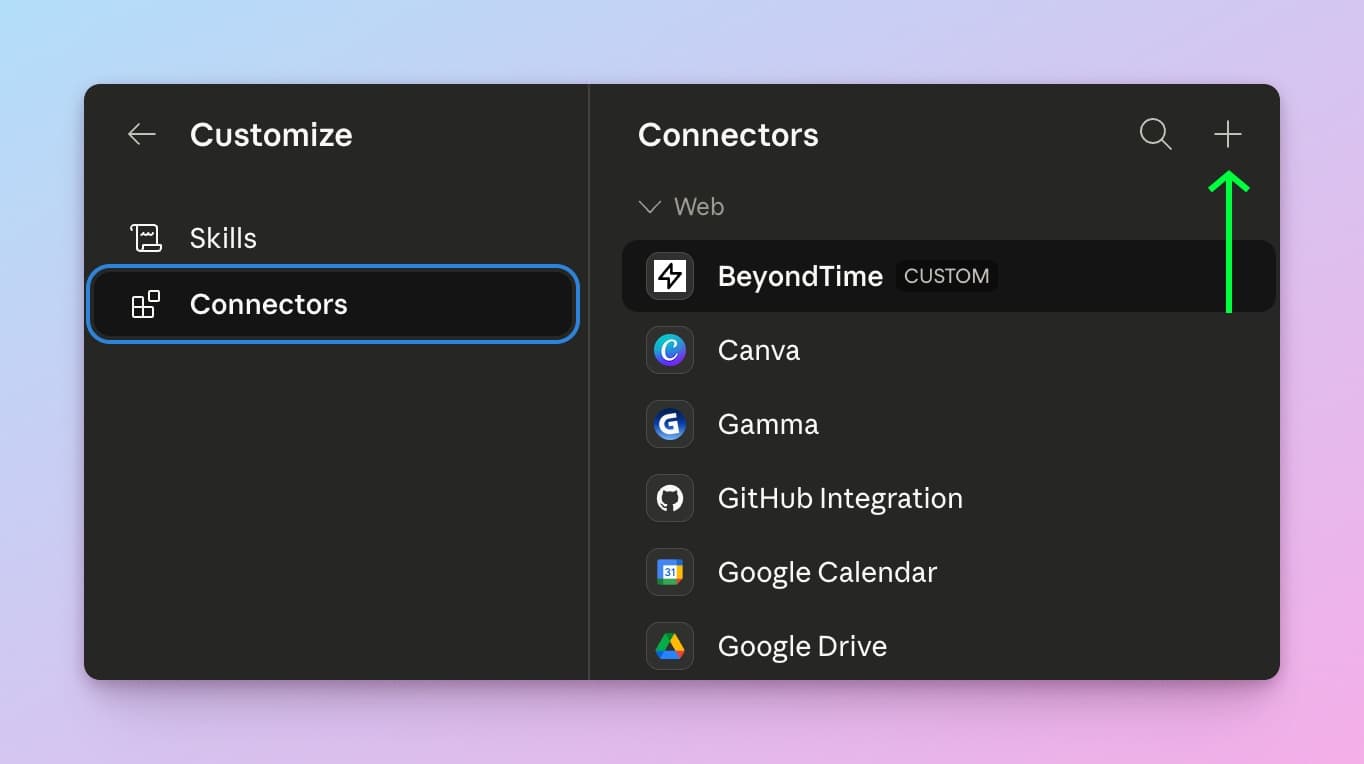
Select "Add Custom Connector"
From the dropdown, choose "Add custom connector".
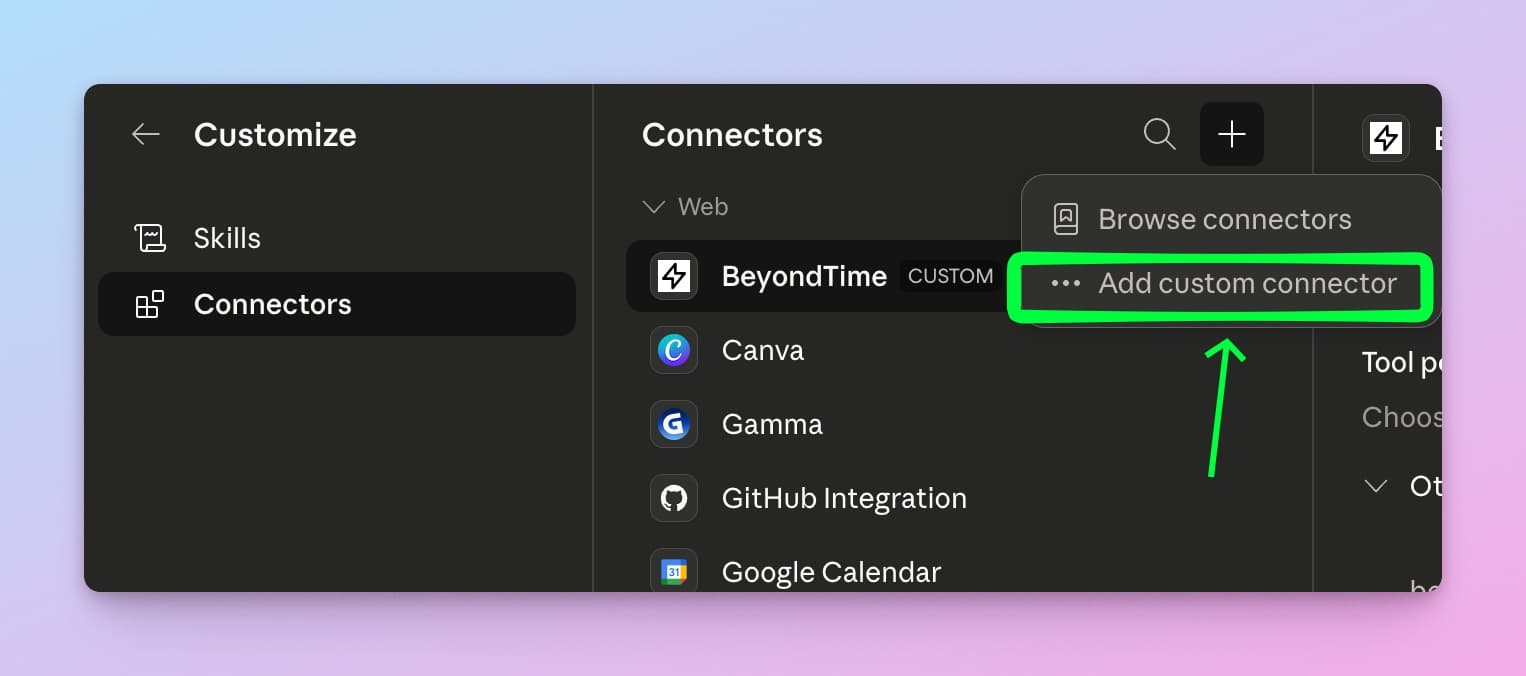
Enter Connector Details
Fill in the following fields:
- Name:
hyperleap-mcp - URL:
https://api.hyperleapai.com/mcp
Click "Add" to save the connector.
https://api.hyperleapai.com/mcp. Other URLs (such as api.hyperleap.ai) will not work.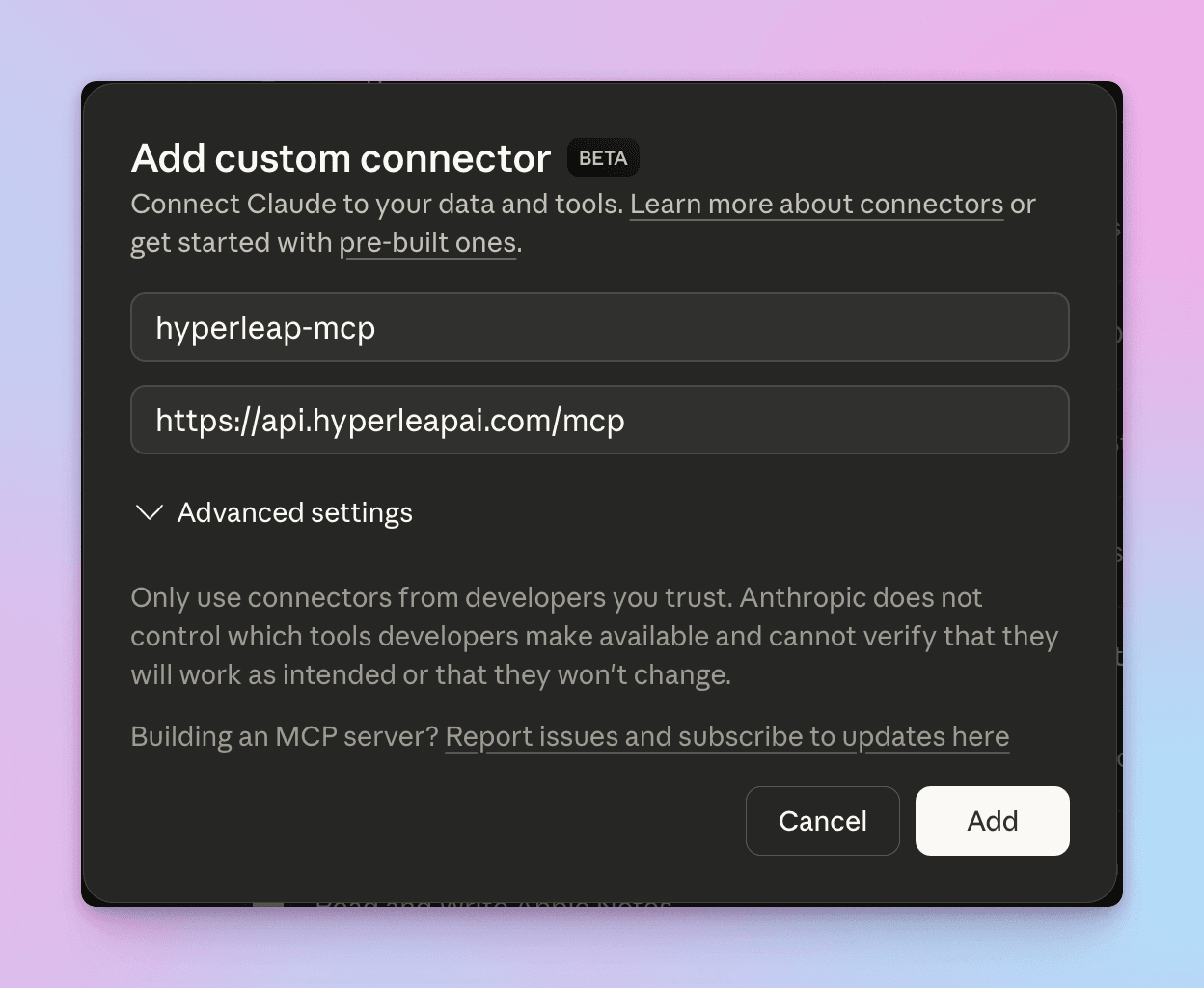
Step 3: Authenticate
Connect the newly added connector using your MCP key.
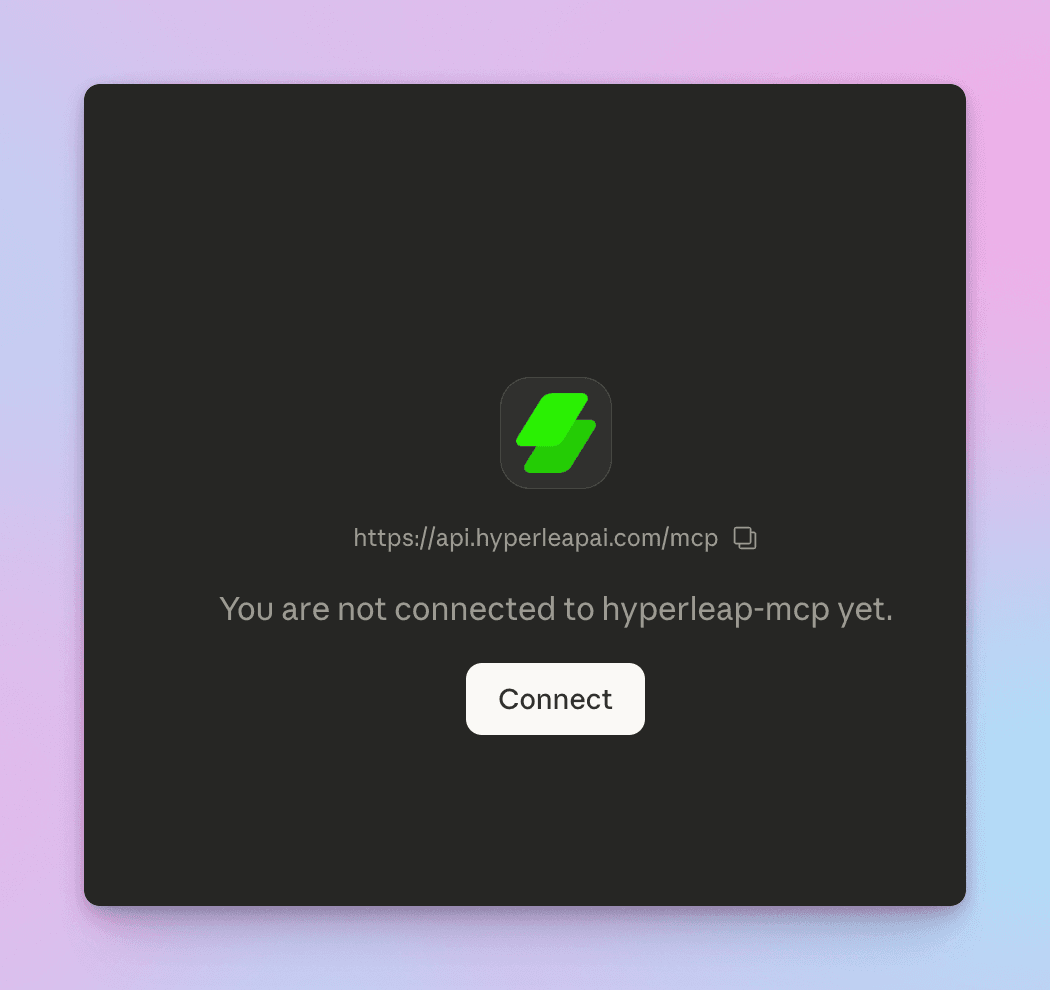
Click Connect
After adding the connector, you'll see a prompt showing "You are not connected to hyperleap-mcp yet." Click the "Connect" button.
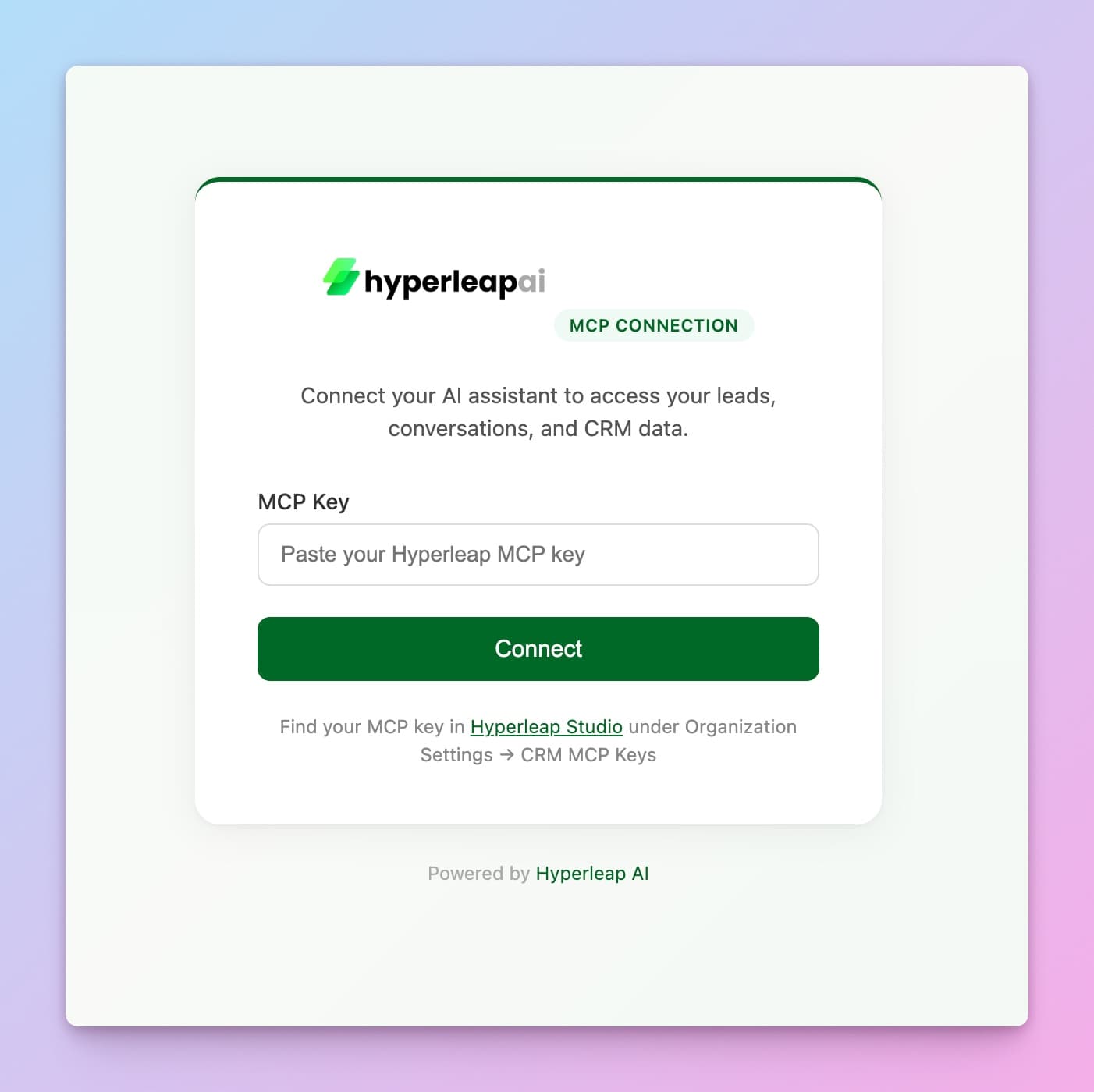
Enter Your MCP Key
The Hyperleap MCP Connection page opens. Paste the MCP key you copied in Step 1 and click "Connect".
Verify the Connection
Once connected, start a new conversation in Claude Desktop and try asking about your CRM data:
"Show me my CRM dashboard"
Claude should use the Hyperleap CRM tools to fetch and display your dashboard data, including lead counts, pipeline stages, and recent activity.
Troubleshooting
- Connection fails — Double-check that the connector URL is exactly
https://api.hyperleapai.com/mcp. Other URLs will not work. - Authentication error — Verify your MCP key is correct and has not been revoked. You can check active keys in My MCP Keys (from the profile menu).
- No data returned — Ensure your Hyperleap account has CRM data (leads captured through your chatbots). An empty CRM will return empty results.
- Key lost — MCP keys are shown only once. If you've lost your key, create a new one in My MCP Keys (from the profile menu).
Next Steps
Now that your CRM is connected to Claude, learn what data you can access:
- CRM MCP Tools Reference — Detailed guide to all available CRM tools and example prompts
- Lead Form Setup — Configure how leads are captured through your chatbots
- Analytics — Monitor chatbot performance and conversation metrics
- Connect Hyperleap to Claude Desktop in 5 minutes — Full setup tutorial with screenshots and first prompts to try
- Building multi-MCP workflows — Combine Hyperleap with HubSpot, Linear, and other MCP servers