Before You Begin
Make sure you're in Bot Studio mode. If you see "AI Studio" in your dashboard, click the mode switcher in the top navigation to switch to "AI Chatbots".
Creating Your Chatbot
Open the Create Dialog
From your dashboard, click the "Create" button or "+ New Chatbot". This opens the chatbot creation dialog.
Enter Chatbot Details
Fill in the basic information for your chatbot:
- Chatbot Name — A descriptive name (e.g., "Hyperleap Bot", "Sales Assistant")
- Chatbot Description — A brief description of what your chatbot does (optional but recommended)
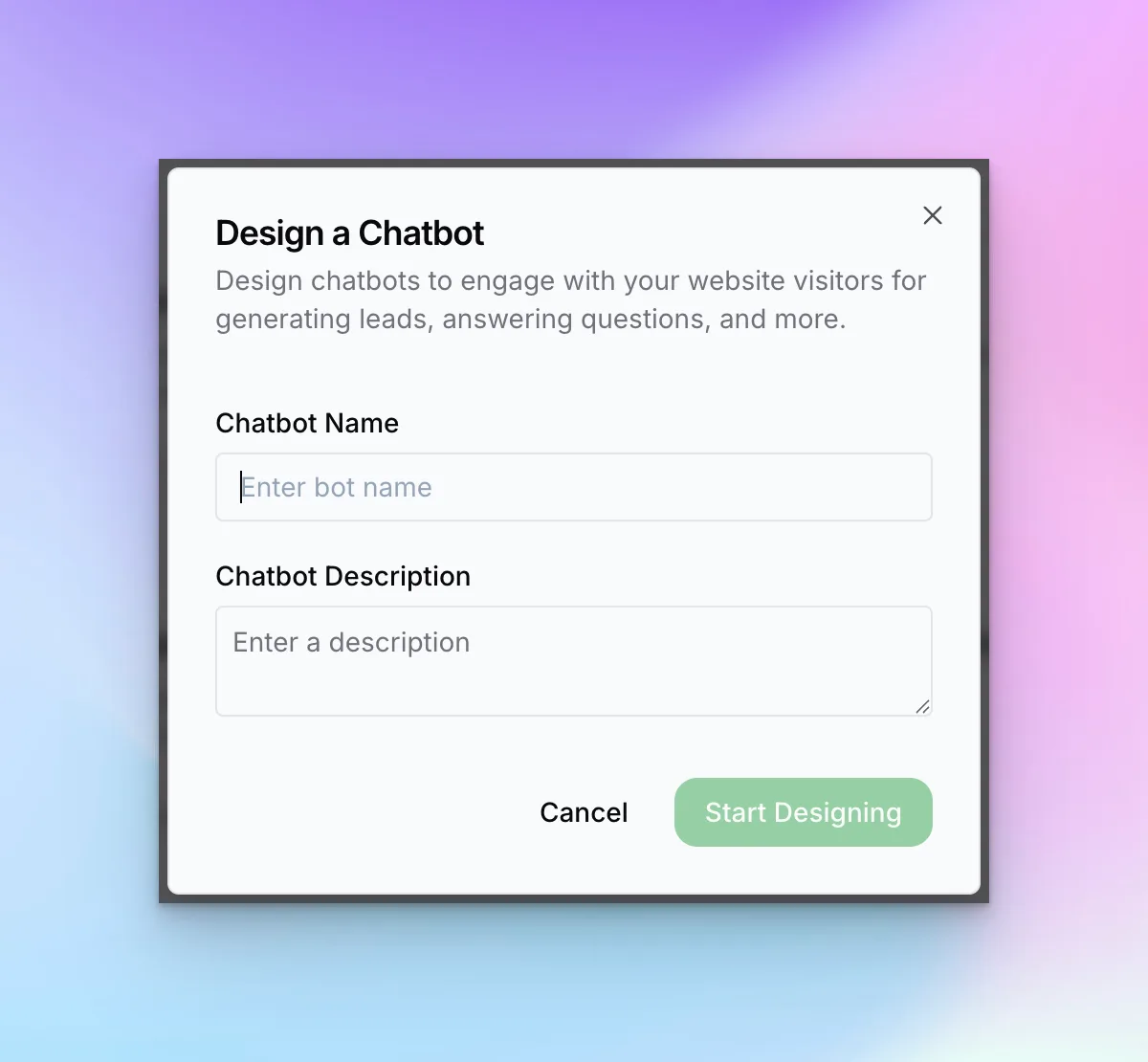
Click Start Designing
Click the "Start Designing" button to create your chatbot and open the configuration interface.
What Happens Next
After creating your chatbot, you'll be taken to the chatbot editor where you can configure:
Content
Lead capture forms, conversation settings, chat button text, and navigation commands
Behaviour
AI system prompt, model selection, and response settings
Branding
Colors, logos, fonts, and chat widget appearance
Each of these tabs is covered in detail in the following guides.
Chatbot Status
Your chatbot starts in "Draft" status. You'll see status badges like:
Draft
Not yet published, still being configured
Saved, Pending Publish
Changes saved but not live yet
Ready to Integrate
Published and ready to deploy
Next Steps
Now that your chatbot is created, proceed to the Content Tab guide to configure lead capture forms and conversation settings.