Documents are one of the most common ways to populate Sources. Upload your existing documentation, policies, guides, and manuals to make them searchable by AI.
Watch the Video
Supported File Types
Most common format for business documents
Word Documents
Microsoft Word files (.docx, .doc)
Text Files
Plain text documents (.txt)
Uploading Documents
Open Your Source
Navigate to the Source where you want to add documents.
Go to Documents Tab
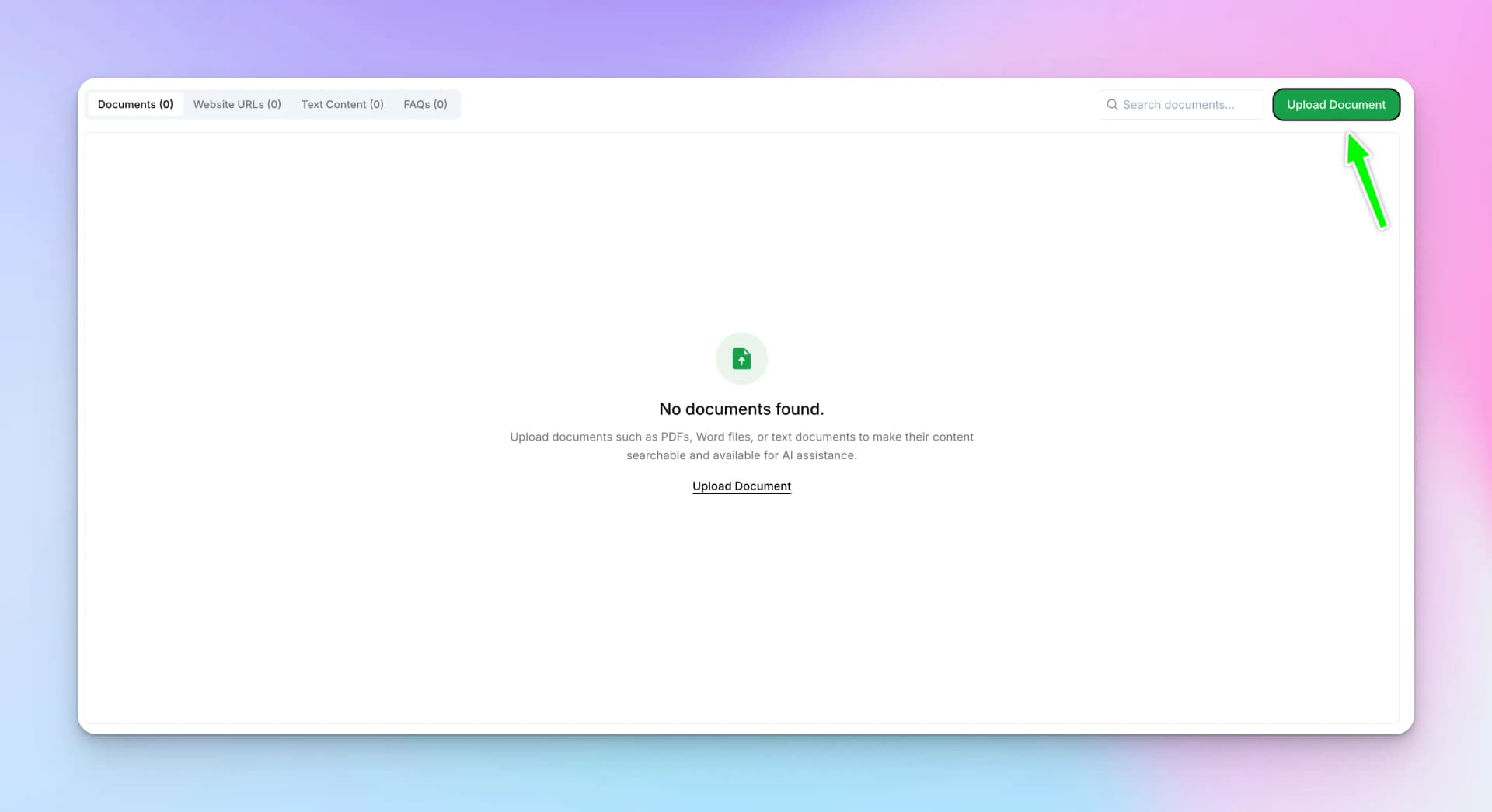
Click the "Documents" tab at the top of the Source page.
Click Upload Document
Click the "Upload Document" button.
Select Files
Choose one or more files from your computer. You can also drag and drop files.
Wait for Processing
Hyperleap processes your documents, extracting text and creating searchable chunks. This may take a few moments for large files.
Document Processing
When you upload a document, Hyperleap:
- Extracts text — Reads all text content from the file
- Chunks content — Splits into searchable segments
- Creates embeddings — Generates vector representations for search
- Indexes — Makes content available for retrieval
Document Status
After uploading, documents show their status:
Processing
Document is being analyzed
Ready
Document is indexed and searchable
Failed
Processing error (check file format)
Best Practices
File Quality
- Use text-based PDFs — Scanned images need OCR processing
- Check formatting — Tables and complex layouts may not extract perfectly
- Remove password protection — Encrypted files can't be processed
Content Organization
- Use clear headings — Helps chunk content meaningfully
- Keep documents focused — One topic per document works better than huge combined files
- Update regularly — Replace outdated documents with new versions
Managing Documents
In the Documents tab, you can:
View
See document details and extracted content
Download
Re-download the original file
Delete
Remove a document from the Source
Common Issues
Text Not Extracted
If your PDF shows 0 pages extracted, it may be:
- A scanned image without OCR
- Password protected
- Corrupted file
Poor Retrieval Quality
If AI responses don't reference your documents well:
- Check that the Source is connected to your chatbot/tool
- Verify documents are in "Ready" status
- Try asking questions using terms that appear in the documents
Next Steps
Learn how to add website URLs to your Sources for indexing web pages.