Open your chatbot, click "Advanced Settings" in the editor header, and select the "Notifications" tab. The tab has two parts: a list of Verified emails, and the Emails your chatbot sends to them.
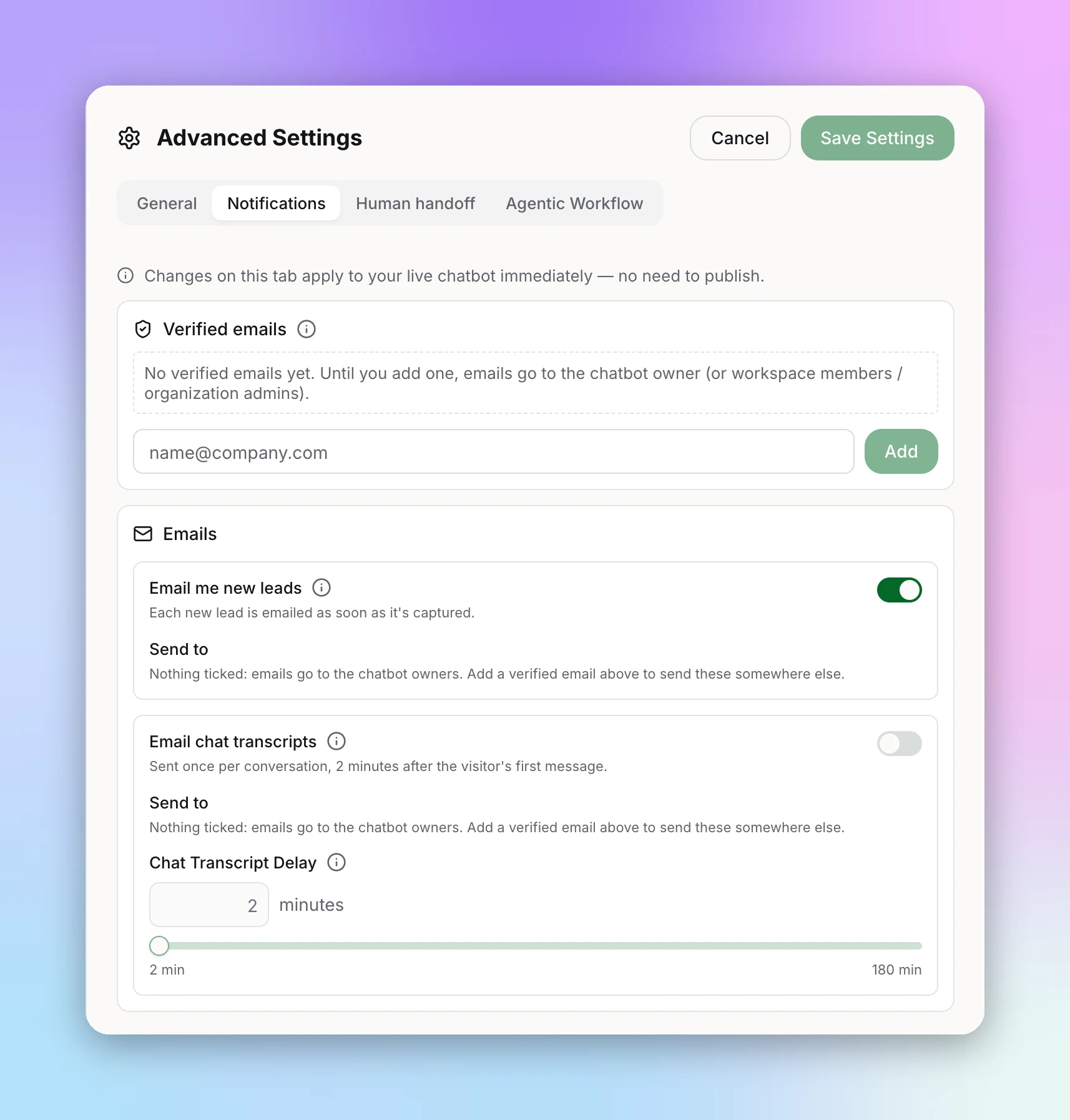
Verified Emails
Each chatbot keeps its own list of email addresses that are allowed to receive its emails. An address has to confirm it wants them before you can pick it.
Add an address
The address confirms
It's ready to use
Managing the list
- Resend — Sends the confirmation email again. Use it when an address shows "Waiting for confirmation" or "Link expired".
- Remove — The trash icon takes an address off the list.
- Not verified — Addresses your chatbot was already emailing before verification existed are listed as "Not verified". They keep receiving emails. Click "Verify" next to one to send it a confirmation link.
Emails
Your chatbot can send two kinds of email. Each has its own on/off switch and its own Send to list.
Email me new leads
Each new lead is emailed as soon as it's captured, so your team can follow up quickly.
Email chat transcripts
A transcript of each conversation is emailed once, a set time after the visitor's first message. Set that time with Chat Transcript Delay: anywhere from 2 to 180 minutes.
Send to
Under each email, tick the verified addresses that should receive it. The two lists are separate, so leads can go to sales while transcripts go to support.
- Nothing ticked — The email goes to the chatbot owners.
- No verified emails yet — Add one in the Verified emails list above to send these emails somewhere else.
Next Steps
Want an AI-written summary sent only when a conversation matters, such as a hot lead or a complaint? Set up an Agentic Workflow.