Your Hyperleap chatbot isn't limited to your website. You can deploy the same chatbot to multiple messaging platforms, giving your customers more ways to connect with you.
Accessing Channels Integration
From your chatbot editor, click "Integrate" in the header and select"Channels Integration".
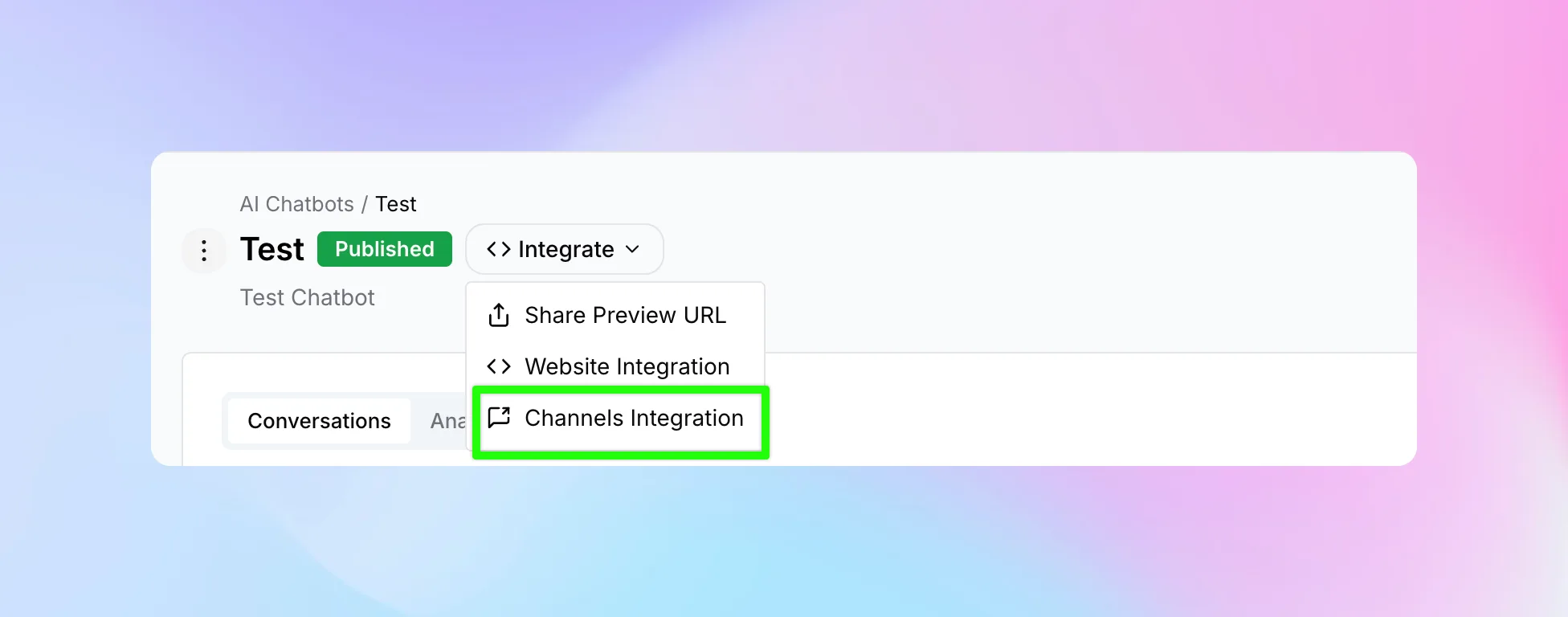
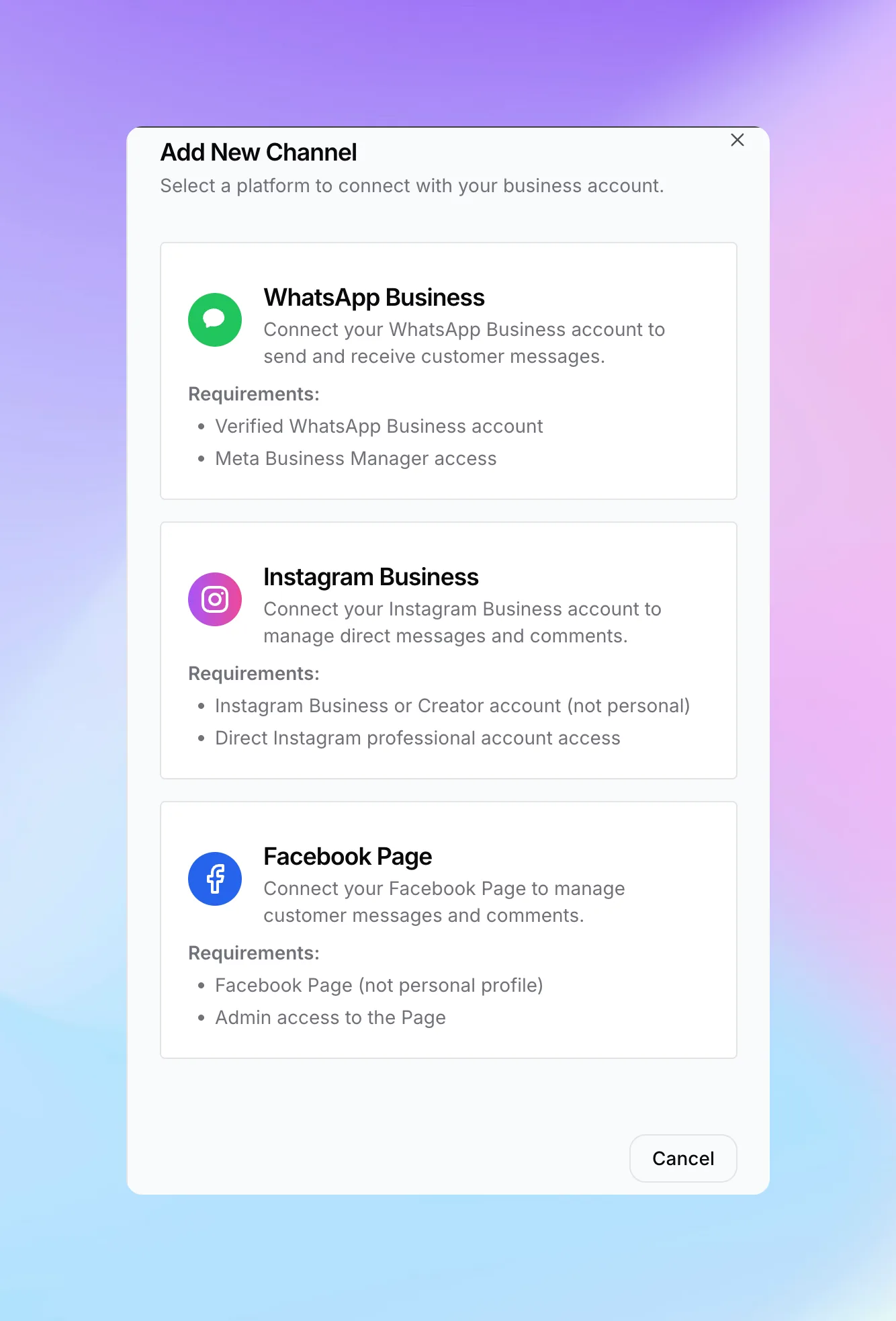
On the Communication Channels page, click "+ Add New Channel" to connect a messaging platform.

You'll see the available channel options: WhatsApp Business, Instagram Business, and Facebook Page.
Channel Setup Guides
Follow the detailed setup guides below for each platform:
WhatsApp Business
Connect via the WhatsApp Business API and Meta Business Suite
Instagram Business
Automate Instagram Direct Message responses
Facebook Messenger
Handle Messenger inquiries from your Facebook Page
Managing Connected Channels
Once connected, each channel shows:
- Status — Active or disconnected
- Connected Chatbot — Which chatbot handles this channel
- Account Details — Phone number, username, or Page name
- Last Updated — When the connection was last modified
After connecting a channel, click the settings (gear) icon on the channel card to open Channel Configuration. From there, assign a chatbot using the "Associate a Chatbot" dropdown, enable Auto Responses, and click "Save Configuration".
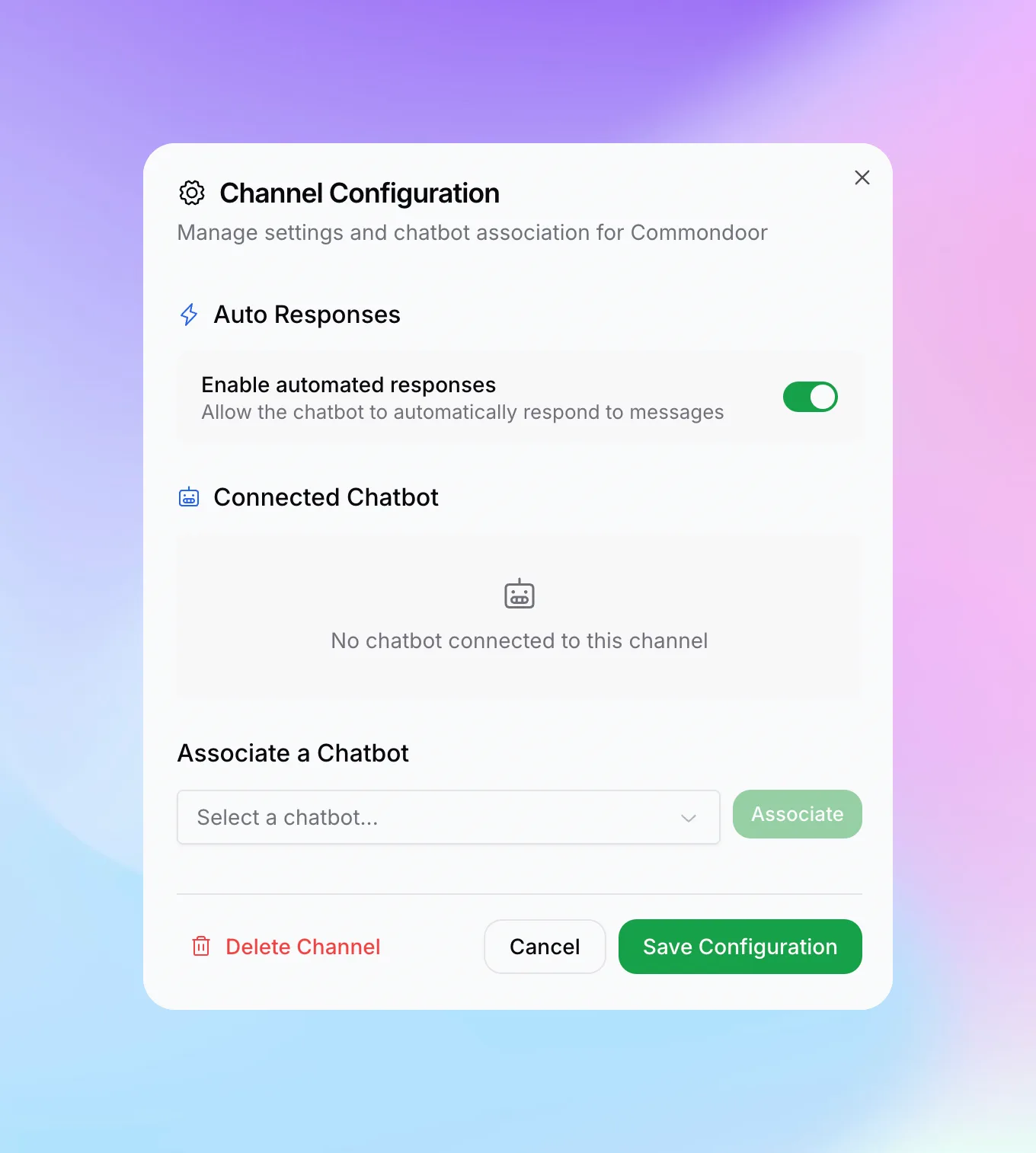
Click on any channel card to:
- Change the connected chatbot
- View connection details
- Disconnect the channel
Multi-Channel Benefits
Single Knowledge Base
Same AI, same information across all channels
Unified Analytics
Track conversations from all channels in one dashboard
Consistent Experience
Customers get the same quality responses everywhere
One Configuration
Update your chatbot once, changes apply to all channels
Channel-Specific Considerations
Lead Forms
Lead capture forms from your website chatbot don't appear on messaging platforms (users are already identified by their phone number or social profile). Lead data is captured automatically from the platform.
Rich Media
Each platform has different support for images, buttons, and formatting. Hyperleap automatically adapts responses to each platform's capabilities.
Response Time
Messaging platforms expect fast responses. Use efficient models and keep system prompts concise for quick response times.
Documentation
For detailed platform-specific setup instructions, see the individual channel guides: