Facebook Messenger is one of the most widely used messaging platforms for business communication. By connecting your Facebook Page to Hyperleap, your AI chatbot can automatically respond to Messenger inquiries — handling customer questions, providing information, and offering support 24/7.
Video Tutorial
Watch this step-by-step walkthrough of connecting Facebook Messenger to Hyperleap AI.
Requirements
Before you begin, make sure you have:
- A Facebook Page with admin access
- Messenger enabled on your Facebook Page
- A Hyperleap account with an active chatbot
Step-by-Step Guide
Step 1: Go to Channels Integration
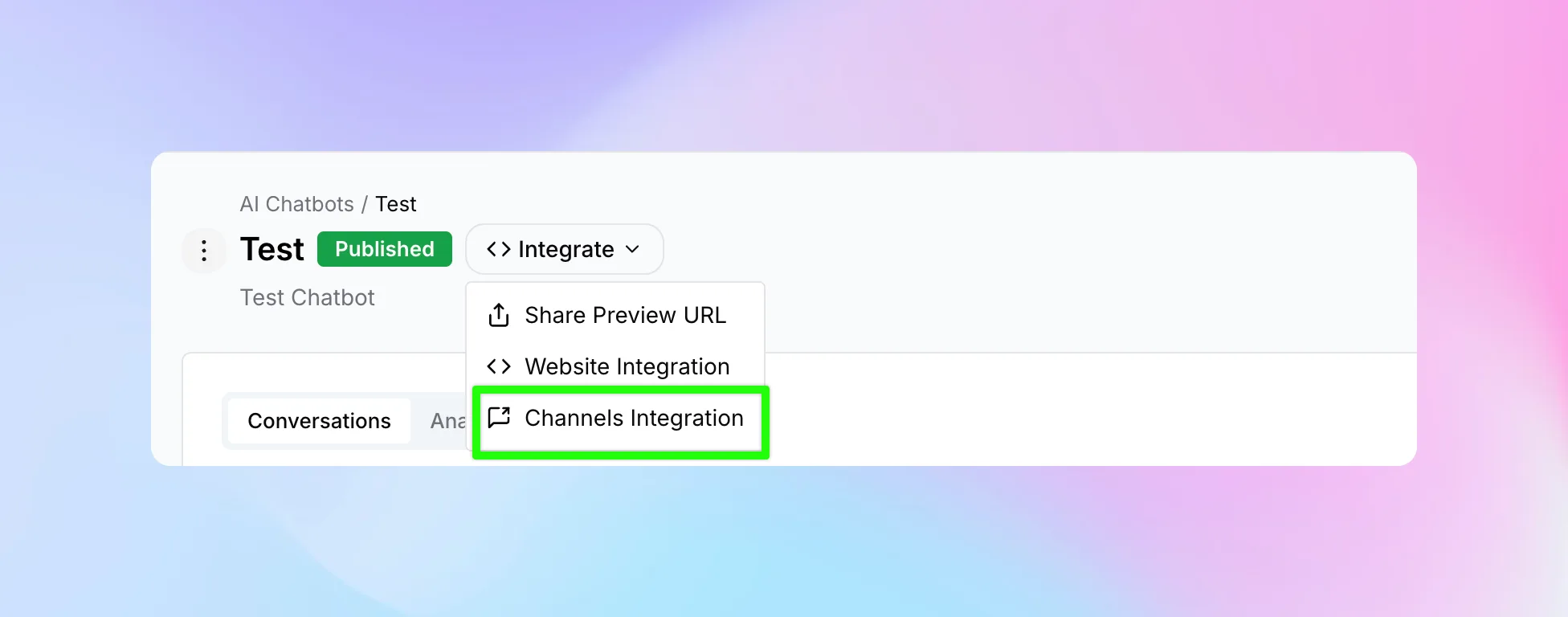
From your chatbot editor, click "Integrate" in the header and select"Channels Integration" from the dropdown menu.
Step 2: Click Add New Channel
On the Communication Channels page, click the "+ Add New Channel" button.

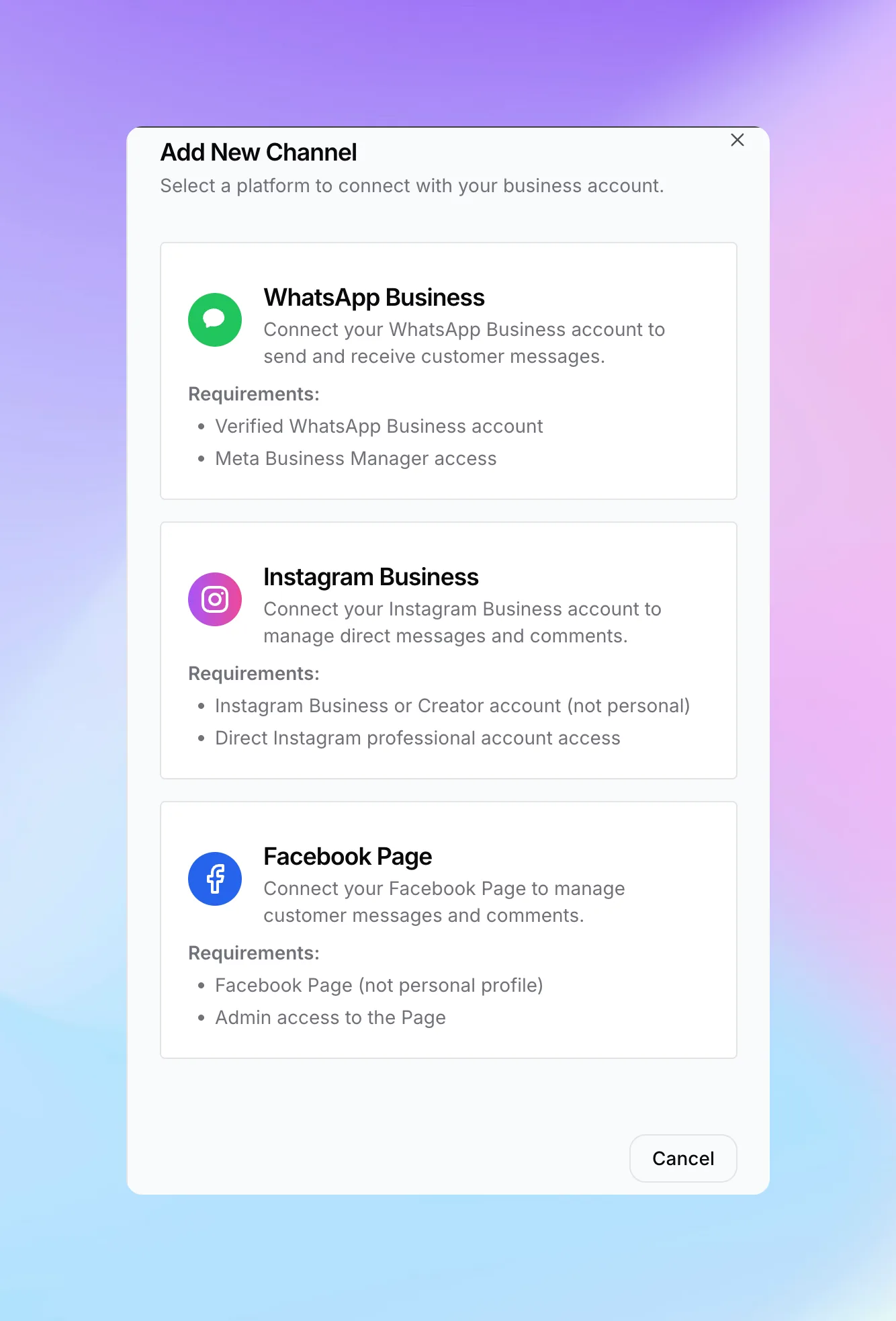
Step 3: Select Facebook Page
From the channel options, select "Facebook Page".
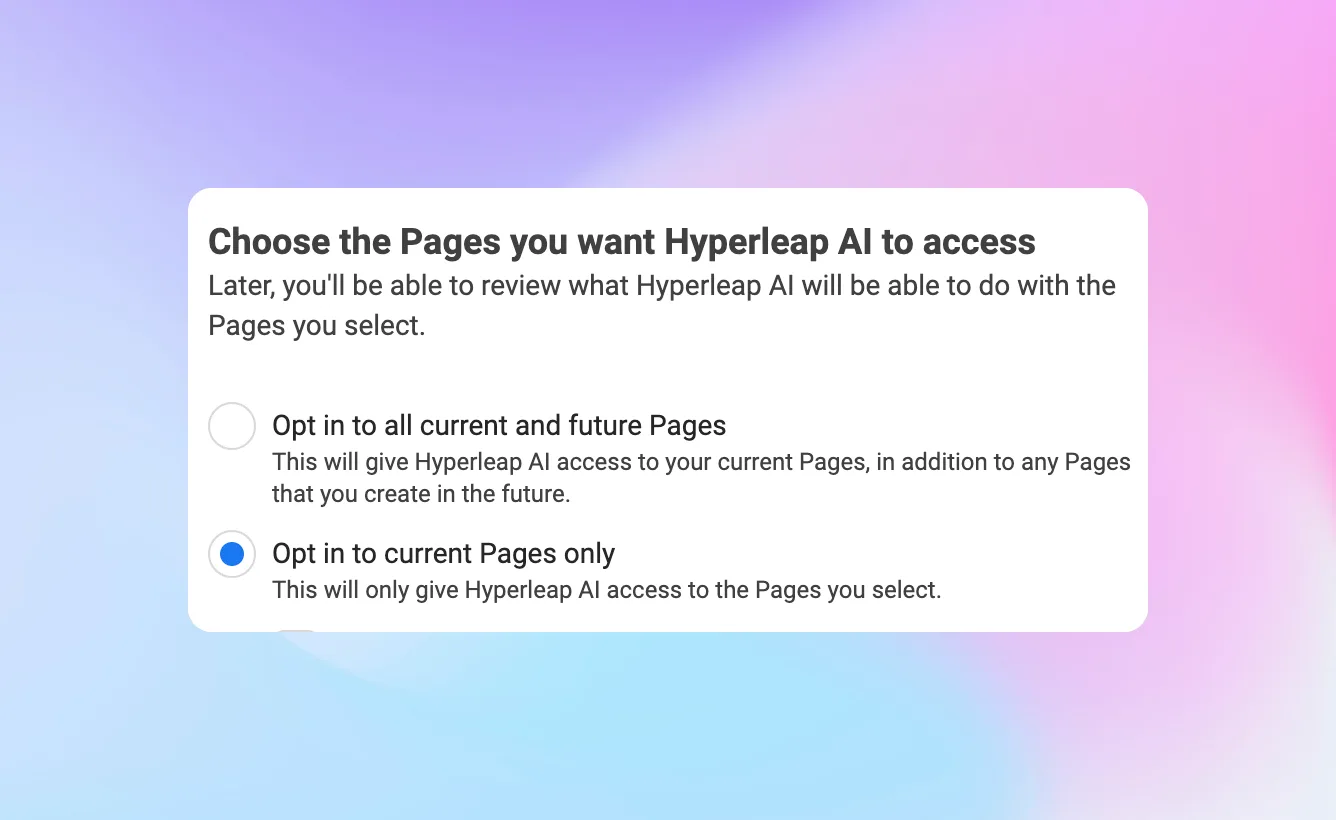
Step 4: Choose Pages Access
A Meta popup will appear. Select the Facebook Page(s) you want to connect to Hyperleap and click "Continue".
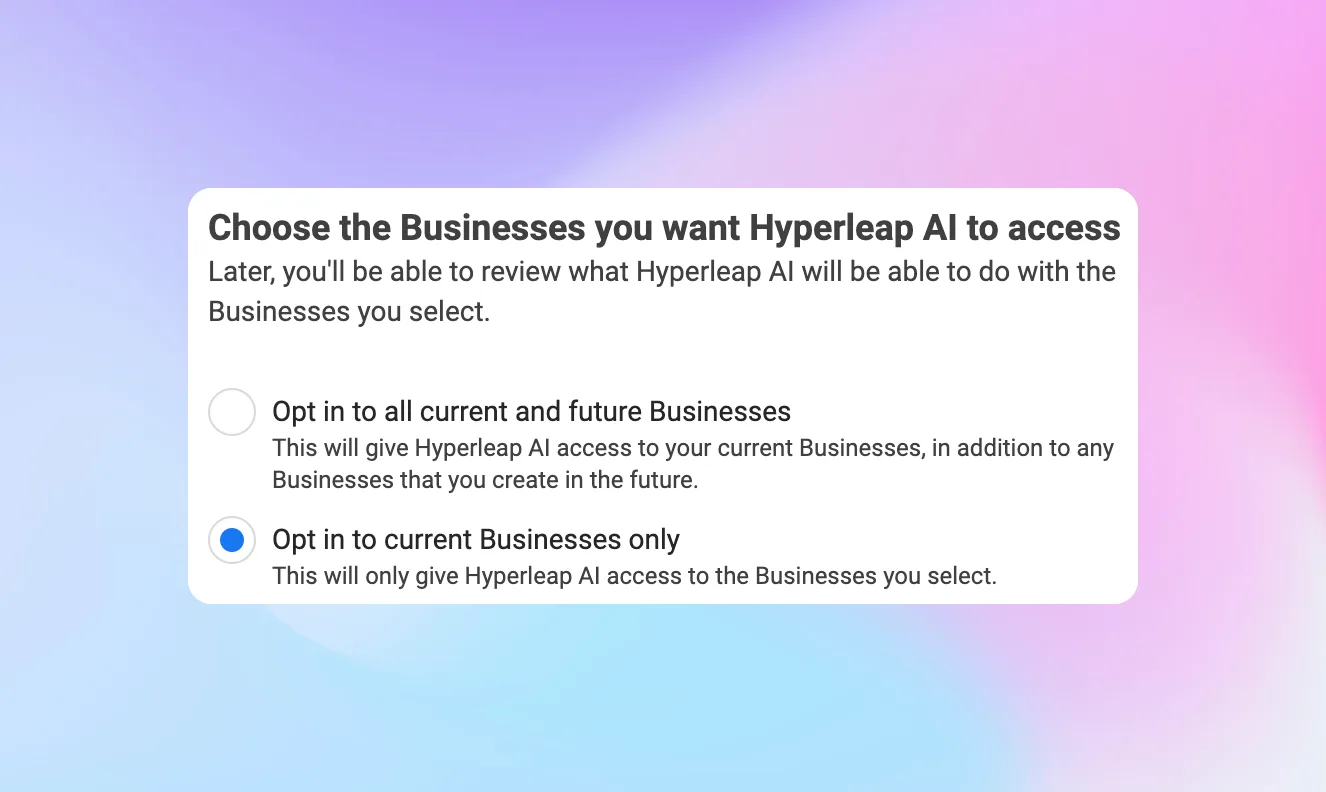
Step 5: Choose Business Access
Select the business access level for your connected Page. This determines what Hyperleap can do on behalf of your Page.
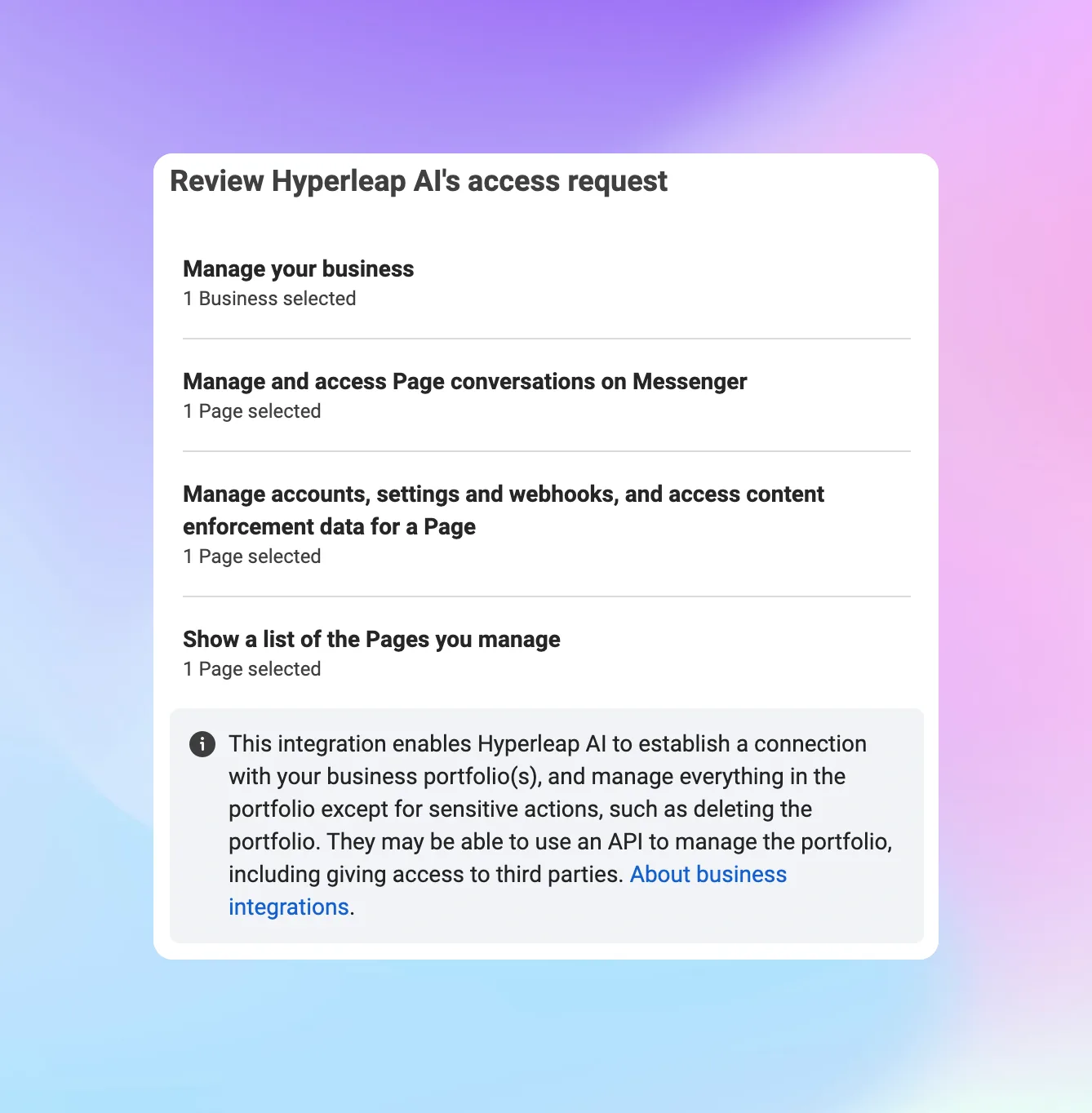
Step 6: Review Access Permissions
Review the permissions that Hyperleap requires to manage your Facebook Messenger conversations, then click "Save" to complete the connection.
Step 7: Assign a Chatbot
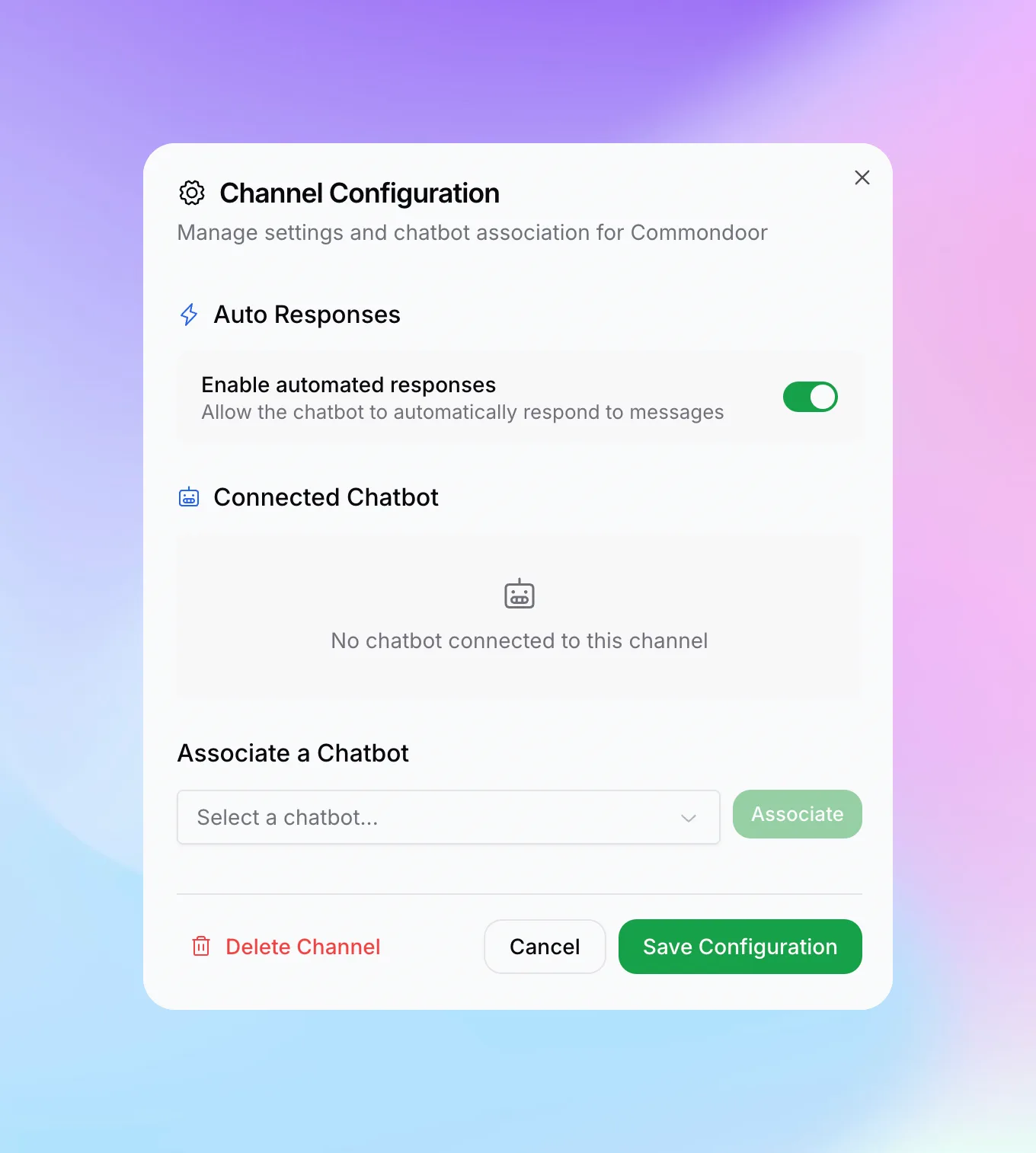
After your channel is connected, you need to assign a chatbot to handle incoming messages. On the Communication Channels page, click the settings (gear) icon on your newly connected channel card to open Channel Configuration.
In the configuration panel:
- Select a chatbot from the "Associate a Chatbot" dropdown and click "Associate"
- Enable Auto Responses to let the chatbot automatically respond to messages
- Click "Save Configuration" to apply
Learn More
Learn more about Facebook Messenger AI chatbot features on our Facebook channel page.