Draft, Test, Publish
Changes to a chatbot go through three steps before visitors see them:
- Save Draft — Saves your changes without touching the live chatbot. The status shows "Saved, Pending Publish".
- Test Behaviour — Try the draft in a preview before anyone else does.
- Publish — Makes the draft live and records it as a new version.
Changed your mind before publishing? "Revert to published", in the Save Draft menu, throws the draft away and goes back to what's live.
Open Version History
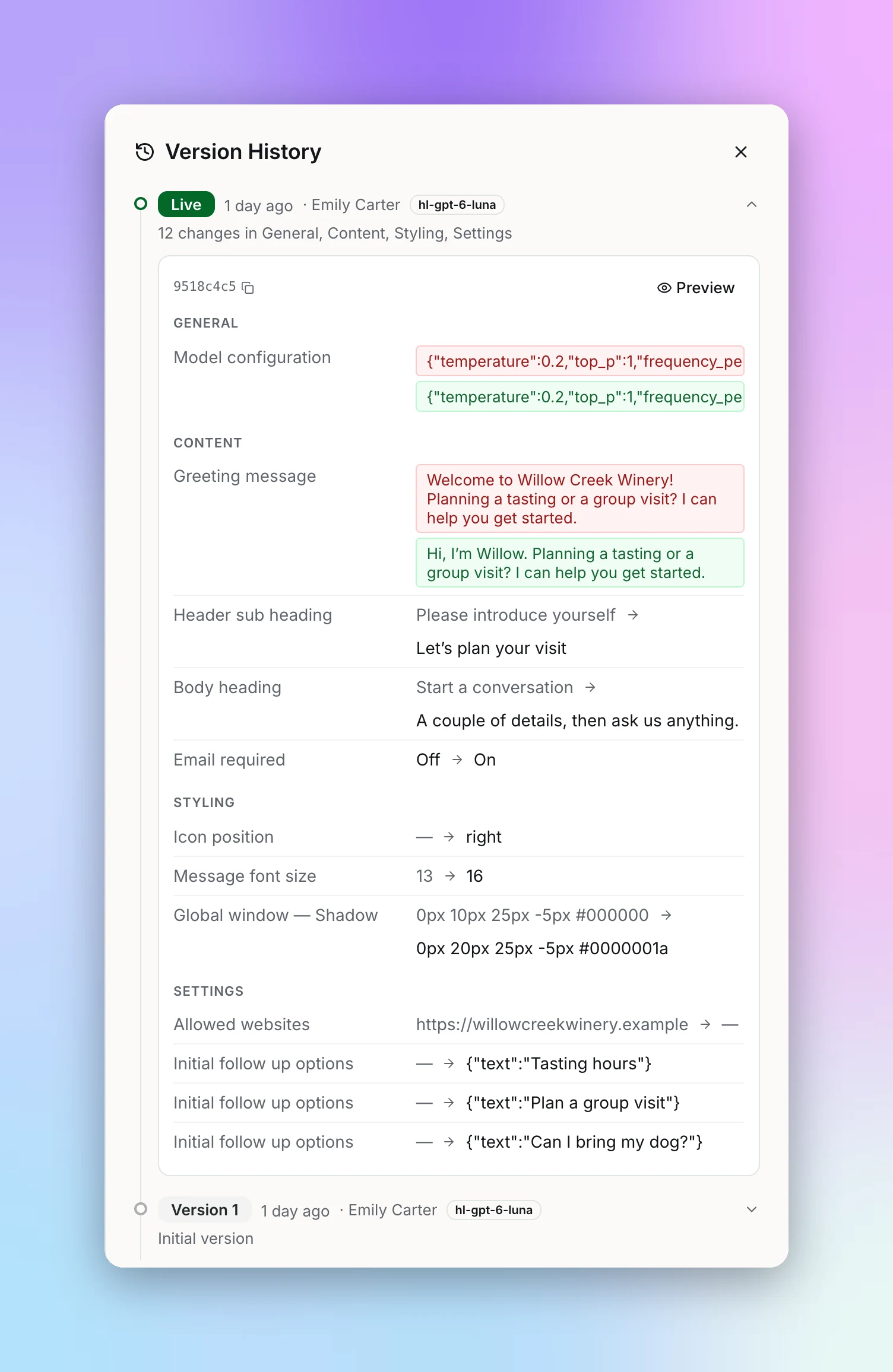
On a saved chatbot, click the history button next to the builder tabs ("View past versions and what changed"). The Version History panel opens. A chatbot that has never been published has no versions yet.
What Each Version Shows
- Draft — Your unpublished changes, if you have any.
- Live — The version visitors are talking to now.
- Version 1, 2, 3… — Earlier published versions, newest first. Click "Load more" to go further back.
Each entry summarizes what changed and where, such as "3 changes in Prompt, Styling". Changes are grouped into General, Prompt, Content, Styling, Settings, and Assets.
Compare and Preview
Expand a version to see:
- A field-by-field diff — Every setting that changed in that version, with the old and new values.
- Preview — A read-only preview of that version's chat, lead form, and chat button.
- The version ID, with a copy button, for when you contact support.
Restore an Older Version
1
Click Restore
Expand an older published version and click "Restore" (also available from its Preview).
2
Confirm
Studio asks "Restore this version?". Restoring replaces your current draft with that version.
3
Review and publish
The version is restored to your draft, and nothing goes live yet. Review it in the builder, test it, then publish when you're ready.
Note:
Restoring replaces any unpublished changes in your current draft. Publish or note anything you want to keep first.
Tip:
Restore isn't offered on the Draft or the Live version, and only teammates who can edit the chatbot see it. Restoring doesn't bring back connected accounts or old credentials: any Action missing its credential comes back switched off, ready for you to repair.