When a visitor wants to meet, your chatbot checks your calendar, offers times that are actually open, and books the one they pick, without leaving the chat. It works on your website and on WhatsApp, Instagram, and Messenger.
- Website chat shows tappable time slots and a confirmation card.
- WhatsApp, Instagram, and Messenger don't have cards, so the chatbot lists the times in its reply and confirms the booked time in text.
- The visitor gets the calendar invite by email from Calendly or Cal.com, as with any other booking.
Before You Start
- Save your chatbot once — Booking is set up on a saved chatbot.
- Use GPT-6 Luna — Claude models answer in plain chat and can't book. Check the model on the Behaviour tab.
- Calendly only: an organization Owner or Admin connects the Calendly account.
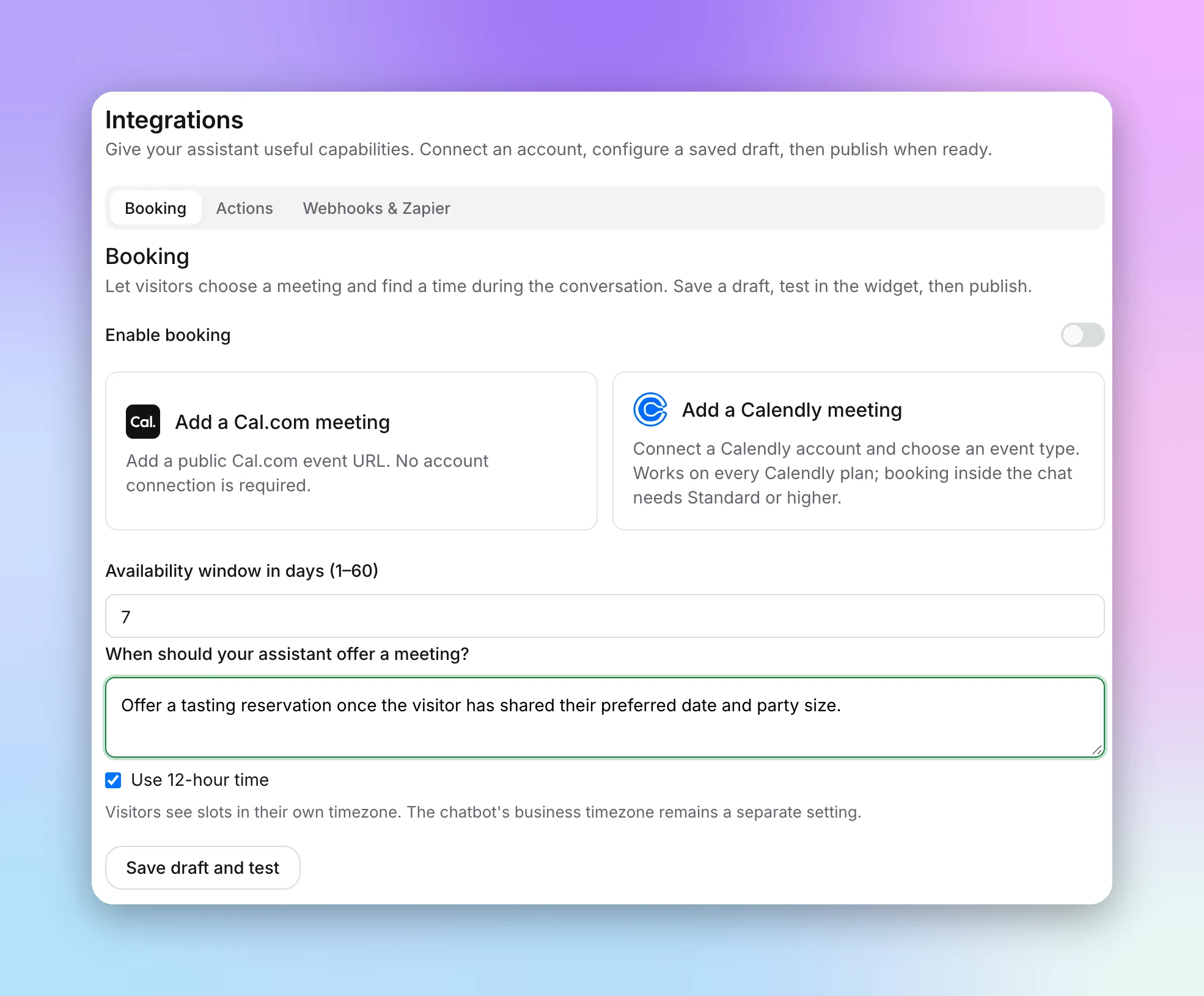
Open your chatbot, select the Integrations tab, and choose "Booking".
Add a Cal.com Meeting
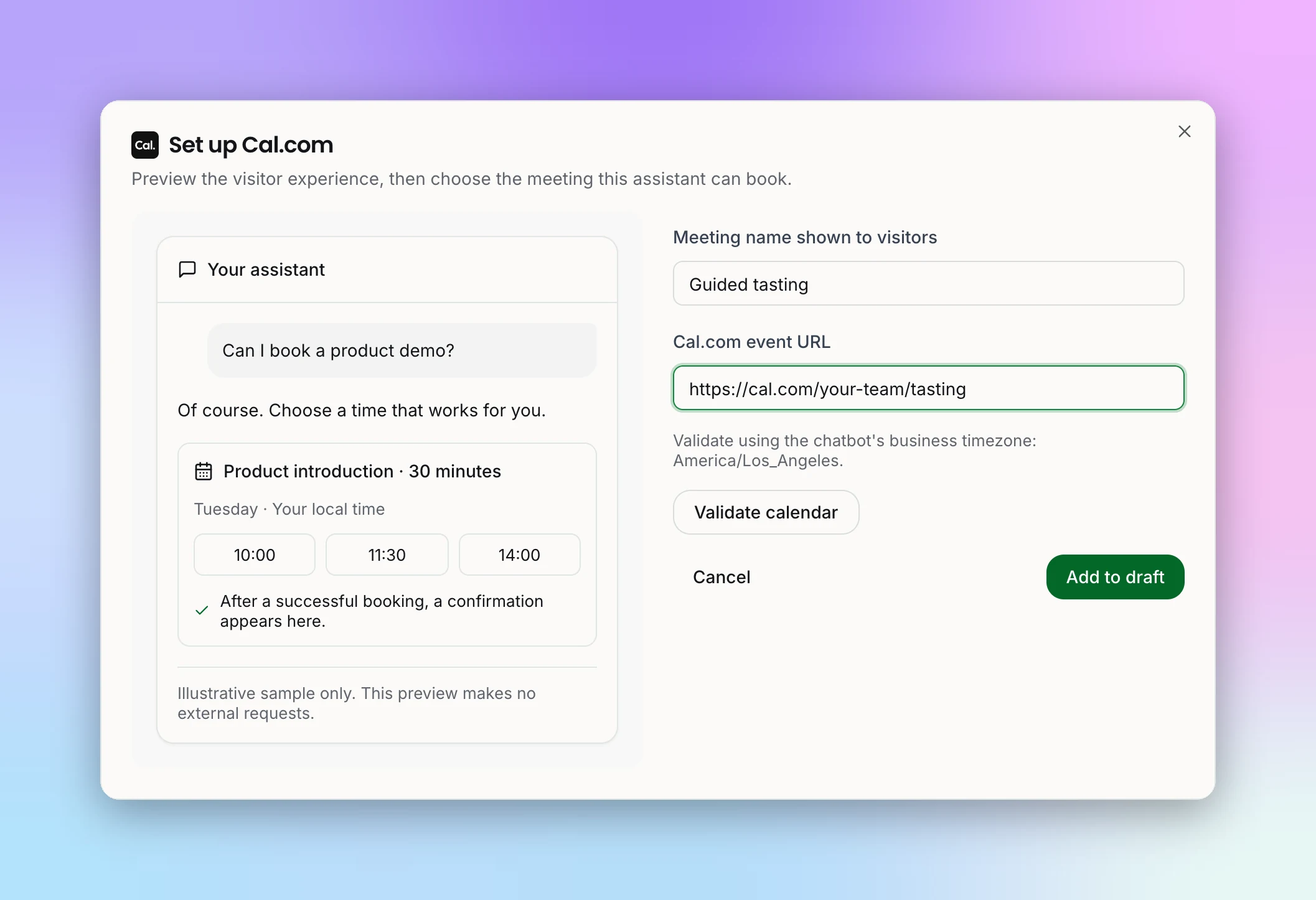
Cal.com needs no account connection and works on any Cal.com plan. You paste the public link to an event hosted on cal.com. Self-hosted Cal.com isn't supported.
1
Start a meeting
Click "Add a Cal.com meeting" and enter the Meeting name shown to visitors (for example, "Intro call").
2
Paste the event link
Paste the public link into "Cal.com event URL", such as
https://cal.com/your-team/intro.3
Validate it
Click "Validate calendar". Studio checks the event using your chatbot's business timezone and shows "Calendar is valid and has availability."
4
Add it
Click "Add to draft".
Add a Calendly Meeting
1
Start a meeting
Click "Add a Calendly meeting" and enter the Meeting name shown to visitors.
2
Choose or connect an account
Pick a Connected account, or click "Connect Calendly". Choose the account access, Organization-wide (any chatbot can use it) or This chatbot, then click "Continue to authorization" and sign in to Calendly in the window that opens.
3
Pick the event type
Choose one of the account's event types under "Calendly event type". If the list is empty, create an event type in Calendly first, then reload the list.
4
Choose how visitors finish
Set How visitors complete a booking (see below), then click "Add to draft".
Finish on Calendly or book in chat
- Finish on Calendly (works on every Calendly plan, including Free) — The chatbot shows your open times in the chat. Picking one opens Calendly at that time, and the visitor confirms there. New Calendly meetings start on this option.
- Book in chat (Calendly Standard or higher) — The booking is completed inside the conversation. Calendly only allows this on Standard plans and above. On other plans the chatbot gives the visitor the Calendly link for the chosen time instead.
Note:
Connecting or disconnecting a Calendly account takes effect immediately; saving or discarding your chatbot draft doesn't undo it. Disconnecting an organization-wide account affects every chatbot that uses it.
Booking Options
- Availability window in days (1–60) — How far ahead the chatbot offers times. The default is 7.
- When should your assistant offer a meeting? — Plain-English guidance, such as "Offer the intro call once the visitor has shared their budget."
- Use 12-hour time — Show times as 2:30 PM instead of 14:30.
Visitors see times in their own timezone. Your chatbot's business timezone stays a separate setting. You can add up to 10 meetings per chatbot, each with a distinct name, and reorder them with Move up and Move down.
Turn It On, Test, and Publish
1
Enable booking
Switch on "Enable booking". It needs at least one valid meeting.
2
Test the draft
Click "Save draft and test", then "Open fresh draft preview" and ask to book a meeting.
3
Publish
Each meeting shows Draft changes until you publish your chatbot, then Published.
Note:
Test bookings are real bookings on your calendar. Use a test event type, or cancel the test meeting from the confirmation email afterwards.
What Booking Doesn't Do
- It creates new bookings only. It can't cancel or reschedule. Visitors use the links in their confirmation email.
- Calendly and Cal.com only. With any other scheduling tool, the chatbot can share your booking link, but it can't see availability or book.
- No reminders or no-show follow-ups. Those stay with Calendly or Cal.com.
Tip:
Want your own systems to know when a meeting is booked? Subscribe to the
appointment.booked event in Webhooks.