Agentic Workflow
Configure automated workflows that execute after conversations, enabling your chatbot to take actions beyond just responding.
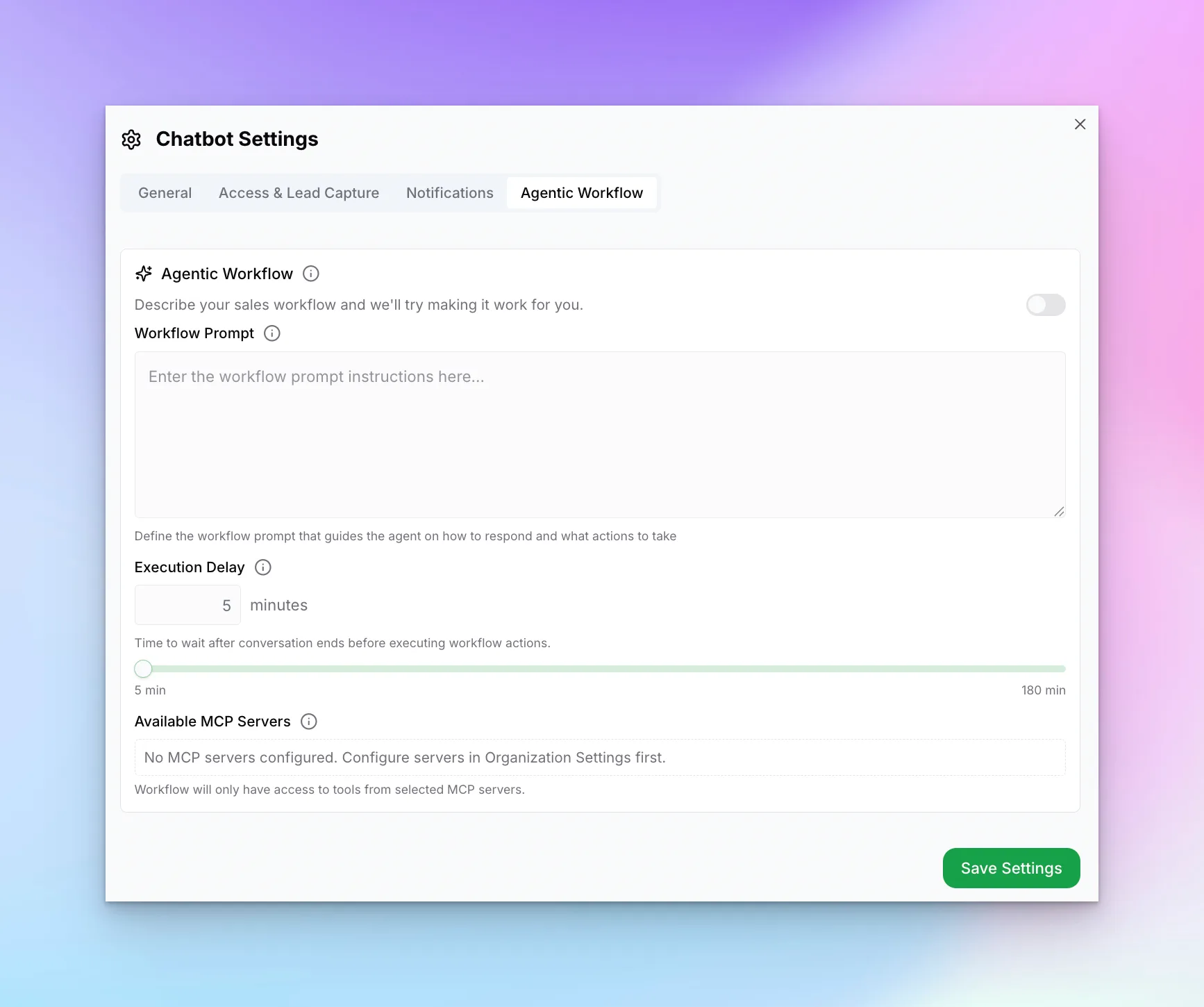
Workflow Settings
- Agentic Workflow — Enable/disable automated workflows
- Workflow Prompt — Instructions that guide the workflow on what actions to take after conversations end
- Execution Delay — Minutes to wait after conversation ends before executing the workflow
How Workflows Work
After a conversation ends, the workflow processes the conversation data using LLM logic and can automatically send email summaries to your team with lead details and key insights.
Example Workflow Prompt
Here's an example of a workflow prompt that emails a conversation summary to your sales team:
After each conversation ends, send an email summary to the sales team
at sales@acmecorp.com. The email should include:

- Visitor name and contact details (from the lead form)
- A brief summary of what the visitor asked about
- Key interests or pain points mentioned
- Recommended next steps for the sales team
- The full conversation transcript
Important: Add Recipients to Internal Communications
For the workflow to send emails, the recipient email addresses must be added to your Internal Communications list. This is a security measure to prevent the chatbot from sending emails to arbitrary addresses.
Saving Settings
After making changes, click "Save Settings" at the bottom of each tab. Changes take effect immediately for new conversations.
Next Steps
With advanced settings configured, proceed to Testing to preview and test your chatbot before publishing.