An Action is a request your chatbot can make to an HTTPS API you run. When a visitor asks "where's my order?", the chatbot can call your order-status endpoint and answer with the real status. Actions work in two directions:
- Look up information — order status, stock levels, account details.
- Submit data — leads, support tickets, service requests.
Actions run on website chat, WhatsApp, Instagram, and Messenger. The request is made from Hyperleap's servers, not the visitor's browser, and your credentials are never shown to the AI model or the visitor.
Before You Start
- Pro or Max plan — On other plans, saved Actions stay readable but can't be added or changed.
- An API you control — A public HTTP or HTTPS endpoint. Requests to private or internal network addresses are blocked, and redirects aren't followed, so use the final URL.
- GPT-6 Luna as the model — Claude models answer in plain chat and don't run Actions. See System Prompt & Models.
Open your chatbot, select the Integrations tab, and choose "Actions". Start from "Information lookup", "Data submission", or "Custom API". A chatbot can have up to 10 Actions.
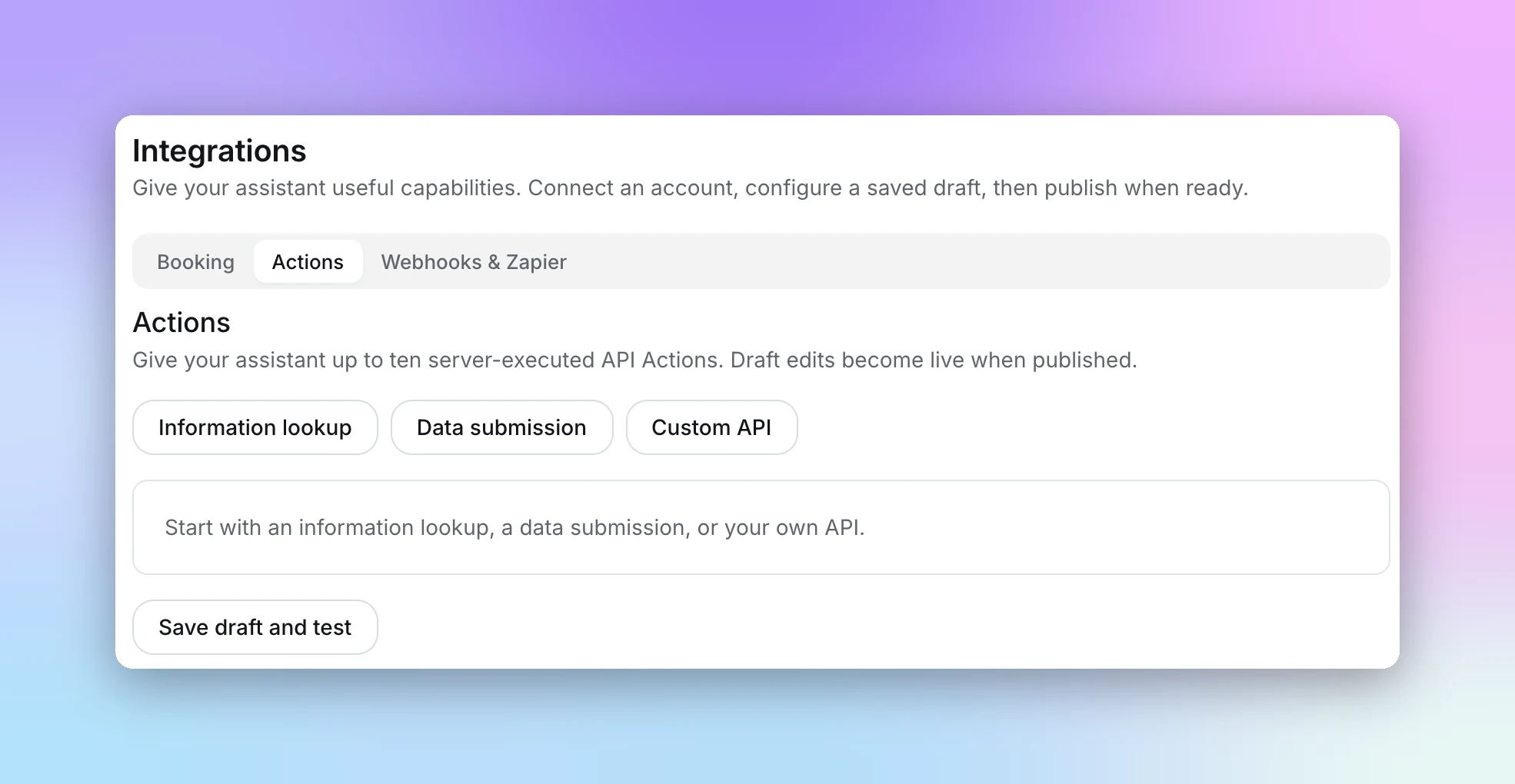
Configure an Action
The editor walks you through five steps. Click "Next" to move between them.
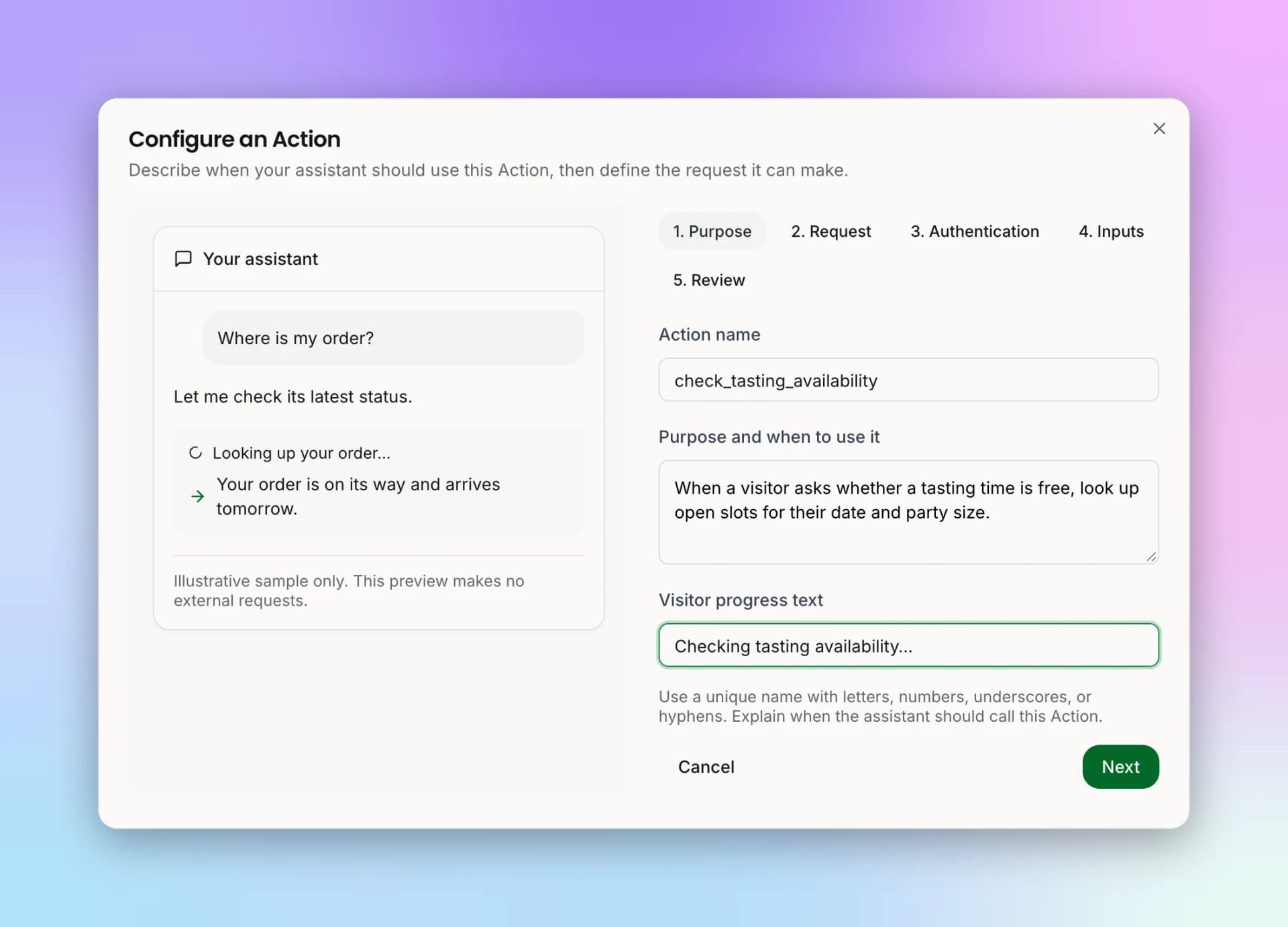
Purpose
- Action name — Letters, numbers, underscores, or hyphens, unique within the chatbot.
- Purpose and when to use it — The AI reads this to decide when to call the Action, so be specific: "Use when a customer asks where their order is and gives an order number."
- Visitor progress text — What the visitor sees while the request runs, such as "Checking your order…".
Request
https://api.example.com/orders/{order_number}. Add up to 10 Non-secret headers if your API needs them; credentials go in the next step.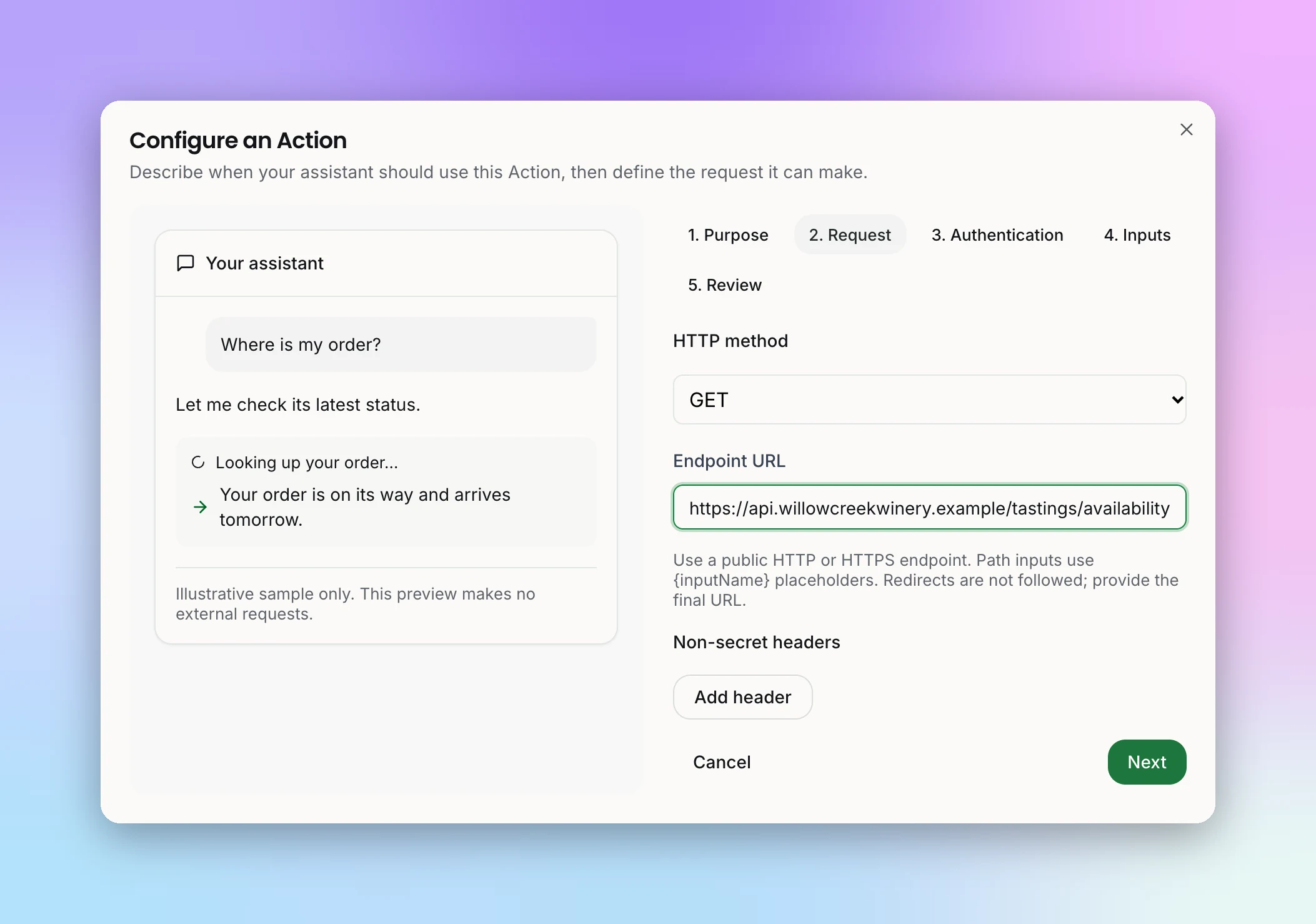
Authentication
Inputs
Review
Example: Order Status Lookup
| Action name | order_status |
| Purpose | Use when a customer asks about an order and gives an order number. |
| Request | GET https://api.example.com/orders/{order_number} |
| Authentication | API key header |
| Inputs | order_number · string · path · required |
Test and Publish
Each Action card shows where it stands:
- Authentication ready or Setup incomplete — An Action can't be switched on until its authentication is complete.
- Draft changes or Published — Edits reach your live chatbot when you publish.
- Edit, Duplicate, and Remove, plus an on/off switch for each Action.
To try an Action before publishing, click "Save draft and test", then "Save draft" and "Open fresh draft preview", and ask a question that should trigger it.
Good to Know
- Your endpoint has 20 seconds to respond.
- Actions connect the chatbot to your API. They aren't a built-in integration with the system behind it, so your API decides what data the chatbot can see or change.
- Restoring an older version from Version History doesn't restore credentials or connected accounts. An Action missing its credential comes back switched off so you can repair it.