Connect Hyperleap MCP to Cursor for Developer Workflows
Step-by-step setup for using Hyperleap's MCP server inside Cursor. Pull live lead data, prototype agents, and debug integrations from your IDE.

TL;DR: Add a three-line entry pointing at https://api.hyperleapai.com/mcp to ~/.cursor/mcp.json, connect once with an MCP key from Hyperleap Studio, and Hyperleap's nine read-only MCP tools become available inside every Cursor chat and agent session. You can then query live lead data, pipeline stages, and conversation transcripts from your chatbot without leaving your editor—no separate dashboard tab, no copy-pasting IDs, and no secret sitting in your config file.
Connect Hyperleap MCP to Cursor: What You're About to Do
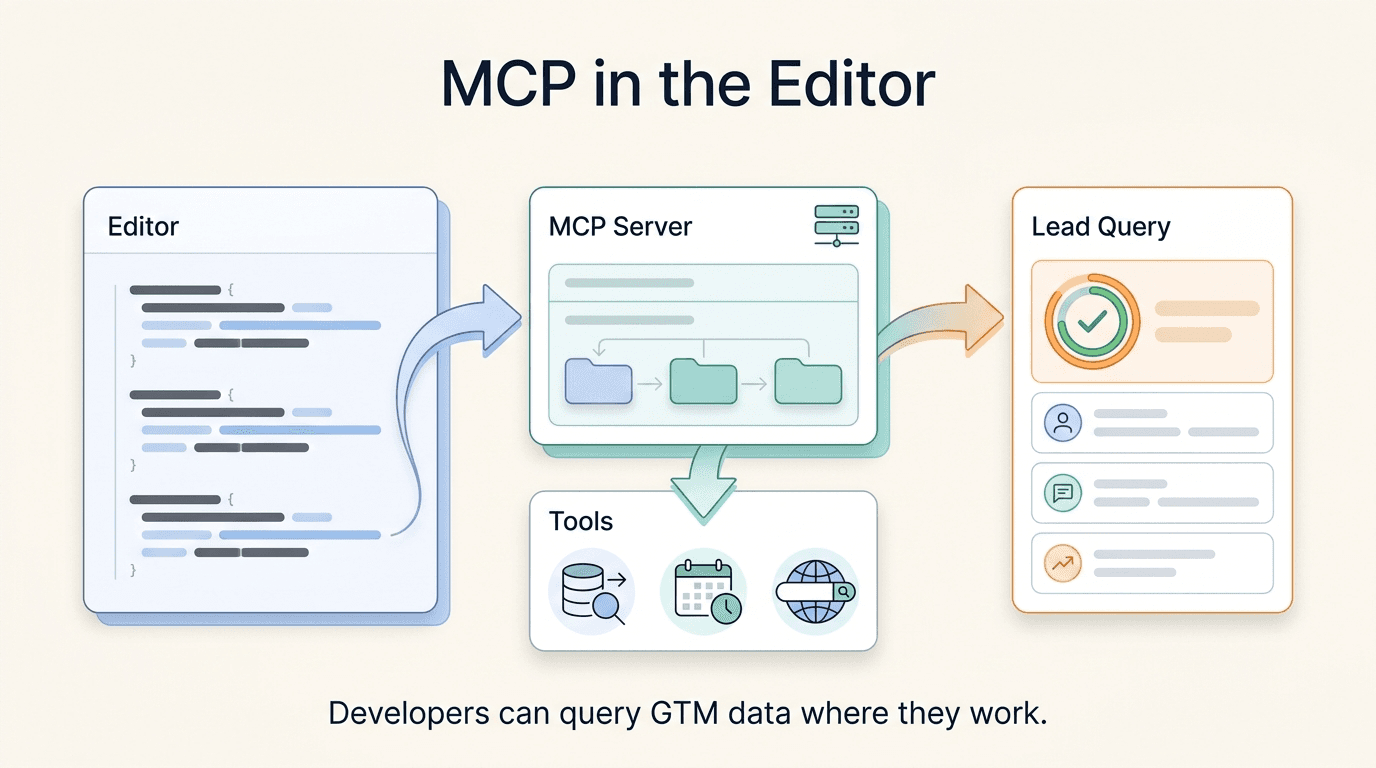
The Model Context Protocol (MCP) is an open standard that lets AI-powered tools—including Cursor's built-in agent—reach out to external data sources through a structured, typed interface. Cursor supports MCP as a first-class feature: add a server, connect, and its tools appear in the IDE alongside Cursor's existing context.
Hyperleap AI hosts an MCP server with nine read-only tools that expose your chatbot's CRM data: leads, conversations, activities, notes, pipeline stages, and aggregated dashboard metrics. Read-only by design—no tool can create, change, or delete your leads, notes, stages, or conversations, so there is no risk of modifying production records from an exploratory Cursor session.
Because the server is hosted, there's nothing to install or keep updated. You point Cursor at a URL and sign in with an MCP key, the same way you would in Claude.
This tutorial walks you through the full setup and five real developer workflows you can run the same afternoon you configure it. If you have already done the Claude Desktop version, the key and URL are identical—but the Cursor integration has some workflow angles worth reading for, particularly around combining multiple MCP servers in one session.
Related reading: Hyperleap MCP Tools Reference · Connect Hyperleap to Claude Desktop · Developer hub
Why a Developer Would Want This
Before walking through steps, it is worth being precise about the problem this solves—because "bring your CRM data into your IDE" can sound like a novelty until you have hit one of these situations yourself.
Checking real data while you build an integration
You are writing code that consumes Hyperleap leads—a sync into your own database, a webhook handler, a reporting job. Your tests pass against hand-crafted fixtures, then real data surprises you: leads with no phone number, tags stored as one comma-separated string, lead-form answers sitting in a custom-data field.
With the Hyperleap MCP connected in Cursor, you can ask the agent to pull a few real leads and show you which fields are actually populated before you write the mapping. One caveat: the MCP tools return the CRM's view of a lead, which isn't the same shape as a webhook payload. For exact webhook payloads, use the delivery history on the webhook in Studio.
Generating reports inside the IDE
Occasionally you need a quick one-off report—say, all leads in a specific pipeline stage with their last activity date—that does not justify building a full export feature. With list_leads and get_pipeline_stages accessible in Cursor chat, you can ask the agent to assemble and format the data as a CSV, a markdown table, or whatever structure your stakeholder needs. Done in minutes, without leaving the editor.
Building and iterating on data scripts
If you are writing a scheduled script—a weekly digest emailer, a team-chat summary bot, a dashboard data pipeline—you want to iterate against real data, not stubs. The MCP lets Cursor's agent read live records while you write the script alongside it. You spot edge cases immediately rather than discovering them when the cron job runs on Monday morning.
Prototyping agents that reason over conversation data
Cursor's agent mode is a capable environment for prototyping. If you are building a secondary agent—one that reads Hyperleap conversations and extracts themes, escalation signals, or sentiment patterns—you can prototype the entire reasoning loop from inside Cursor using extract_lead_insights, get_lead_conversations, and get_conversation as the data source. When the prototype works, your production implementation already has a validated prompt.
Building test fixtures from realistic records
Fixtures written by hand tend to drift from reality over time. With the MCP server available, you can fetch a handful of real records, anonymize them (swap out names, emails, phone numbers), and use those shapes as fixtures for code that processes lead data. The resulting tests are far more likely to catch the edge cases real leads produce.
Prerequisites
Before you start the configuration, make sure you have the following:
- A Hyperleap AI paid plan (Plus at $40/mo, Pro at $100/mo, or Max at $200/mo). The MCP server is included on every paid plan.
- Cursor installed — download from cursor.com. Any recent version with MCP support works; you should see an MCP section in Cursor Settings.
- A browser — you'll sign in to the server once on Hyperleap's Connect page.
You don't need Node.js, npx, or an API key in an environment variable. Hyperleap hosts the server.
Setup Steps: 5 Steps to Connect Hyperleap MCP to Cursor
Step 1: Create an MCP key in Hyperleap Studio
In Hyperleap Studio, click your profile avatar in the top-right corner, choose My MCP Keys, then click Create MCP Key. Name it something like Cursor and click Create.
Copy the key straight away. Studio shows it only once; if you lose it, create a new one. The key acts as you, so the agent sees the same leads you can see in Studio.
You should now see your new key in the My MCP Keys list, and have its value on your clipboard.
Step 2: Add the Hyperleap server to ~/.cursor/mcp.json
Cursor reads global MCP servers from ~/.cursor/mcp.json (or project-level servers from .cursor/mcp.json in your repo). Open the file, or create it if it doesn't exist, and add a hyperleap entry. If you already have other servers configured, add the "hyperleap" key inside the existing "mcpServers" object—do not replace the whole file.
{
  "mcpServers": {
    "hyperleap": {
      "url": "https://api.hyperleapai.com/mcp"
    }
  }
}
That's the whole entry. The URL must be exactly https://api.hyperleapai.com/mcp; other hostnames, including api.hyperleap.ai, won't work. There is no key in this file, so it's safe to commit a project-level .cursor/mcp.json that your teammates can share. Each person still connects with their own MCP key.
You should now see a saved mcp.json with valid JSON.
Step 3: Connect with your MCP key
Open Cursor Settings and go to the MCP section. The hyperleap server appears there and shows that it needs you to sign in. Click the button to connect.
Your browser opens the Connect to Hyperleap AI page. Paste the MCP key from Step 1 and click Connect. You'll be sent back to Cursor.
Behind the scenes this is a standard OAuth sign-in: Hyperleap checks your key on its own page and gives Cursor a short-lived access token, which Cursor renews as it needs to. Your MCP key never gets stored in Cursor.
You should now see hyperleap with a connected status in the MCP section.
Step 4: Confirm the nine tools are registered
Click on the hyperleap entry in the MCP section. Cursor will display the list of tools the server exposes. You should see all nine:
list_leadsget_lead_detailsget_lead_conversationsget_conversationget_lead_activitiesget_lead_notesget_pipeline_stagesget_crm_dashboardextract_lead_insights
You should now see all nine tools listed with their descriptions. Because the server is hosted, new tools and fixes show up here without you changing anything.
Step 5: Run a test query in Cursor chat
Open a new Cursor chat window (Cmd+L) and type:
Use the hyperleap MCP to list my pipeline stages.
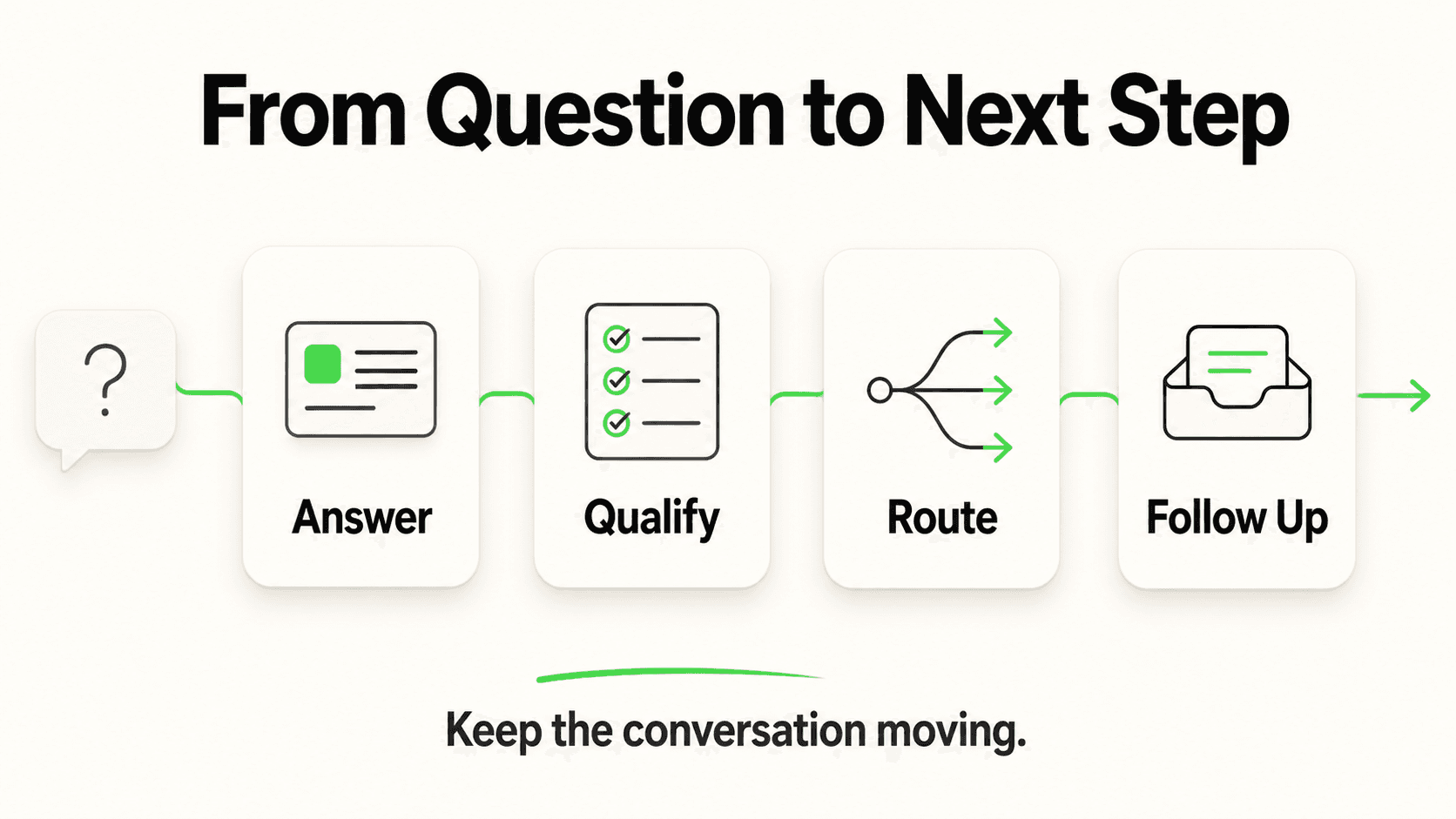
Cursor's agent will call get_pipeline_stages and return the stages configured in your Hyperleap account. This confirms the full round-trip: Cursor → Hyperleap's MCP server → your CRM data → response.
You should now see your pipeline stages listed in the chat response. If you see an authentication error instead, reconnect the server in Cursor Settings (see Troubleshooting below).
5 Developer Workflow Examples
The outcomes below are sketches of what a run looks like, not output from a real account.
Workflow 1: Check which fields your leads actually carry
Scenario: You are building a job that copies new Hyperleap leads into your own database. Before you write the field mapping, you want to see what real records look like.
Cursor prompt:
Use the hyperleap MCP to list my 5 newest leads, then fetch the details of each one. Show me which fields are filled in and which are empty, and how tags and custom lead-form data are stored. I want to use this to write my TypeScript interface and test fixtures.
Sketched outcome: Cursor calls list_leads, then get_lead_details for each lead, and shows you that two leads have no phone number, tags arrive as a single comma-separated string, and lead-form answers sit in a custom-data field as a JSON string. You add the null checks and the parsing before the first real sync runs, not after.
Workflow 2: Generate a one-off CSV report from list_leads
Scenario: Your sales manager needs a list of all leads currently in the "Qualified" stage with their last activity date, formatted as a CSV, by end of day.
Cursor prompt:
Use the hyperleap MCP to list all leads in the "Qualified" pipeline stage. For each lead, include their name, email, and the date of their last activity. Format the result as a CSV I can paste into a spreadsheet.
Sketched outcome: Cursor calls get_pipeline_stages to find the stage ID, then calls list_leads with that stage filter. Each lead in the result already carries its last-activity time, so no extra calls are needed. The output is a clean CSV in the chat window, with no context-switching to a dashboard and no custom export script.
Workflow 3: Build a weekly digest script using get_crm_dashboard
Scenario: You are writing a Node.js script that runs every Monday morning, fetches a summary of your lead pipeline, and posts it to your team's chat channel.
Cursor prompt:
I'm writing a Node.js script that reads weekly CRM metrics from Hyperleap. Use the hyperleap MCP to call get_crm_dashboard and show me what the response structure looks like. Then help me write a function that extracts total leads, new leads this week, and conversion rate from that shape.
Sketched outcome: Cursor fetches a real get_crm_dashboard response from your account and shows you the exact field names (TotalLeads, NewLeadsThisWeek, ConversionRate, plus breakdowns by stage and by chatbot), so you are not guessing from documentation. It then writes the extraction function against that shape.
Workflow 4: Prototype a reasoning agent using extract_lead_insights
Scenario: You want to build an agent that reads recent conversations and surfaces leads showing purchase intent signals—phrases like "how do I get started," requests for pricing, or mentions of a competitor. Before investing in a full implementation, you want to validate the prompt and output structure.
Cursor prompt:
Use the hyperleap MCP to run extract_lead_insights on the lead jane@example.com. Based on the output, help me write a system prompt for an agent that identifies purchase intent signals in lead conversation data. Then test the prompt against the insights you just fetched.
Sketched outcome: Cursor looks up the lead, calls extract_lead_insights, and gets back a list of insights, each with a key, a value, a category, and a confidence score. It uses those as grounding data to draft and immediately test a system prompt. You validate the reasoning loop against a real record before writing production code.
Workflow 5: Build anonymized test fixtures from real records
Scenario: The tests for your lead-processing code use hand-written mock data. Over time the mocks have drifted from what real leads look like, and the tests are no longer catching real regressions.
Cursor prompt:
Use the hyperleap MCP to fetch lead details for my 3 newest leads. Then anonymize the results—replace real names with "Acme Corp Contact 1", replace emails with test@example.com, and replace phone numbers with +1-555-000-0001. Use the anonymized data to generate TypeScript test fixtures for my lead-processing tests.
Sketched outcome: Cursor fetches three real records, performs the anonymization inline, and generates a fixtures/leads.ts file with realistic shapes and safe placeholder values. Remember that these are the CRM's view of a lead; if your code consumes webhooks, take fixtures from real webhook deliveries instead.
Combining Hyperleap with Other Cursor MCPs
Cursor's MCP system is additive—you can run multiple servers in the same session by adding entries to mcpServers in mcp.json. Hosted servers like Hyperleap's take a url; local servers that run on your machine take a command, as their own docs describe. A developer stack for Hyperleap integration work might pair Hyperleap with a filesystem server and your code host's MCP server. Here is the shape with one more hosted server alongside Hyperleap:
{
  "mcpServers": {
    "hyperleap": {
      "url": "https://api.hyperleapai.com/mcp"
    },
    "another-hosted-server": {
      "url": "https://example.com/mcp"
    }
  }
}
Each hosted server signs you in separately, so each keeps its own credentials. With this setup, a single Cursor agent session can read live Hyperleap lead data, inspect your local source files, and query open issues at once. Practical example: ask Cursor to "look at the Hyperleap lead sync in src/sync/leads.ts, fetch a real lead record to check which fields it carries, and open an issue if the handler's TypeScript interface is missing any of them."
For more advanced multi-MCP patterns—including combining Hyperleap with HubSpot and Linear in a single workflow—see Multi-MCP Workflows: Hyperleap + HubSpot + Linear.
You can also explore the full list of tools and their parameters in the Hyperleap MCP API reference.
Troubleshooting
hyperleap shows an error in the MCP section and never asks you to sign in
Check the URL in mcp.json. It must be exactly https://api.hyperleapai.com/mcp. Also check the file is valid JSON—trailing commas and mismatched braces are the usual culprits. Save, then toggle the server off and on in Cursor Settings.
"Invalid MCP key" on the Connect to Hyperleap AI page
The key is mistyped, was deleted, or isn't a personal MCP key. Open My MCP Keys from your profile menu in Studio, create a new key, and paste that. Keys from other places in Studio won't work here.
401 Unauthorized or tool calls failing after it used to work
Your connection may have expired or been revoked, or the Hyperleap account's subscription is no longer active. Confirm you can still sign in to Studio, then reconnect hyperleap from Cursor Settings.
Tool calls return empty results for list_leads or get_crm_dashboard
Your Hyperleap account may not have any leads yet, or your user can't see the chatbots that captured them. Sign in to Studio and confirm there is at least one lead you can see. Lead lookups return the same leads you can see in Studio.
Cursor agent ignores the MCP tools and tries to answer from training data
Cursor's agent will use MCP tools when prompted explicitly. If you ask a generic question ("what are my leads?"), it may respond from context instead. Be explicit: "Use the hyperleap MCP tool list_leads to..." — this forces the tool call.
Start Using Hyperleap MCP in Cursor
The full setup takes under five minutes. Once connected, you have a direct read channel from your IDE into your Hyperleap chatbot's CRM data—useful any time you are debugging an integration, prototyping a data script, or building something that needs to reason over real conversation data.
If you are evaluating whether Hyperleap's MCP server fits your team's workflow, the MCP overview page covers the full capability set and how the read-only design fits into a safe developer workflow. And if you are running a multi-tool setup with other MCPs alongside Hyperleap, the developer hub has the reference material you need.
Frequently Asked Questions
Does the Hyperleap MCP server write any data back to my account?
No. All nine tools read your CRM. None of them can create leads, update pipeline stages, add notes, or send messages. The only thing any tool saves is the output of extract_lead_insights, which adds the insights it finds to the lead's profile. This is intentional: the server is designed for data access and integration work, not for automating writes from an AI agent session.
Which Hyperleap plans include the MCP server?
The MCP server is included on all three paid plans: Plus ($40/mo), Pro ($100/mo), and Max ($200/mo). There is no free plan. You create your MCP key from the profile menu in Hyperleap Studio.
Is my MCP key stored in Cursor or in mcp.json?
Neither. mcp.json holds only the server URL. You paste the key once, on Hyperleap's own Connect page in your browser. Hyperleap then gives Cursor a short-lived OAuth access token, which Cursor uses for tool calls and renews as needed.
Can I use the same MCP key for both Cursor and Claude Desktop?
You can, but it's better to create one key per client—Cursor, Claude Desktop, and so on. Then you can delete one without touching the others, and the names in My MCP Keys tell you what each one is for.
How do I update the MCP server when a new version is released?
You don't need to. Hyperleap hosts the server, so updates and new tools apply automatically. Older guides used an npx package that had to be cleared from a local cache; if you still have that entry in mcp.json, replace it with the url entry above.
Can I restrict which leads the MCP server can access?
Lead lookups return what the key's owner can see in Studio. A teammate whose access is limited to certain workspaces can create their own MCP key, and their connection returns only leads from those workspaces. Account-wide totals from get_crm_dashboard and get_pipeline_stages cover the whole account. You cannot currently limit a single key to a subset of the leads its owner can see.
What should I do if an MCP key leaks?
Delete it in My MCP Keys so it can't be used to connect again, create a replacement, and reconnect any client that used it. Because mcp.json never contains the key, a leaked config file on its own doesn't expose your CRM.
Where can I see the full list of MCP tool parameters and response shapes?
The Hyperleap MCP API reference documents all nine tools with their input parameters, response fields, and errors. If you want to explore interactively, you can also ask Cursor's agent to describe any tool: "Using the hyperleap MCP, describe the parameters accepted by extract_lead_insights."
Related Articles

The 9 Hyperleap MCP Tools, Explained with Real Prompts
Every tool in Hyperleap's hosted MCP server in plain English: what each one reads, the inputs it takes, prompts to try, and sample responses.

Build a Read-Only Sales Agent with Hyperleap MCP
Build a scheduled sales agent on Hyperleap's read-only MCP server: the agent loop, the tools it reads, copy-paste prompts, and an Anthropic SDK example.

Hyperleap MCP API Reference: Tools, Auth, and Errors
Developer reference for the hosted Hyperleap MCP server: OAuth sign-in, every tool's parameters and response fields, pagination, and errors.

Multi-MCP Workflows: Hyperleap + HubSpot + Linear in Claude
Combine Hyperleap, HubSpot, and Linear MCP servers in one Claude workflow that turns chatbot leads into enriched CRM records and follow-up tickets.