Creating an AI Assistant is similar to creating a Tool, but you're configuring a conversational interface rather than a form-based workflow.
Starting Assistant Creation
Navigate to Assistants
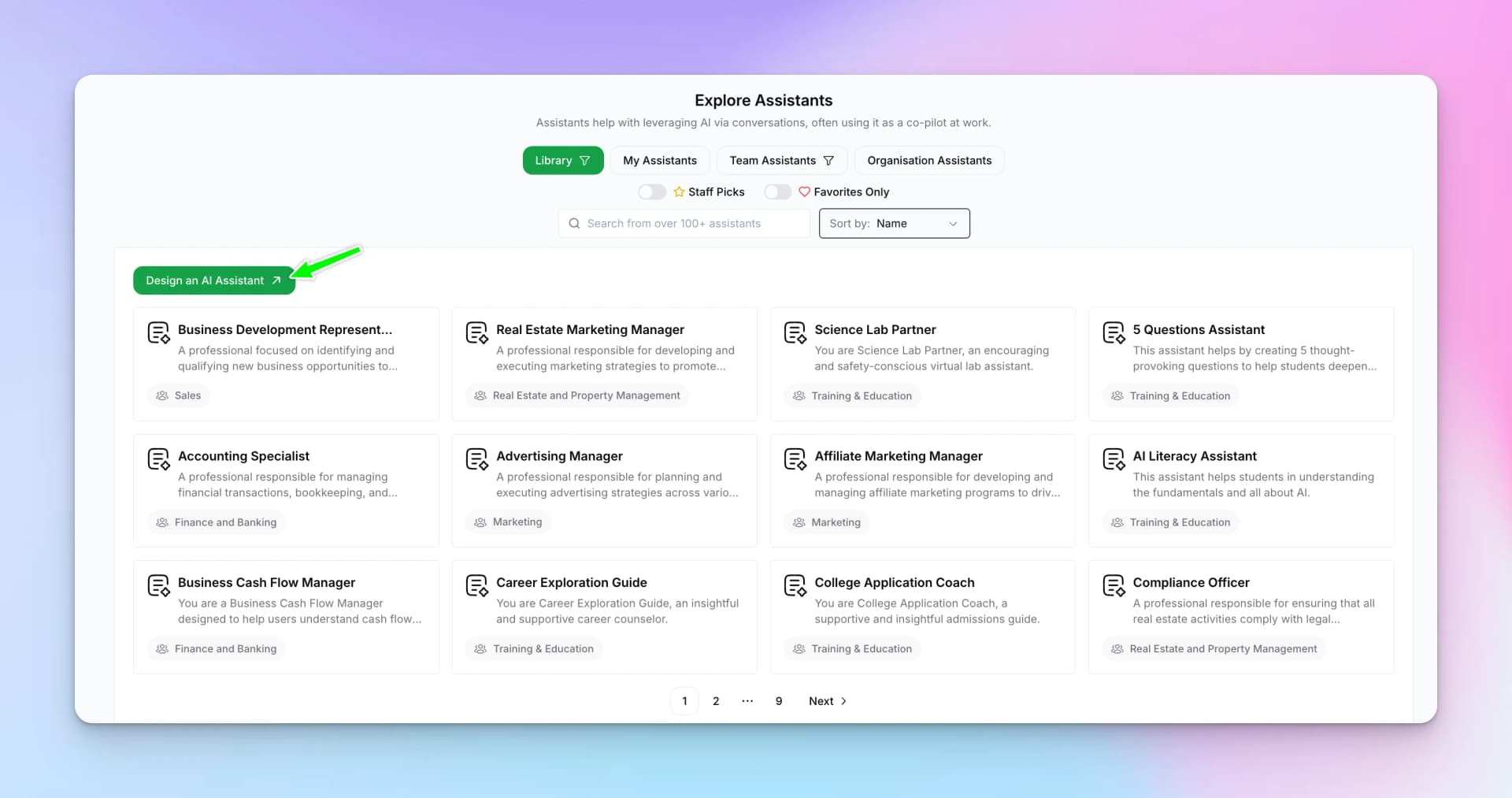
Go to AI Studio → Assistants → Explore
Click Design an AI Assistant
Click the "Design an AI Assistant" button.
Creation Methods
Like Tools, you can create Assistants in three ways:
Option 1: Create Manually
- Enter a Name for your assistant
- Add a Description
- Optionally upload an icon
- Click "Create" and configure the system prompt
Option 2: Start with Template
- Browse template categories (Education, Sales, Support, etc.)
- Select a template close to your needs
- Customize the name, description, and system prompt
Option 3: Create using AI
- Describe what your assistant should do
- AI generates the configuration
- Review and refine
Configuring Your Assistant
After creation, configure these key elements:
System Prompt
The system prompt defines your assistant's personality, knowledge boundaries, and behavior. A good system prompt includes:
- Role definition — Who is the assistant? (e.g., "You are a helpful HR assistant")
- Capabilities — What can it do? What should it avoid?
- Tone — Professional, friendly, casual?
- Response format — How should answers be structured?
- Boundaries — What topics to avoid or redirect?
Chat Inputs
Define variables that users fill in before starting a chat. These provide context that shapes the conversation:
- Grade Level — For education assistants
- Topic — Subject area to focus on
- Role — User's role in the organization
- Project — Context for project-specific help
Connected Sources
Link Sources to ground the assistant's responses in your company's information:
- Company policies and procedures
- Product documentation
- Knowledge base articles
- Training materials
Testing Your Assistant
Before publishing:
- Fill in the Chat Inputs with test values
- Click "Start Chat"
- Ask questions your team would ask
- Verify responses are accurate and helpful
- Test edge cases and potential misuse
Publishing and Sharing
Once satisfied, publish your assistant:
- Save your configuration
- Set visibility (Private, Team, or Organization)
- Share the assistant link with team members
Best Practices
- Clear boundaries — Define what the assistant should and shouldn't discuss
- Specific sources — Connect focused, relevant knowledge bases
- Test thoroughly — Try various questions before publishing
- Iterate — Refine the prompt based on real usage feedback
- Monitor — Review conversation history for quality issues
Next Steps
Learn about Sources to provide your tools and assistants with accurate, up-to-date information.