You can create AI Tools in two ways: manually (write your own prompt) or using AI generation (describe what you want and AI creates the tool).
Starting Tool Creation
Navigate to Tools
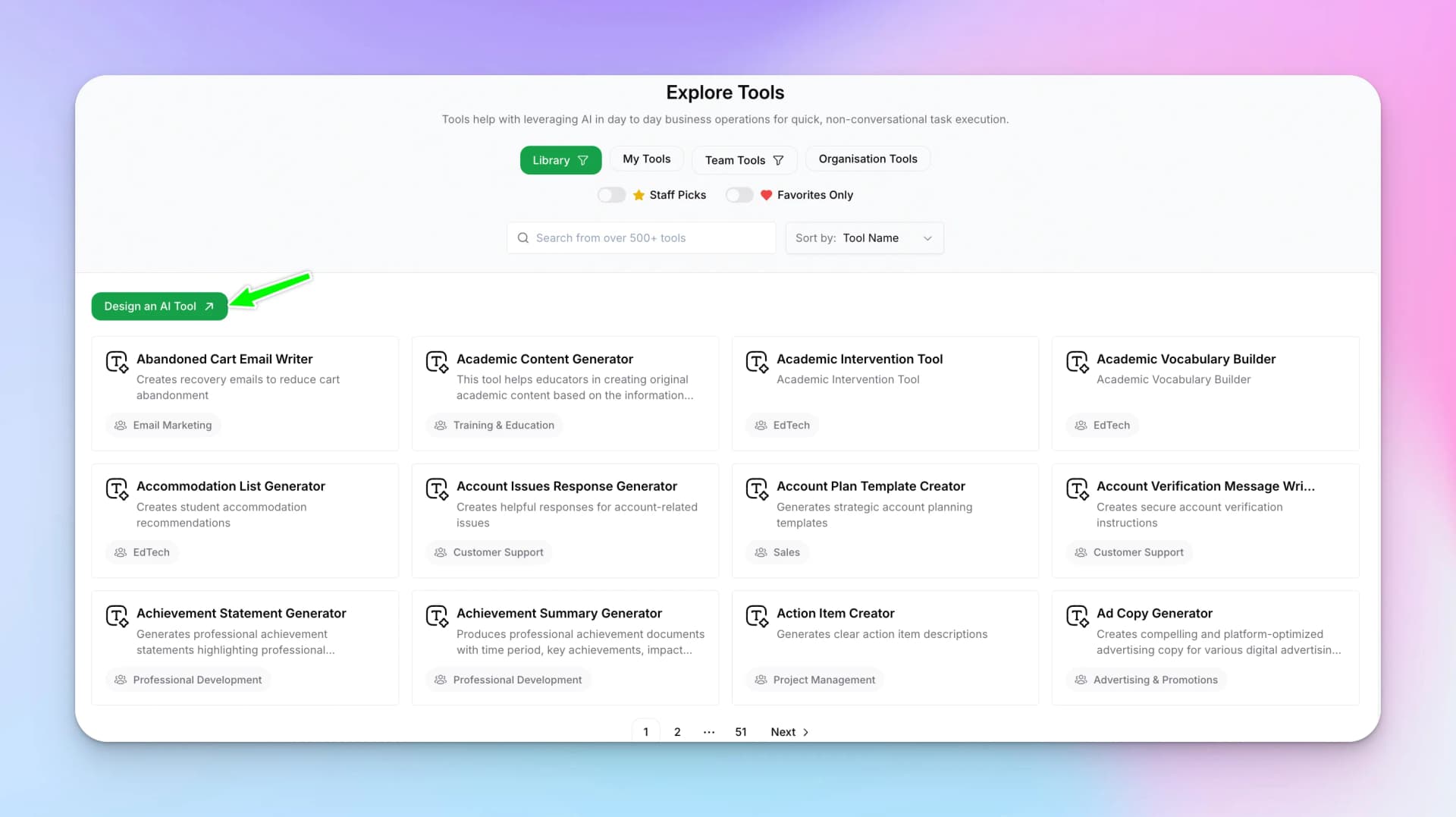
Go to AI Studio → Tools → Explore
Click Design an AI Tool
Click the "Design an AI Tool" button.
Creation Methods
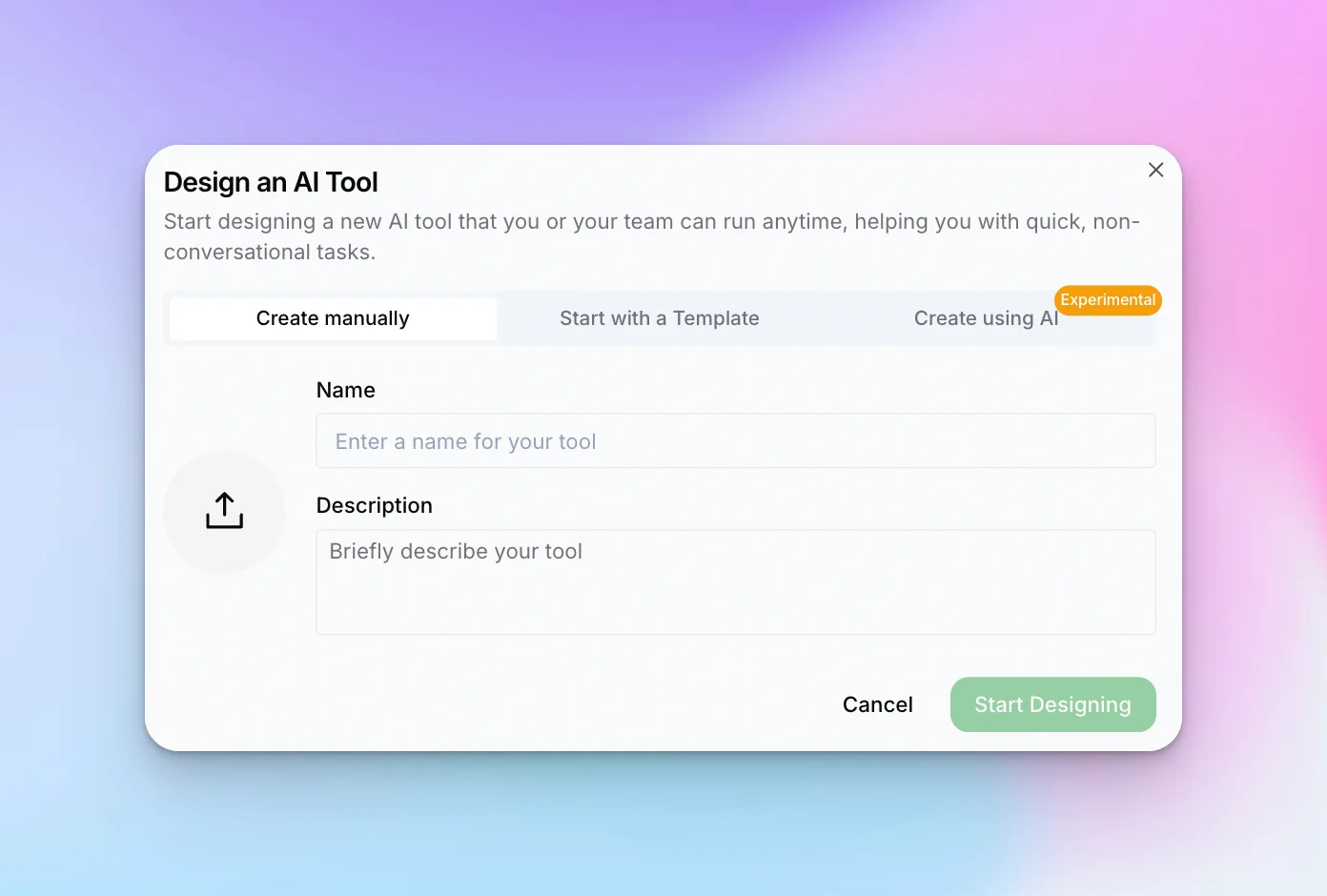
The Design Tool dialog offers three tabs:
Option 1: Create Manually
Best when you know exactly what you want:
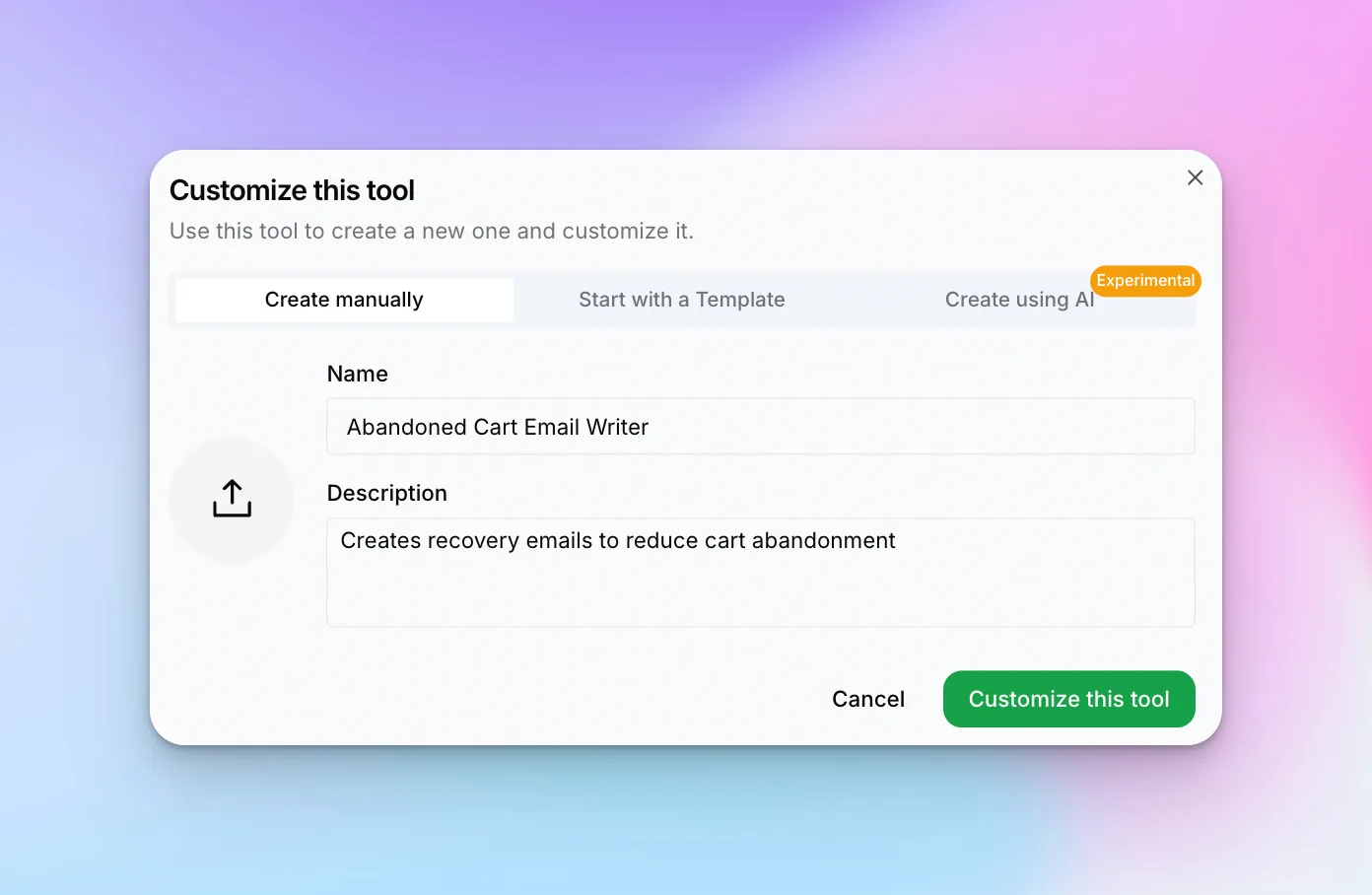
- Enter a Name for your tool
- Add a Description of what it does
- Optionally upload an icon
- Click "Customize this tool"
Option 2: Start with Template
Begin with a pre-built template and customize it:
- Browse available templates
- Select one that's close to what you need
- Modify the name, description, and prompt
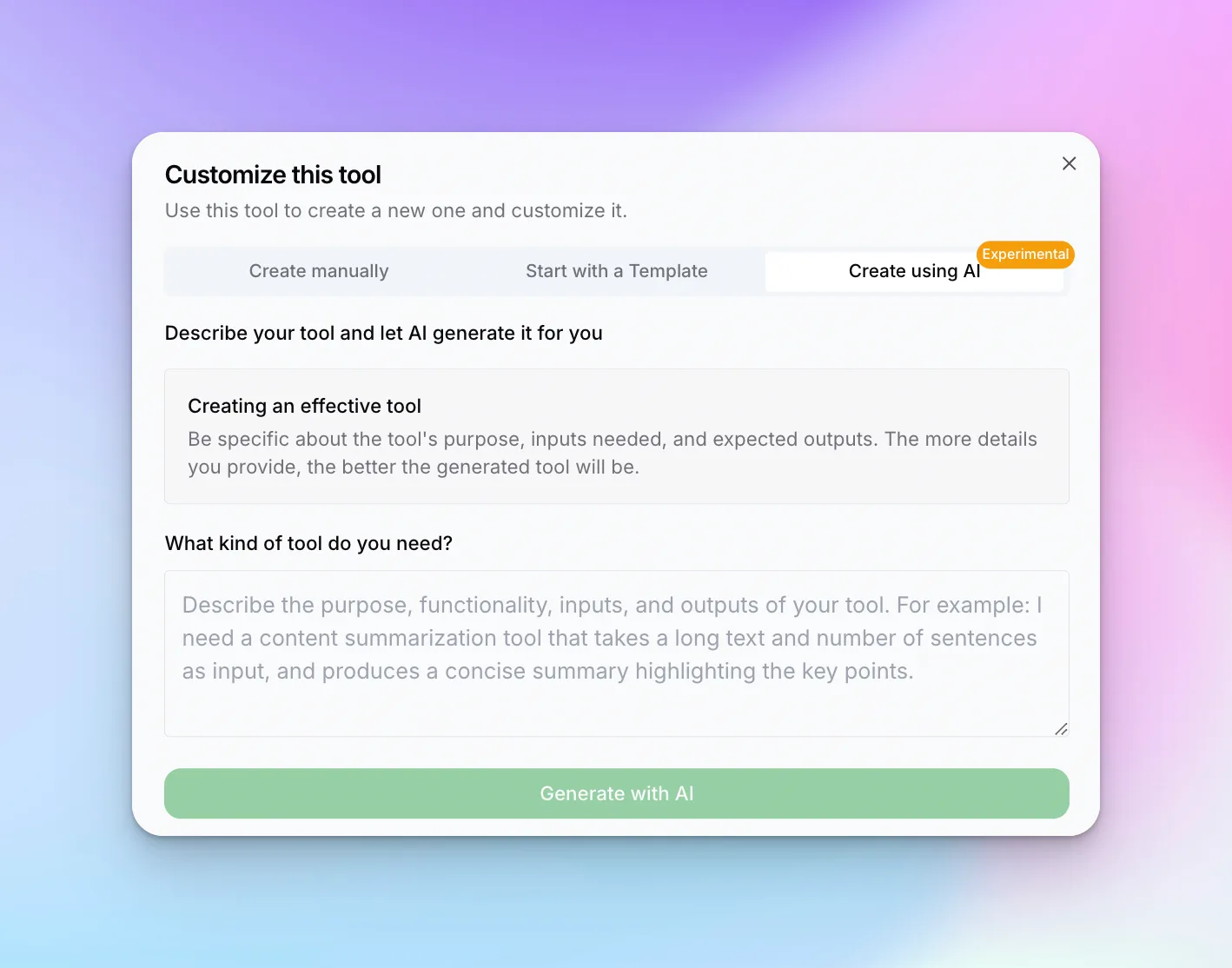
Option 3: Create using AI
Describe what you want and let AI build it:
- Type a description (e.g., "Creates recovery emails to reduce cart abandonment")
- AI generates a complete tool with prompt and fields
- Review and customize as needed
Tool Editor
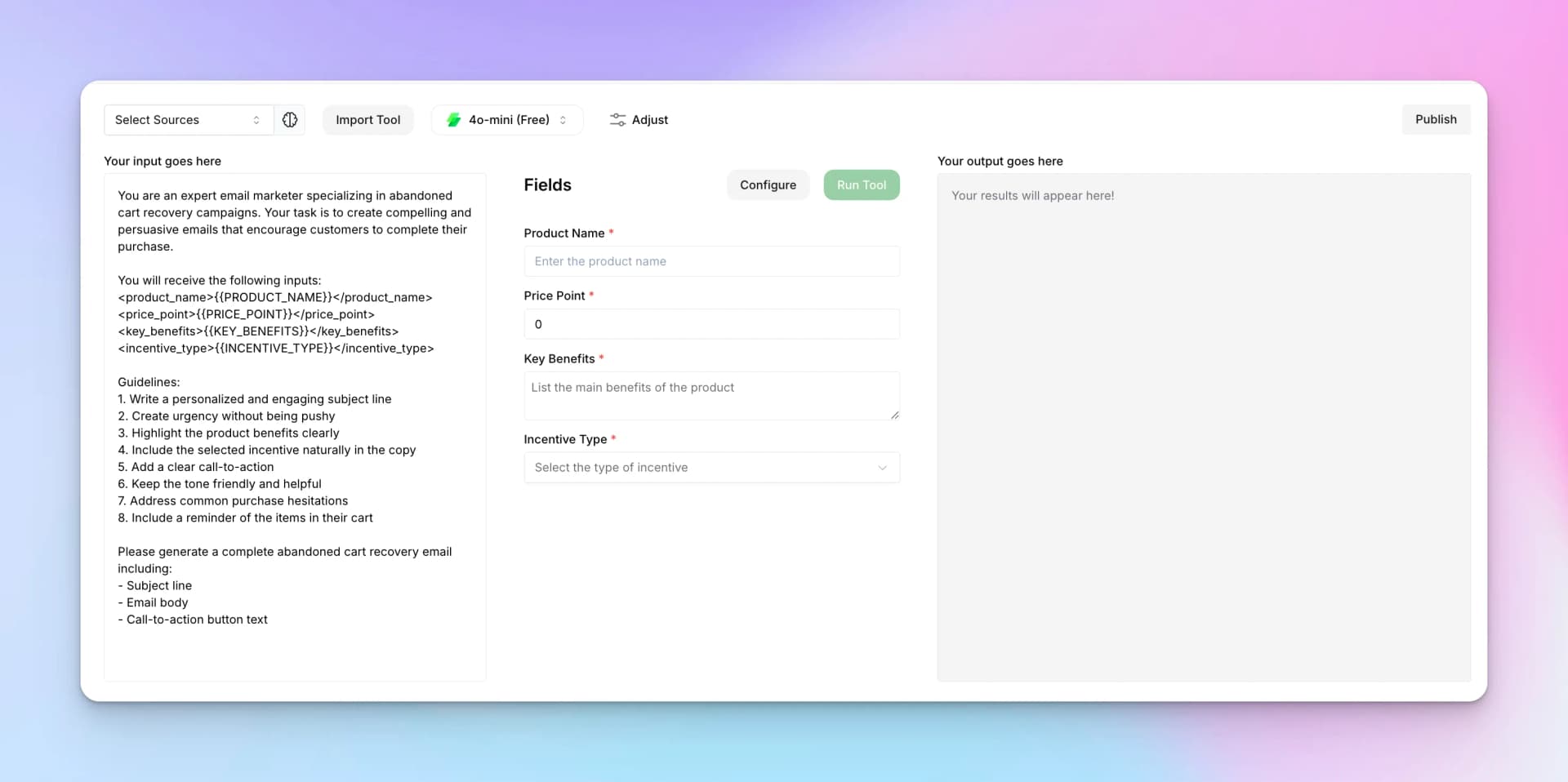
After creating the initial tool, you'll be taken to the tool editor where you configure the prompt and input fields.
Editor Sections
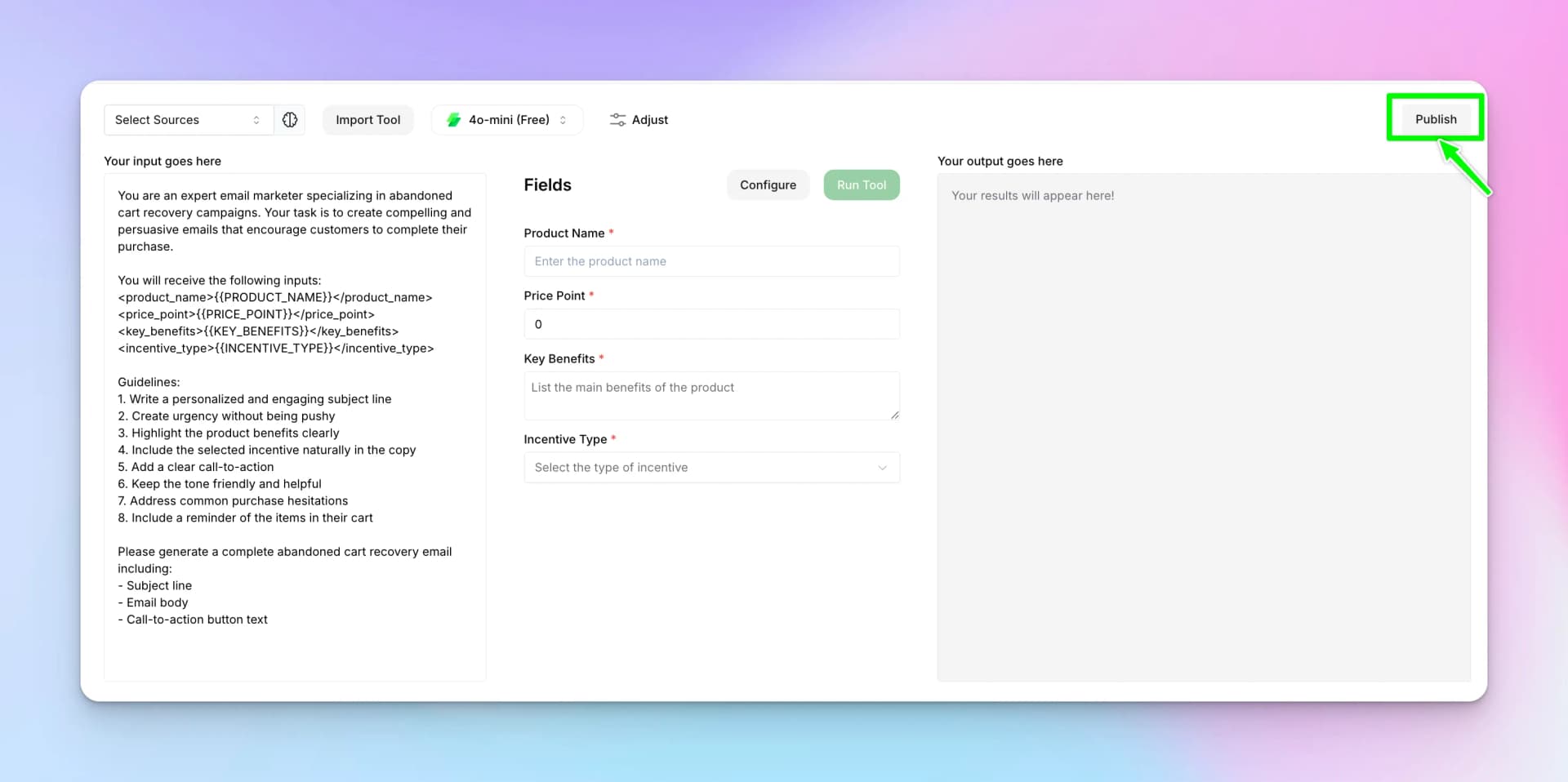
Left Panel: Your Input Goes Here
Write the prompt that defines your tool's behavior. Use placeholders like{{product_name}} that will be replaced with field values.
Middle Panel: Fields
Configure the input fields users will fill in:
- Field Name — The label users see
- Field Type — Text, dropdown, number, etc.
- Placeholder — Example text in empty fields
- Required — Whether the field must be filled
Right Panel: Your Output Goes Here
Preview area where generated results appear when you test the tool.
Top Bar Options
- Select Sources — Connect knowledge bases for RAG
- Import Tool — Import from existing tools
- Model Selector — Choose AI model (4o-mini, etc.)
- Adjust — Configure temperature and other parameters
Publishing Your Tool
When you're ready to make your tool available:
Configure the Tool
Click "Configure" to test your prompt works correctly.
Run a Test
Fill in sample values in the Fields section and click "Run Tool".
Publish
Once satisfied, click "Publish" to save and make it available.
Customizing Tool Details
Use the Customize dialog to update tool metadata:
Prompt Writing Tips
- Be specific — Clearly describe the desired output format
- Use placeholders — Reference input fields with
{{field_name}} - Add examples — Show the AI what good output looks like
- Set constraints — Specify length, tone, and style requirements
- Test variations — Try different inputs to ensure consistent quality
Next Steps
Learn about AI Assistants for building conversational AI interfaces.