Guardrails
Guardrails let you specify what your chatbot should NOT do. These instructions act as boundaries that prevent unwanted behaviour, keeping your chatbot on-topic and compliant with your policies.
You'll find the Guardrails and Fallback buttons below the system prompt text area, next to the character count.
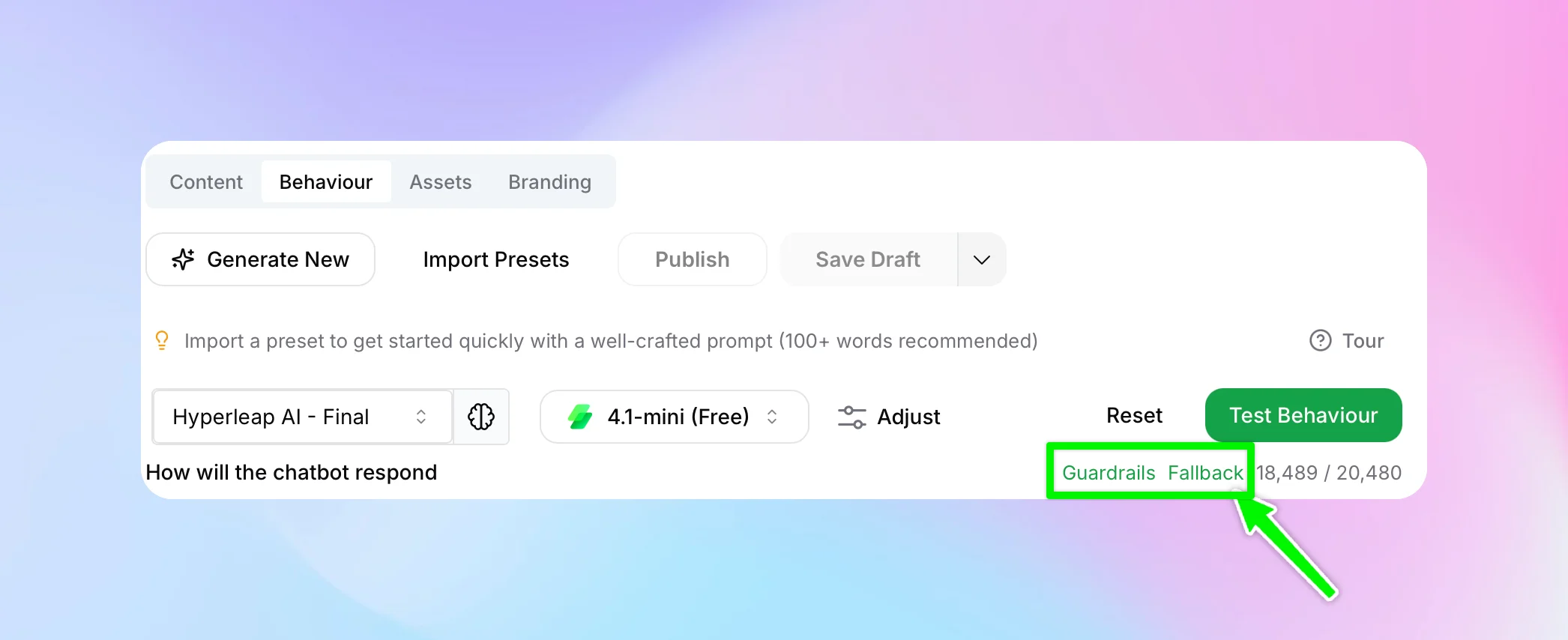
Click "Guardrails" to open the configuration modal. Enter your restrictions as plain text — the AI will follow these as negative instructions.
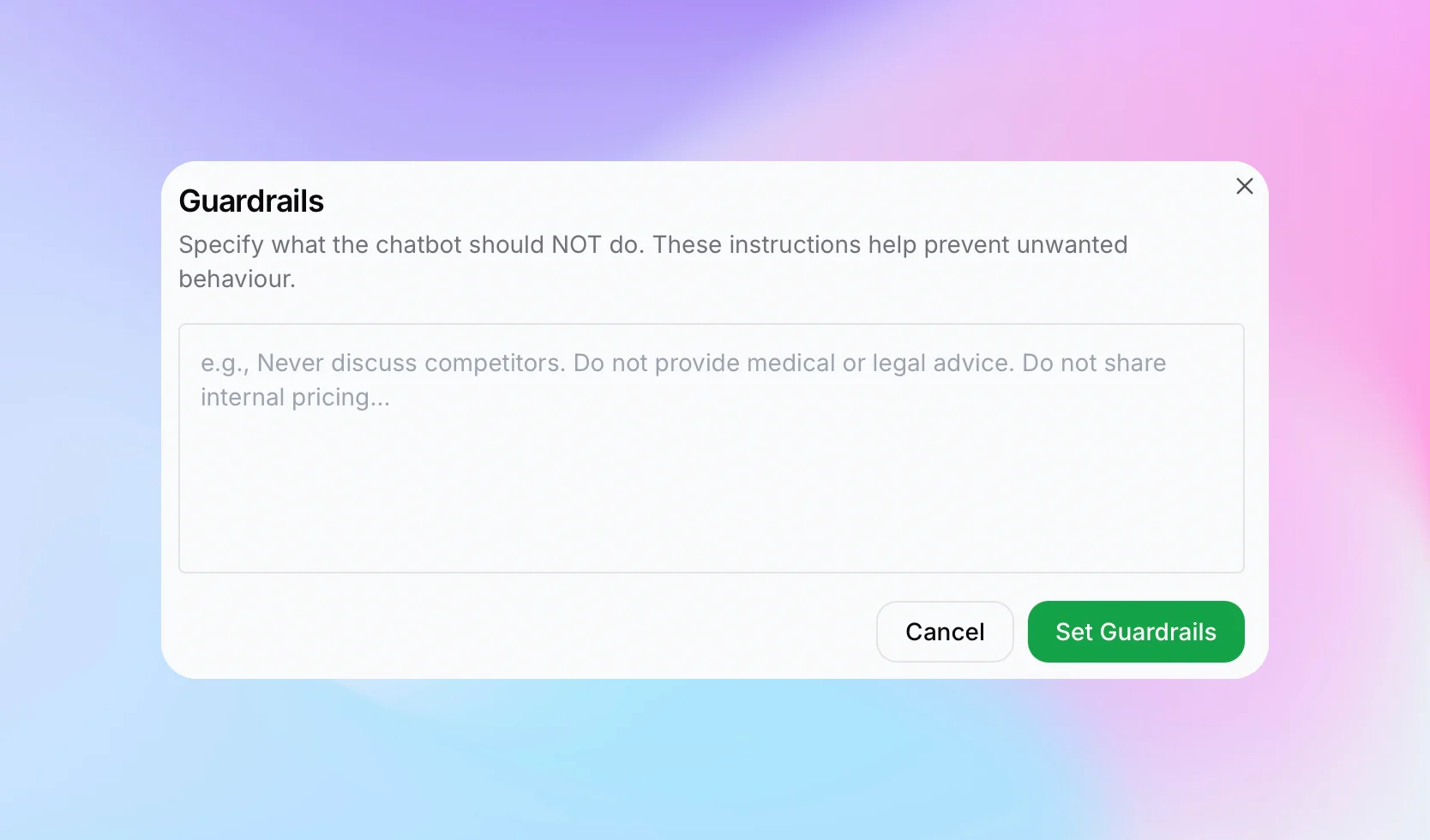
Example Guardrails
- Never discuss competitors — Prevent the chatbot from mentioning or comparing with rival products
- Do not provide medical or legal advice — Keep the chatbot from making professional recommendations it's not qualified to give
- Do not share internal pricing — Stop the chatbot from revealing wholesale costs, margins, or internal rate cards
- Do not make promises or guarantees — Prevent the chatbot from committing to timelines, outcomes, or refunds
Fallback Response
The fallback response defines what your chatbot says or does when it cannot answer a question. Instead of generating a potentially inaccurate reply, the chatbot will use your custom fallback message.
Click "Fallback" (next to the Guardrails button) to open the configuration modal.
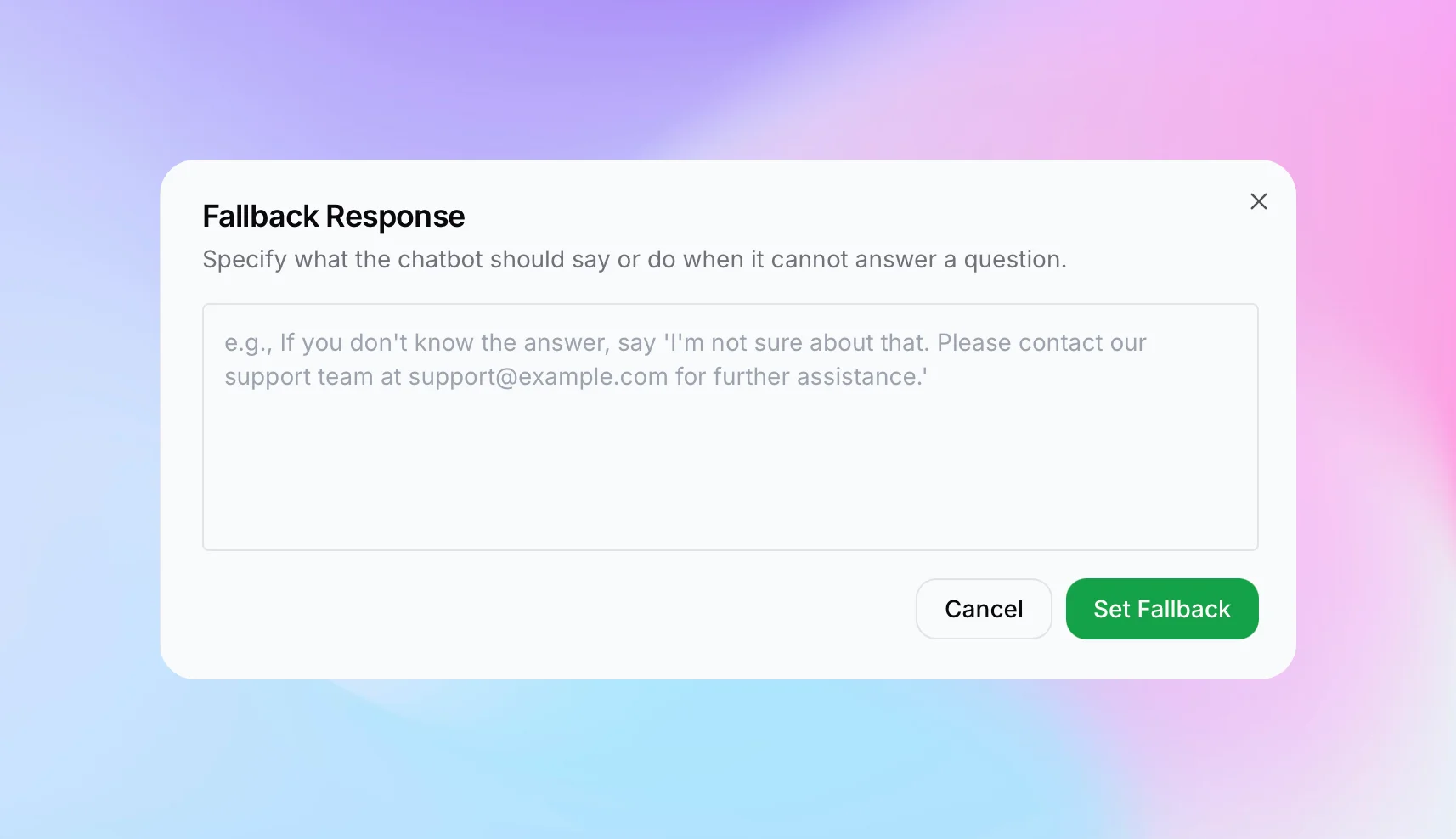
For example, you might set the fallback to: "I'm not sure about that. Please contact our support team at support@example.com for further assistance." This ensures visitors always get a helpful next step, even when the chatbot doesn't have an answer.
Next Steps
With your AI behaviour configured, proceed to the Branding Tab to customize your chatbot's visual appearance.