Manual Styling Options
After importing (or instead of importing), you can manually customize every visual element.
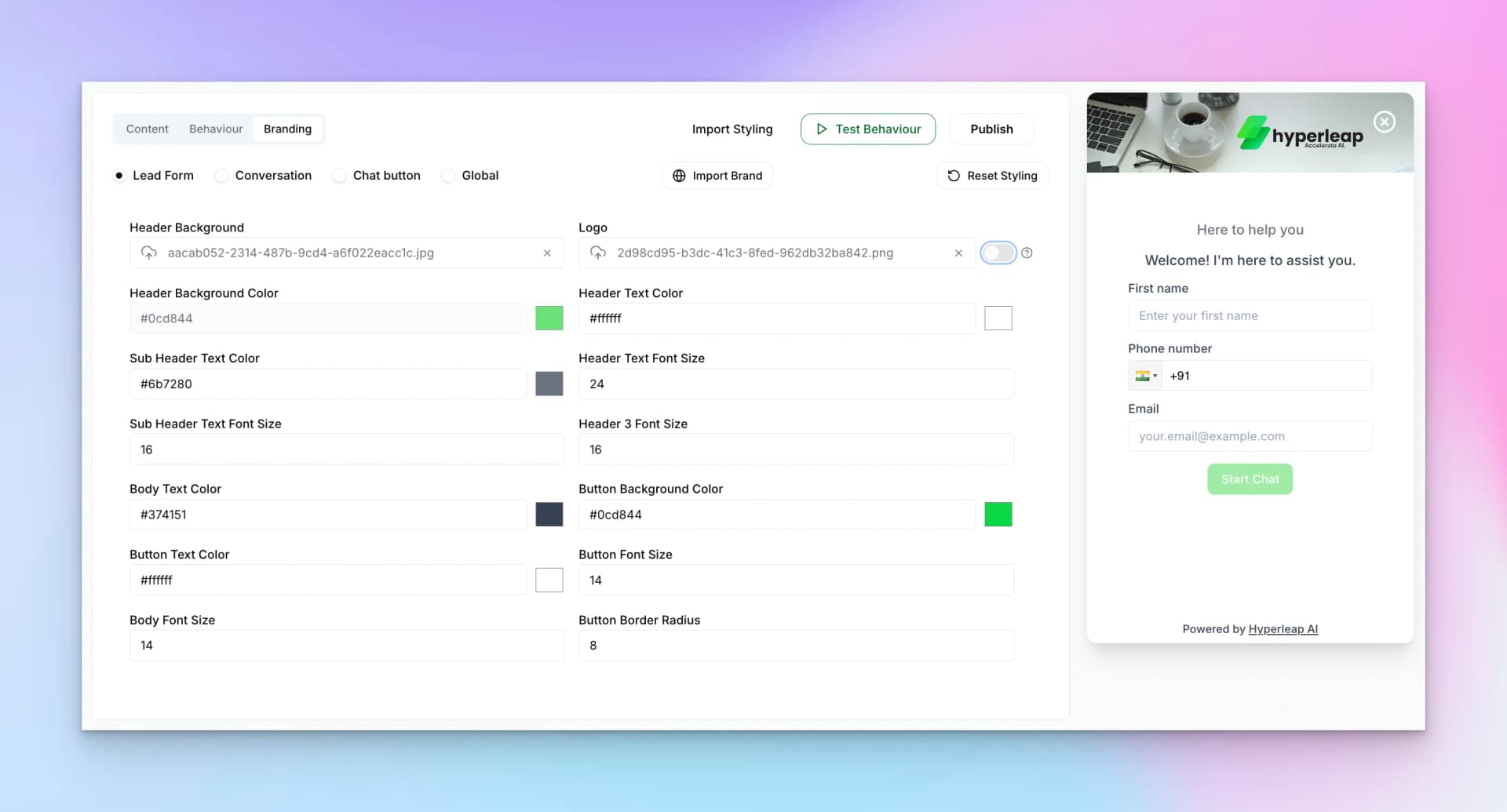
Lead Form Styling
- Header Background — Image or color for the form header
- Header Background Color — Solid color behind the header
- Sub Header Text Color — Color for subtitle text
- Sub Header Text Font Size — Typography size
- Body Text Color — Main text color
- Button Text Color — Submit button text
- Button Background Color — Submit button fill
- Button Font Size — Button text size
- Button Border Radius — Button corner roundness
- Logo — Upload your logo image
- Header Text Color — Main heading color
- Header Text Font Size — Heading typography
- Header 3 Font Size — Tertiary heading size
Conversation Styling
Similar options are available for styling the conversation interface, including:
- Message bubble colors (user vs bot)
- Input field styling
- Send button appearance
- Avatar images
Chat Button Styling
Hyperleap offers three chat button styles. Choose the one that fits how prominently you want the chatbot to appear on your site.
Classic (Icon Only)
A circular floating icon button — the most familiar chat launcher pattern. Minimal footprint, sits in the corner, appears on every page.
Wide (Icon + Text)
A pill-shaped button combining an icon and a short text label (e.g., "Chat with us"). Higher visibility than Classic — useful when you want visitors to immediately know help is available.
Spotlight Bar (Command Palette)
A full-width bar fixed to the bottom of the viewport — similar to the command-palette pattern popularized by developer tools. Instead of a floating button, visitors see a persistent bar with an icon and prompt text spanning the page width.
This style is best for pages where chatbot engagement is a primary goal (e.g., a pricing page or a dedicated support page). It makes the chat entry point impossible to miss without covering page content.
For all three styles, you can also configure:
- Button color and icon
- Position (bottom-right, bottom-left for Classic and Wide)
- Border radius and shadow
- Desktop and mobile offset (pixel adjustments from the edge)
Global Settings
Apply consistent styling across all elements:
- Font family
- Border radius (rounded corners)
- Shadow effects
Best Practices
Match your website
Use the same colors, fonts, and logo as your main site
Ensure readability
High contrast between text and background colors
Test on mobile
Preview how your chatbot looks on smaller screens
Keep it clean
Simple designs work best for chat interfaces
Next Steps
With your branding complete, proceed to Advanced Settings to configure analytics, notifications, and workflow automation.