Conversation
Configure how the chat conversation appears and behaves after the lead form is submitted.
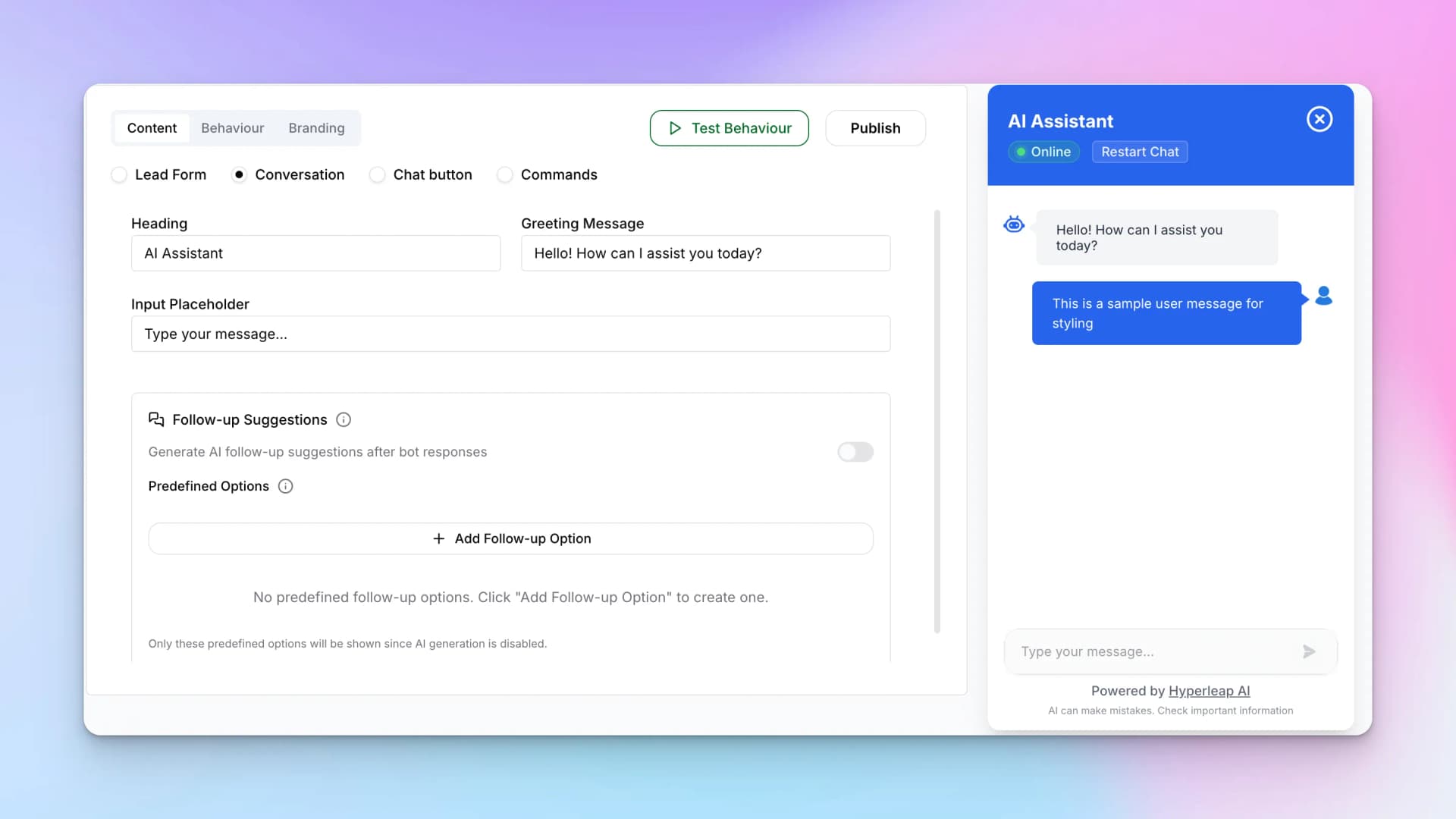
Conversation Settings
- Heading — Chat window title (e.g., "AI Assistant")
- Greeting Message — First message from the bot (e.g., "Hello! How can I assist you today?")
- Input Placeholder — Text shown in the message input field
Predefined Options
Predefined options are fixed quick-reply buttons you author yourself. They appear when the chat opens and serve as a fallback prompt set when no AI-generated follow-up is available. Use them to surface your most common visitor questions immediately — for example: "What are your hours?", "View pricing", or "Book a call".
To add one, click + Add Follow-Up Option and type the button label. You can add as many options as needed. They render as tappable chips above the message input.
AI Follow-up Suggestions (Premium)
When enabled, the chatbot automatically generates 2–3 contextual follow-up suggestions after each AI reply. These are not static — they reflect the flow of the specific conversation, so a visitor asking about pricing sees pricing-related follow-ups, not generic ones.
AI Follow-up Suggestions are a premium feature. Enable them under Advanced Settings → General → AI Follow-up Suggestions. When enabled, they take precedence; the predefined options act as the fallback when suggestions cannot be generated.
Chat Button
Configure the floating chat button that appears on your website to launch the chatbot.
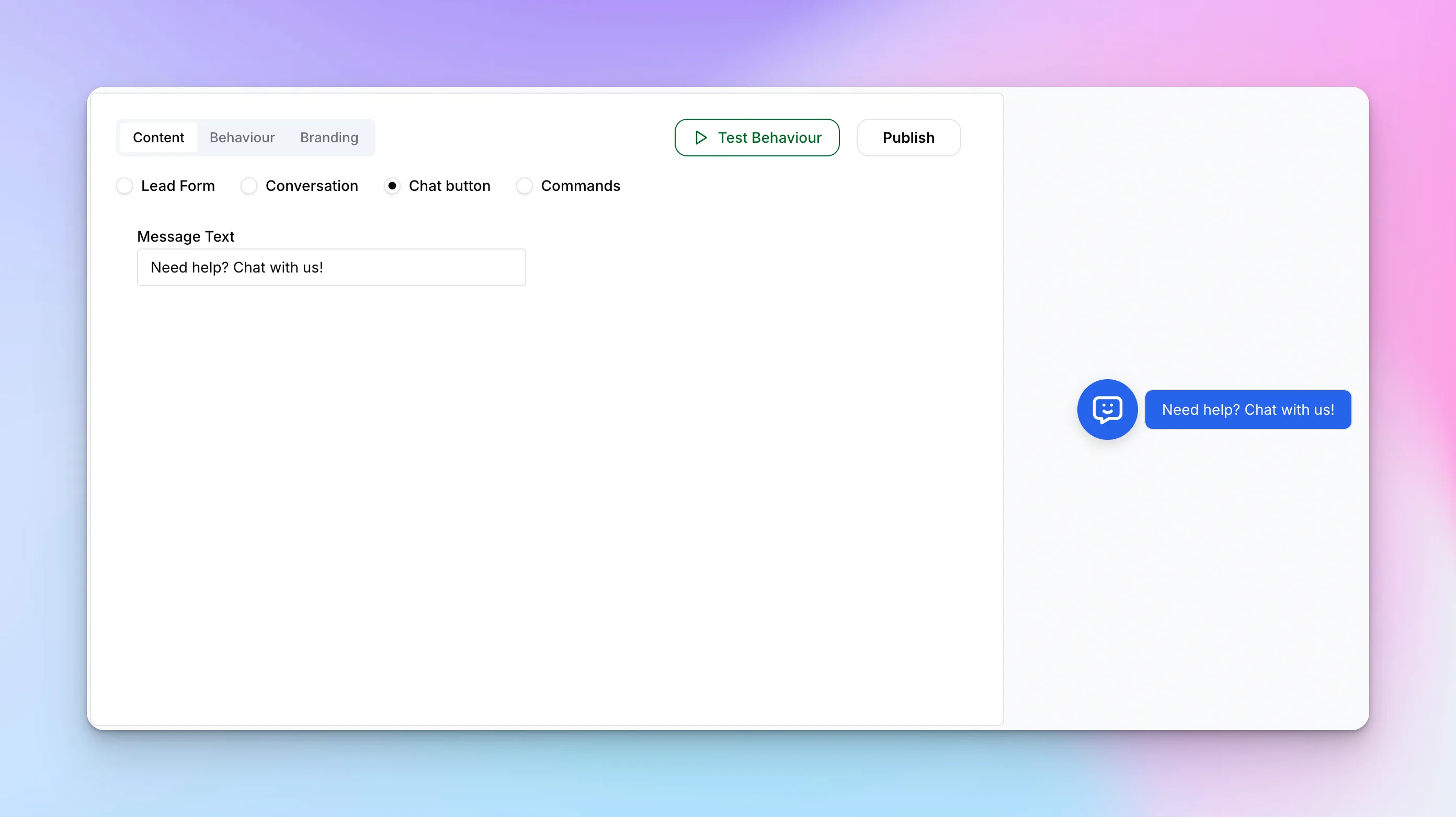
Chat Button Settings
- Message Text — Tooltip that appears next to the chat icon (e.g., "Need help? Chat with us!")
Navigation Commands
Navigation commands let visitors quickly access specific pages on your website directly from the chat interface. When a visitor types /, they see a list of available commands.
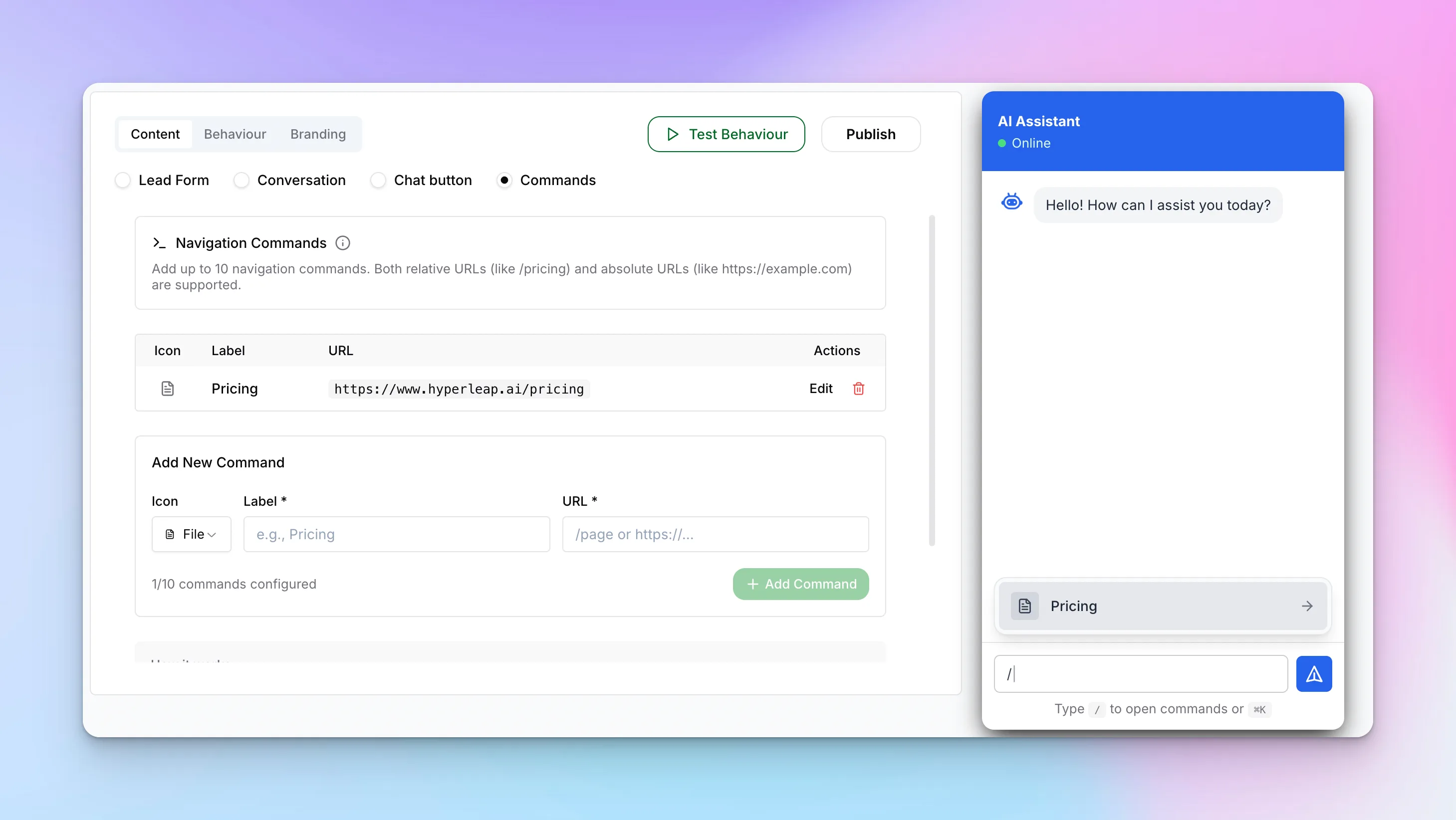
Setting Up Commands
Each command has:
- Icon — Choose from available icons
- Label — Command name (e.g., "Pricing")
- URL — Where to navigate (e.g., "https://hyperleap.ai/pricing")
Both relative URLs (like /pricing) and absolute URLs are supported. You can configure up to 10 navigation commands.