Rich Cards in AI Chatbots: Tappable Assets on Every Channel
A rich card is what turns a text-only chatbot into a tappable interface — and the cleanest way to get there is to let your assets become the cards. Here is how documents, images, videos, and connected booking calendars render as galleries, embeds, popups, and slot pickers across Website, WhatsApp, Instagram DM, and Facebook Messenger on Pro and Max.

TL;DR: A rich card is a structured, tappable message block — an image, a label, an action — instead of a wall of plain text. They convert better than text because they reduce typing, surface the next action visually, and let a customer tap rather than describe. The practical question most teams get wrong is how you produce them. In Hyperleap AI you do not hand-build cards button by button. You add assets to your chatbot — documents, images, videos, and Cal.com or Calendly booking links — and the chatbot shares the right asset during a conversation, rendered automatically as the appropriate control: an image gallery, an inline or downloadable document, an embedded video, or in-chat booking with live open times. The same assets render across the four shipped channels — Website, WhatsApp Business API, Instagram DM, and Facebook Messenger — each in that channel's native format. Rich media assets and native booking are on Pro and Max.
Who This Guide Is For
This is for business owners, operators, and conversation designers deciding how their AI chatbot should look when it answers — not just what it says. If you are still choosing whether you need a chatbot at all, start with the AI chatbot for business overview. If you already run one, this explains how to make replies tappable instead of typed.
Most people picture a chatbot as a stream of grey text bubbles. Customer types a question, bot types a paragraph back. That works, but it puts all the effort on the customer: they have to read the paragraph, decide what they want, and then type their next message to move forward. Every one of those steps is a place to drop off.
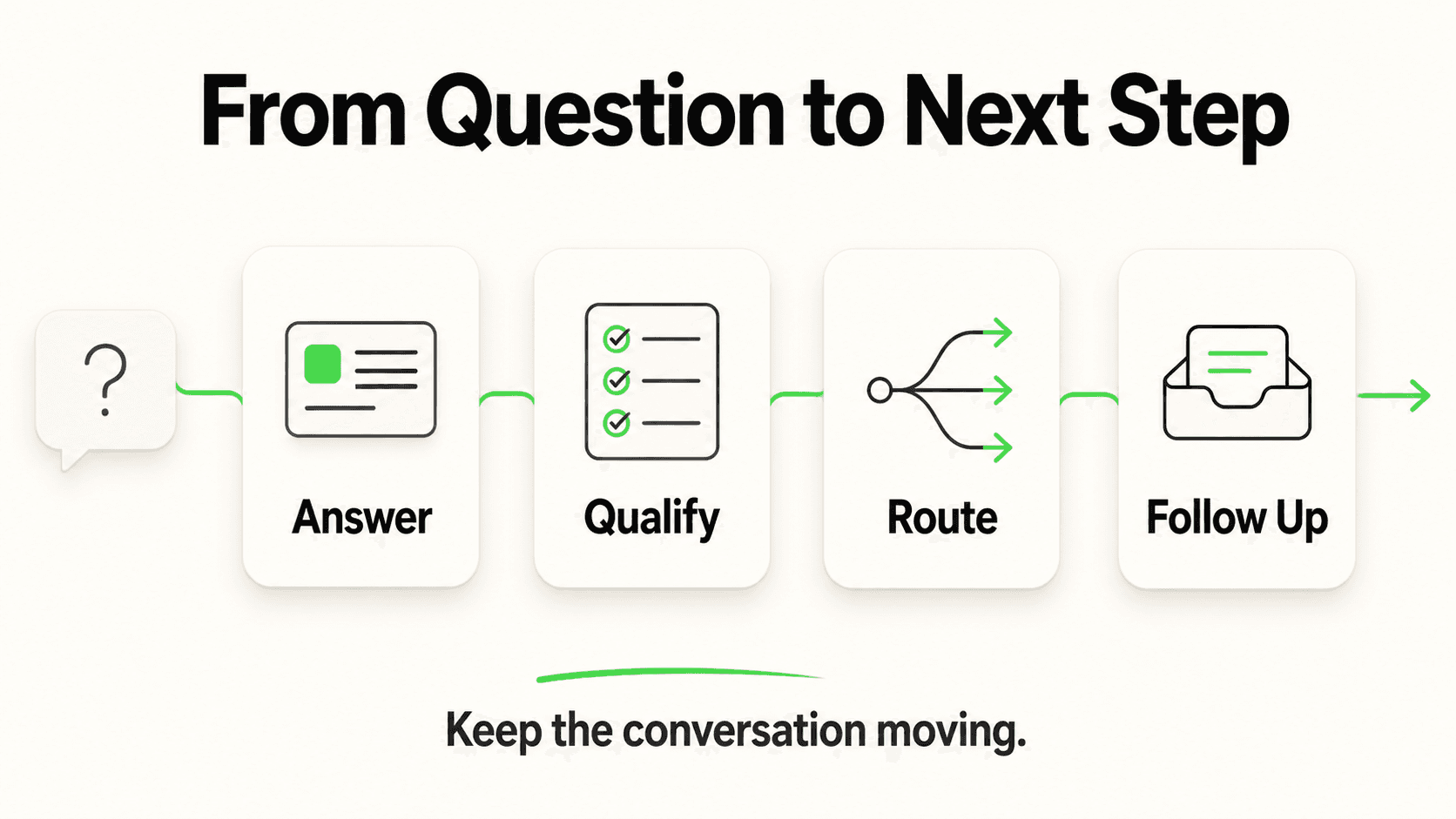
Rich cards collapse that effort. Instead of "Here are photos of the Deluxe King Room, you can see more on our site, and you can book by replying with a date," the chatbot shows a tappable image gallery, an inline link, and a "Book a time" button that opens the calendar right inside the chat. The customer scans, taps, and is one step closer to converting without typing a word. This post explains what these elements are, why they perform better, and — the part most platforms make harder than it needs to be — how you actually produce them in Hyperleap: by adding assets, not by composing cards by hand.
What a Rich Card Actually Is
A rich card is a single structured message that pairs content with an action. Strip away the channel-specific styling and a rich card usually has:
- A visual or a file — a product photo, a room shot, a PDF brochure, a short video. It anchors the card and is the first thing the eye lands on.
- A short label — the name of the thing or a one-line description.
- A tappable action — "View gallery," "Download the brochure," "Book a time," "See details." Tapping does something concrete instead of asking the customer to type their next message.
That last point is the quiet win. When a customer types "send me the second room," the chatbot has to guess what "second" refers to. When a customer taps a gallery or a booking button, the chatbot receives an unambiguous signal — show this asset, open this calendar. Conversation accuracy goes up because you removed a place for the AI to misread free text.
The Hyperleap Approach: Assets Become Cards
Here is the core idea that separates Hyperleap from tools where you hand-assemble every card. You do not build a card by typing a title, picking an image, wiring up buttons, and defining what each button sends back. Instead, you give the chatbot a library of assets, and it shares them as the right card automatically, at the right moment in the conversation.
On Pro and Max, you add four kinds of assets:
- Documents (PDF, DOCX, PPTX, XLSX) — brochures, price lists, spec sheets, application forms.
- Images (PNG, JPG, WebP) — product shots, room photos, menus, floor plans.
- Videos (YouTube, Vimeo links) — walkthroughs, explainers, property tours.
- Calendar links (Cal.com or Calendly) — connect your booking link, optionally tagged with a meeting type, and the agent can book the appointment in the conversation (on Pro and Max; on Plus, the agent shares your booking link).
These assets are things the chatbot shares with customers — they are directly downloadable or viewable, not training material. (Documents you want the AI to learn from for its answers are added separately as knowledge sources in the Behaviour tab.) When an asset is relevant to what the customer asked, the chatbot surfaces it, and the platform renders it as the appropriate tappable control. You never lay out a card by hand; you curate the assets and let the conversation pull them in.
Curate assets, don't choreograph cards
The mental model is closer to stocking a shelf than scripting a flow. Add a clear set of documents, images, videos, and your booking link, and the chatbot surfaces the right one in context. You are not pre-building "if they ask X, show card Y" branches.
How Each Asset Type Renders
The same asset reaches the customer on every channel, rendered in the form that channel supports best.
Images render as a gallery. When the AI shares image assets, the customer sees a gallery card — a preview with a "View gallery" action that opens the full set in a lightbox. One photo or twenty, it is the same tappable gallery rather than a stack of separate image messages. On social channels, images send as the channel's native image messages or albums.
Documents render as a download or inline embed. A PDF brochure or price sheet is shared as a tappable file. On the website chat widget it can open inline or as a popup so the customer reads it without leaving the chat; on messaging channels it sends as the channel's native document attachment that the customer can open and download.
Videos render as an embedded player. A YouTube or Vimeo link shared by the chatbot plays inline where the channel supports embedding, and as a rich link preview where it does not.
Calendar links become in-chat booking. This is the one that closes deals. With Calendly or Cal.com connected, the agent reads your live availability, offers real open times, and books the slot inside the conversation — the customer gets the calendar invite by email and never leaves the chat. On the website widget the times appear as a tappable slot picker with a confirmation card; on messaging channels the agent lists the times in its reply and confirms the booked time in text. (In-chat booking is on Pro and Max and needs Calendly Standard or higher; on Calendly Free the customer confirms on Calendly's page. On Plus, the agent shares your booking link.)
Why Rich Cards Convert Better Than Plain Text
The performance gap is not magic — it comes from three concrete mechanics.
They reduce typing to a tap. Every message a customer has to compose is friction. On mobile especially, typing "yes I'd like to book a consultation, what times do you have on Saturday" is real effort, and effort leaks conversions. A "Book a time" button that opens your calendar turns that whole exchange into a few taps. Fewer taps to the goal means more people reach the goal.
They make the next action obvious. Plain text relies on the customer reading carefully and inferring what to do next. A gallery to tap, a brochure to open, a calendar to book — the action is shown, styled, and waiting. This is the same reason a "Buy now" button outperforms a paragraph that says you can buy now.
They reduce misunderstanding. Because the AI is surfacing a specific asset rather than describing it in free text, there is less for the customer — or the AI — to misread. The brochure is the brochure; the booking calendar is the booking calendar. Shorter, cleaner paths convert better.
There is an honest caveat: rich cards do not fix a weak offer or a bad knowledge base. If the answer is wrong, a beautifully formatted gallery delivers a wrong answer faster. Rich formatting amplifies a good conversation; it does not rescue a broken one. Get the knowledge base right first, then make the replies tappable.
The Hard Part: Every Channel Renders Differently
Here is where most teams get surprised. A rich card is a clean idea, but there is no single shared standard for how it displays. Each channel has its own message format, its own limits, and its own native controls — and some channels have no native version of a given element. The website widget can show a tappable slot picker for booking; WhatsApp has no equivalent card, so the agent lists the open times in its reply instead.
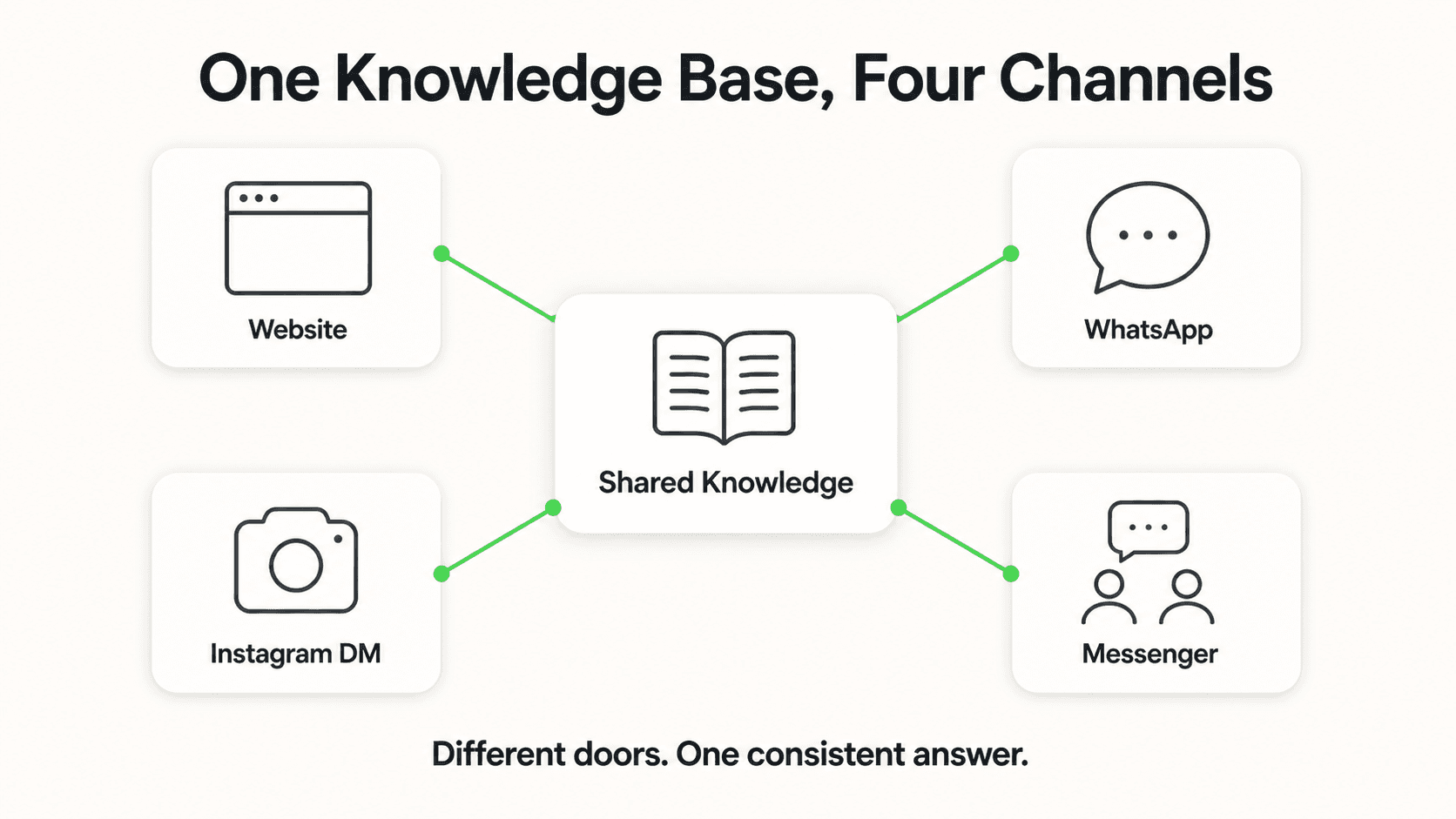
If you maintained assets per channel by hand, this would become a maintenance nightmare: the same brochure uploaded four times, each drifting out of sync the moment a price changes. The Hyperleap approach avoids that entirely — you add an asset once, and the platform renders it natively on each channel, falling back to the closest available control where a channel lacks an exact match. That is what "at parity across channels" means: same asset, best available rendering everywhere.
Here is how the four shipped channels handle the same assets.
Website
The website widget is the most flexible surface because it renders in the browser, not inside a third-party messaging app. Image assets display as galleries with full-screen lightboxes; documents and videos open inline or in popups; and a connected Cal.com or Calendly calendar shows live open times as a tappable slot picker right inside the chat (on Pro and Max). If you are building or embedding the widget, the website chatbot embed guide covers the setup. Because the website has the richest rendering, it is the reference experience — the other channels render the same assets in their own native forms.
WhatsApp Business API
WhatsApp has well-defined native structures for media and interactive messages. Image assets send as native image messages, documents send as native file attachments the customer can open and download, and booking still happens inside the thread: with Cal.com or Calendly connected (on Pro and Max), the agent lists real open times in its reply, the customer answers with the one they want, and the agent confirms the booked time in text. Button-count and message-format limits are respected automatically so messages never get rejected by the WhatsApp API.
Instagram DM
Instagram DM supports images, link previews, and tappable actions inside the inbox. Image assets render as native image messages, video links show as rich previews, documents send as downloadable files, and a connected Calendly or Cal.com calendar is booked in the DM itself (on Pro and Max), with open times listed in the agent's reply. The main constraints are tighter limits and image aspect-ratio handling, both of which the platform manages so assets render cleanly inside the Instagram inbox rather than getting truncated. For service businesses leaning on Instagram, the Instagram DM automation guide covers the channel in depth.
Facebook Messenger
Messenger has the most mature structured-message support of the three social channels — generic templates with image, title, and buttons, link previews, and quick replies — so each shared asset maps to a native Messenger card with one tappable button, and several in one reply become a swipeable carousel. Images, document links, and video previews render in Messenger's native formats, and a connected Calendly or Cal.com calendar is booked in the conversation (on Pro and Max), with open times listed in text.
Graceful degradation is not optional
A common failure mode on other platforms is authoring for the richest channel and shipping the identical payload everywhere — which gets messages rejected on WhatsApp or mangled on Instagram. Parity is not "send the identical bytes everywhere." It is "deliver the same asset and the same action on every channel, in that channel's native format." Because Hyperleap renders from your asset library per channel, this degradation happens automatically — you do not babysit four versions of the same brochure.
How Hyperleap Handles This
In Hyperleap AI you add an asset once — a document, an image set, or a video link — and the chatbot shares it when it is relevant to the conversation. (Booking works differently: connect Calendly or Cal.com and the agent offers real open times and books the appointment in the conversation on Pro and Max; on Plus, the agent shares your booking link.) The platform then renders it and renders it natively on Website, WhatsApp Business API, Instagram DM, and Facebook Messenger, applying each channel's limits and falling back to the closest native control where a channel has no exact match. You do not maintain four copies of the same asset. When a brochure or a price changes, you update one file.
This is part of why a single chatbot can run across all four channels without the content drifting apart. If you are weighing a one-channel versus all-channel rollout, the multi-channel AI chatbot strategy post lays out the trade-offs. The short version: add assets once, render everywhere, and let the platform own the per-channel translation.
Rich media assets are available on the Pro ($100/mo) and Max ($200/mo) plans — both with a 7-day free trial; a credit card is required and there is no free plan. The Plus ($40/mo) plan does not include rich media assets. If you would rather not configure assets and channels yourself, Managed Setup ($299 one-time) is an add-on where our team builds the flows for you.
See your assets become tappable cards across every channel
Start a 7-day free trial and add your images, brochures, and videos and connect Calendly or Cal.com — on Pro and Max, the AI surfaces them as galleries and embeds and books appointments in the chat across Website, WhatsApp, Instagram DM, and Facebook Messenger. Or add Managed Setup and we will build the flows for you (~~$299~~ Free).
See Plans and PricingFrequently Asked Questions
How do I create rich cards in Hyperleap — do I build them card by card?
No. You do not hand-assemble cards with titles, subtitles, and buttons. On Pro and Max, you add assets to your chatbot — documents (PDF, DOCX, PPTX, XLSX), images, video links, and a Cal.com or Calendly booking link. The chatbot then shares the right asset when it is relevant, and the platform renders it as the appropriate tappable control: an image gallery, an inline or downloadable document, an embedded video, or in-chat booking with live open times.
What kinds of assets can the chatbot share?
Four types, on Pro and Max: documents like brochures and price sheets (shared as downloads or inline popups), image sets (rendered as galleries with a lightbox), video links from YouTube or Vimeo (embedded where supported), and Cal.com or Calendly booking links (connected for in-chat booking — a slot picker on the website, times listed in text on messaging channels). These are assets the chatbot shares with customers — they are directly downloadable or viewable, not training material.
How do booking links work inside the chat?
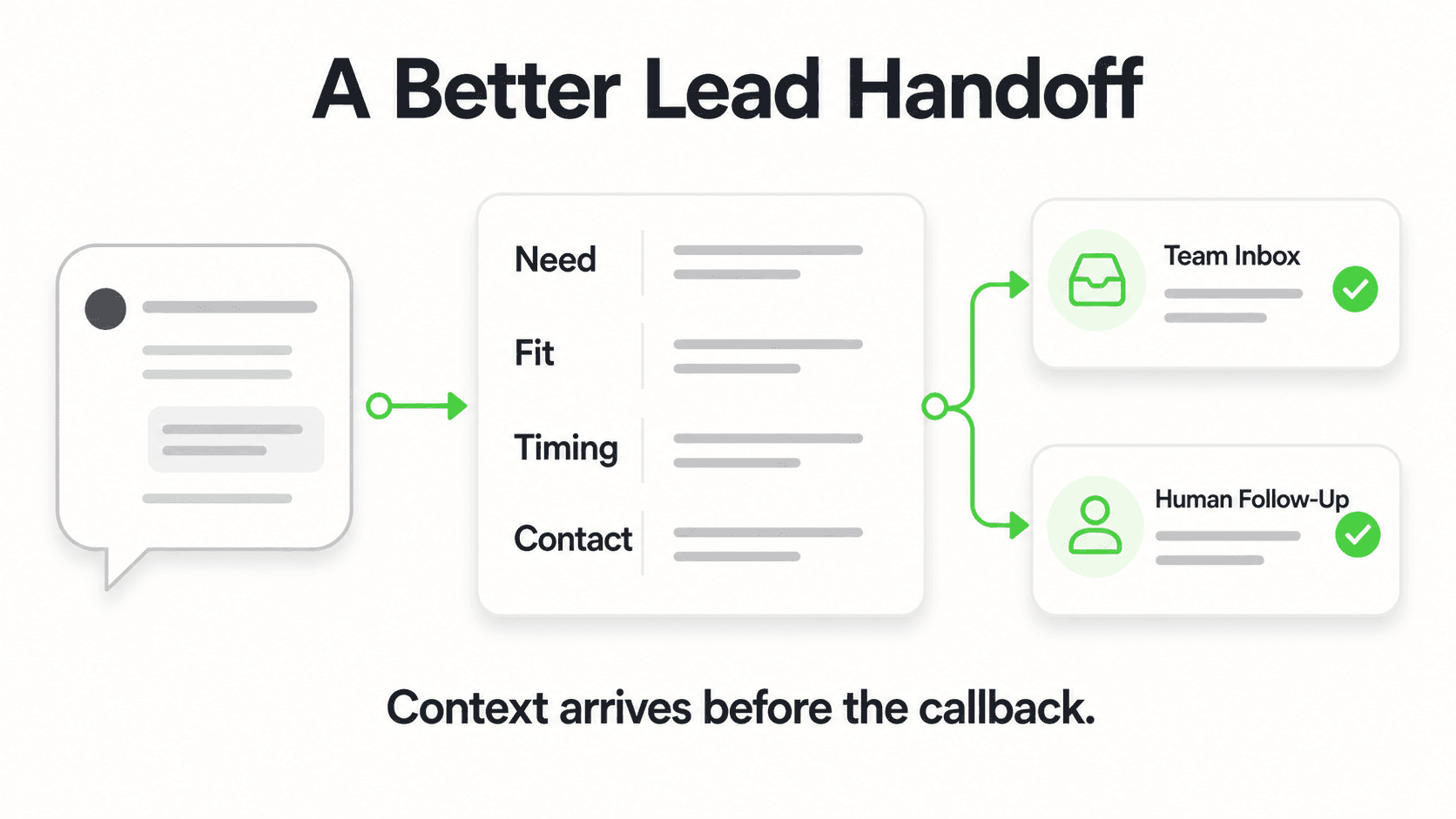
On Pro and Max, connect Calendly or Cal.com and the agent reads your live availability, offers real open times, and books the slot in the conversation; the customer gets the calendar invite by email. On the website the times appear as a tappable slot picker; on WhatsApp, Instagram DM, and Messenger the agent lists them in its reply and confirms the booking in text. In-chat booking needs Calendly Standard or higher (on Free, the customer confirms on Calendly's page), and it creates new bookings only — rescheduling and cancelling use the links in the confirmation email. On Plus, and for any other scheduling tool, the agent shares your booking link.
Do rich cards really convert better than plain text?
They tend to, for three reasons: they turn typed responses into single taps, they make the next action visually obvious instead of leaving the customer to infer it, and they reduce misunderstanding because the AI surfaces a specific asset rather than describing it in free text. The caveat is that formatting amplifies a good conversation — it does not fix a wrong answer or a weak offer. Get the underlying answers right first.
Do assets render on WhatsApp, Instagram DM, and Messenger too?
Yes, on Pro and Max, each in the channel's native format. Images send as native image messages, documents as native file attachments, videos as rich link previews or embedded players, and connected Calendly or Cal.com calendars as in-chat booking. You add the asset once and the platform renders it appropriately per channel, falling back to the closest native control where a channel lacks an exact equivalent — for example, booking is a tappable slot picker on the website and a list of open times in text on WhatsApp.
Which plans include rich media assets?
Rich media assets are included on Pro ($100/mo) and Max ($200/mo), each with a 7-day free trial. The Plus plan ($40/mo) does not include rich media assets. If you would rather not configure them yourself, Managed Setup ($299 one-time) is an add-on where our team sets up your assets and flows.
Plan prices and channel capabilities reflect Hyperleap AI's current product as of May 2026. Channel rendering depends on each messaging platform's own message formats and limits, which those platforms may change over time.
Related Articles
Multi-Channel AI Chatbot Strategy: Website, WhatsApp & More
Learn how to deploy AI chatbots across website, WhatsApp, Instagram DM, and Facebook Messenger — with a unified inbox and consistent answers everywhere.

White-Label Chatbots That Disappear Into Your Website
Why generic chatbot widgets kill conversions—and how fully branded AI assistants become an invisible extension of your business.

How Many Languages Does ChatGPT Support?
OpenAI doesn't publish an official language count for ChatGPT. Here's what's known, and why it matters less than you'd think for a business chatbot.
Conversational AI for Hotels: From Enquiry to Booking
How conversational AI moves a hotel guest from a website or WhatsApp question to a booked room — and what it honestly doesn't do with your PMS or Cloudbeds.