Guide
Shopify Live Chat Support: Setup, Channels and Fixes
Learn how to set up Shopify live chat support: install the widget, connect WhatsApp and Instagram, capture leads and fix stuck chats.

Gopi Krishna Lakkepuram · Founder & CEO
· 11 min read
A shopper asks whether an order will arrive before the weekend. Your chat bubble answers instantly, but it can't confirm the delivery exception, and nobody on your team receives the conversation. By morning, the shopper has left and you're searching separate inboxes for the details. Good Shopify live chat support prevents that failure. The widget matters less than whether customers get an accurate answer or reach someone who can help.
Table of Contents
- Where Live Chat Fits Your Shopify Store
- How to Install Live Chat on Your Shopify Theme
- Connect WhatsApp, Instagram and Facebook Channels
- Capture Qualified Leads and Route Them to Booking
- Keep Answers Accurate Across Locations and Languages
- When the Bot Gets Stuck and How to Fix It
- Measure Performance, Accessibility and Privacy Before Launch
Where Live Chat Fits Your Shopify Store
Shopify support and storefront chat are different services. The Shopify Help Center lists 24/7 chat support on all Shopify plans, with phone and email support specifically listed for Shopify Plus and Retail plans. That service helps merchants run the platform. It doesn't staff the chat bubble on your store.
Storefront chat handles shoppers' questions about products, delivery, stock and existing orders. An ecommerce AI chatbot can answer routine questions from your product pages and policies, but your team still needs responsibility for exceptions.
Choose channels by looking at where customers already contact you, not by collecting integrations. Website chat belongs near product decisions and cart questions. WhatsApp can suit order updates and repeat customers, while Instagram DMs often carry questions prompted by product discovery. Add Facebook Messenger when your own customers use your Page for enquiries.
Practical rule: Start with website chat and the messaging channel where you already receive the most useful customer conversations.
Say a skincare store receives ingredient and product-size questions through Instagram, but customers ask about deliveries on WhatsApp. The merchant should prioritise those actual patterns rather than assuming every channel needs identical coverage.
Before installing anything, write down:
- Current demand: Where do questions arrive, and which ones need a conversation rather than a better product page?
- Staff coverage: Who replies after hours, and what can you truthfully promise when nobody's available?
- Human-only topics: Which complaints, account changes and order exceptions must leave automation?
That gives you a manageable support scope. Add channels only when someone can own the replies within the window you advertise.
How to Install Live Chat on Your Shopify Theme
Install on a duplicate theme first where practical, and keep the existing storefront unchanged while you check the integration. Your app's installation method determines whether you'll use an app embed or paste an installation snippet.
Use this installation flow as a visual reference.
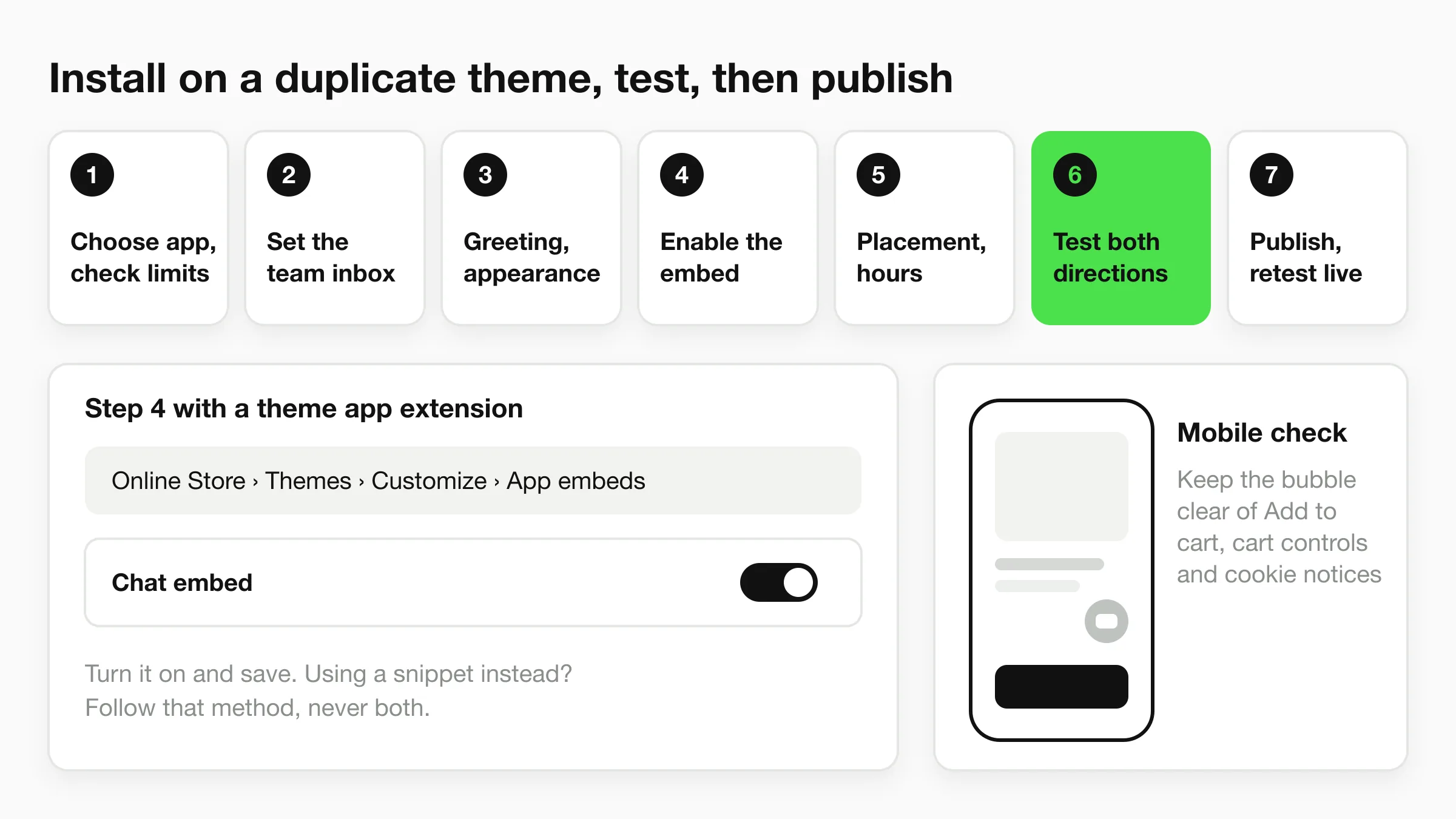
Choose the app and check its limits. Select a Shopify App Store app or a no-code builder with Shopify installation instructions. Confirm language support, currency handling and access to current product information, especially if you sell through different markets.
Set the business inbox. Use a business-controlled login and configure the notification address separately if the app provides that setting. Send a test notification rather than assuming your login email automatically receives transcripts.
Configure the greeting and appearance. Match the colours, fonts and chat style to your theme without sacrificing contrast. Describe the questions the assistant can answer, such as delivery, product dimensions and returns, rather than opening with an empty greeting.
Enable the integration. For apps using theme app extensions, open Online Store → Themes → Customize → App embeds, enable the chat embed and save. If your builder uses a snippet instead, follow that method without also installing a duplicate widget.
Choose placement and availability. Use the app's visibility rules to select pages and staffed hours. Product and cart pages are sensible starting points if you don't want a launcher on the home page.
Test the complete conversation. Open a private browser window on desktop and mobile, send a message and confirm it reaches the inbox. Reply from the inbox and check that the shopper receives it.
Publish and retest. Publish the tested theme, then repeat the conversation on the public storefront. A successful theme preview doesn't prove the live installation works.
Check the mobile overlap
Open product drawers, cookie notices and the cart with the launcher visible. Move the bubble if it covers Add to cart, cart controls or other essential buttons; use exclusion settings where supported.
A healthy installation loads without visible layout movement, opens without a frustrating pause and reliably delivers messages. Don't accept a working bubble with a broken inbox.
Connect WhatsApp, Instagram and Facebook Channels
Start with the channel your customers already use most. WhatsApp deserves early attention because number registration and business-account checks can interrupt an otherwise ready launch.
For a straightforward new-number setup, use a business number that isn't active in the personal WhatsApp app. If you're migrating an existing number, confirm the connector's supported migration or coexistence route before disconnecting anything customers already use.
Messaging channel prerequisites
| Channel | Account you need | Verification step | Common blocker |
|---|---|---|---|
| Business number not active in the personal WhatsApp app for the new-number setup | Meta Business Manager verification and number registration | Number already registered to a personal WhatsApp account | |
| Instagram DMs | Professional Instagram account linked to a Facebook Page | Connect through Meta Business settings and grant messaging permission | Account still set to personal, so DMs do not route |
| Facebook Messenger | Facebook Page with messaging enabled | Grant the chat app Page access | Login has editor or analyst access rather than the required administrative control |
| Website chat | Live store domain with theme access | Install the embed and confirm it loads on the live domain | Staging or password-protected setup prevents a representative public-store test |
For Instagram, check the professional-account setting, Page connection and messaging permissions together. A successful account login alone doesn't prove that incoming DMs can reach your support inbox.
For Messenger, connect with an account that has the required Page control. If the Page doesn't appear during authorisation, investigate access permissions before reinstalling the chat app.
Prove every connection in both directions: send a message from a separate customer account, find it in the shared inbox, reply there and confirm receipt on the customer's device. Test website chat on the public domain too, not just inside the theme editor.
A multi-channel chatbot strategy also needs ownership rules. Assign each conversation to a named teammate so staff don't send conflicting answers or assume someone else has replied.
Don't connect a channel you can't service within its stated reply window.
Capture Qualified Leads and Route Them to Booking
Ask for contact details after the visitor shows buying intent, not before answering a basic product question. Someone checking delivery availability shouldn't have to surrender an email address just to read information that belongs on your shipping page.
Once they ask for a consultation, stock follow-up or reservation, explain what happens next and collect the minimum useful details. Name and email are usually sufficient for a written follow-up; request a phone number when someone will actually call.
Phone verification can help catch mistyped or unusable contact details, but it doesn't prove purchase intent or establish permission for unrelated marketing. Check which channels support verification before making it part of your qualification process.
Route by the customer's next action
- Consultation or fitting: Send the visitor to the appropriate booking calendar, with the service and location already selected where supported.
- Bulk or trade enquiry: Route the conversation to the sales email or assigned commercial owner, including product and quantity details.
- Complaint: Assign a named support person rather than sending the customer into a sales booking flow.
- Urgent service request: Display the business's approved urgent-contact route instead of offering an ordinary appointment.
Test the booking destination as a customer. Confirm that available slots appear, the time zone is clear and a completed booking reaches the right calendar.
Say a furniture store offers showroom consultations. A shopper asking for help planning a room should reach the showroom calendar; a damaged-delivery complaint should reach support, even if both visitors mention the same sofa.
In its 2024 Paul & Joe case study, Shopify reported that customers who interacted with chat converted at roughly 17%, compared with about 2% for site visitors overall. That's a case-specific comparison, not proof that forcing a lead form increases sales.
Check that chat summaries contain the transcript, contact details and assigned next action. Export leads into your working follow-up system regularly so an enquiry doesn't exist only inside the chat tool.
Keep Answers Accurate Across Locations and Languages
Build the assistant's knowledge from your product pages, size guides, shipping rules, returns policy and recurring customer questions. An outdated source produces an outdated answer, even when the reply sounds polished.
Keep the people maintaining those answers close to the source documents.
Separate shared policies from local facts
Use a central knowledge base for shared policies, then location-specific information for opening hours, delivery zones, collection arrangements and local availability. A furniture retailer can share its returns policy across showrooms while keeping delivery cut-offs specific to each location.
Follow knowledge-base maintenance practices that assign an owner to each policy. When something changes, update the authoritative document, refresh the assistant's knowledge and test the affected question.
For languages, prioritise those your customers use. Check translated answers against the product page, paying particular attention to names, measurements, currency and exceptions to policies.
In its retail-chatbot coverage, Shopify cited HubSpot's 2024 research, in which 92% of service teams using AI reported improved response times and 86% reported improved satisfaction scores. Those findings concern service teams using AI, not a guaranteed outcome for your store.
Run a recurring answer audit: sample real questions for each location and supported language, compare replies with current policies, and fix errors in the source document. Don't patch a wrong answer with contradictory instructions elsewhere.
When the Bot Gets Stuck and How to Fix It
An instant response isn't a resolution. A bot that repeats the returns policy to someone reporting a missing item has answered quickly and still failed.
Merchant accounts described in PPC Land's reporting on Shopify support include repeated automated redirection and difficulty reaching qualified human help. Those reports concern platform support, but the failure pattern is one storefront merchants should deliberately avoid.
Escalation triggers and fallbacks
| Trigger | What the bot does | Fallback for the customer |
|---|---|---|
| Bot has answered twice without resolving | Offers a handoff to a person | Callback or email within a stated window |
| Customer asks for a human | Hands off immediately with the transcript | Live agent or callback |
| Refund, chargeback or account lockout | Stops automated answers and routes to a specialist | Email with a case number |
| Missing item or order exception | Collects order number and a relevant photo where appropriate, then creates a case | Named owner and expected reply time |
| Message outside staffed hours | Saves transcript and offers a callback | Callback at the next business-morning slot |
Treat the repeated-answer threshold as a configuration choice, not an industry benchmark. Customers asking for a person shouldn't have to exhaust it.
A handoff should include the full transcript, relevant order reference, the customer's requested outcome and the reason for escalation. Use a short case summary to help the specialist begin, but retain the original conversation so they can verify details.
Resolution standard: The customer knows who owns the case, what happens next and when to expect contact.
Fix the failure, not just the wording
If customers keep looping, make the human option easier to find and stop automation once the escalation trigger fires. Don't let the assistant resume generic replies while the customer waits for an agent.
If notifications disappear, check the configured email address, spam filtering and assignment rules. If cases reach the wrong teammate, route by issue type and location rather than sending every escalation to an undifferentiated inbox.
Outside staffed hours, offer a callback only when someone owns that callback queue. Otherwise, create an email case with a realistic reply window and a reference the customer can use.
Track escalated cases resolved within the promised window and automated resolutions that don't reopen. Review reopened conversations manually: silence after a bot reply may mean success, abandonment or a customer trying another channel.
Measure Performance, Accessibility and Privacy Before Launch
Test on the live domain under controlled visibility before exposing the widget broadly. In a Shopify Community discussion, a merchant described removing chat after believing it slowed the store. That's anecdotal, but it's a good reason to measure rather than guess.
Use this checklist to organise launch approval.
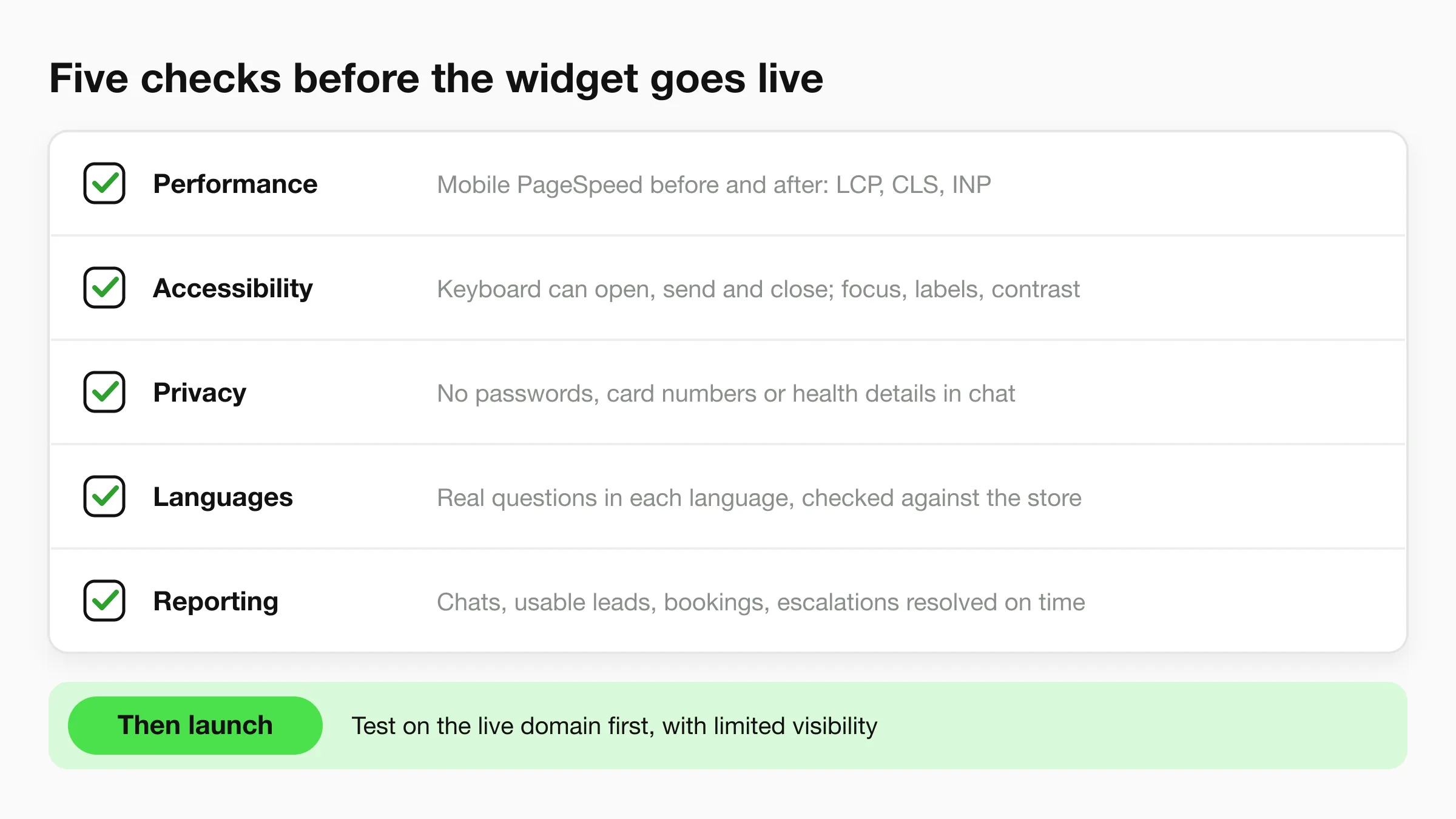
- Performance: Compare mobile PageSpeed Insights results before and after installation on product and cart pages. Review Largest Contentful Paint, Cumulative Layout Shift and available Interaction to Next Paint field data; use browser interaction testing when field data isn't available.
- Accessibility: Use the keyboard to open and close chat, send a message and return to the page. Check visible focus, screen-reader labels, readable contrast and whether the open panel traps users.
- Privacy: Tell shoppers not to enter passwords, full card numbers or health details. Document transcript retention, staff access and deletion procedures, and move sensitive account or payment actions to an authenticated channel.
- Language coverage: Submit realistic questions in each supported language. Compare product names, prices, sizes and policy exceptions with the storefront.
- Reporting: Record product-page chats, usable leads, bookings, replies within the promised window and resolved escalations. Include staff handling time when deciding whether chat earns its cost.
For our setup, Hyperleap AI works with Shopify, WordPress, Webflow, Squarespace, Wix and custom HTML websites, and answers across website chat, WhatsApp, Instagram and Facebook Messenger. Our OTP Verification is a paid add-on on Pro and Max and works in website chat only, helping confirm a visitor's phone number before the lead reaches your team.
Launch when these checks pass, then review actual conversations alongside technical performance. Keep the widget only if shoppers can use it comfortably and your team can finish the work it starts.
Hyperleap AI offers customer answers, lead capture and appointment booking across your website and messaging channels (native Calendly or Cal.com booking on Pro and Max; on Plus the agent shares your booking link). Visit Hyperleap AI to build your Shopify chat flow, then test a product question, a booking and a human handoff (live handoff is on Pro and Max) before opening it to shoppers.