What navigation commands do
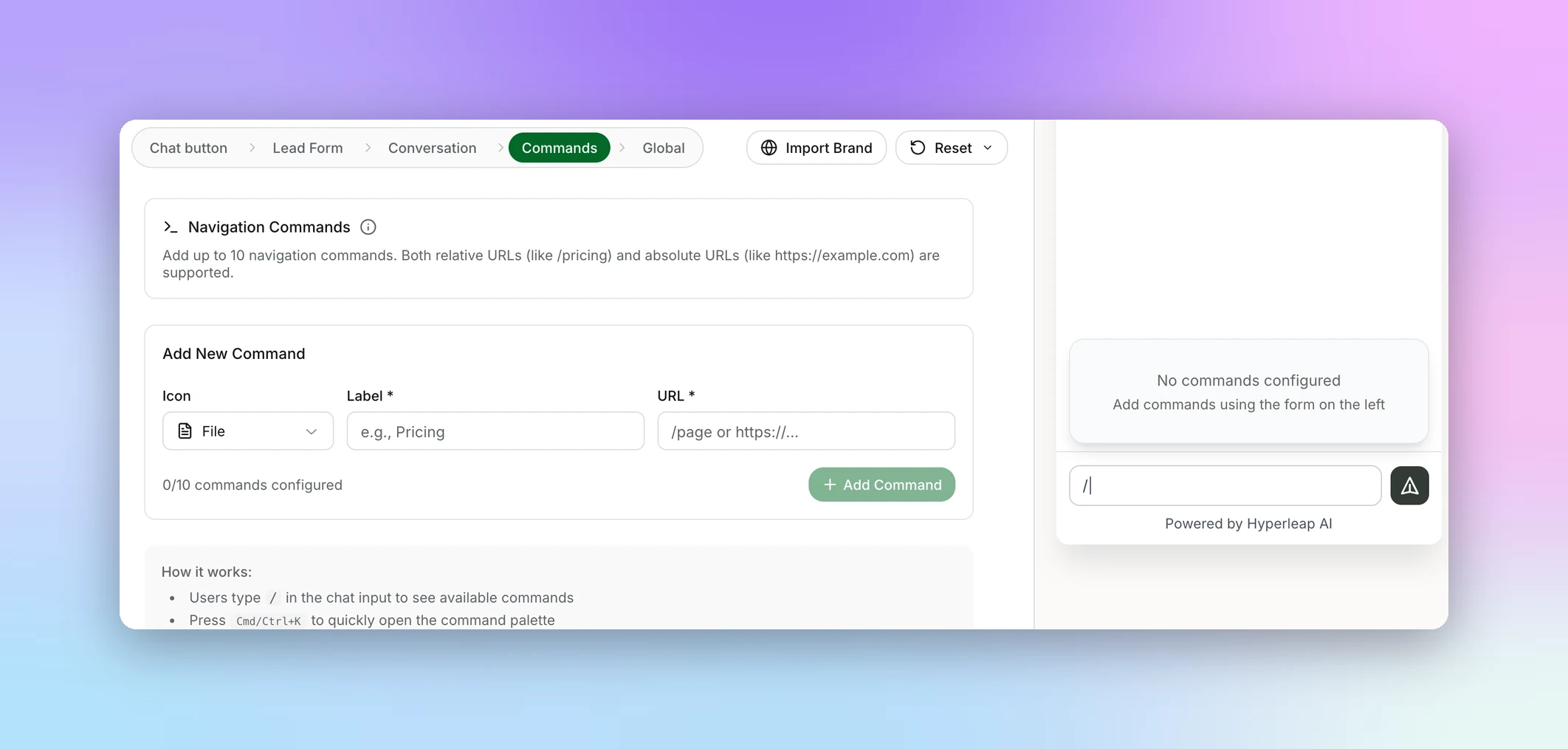
Navigation Commands give visitors quick shortcuts to your most important pages — right inside the chat. Instead of asking "where's your pricing?", a visitor types / and picks a command, and their browser navigates to the page you mapped. You configure them under Design → Commands. This screen has content only, so there's no Branding toggle.
Up to 10 commands
Add as many as 10 navigation commands per chatbot.
Relative or absolute URLs
Use a relative path like /pricing to stay on your site, or a full URL like https://example.com.
Command palette
Visitors type / in the chat input, or press Cmd/Ctrl+K, to open the command list.
Add a command
1
Open the Commands screen
Go to the Design tab and select Commands in the screen picker.
2
Choose an icon
Pick an icon (e.g. File) so the command is easy to recognize in the palette.
3
Set a label and URL
Give the command a clear Label (e.g. "Pricing") and a URL — a relative path like
/pricing or an absolute URL like https://example.com.4
Add the command
Select Add Command. Repeat for up to 10 commands.
How it works for visitors
- Visitors type
/in the chat input to see available commands. - They can also press
Cmd/Ctrl+Kto open the command palette quickly. - Selecting a command navigates the visitor's browser to the specified URL.
- Relative URLs (like
/pricing) navigate within your current site. - Absolute URLs open in the current window.
Tip:
Map commands to your highest-intent pages — pricing, book a demo, start free trial — so visitors can act in one keystroke. You can change the chat-input hint text (the "Press / to use commands" line) under Design → Conversation → Content.