Your chatbot handles most questions on its own. When a visitor needs a person, or you spot a conversation you want to handle yourself, you can take over: the AI pauses and you reply as yourself, on your website or on WhatsApp, Instagram, and Messenger. When you're done, you hand the conversation back to the AI.
Turn It On
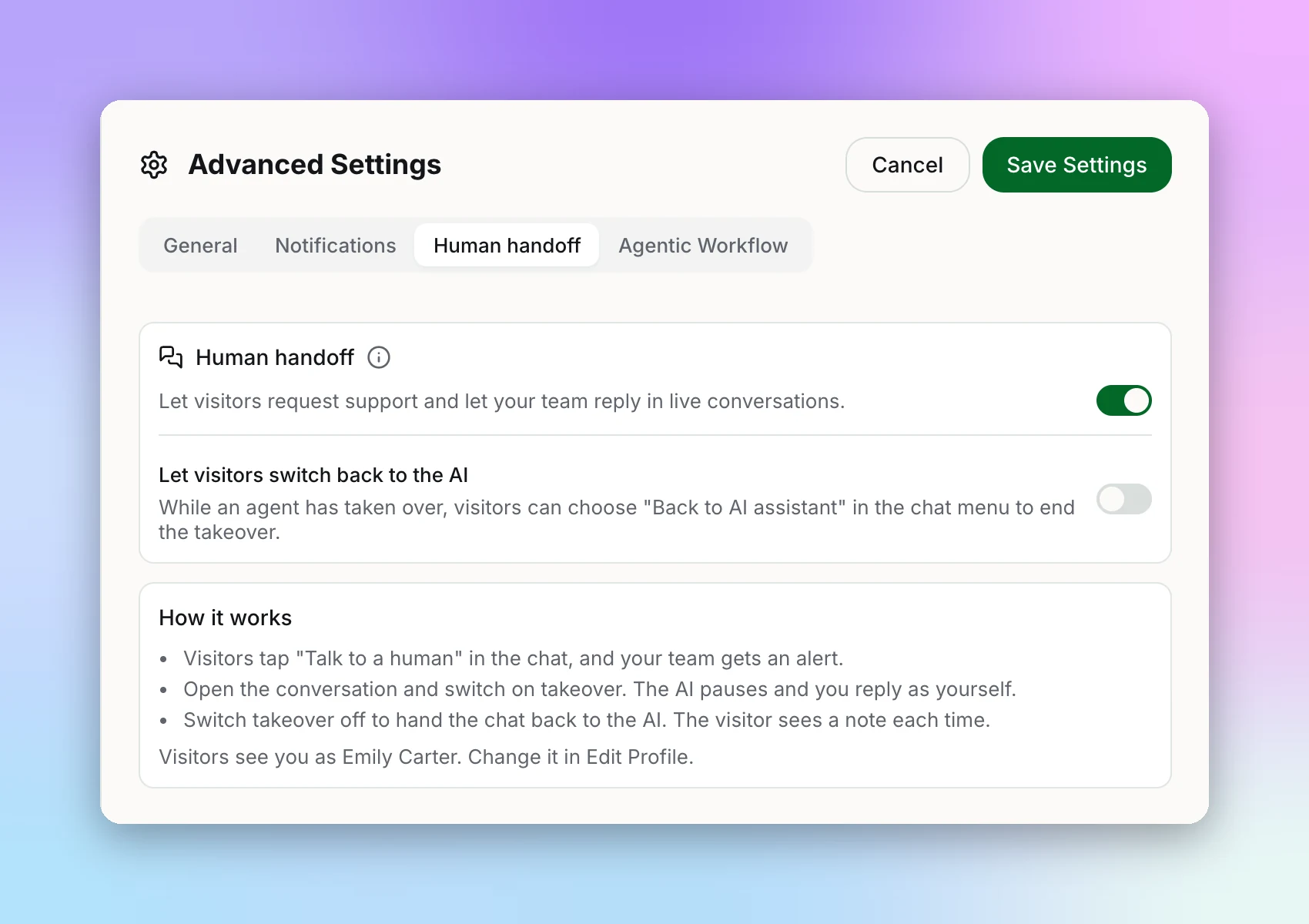
Open the Human handoff tab
Switch it on
Decide whether visitors can switch back (optional)
Save and publish
When a Visitor Asks for a Person
In your website chat, visitors tap "Talk to a human" in the chat menu. Your team gets an alert in Studio, "Human support requested", with an "Open conversation" button. The AI keeps answering until someone takes over, so the visitor isn't left waiting in silence.
Take Over a Conversation
You can take over any live conversation, whether or not the visitor asked. Open it from:
- The alert's "Open conversation" button
- Your chatbot's Leads page
- Socials → Activity, for WhatsApp, Instagram, and Messenger conversations
In the conversation footer, switch on Human handoff. The status changes from "AI answering" to "AI paused", and you type in "Reply to the visitor…". The visitor sees a note that a person has joined. In Socials → Activity, the "Take Control" button does the same; it reads "Human Active" while you're in charge.
Hand Back to the AI
Click "Hand back to AI", or switch Human handoff off. The AI picks the conversation back up and the visitor sees a note that the AI is back. If you allowed visitors to switch back themselves, you'll see "Visitor switched back to the AI" when they do.
The Name Visitors See
Visitors see your first name when you take over. To show a different name, open the profile menu, choose "Manage Profile", and fill in Name shown to visitors (up to 50 characters). Leave it blank to go back to your first name. The Human handoff tab shows the name visitors currently see.
Pause the AI for One Contact
On WhatsApp, Instagram, and Messenger you can also stop the AI replying to one person without taking over a conversation, for example a supplier or a regular customer you always answer yourself. Open the lead from your chatbot's Leads page and click "Pause auto-response". The lead shows a Paused badge until you click "Resume auto-response".
Next Steps
Want your team emailed when a conversation needs follow-up, without watching Studio? Set up an Agentic Workflow.