What a demo link is
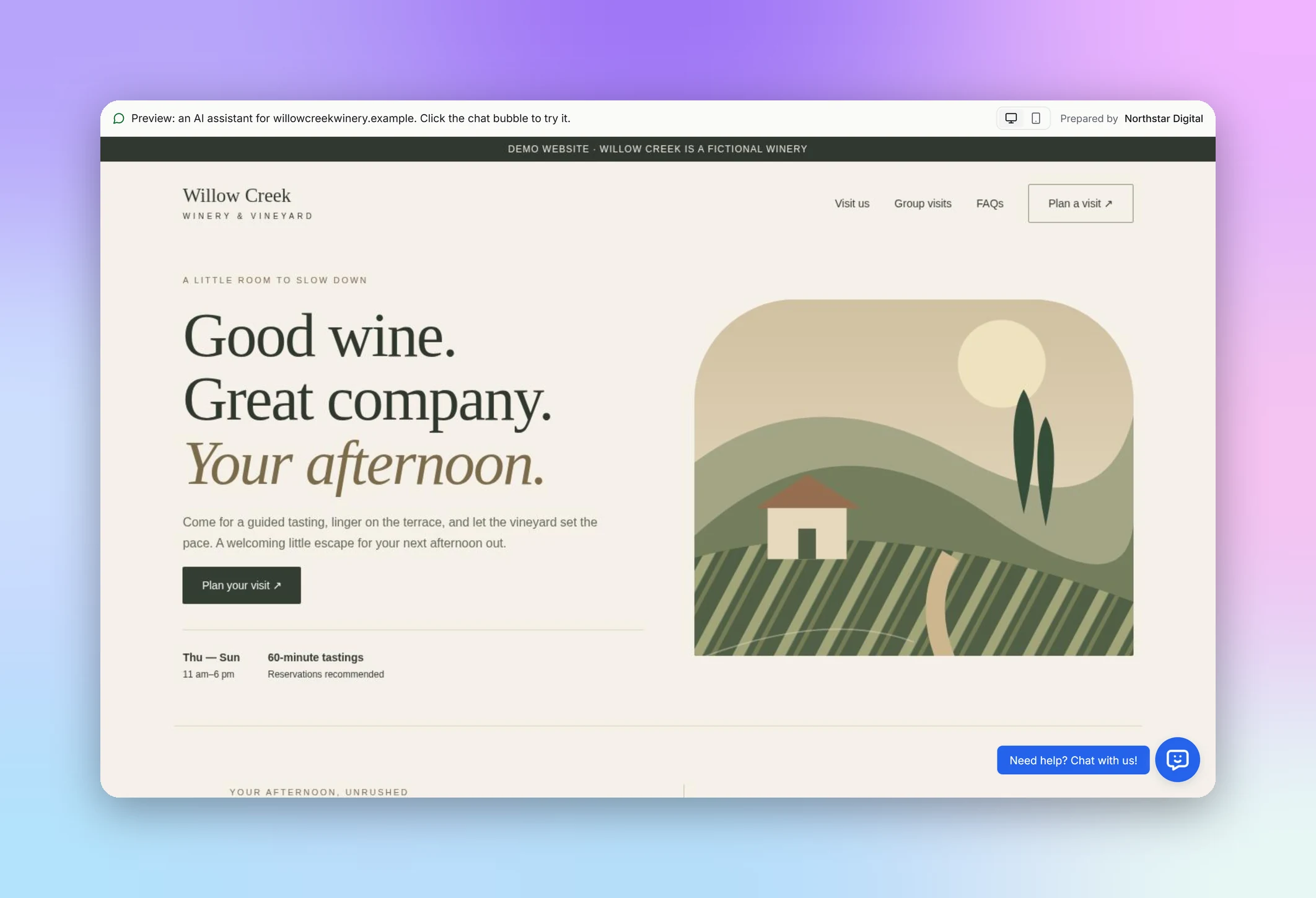
A demo link is a page you send in a pitch. It shows a screenshot of your prospect's own website with one of your chatbots in the corner, the way it would look once installed. The prospect clicks the chat bubble and talks to it. They don't need an account, and they don't need to install anything.
The page shows:
- A line at the top: Preview: an AI assistant for the prospect's business
- Prepared by with your partner organization's name, and its logo if you've added one
- A Desktop / Mobile switch, so they can see both
- The chatbot, working, in the corner
Before you start
The demo page shows the published version of the chatbot, so build and publish it first. For a convincing demo, train it on the prospect's website: the quickest way is Quick Start, which builds a chatbot from a website address. See Create a Chatbot and Publishing.
Create a demo link
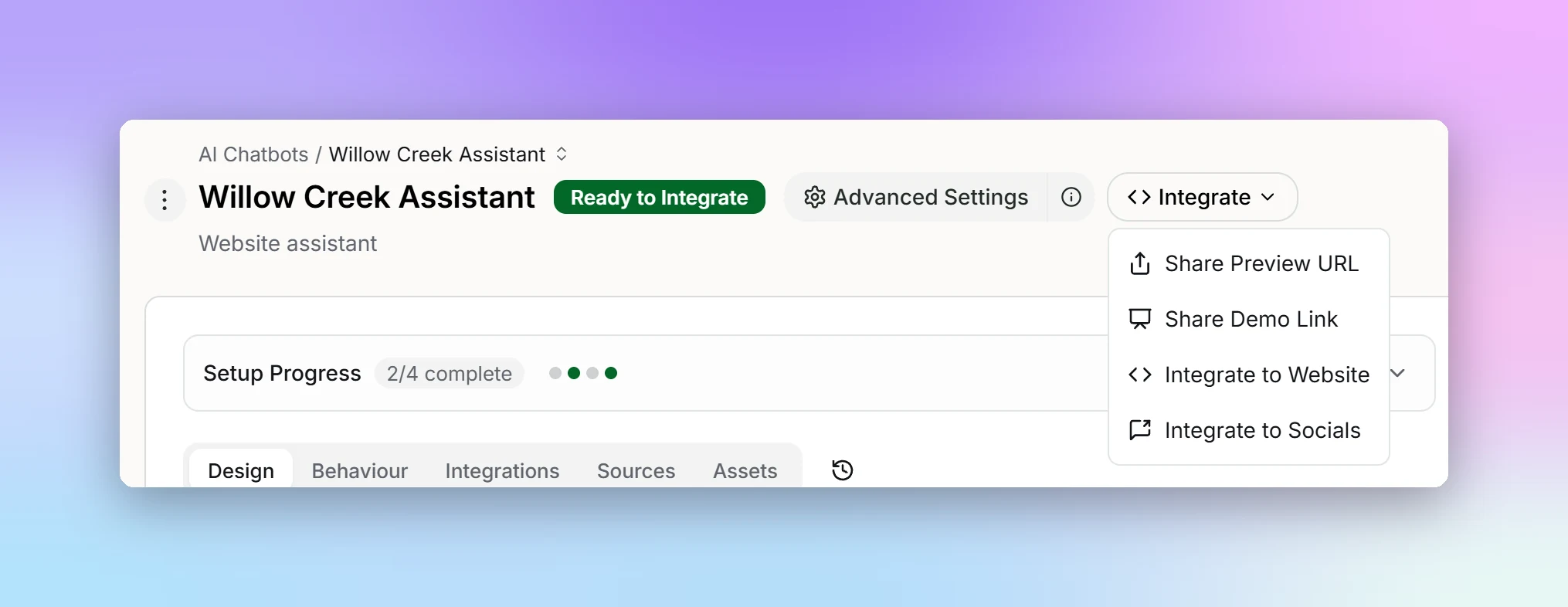
Open the chatbot
Choose Share Demo Link
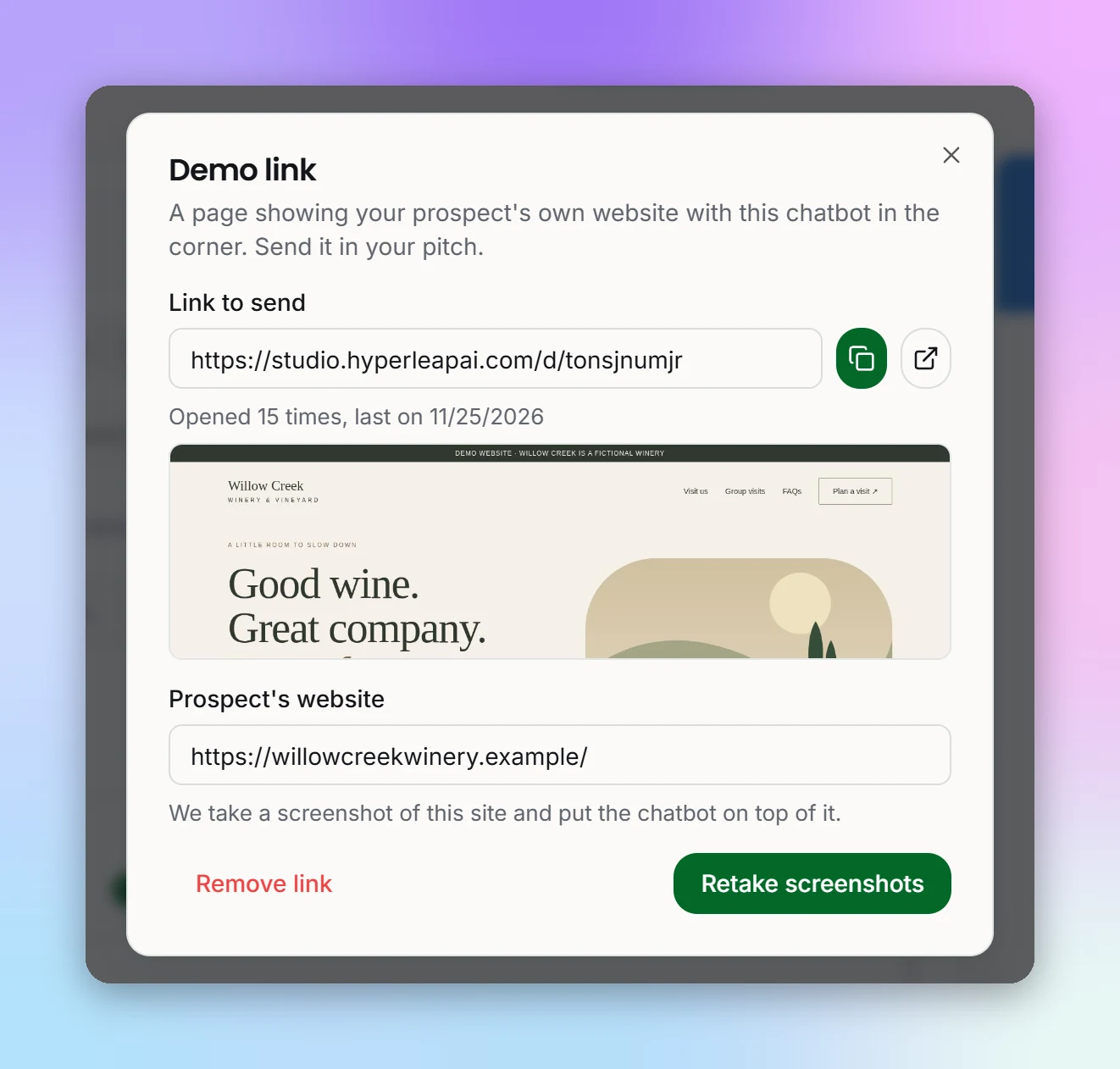
Enter the prospect's website
https://joesplumbing.com. If the chatbot already lists a website, it's filled in for you.Create the link
Send it
See whether they opened it
Open Share Demo Link again on the same chatbot. Under the link it says Not opened yet, or how many times the page was opened and when it was last opened. Every visit counts, including yours.
Change or retake the screenshots
- Retake screenshots takes fresh ones of the same site, for example after the prospect updates their homepage.
- To point the link at a different site, change Prospect's website and click Use this website. The link stays the same, so anything you already sent shows the new site.
If a screenshot couldn't be taken, the link still works: the page shows the chatbot on a plain background with the line This assistant has read the website. Ask it anything a customer would. Try Retake screenshots later. Some sites can't be captured automatically.
On a phone
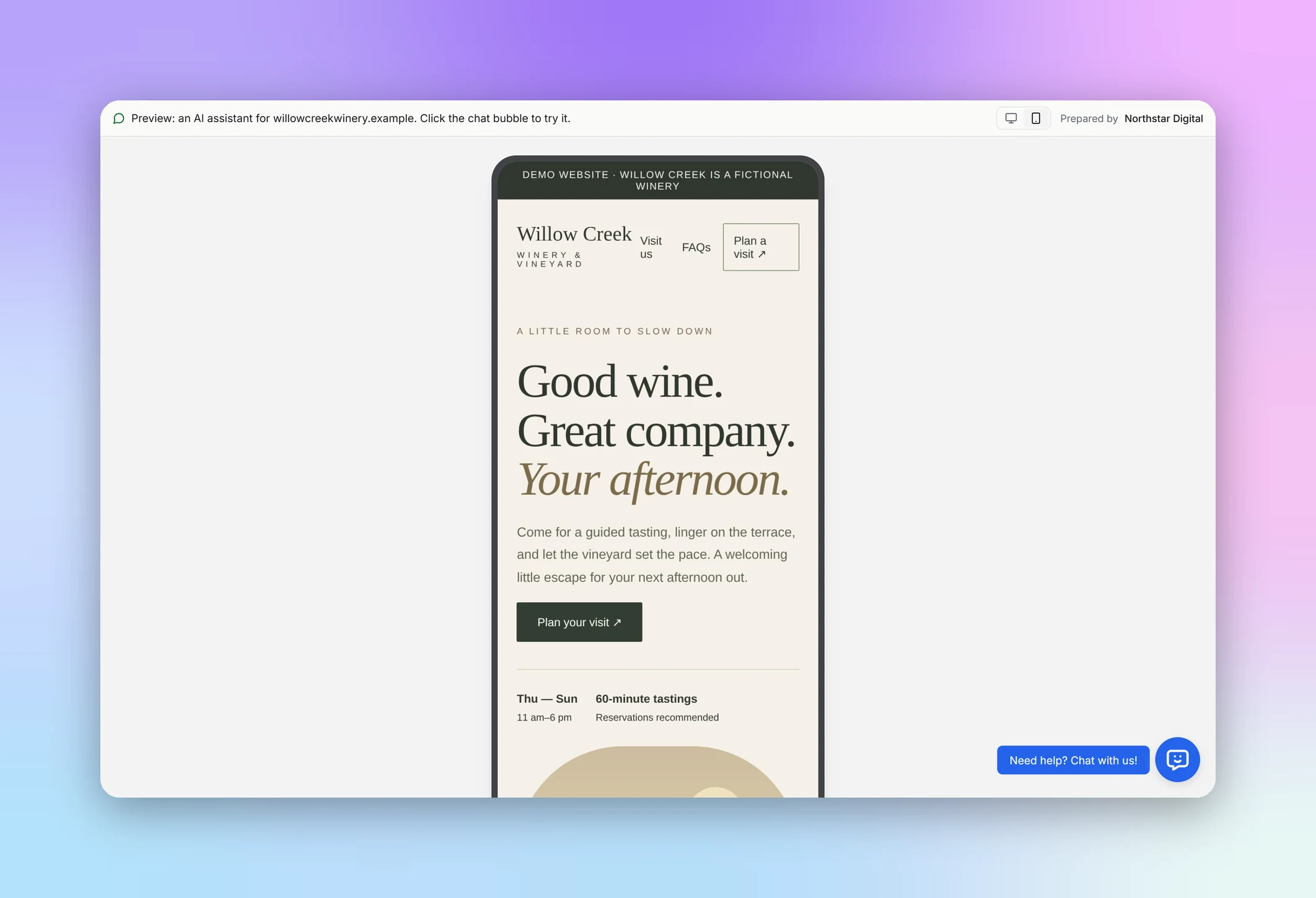
The page opens on the mobile screenshot on small screens. On a computer, the prospect can switch between Desktop and Mobile to see how the chatbot sits on each.
Remove a demo link
Open Share Demo Link and click Remove link. The page stops working right away; anyone who opens it sees This demo isn't available. The chatbot itself is unchanged.
Good to know
- One link per chatbot. To pitch two prospects at once, use a chatbot for each.
- It's a picture of their site. The prospect's website is shown as a screenshot, so its own links and buttons don't work. Only the chatbot does.
- Chats are real conversations. What the prospect types is answered like any other conversation with the chatbot, uses credits from your shared pool, and shows up in the client's conversations and leads.
- Not on search engines. Demo pages ask search engines not to index them.
- Changes show after you publish. Edit the chatbot and publish, and the same link shows the new version. There's no need to make a new link.
Need More Help?
Questions about demo links? Contact support@hyperleap.ai.