Open your chatbot, select the Design tab, choose the Lead Form screen, and stay on Content. The Lead Capture section sits at the top.
Tip:
These settings used to be the "Access & Lead Capture" tab in Advanced Settings. They now sit with the lead form itself. To choose which fields the form asks for, see Lead Form.
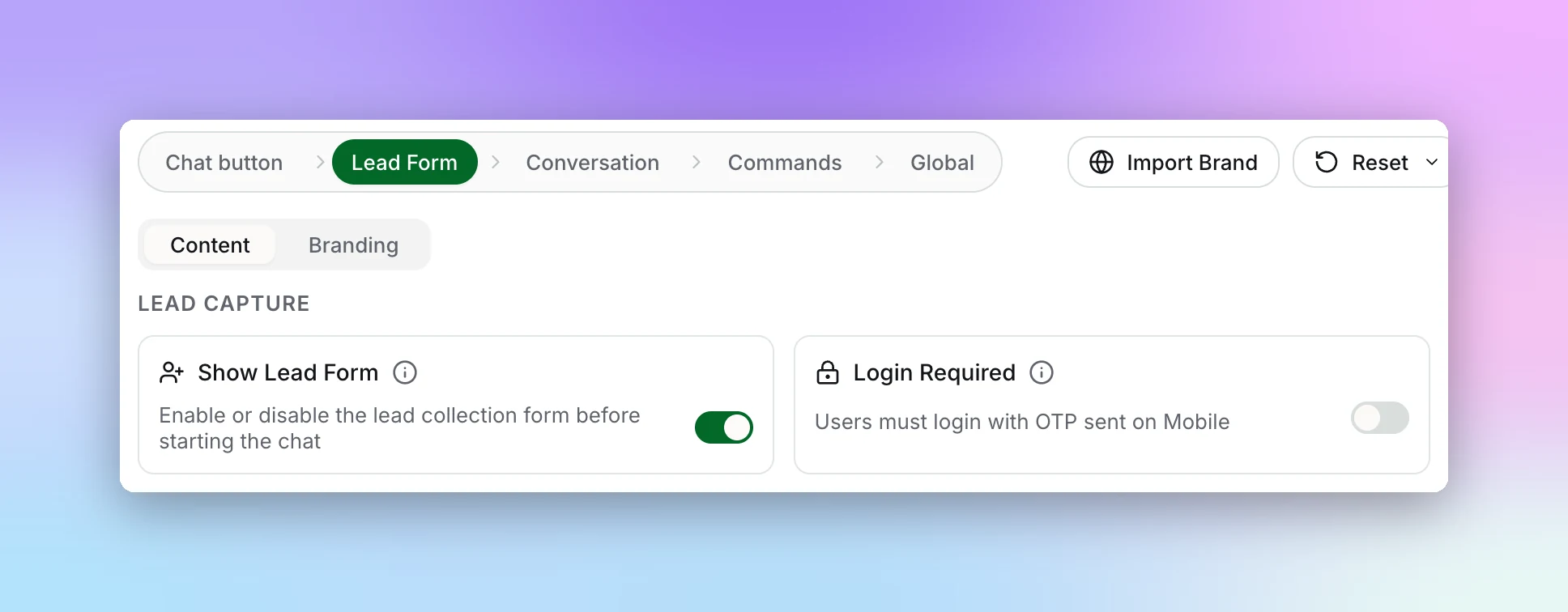
Lead Capture Settings
- Show Lead Form — Ask visitors for basic details (name, email or phone) before they chat. Switching it off asks you to confirm, because you'll no longer know who is chatting.
- Login Required — Visitors verify with a one-time passcode sent to their mobile before the chat starts. It needs Show Lead Form switched on, and turning it on adds the phone field to the form. OTP Verification is a paid add-on on Pro and Max (usage-based, recharge from $100).
- Supported Countries for OTP — Limit which phone country codes can receive login passcodes. Leave it empty to allow every country.
Note:
Requiring OTP login adds a step before the chat, but it means every lead has a verified phone number. Use it when lead quality matters more than volume.